Create a template
Use the following set of instructions to create templates in RightSignature.
-
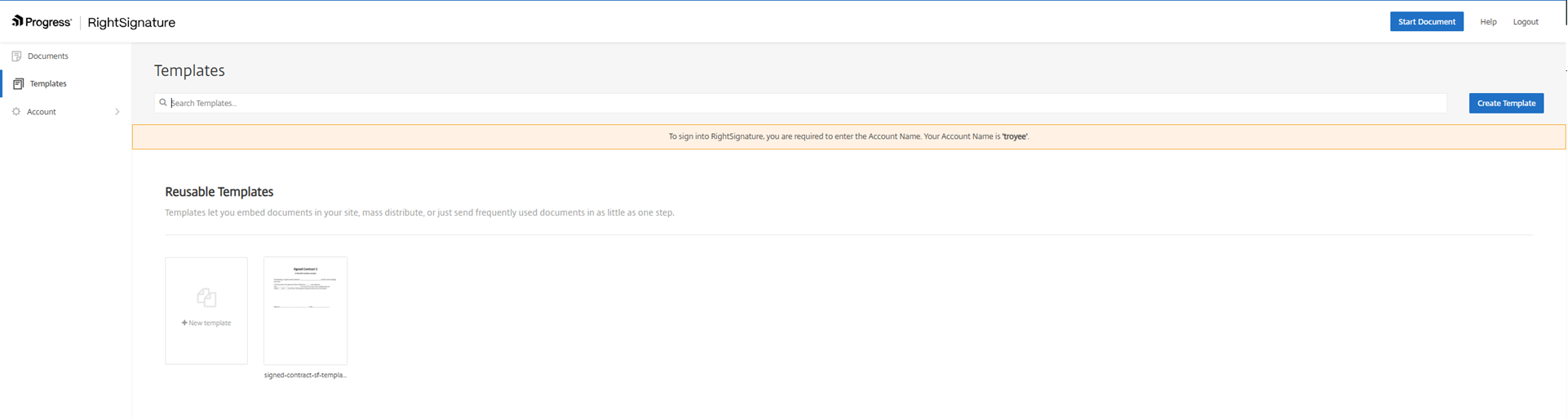
From the RightSignature dashboard, select Templates in the left menu bar, then select Create Template.
-
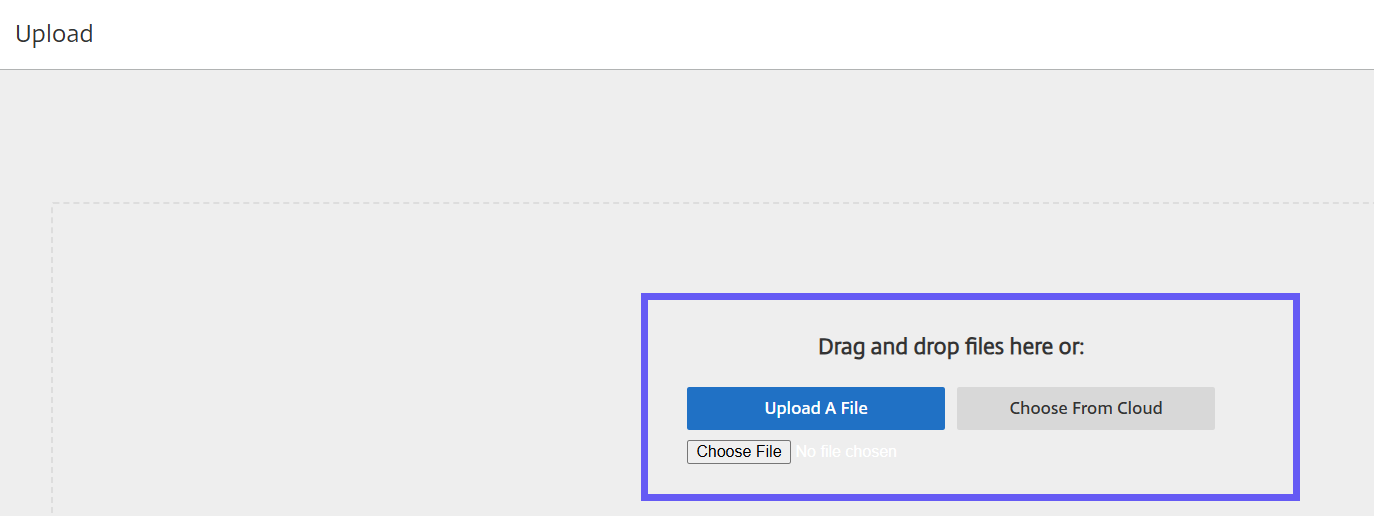
Select Upload A File to open the document you want to build a template with.
-
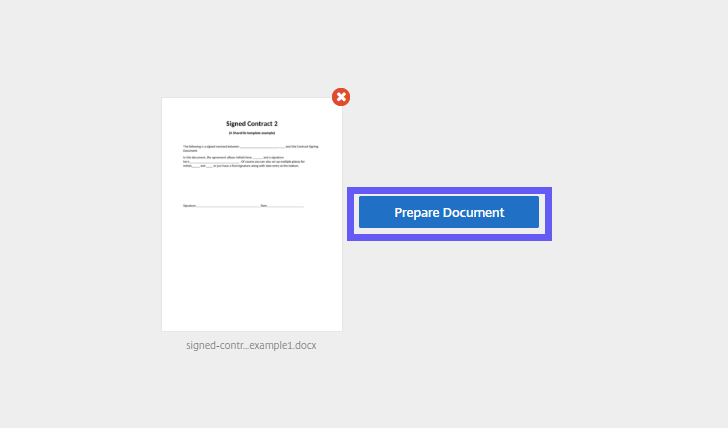
If replacing the underlying source file used to create the template, select the red x. Afterwards, select the new source file of the template.
-
After uploading a document, select Prepare Document to continue editing.
-
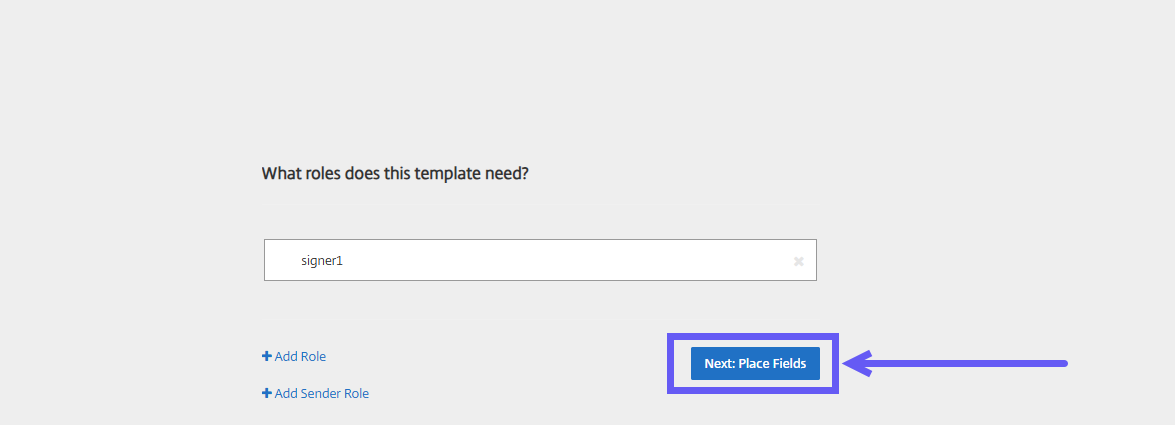
First, edit the roles on the template - change the role names, edit the order, or add/delete roles.
-
Select Next: Place Fields to create the signer and annotation fields for the template.
-
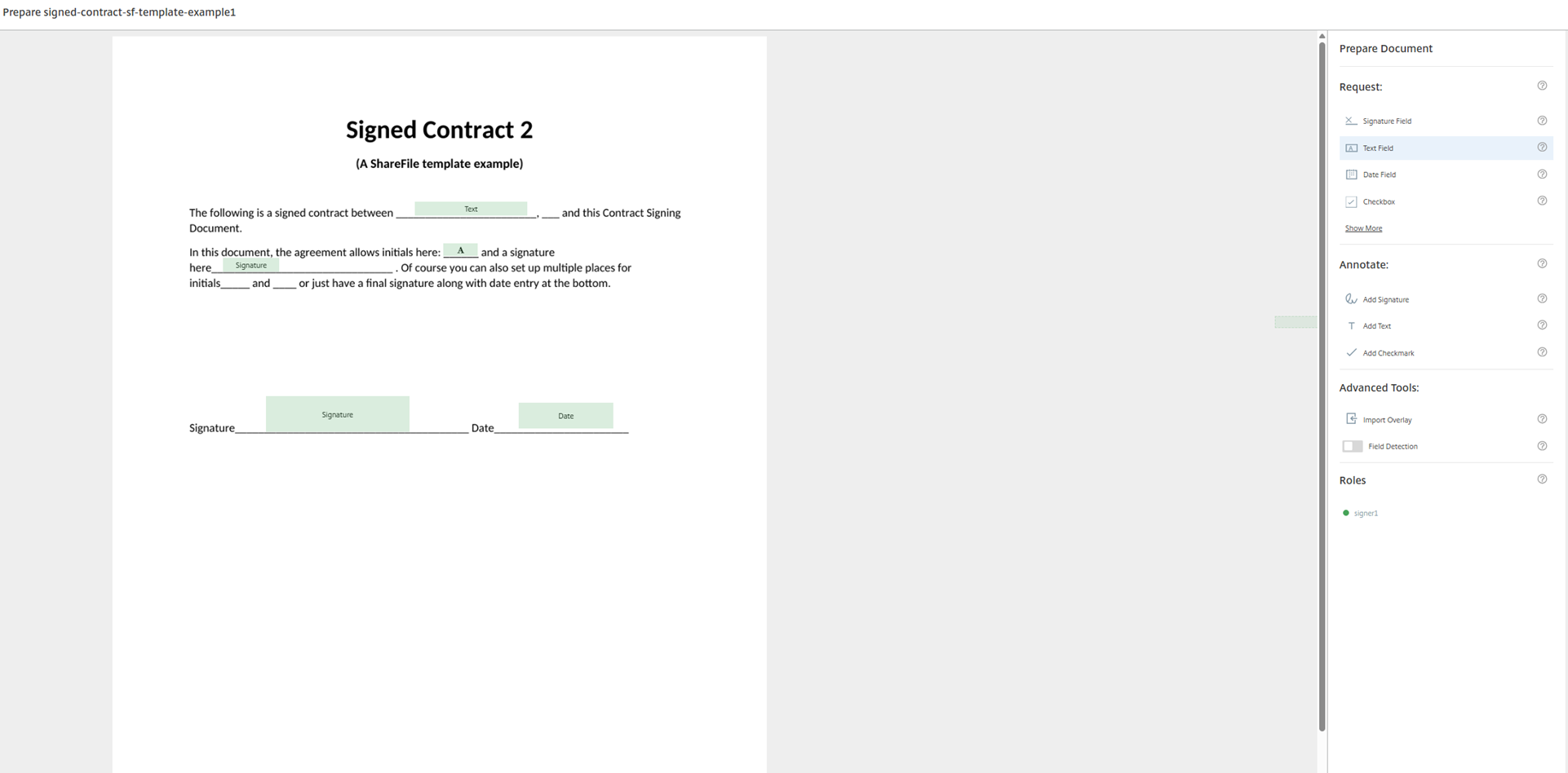
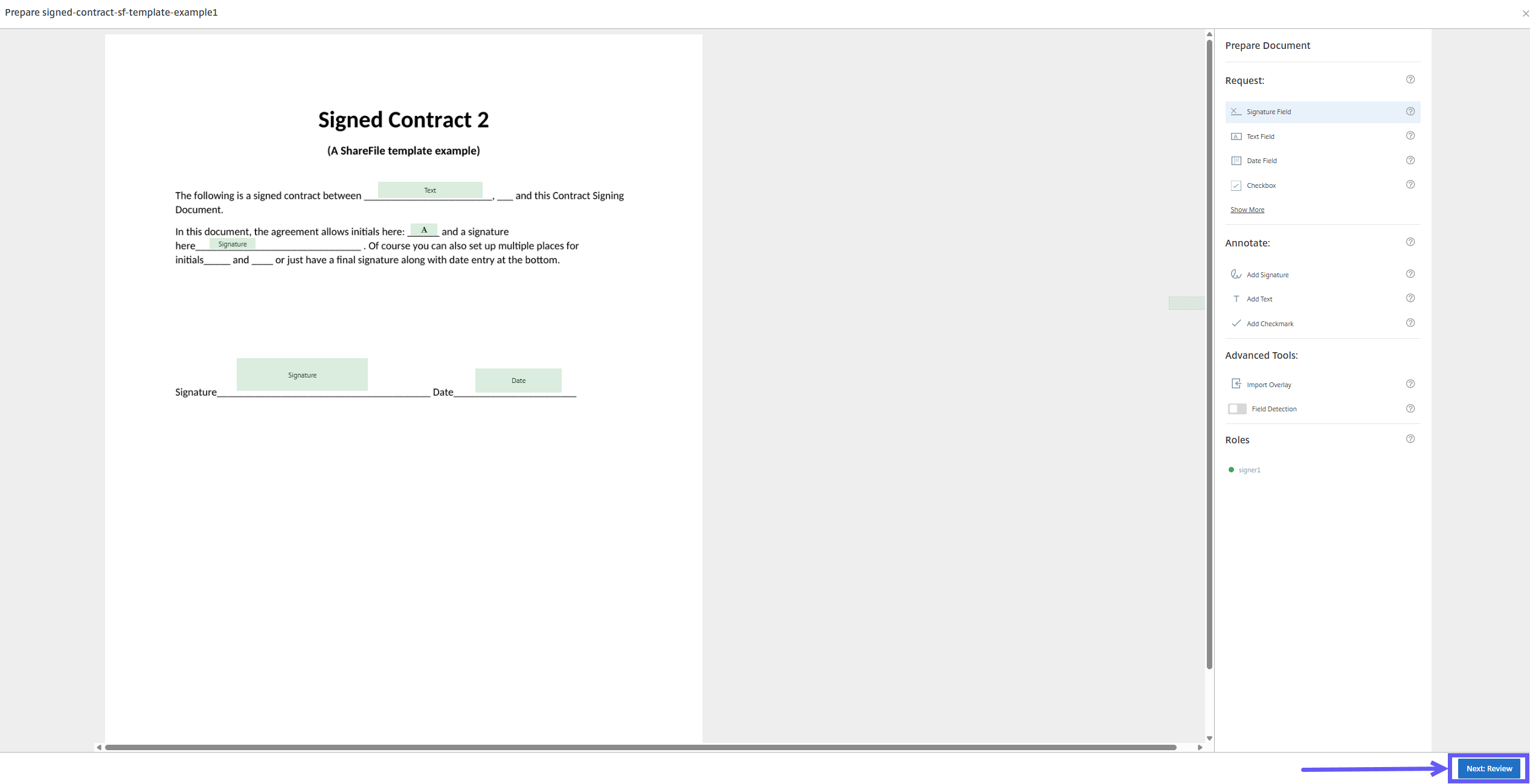
Once a role is added, create the signer and annotation fields for the template. When finished with edits to the document, click Next: Review.
-
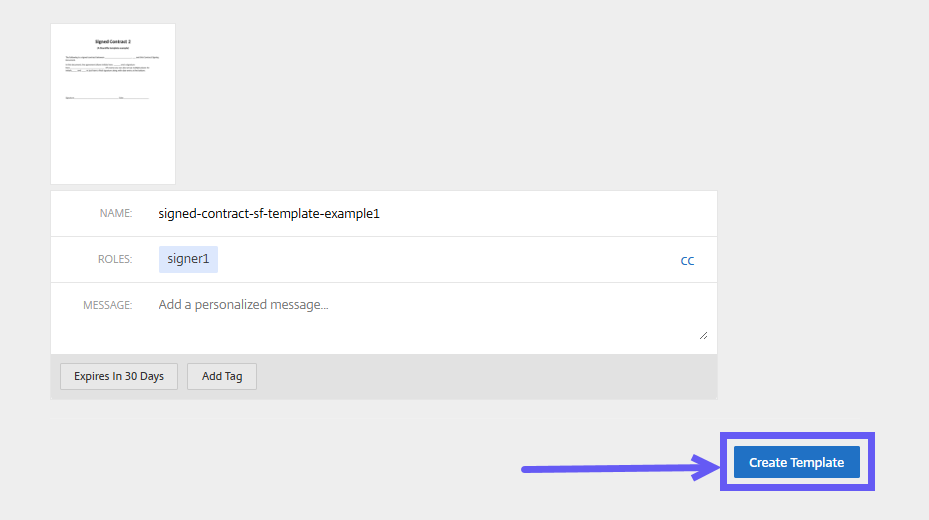
Select Create Template.