Request files using the ShareFile web app
Use the ShareFile web app to request files with a link or send a request to specific people. Choose where the uploaded files will be stored before creating your request.
Important:
For recipients uploading files: Do not drag files or folders directly from a compressed ZIP archive opened in Windows Explorer. Extract the ZIP archive to a local folder first, then upload the extracted contents. Uploading directly from the compressed-folder view may produce unexpected results.
To start a file request:
-
Open your ShareFile account.
-
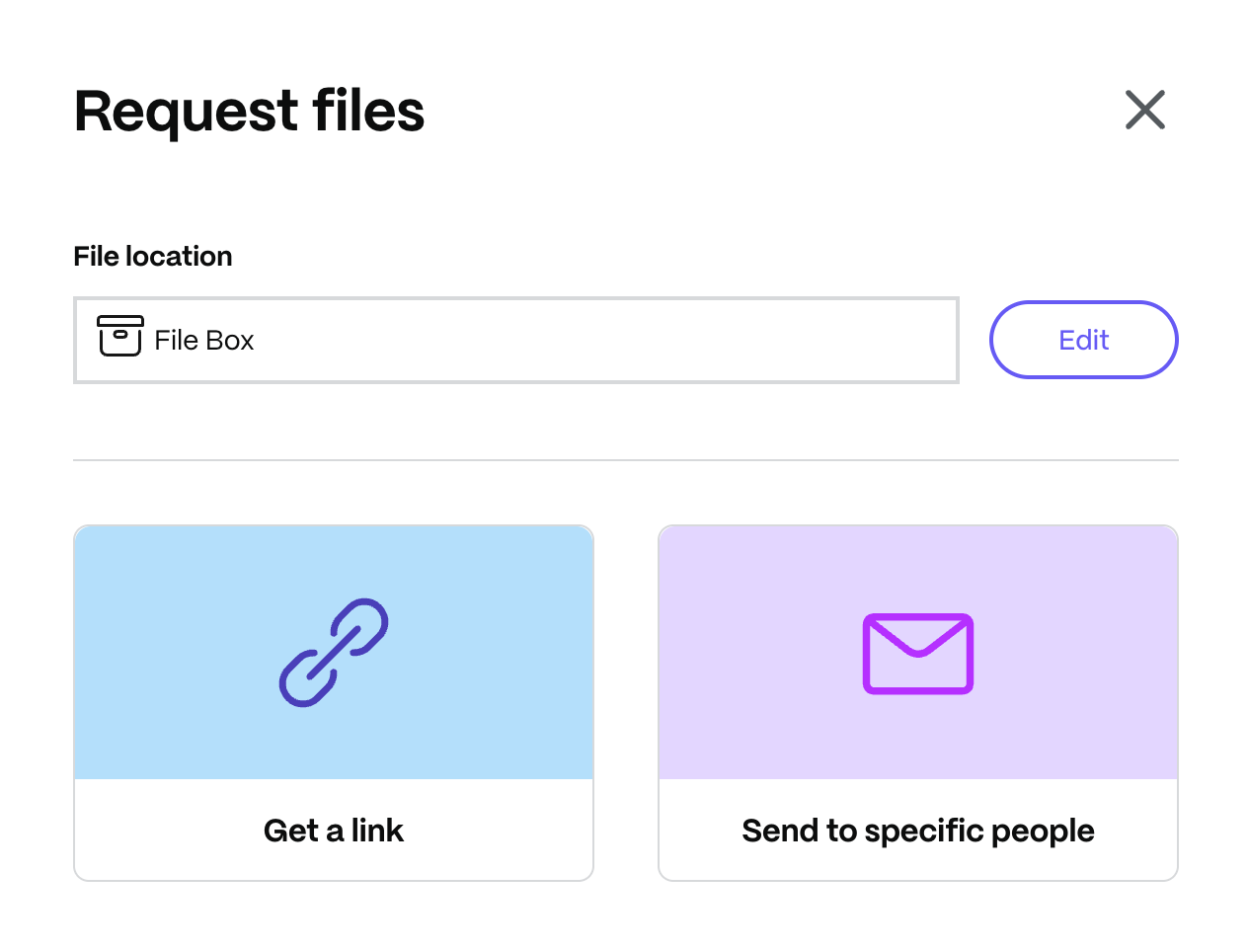
Select Request Files from the Shortcuts tile on the ShareFile dashboard.
The Request files dialog opens.
-
Select Edit to change the File location if necessary.
Select the upload location, then select Done.
Note:
The default upload location is File Box. For more information, see File Box.
-
Choose Get a link to copy a request link, or Send to specific people to send a request email through ShareFile.
Request files - Get a link
Create a request link to share in an email or another communication app.
-
Select Get a link.
-
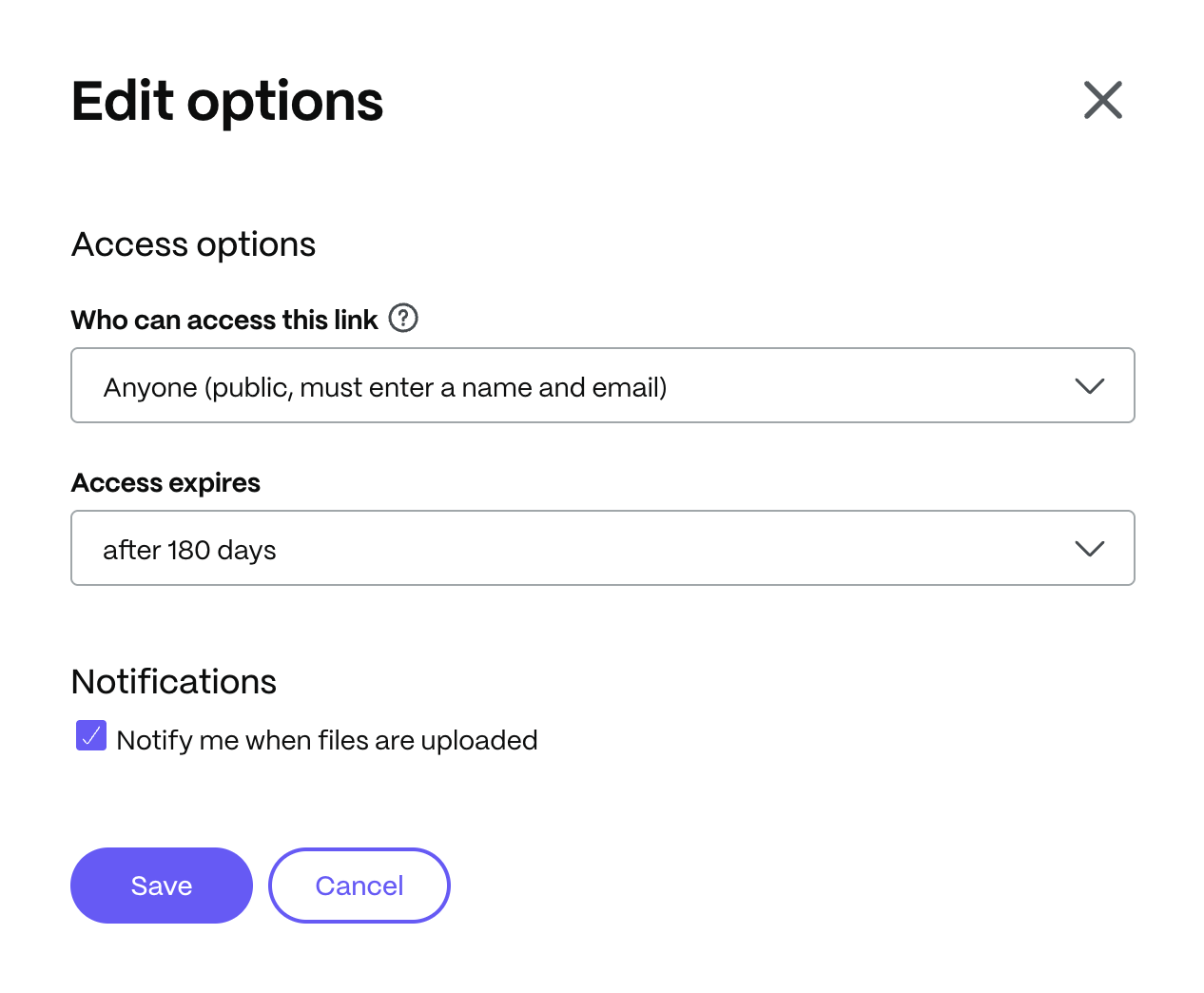
Select Edit options to choose who can access the link, when access expires, and whether you receive upload notifications. Select Save to apply your changes.
-
Copy the request link and paste it into your email or another communication app.
Edit options - Get a link
Use Edit options to control who can upload files, when access expires, and whether you receive upload notifications.
-
Under Access options, configure the following:
-
Who can access this link: Choose Anyone (public), Anyone (public, must enter a name and email), Client contacts and employee users (after signing in), or Employee users (after signing in).
-
Access expires: Choose when recipients can no longer use the link.
-
-
Under Notifications, select Notify me when files are uploaded if you want upload notifications.
-
Select Save.
Request files - Send to specific people
Use this option to send a file-request email through ShareFile.
-
Select Send to specific people.
The Send to specific people dialog opens.
-
Enter the recipient's email address in To.
-
Edit the prefilled Subject if needed.
-
Enter a message if needed.
-
Select the Remember subject and message check box if desired.
-
To change access or notification settings, select Edit options, configure the settings in Edit options - Send to specific people, then select Save to return to the request.
-
Select Request.
The request is sent.
Edit options - Send to specific people
Before sending the request, use Edit options to configure recipient access and notifications.
-
Select Edit options to review and set the following options:
-
Access options:
-
Access expires: Choose when recipients can no longer use the request.
-
Require recipients to sign in: Select this checkbox to require authentication.
-
-
Notifications:
-
Notify me when files are uploaded: Select this checkbox to receive upload notifications.
-
Send me a copy of this email: Select this checkbox to receive a copy of the request email.
-
-
-
Select Save.