Native data loss prevention for ShareFile-managed Storage Zone
ShareFile Native Data Loss Prevention (DLP) helps administrators protect sensitive information stored in ShareFile by detecting sensitive content in files and applying policies to control how that content can be shared or downloaded. It is designed to reduce the risk of data leaving the organization through accidental disclosure, inappropriate internal activity, or unauthorized access to a user account.
With Native DLP, administrators can create policies that identify sensitive content and specify actions to take when a file matches the policy.
DLP supports account-wide policies and basic enforcement actions such as:
- Blocking sharing
- Blocking downloads
DLP is disabled by default and must be enabled by an administrator.
How native DLP works
Native DLP evaluates files for sensitive content and applies the appropriate DLP policy.
The basic flow is:
File uploaded or modified -> Content analyzed -> Classification evaluated -> DLP policy evaluated -> Action applied
For example:
An administrator creates a policy to detect files containing PII and block external sharing. When a user uploads a file containing PII:
- ShareFile analyzes the file.
- The file matches the PII classification.
- The DLP policy is triggered.
- The file is protected according to the policy.
- An attempt to share the file externally is blocked.
- The DLP event is recorded for administrators.
Prerequisites before you begin
To use Native DLP:
- You must have the required administrator permissions.
- The account must have access to the Native DLP capability included with the applicable ShareFile plan.
- Files must be in a supported format for content analysis.
Creating & managing classification and DLP policies
-
Sign in to ShareFile as an administrator.
-
Go to Account Settings > Security.
-
Locate and select Data loss prevention policy under ShareFile Managed Storage Zone.
-
Enable DLP by clicking on Create a new policy.
-
Save your changes.
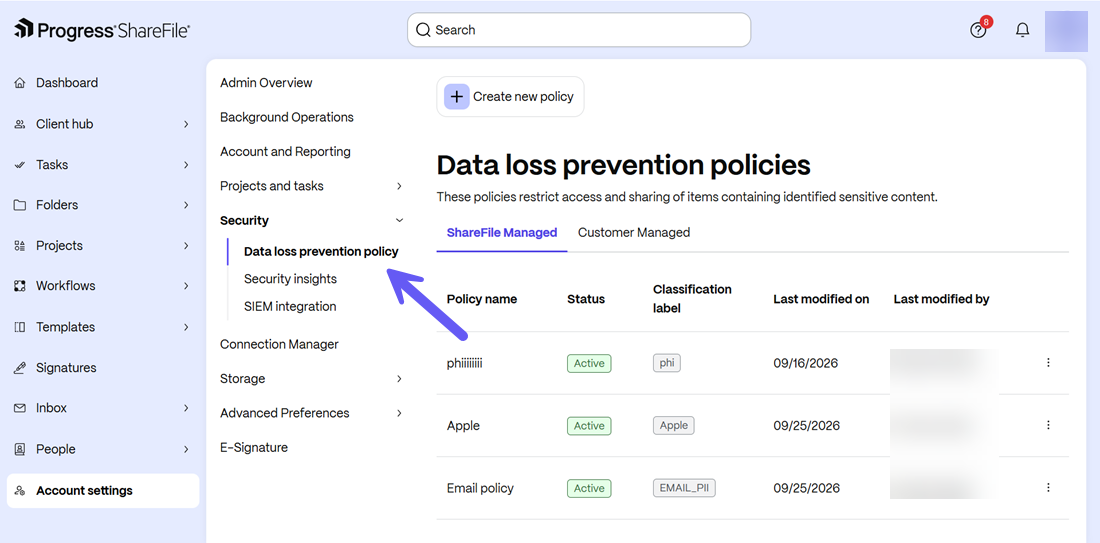
Administrators can create DLP policies to identify sensitive content and specify what ShareFile should do when the policy is triggered.
To create a policy
-
Follow the steps in the above section till step 4.
-
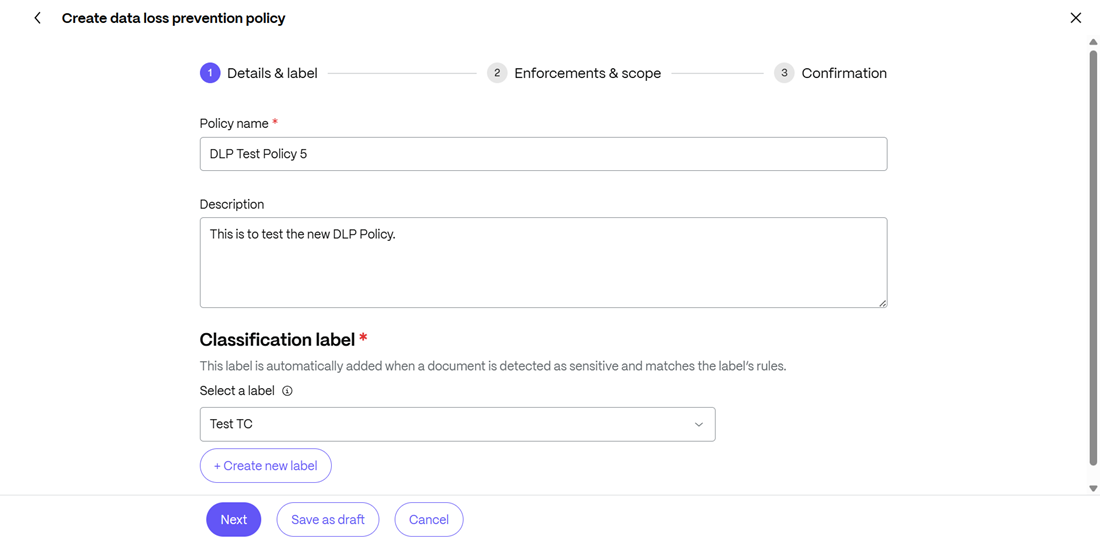
Select Create a new policy.
-
Enter a name and description for the policy.
-
Select the sensitive content classification the policy should detect. Once selected, click on Next.
Note:
The various classification label scenarios are explained in detail in the next section.
-
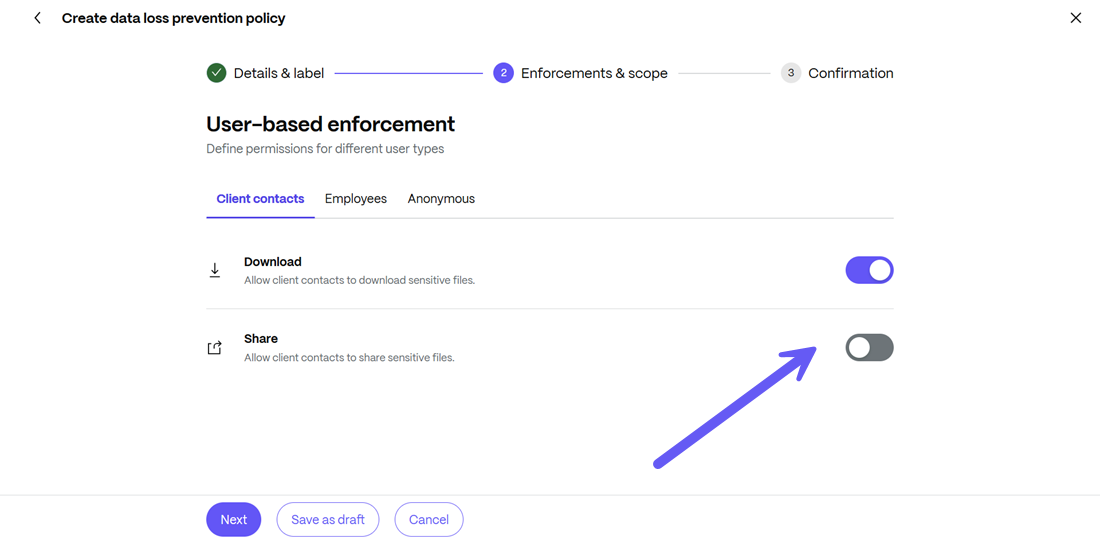
The enforcement screen is displayed. Select one or more enforcement actions. Once finalized, click on the Next button.
-
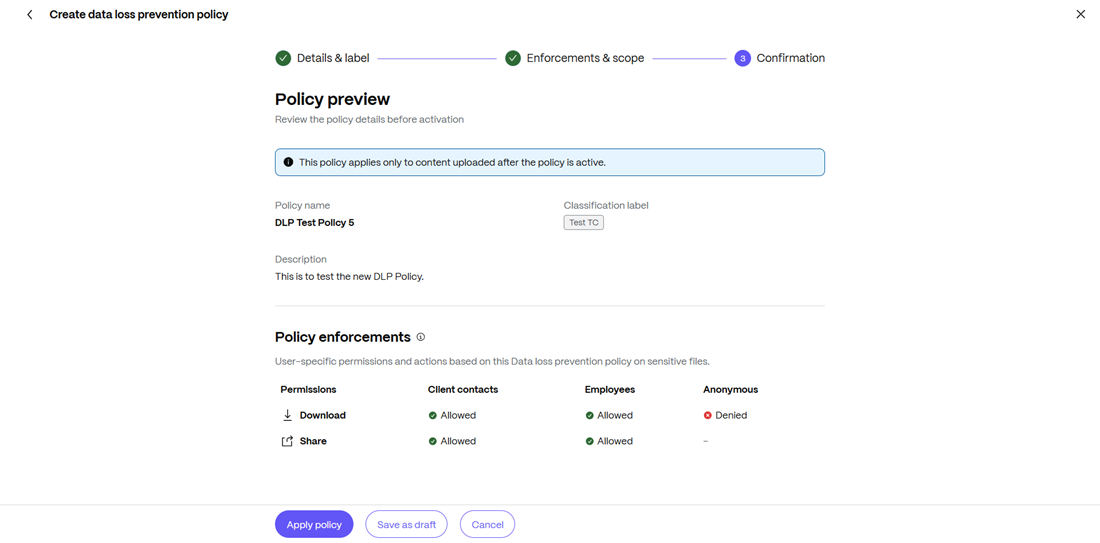
From the Confirmation screen that opens, review the policy configuration and relevant details.
-
Once all the details are confirmed, click on Apply policy and the new DLP policy will be implemented. You can also choose to click on the Save as draft button to continue later on the policy.
Example:
Policy name: Protect PII
Classification: Contains Personal Information (PII)
Actions:
- Block sharing
- Block download
When a file matches the policy, the configured actions are applied.
Classification rule types
A classification label describes the content detected. A classification rule defines how to detect it. The associated DLP policy determines whether to alert an administrator, block sharing, or block downloads.
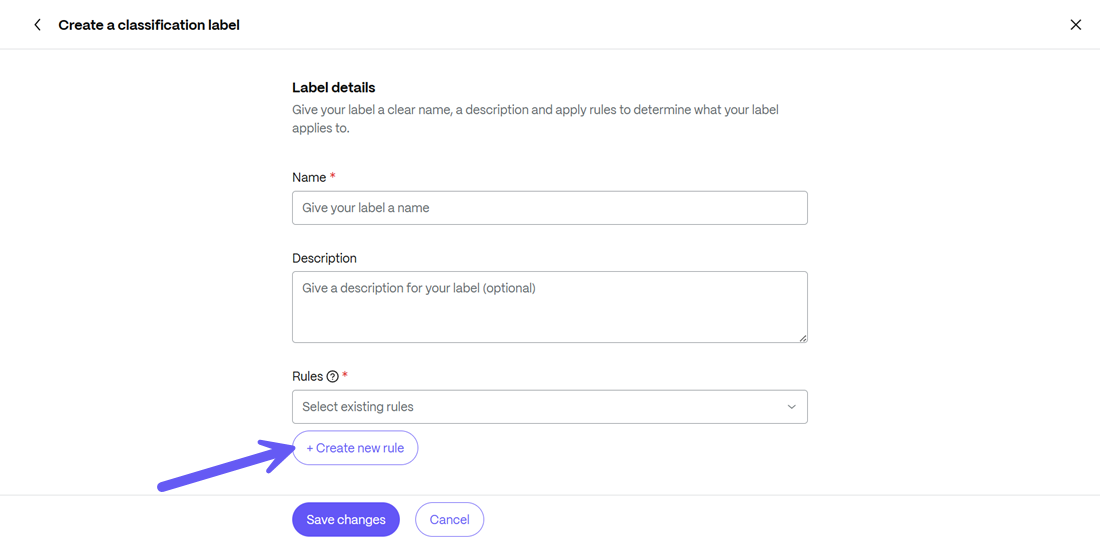
Native DLP provides the following classification label scenarios:
Keyword rules
Use a keyword rule when sensitive content can be identified by specific words or phrases. For example, a healthcare policy might look for “HIPAA”, “patient”, or “medical record”. Use keyword rules when documents contain recognizable words or phrases.
- Choose whether the rule should match any configured word or all configured words.
- Use precise terms to reduce unrelated matches.
- Consider variations that may appear in real documents.
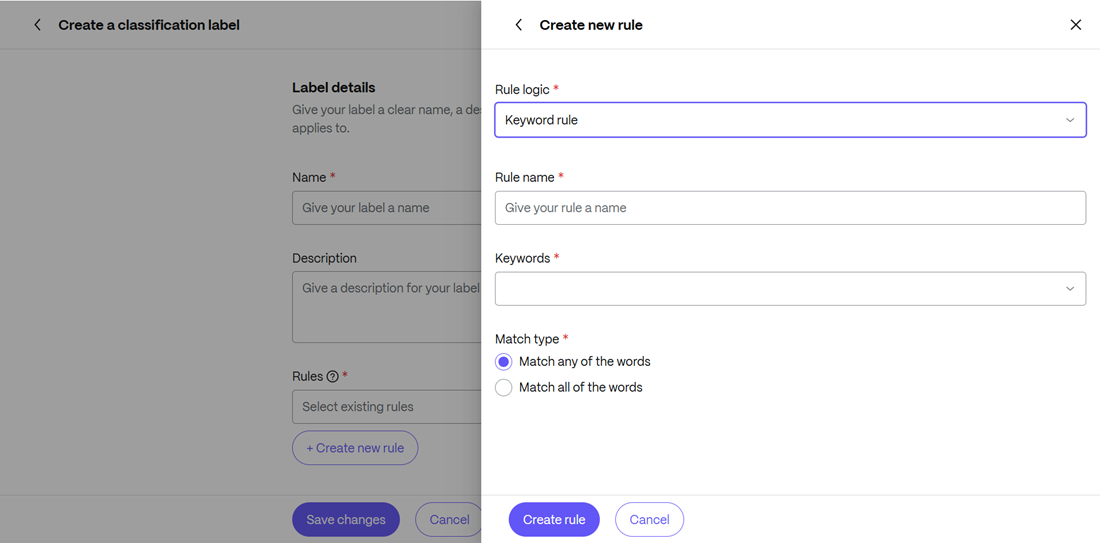
| Example classification label | Associated keyword rule | Real-life example | Example policy action |
|---|---|---|---|
| Confidential Project Information | Match any: Project Orchid, Project Cedar | A project update contains “Project Orchid launch planning.” Either configured phrase triggers the classification. | Block sharing |
| Internal Use Only | Match the phrase Internal Use Only | An internal operating procedure includes “Internal Use Only” in its document text. | Block sharing |
| Confidential Financial Information | Match all: Confidential, Financial Forecast | A finance report contains both “Confidential” and “Financial Forecast.” A document containing only one does not satisfy this rule. | Block sharing and download |
Note:
Keyword rules detect the configured terms without establishing their meaning. For example, a training document that quotes “Internal Use Only” may also match. Use distinctive phrases to reduce unrelated matches.
Regular expression rules
Use a regular expression, or regex, when sensitive content follows a predictable pattern. Typical examples include tax identifiers, customer IDs, employee IDs, account numbers, and other structured values. Use regex rules when information follows a consistent format. These examples detect formatting; they do not verify that an identifier is genuine.
-
Name the rule: Use a name that identifies the data pattern, such as “PAN number.”
-
Enter the expression: Provide the regular expression that represents the expected pattern.
-
Test the expression: Enter a sample value in the test area and confirm that the expression matches the intended format.
-
Create the rule: Save the rule after validating it. The test value is used only for testing and is not retained as policy content, according to the walkthrough.
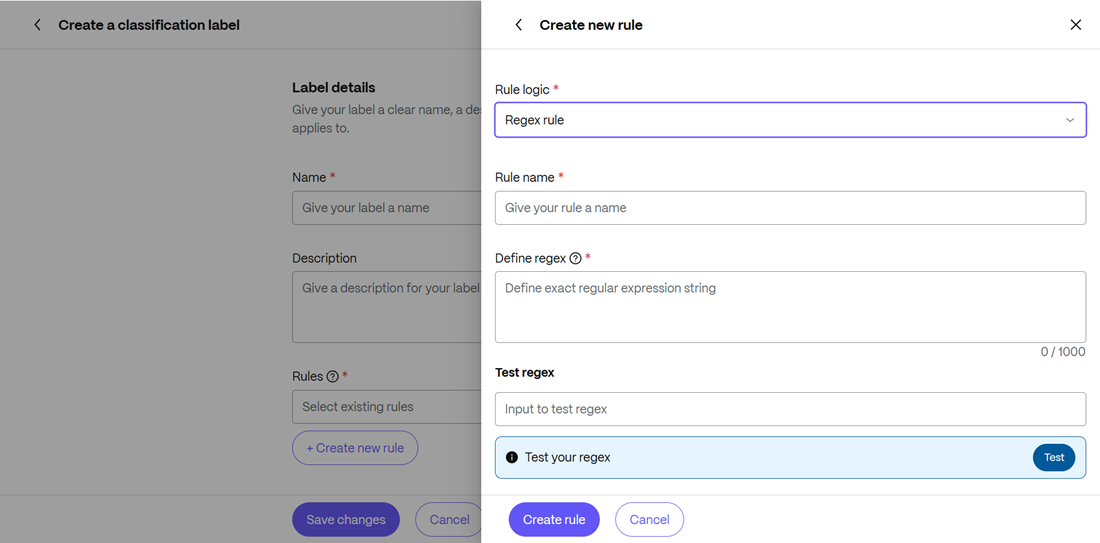
| Example classification label | Associated regular expression rule | Real-life example | Example policy action |
|---|---|---|---|
| Employee Identifiers | EMP-[0-9]{6} | An onboarding document contains Employee ID: EMP-004218. | Block sharing |
| Customer Account Information | CUST-[0-9]{8} | A customer service report contains Account: CUST-00123456. | Block sharing |
| Internal Access Tokens | ACMEKEY-[A-Z0-9]{16} | A troubleshooting document accidentally includes ACMEKEY-A1B2C3D4E5F6G7H8. This assumes the organization uses that token format. | Block sharing, and block downloads |
Note:
Test both matching and nonmatching values before saving the rule. For the employee identifier example, EMP-004218 should match; EMP-4218 should not. Adjust the expression to match the organization’s actual identifier format and validate it in the product’s regex test area.
AI/LLM rules
Use an AI/LLM rule when sensitive content is better described by meaning or context than by exact terms or fixed patterns. Use AI/LLM rules when classification depends on meaning or context.
The following prompts are examples to test with representative documents.
- Give the rule a descriptive name.
- Write a focused prompt that describes the content to identify.
- Set the available AI strictness or confidence control as appropriate for your use case.
- Test with representative content before relying on the rule in production.
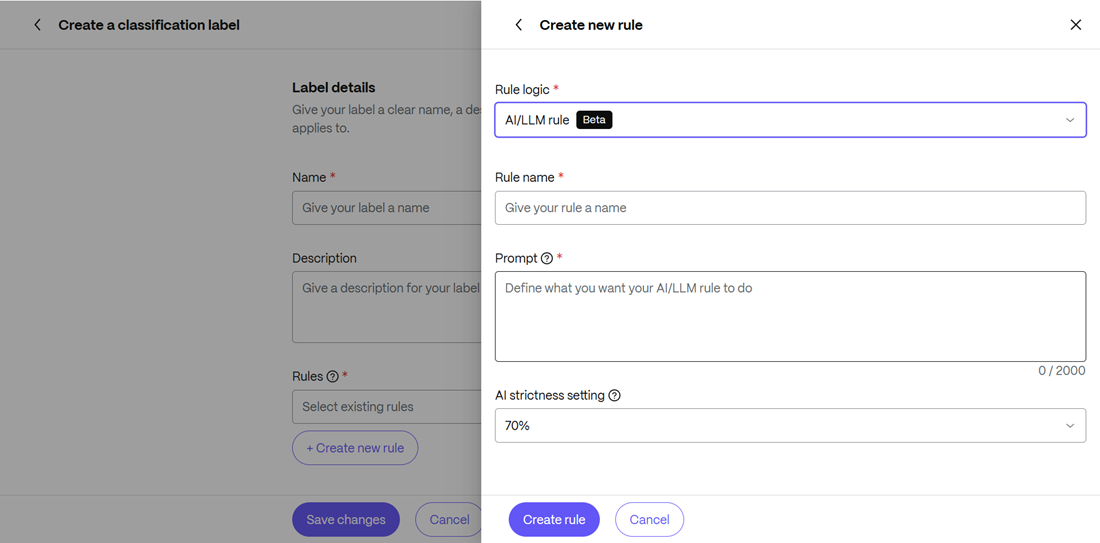
| Example classification label | Associated natural-language rule | Real-life example expected to match | Example policy action |
|---|---|---|---|
| Personal Health Information | “Identify documents containing health information about an identifiable person, including diagnoses, treatment, medication, or test results. Exclude general health education without individual patient information.” | A patient summary names Jordan Lee and describes their diagnosis and prescribed treatment. | Block sharing |
| Confidential Acquisition Plans | “Identify documents describing concrete, non-public plans to acquire, merge with, or sell a company, including proposed terms, valuation, due diligence, or announcement timing. Exclude public news and general training material.” | A leadership memo discusses an unannounced acquisition, proposed price, and target signing date. | Block sharing |
| Confidential Employee Relations | “Identify documents describing an identifiable employee’s performance concerns, disciplinary action, grievance, workplace investigation, or planned termination. Exclude general HR policies and blank templates.” | An HR case report names an employee and documents an investigation and proposed disciplinary action. | Block sharing and block downloads |
| Unreleased Product Information | “Identify documents containing non-public plans for unreleased products or features, including planned launch dates, technical designs, or launch strategy. Exclude publicly released product documentation.” | A roadmap describes an unannounced feature and its planned release date. | Block sharing |
Note:
AI classification can vary with document context and the configured strictness or confidence setting. Test examples that should match and examples that should not, such as a patient record versus a general health brochure.
DLP actions for enforcement
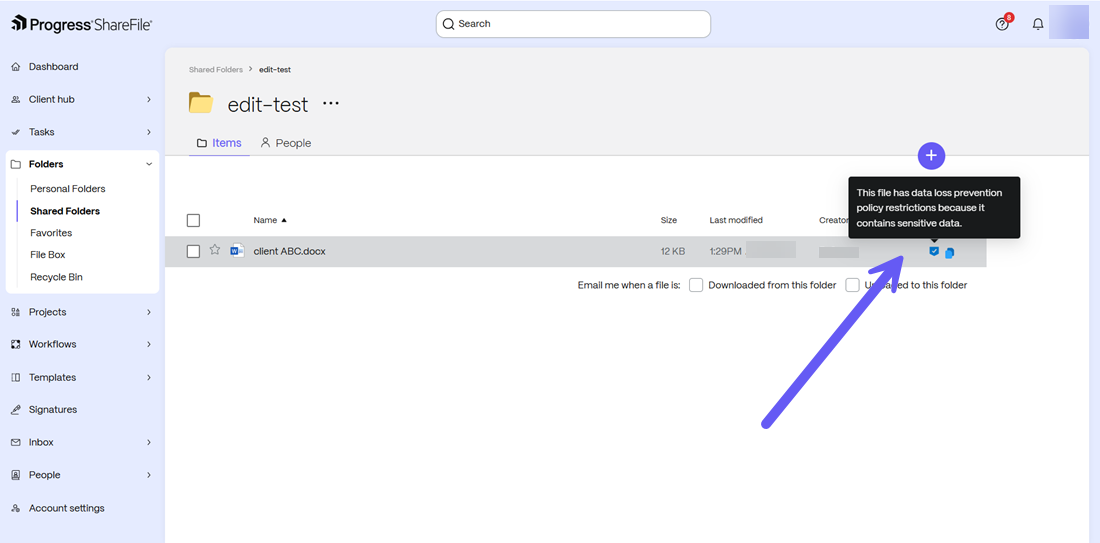
If any action is triggered by an active DLP policy, the following actions are available to prevent unauthorized usage:
Block sharing
Prevents users from sharing a file when the DLP policy requires sharing to be blocked.
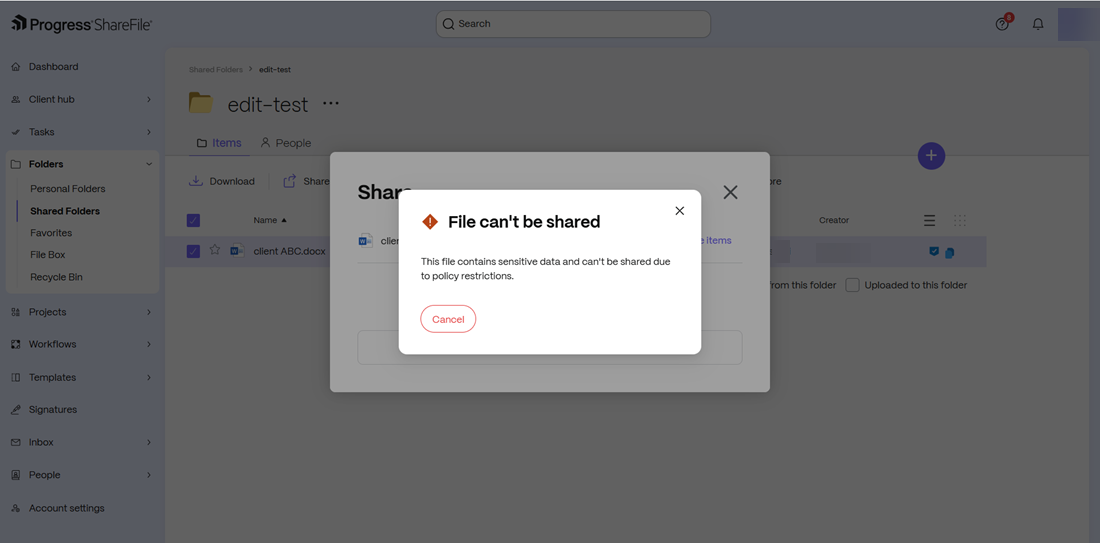
Sharing enforcement for DLP is intended to protect sensitive content from being shared externally while allowing normal internal collaboration where supported by the policy.
When a user attempts a restricted sharing action, ShareFile displays a notification explaining that the action is restricted by the organization's DLP policy.
Block download
Prevents a user from downloading a file when the applicable DLP policy requires downloads to be blocked.
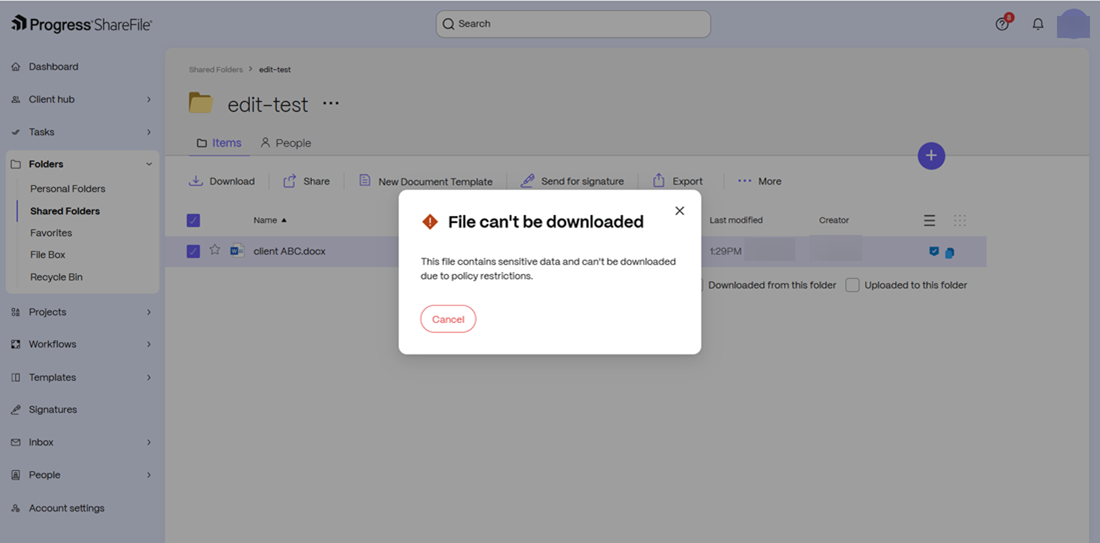
The user receives a notification explaining that the download has been restricted by the organization's DLP policy.
File scanning and classification
DLP evaluates the content of supported files when they are uploaded or modified.
The classification system analyses the file and determines whether it matches the configured sensitive-content classification.
For example:
| File | Content | Classification |
|---|---|---|
| employee-record.pdf | Personal information | PII |
| patient-record.pdf | Health information | PHI |
| company-brochure.pdf | No sensitive information | No matching classification |
The resulting classification is then used by the DLP policy to determine whether enforcement is required.
Supported file types
DLP supports content analysis for text-based files, including:
- .txt
- .doc
- .docx
The maximum file size limit is 20MB. Other file types are not included in the content-scanning capability.
Support for additional file types may be introduced in future releases.
What happens when a file matches a DLP policy?
Consider the following policy:
Policy: Protect Personal Information Classification: PII Action: Block Sharing
A user uploads:
Employee_Records.pdf
The file contains personal information.
In this scenario, in accordance with the DLP policy:
- The file is analyzed.
- The configured sensitive content is detected.
- The applicable DLP protection with the file is classified and enforced.
- The DLP event is recorded.
- Sharing/download actions are restricted by the policy.
If the user attempts a restricted action, they receive an appropriate DLP notification.
How the user experiences this policy
DLP is designed to provide feedback at the point where a restricted action is attempted.
For example:
Sharing blocked: This file is protected by your organization's data protection policy and cannot be shared.
Similarly, when a download is blocked:
Download blocked: Your organization's data protection policy does not allow this file to be downloaded.
Users receive a visual indication that DLP protection applies to the file where supported by the product experience.
Internal and external sharing
DLP policies can control sharing of files containing sensitive information.
You can use DLP to prevent sensitive files from being shared externally while continuing to support internal collaboration according to the configured policy.
For example:
| Action | Result |
|---|---|
| Upload sensitive file | Allowed |
| Internal collaboration | Allowed where permitted |
| External sharing | Blocked when policy requires |
| Download | Blocked when policy requires |
The exact behavior depends on the enforcement actions configured for the policy.
DLP events and auditing
DLP activity is recorded so administrators can understand when policies have been triggered and what enforcement action was taken.
DLP events are available through the Usage Report.
Events can include information such as:
- User
- File
- DLP policy
- Detected sensitive content
- Action attempted
- Enforcement result
- Date and time
Administrators can use this information to investigate DLP activity and understand how policies are affecting users.
When DLP cannot analyze a file
Some files may not be successfully analyzed.
Examples include:
- Unsupported file types
- Files exceeding supported processing limits
- Encrypted or password-protected content
- Corrupt files
- Other processing failures
A file that cannot be analyzed should not be treated as equivalent to a file that has been confirmed to contain no sensitive content.
The system records the appropriate processing status so that administrators can understand limitations in DLP coverage.
DLP Policy Management
Administrators can manage their DLP policies from the DLP settings area.
The current DLP model supports:
- Creating policies
- Enabling policies
- Disabling policies
- Selecting classifications
- Configuring enforcement actions
Policy Scope
DLP policies apply at the account level.
More granular policy targeting, such as applying policies to specific folders or other ShareFile containers, is planned for future enhancements.
Troubleshooting
Q: A DLP policy did not trigger
Ans: Check the following:
- DLP is enabled for the account.
- The policy is enabled.
- The file type is supported.
- The file contains content matching the configured classification.
- The file has completed processing.
- Review the Usage Report for the corresponding DLP event.
Q. A file cannot be downloaded
Ans: The file may be protected by a DLP policy configured with Block Download.
Review the DLP policy and the associated DLP event to determine which policy caused the restriction.
Q. A file cannot be shared
Ans: The file may be protected by a DLP policy configured with Block Sharing.
Review the DLP policy and Usage Report to identify the policy responsible for the restriction.
Q. A file was not classified
Ans: Verify that:
- The file type is supported.
- The file is within supported processing limits.
- The content is readable and not encrypted.
- The file contains content matching the configured classification.
Frequently asked questions
Q. Does DLP automatically scan every file?
Ans: DLP analyzes supported files when they are uploaded or modified, according to the capabilities enabled for the account.
Files up to 20 MB are scanned. ShareFile supports .txt, .doc, .docx, and .pdf files; encrypted, password-protected, or compressed files are not supported.
Q. Can users see the classification label assigned to a file?
Ans: No. Classification labels are not exposed as user-facing labels. Users instead receive appropriate DLP protection indicators and enforcement messages.
Q. Can I apply a policy only to a specific folder?
Ans: No. Policies are account-wide.
Q. Can I prevent users from downloading sensitive files?
Ans: Yes. Configure the DLP policy with Block Download.
Q. Can I prevent users from externally sharing sensitive files?
Ans: Yes. Configure the DLP policy with Block Sharing.
Q. Can I monitor DLP without blocking users?
Ans: Yes. Use the Alert Administrator action to monitor policy matches without applying a blocking action.
Q. Where can I see DLP activity?
Ans: DLP events are available in the Usage Report.