Security Center
Note:
Security Center is available for ShareFile Enterprise and VDR customers. Security Center builds upon the existing Security Insights experience by adding enhanced investigation workflows, expanded threat detection coverage, alert prioritization, and richer contextual information for administrators.
Security Center provides a centralized workspace for identifying, analyzing, and responding to security events across your ShareFile environment.
Like Security Insights, Security Center helps administrators monitor unusual account activity, investigate security threats, and review remediation status. Security Center extends these capabilities by providing richer context around alerts, improved navigation, additional threat detections, and direct investigation actions.
Security policy
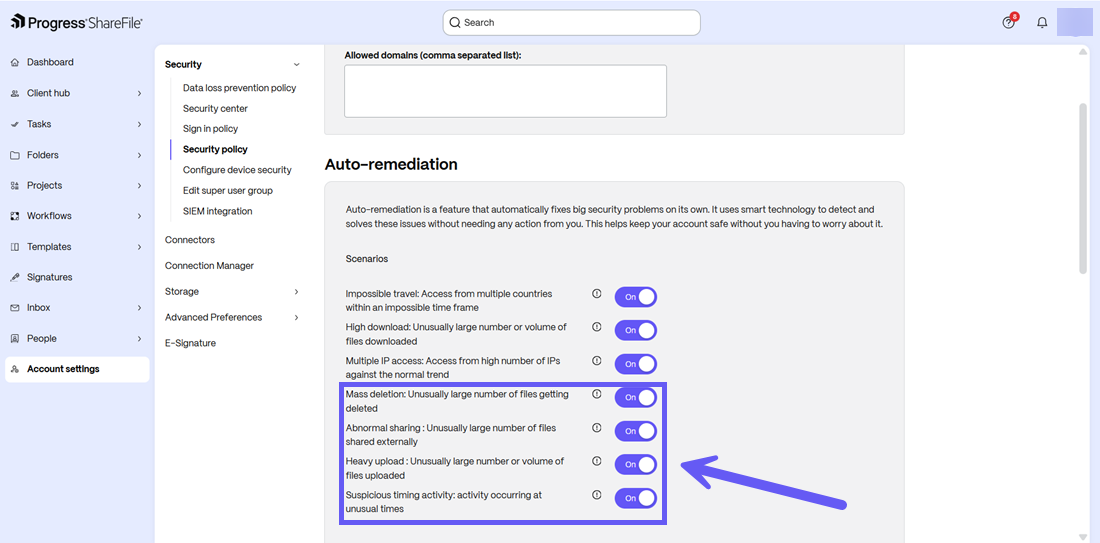
You can choose to configure the security policy to be scanned by the Security Center by enabling the following event scenarios from the Auto-remediation section under Account Settings -> Security -> Security Policy. These options are enabled by default, but Admins can choose to disable them. Any event that is enabled under Auto-remediation automatically fixes big security problems on its own.
It uses smart technology to detect and solve these issues without needing any action from you. This helps keep your account safe without you having to worry about it. In addition to the existing security policies in Security Insights, Security Center introduces new security policies for advanced threat remediation as shown below:
Accessing the security center
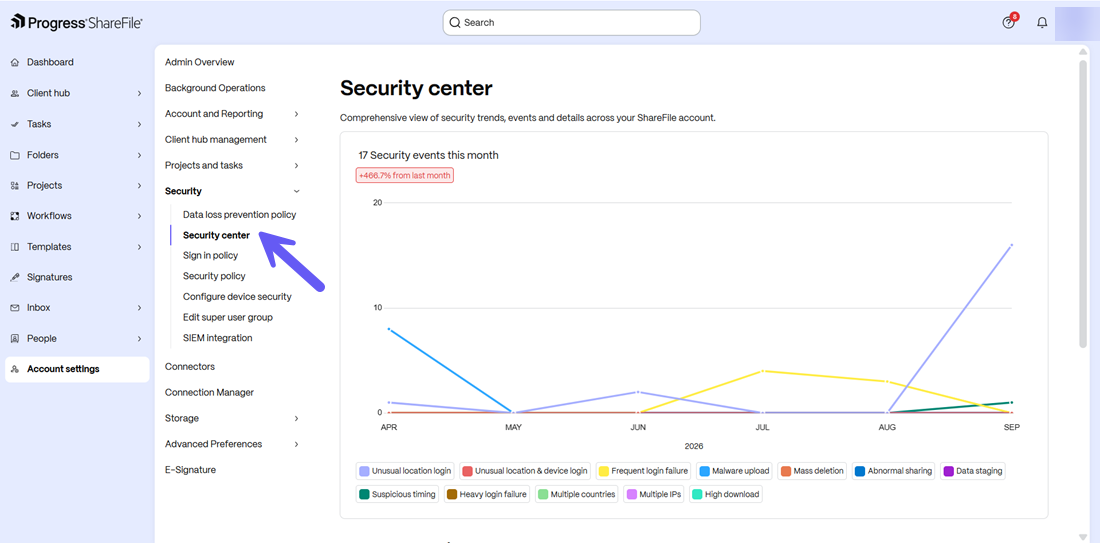
Security Center provides a consolidated view of threat trends, security incidents, user activity, and investigation data across your ShareFile account.
Security Center extends the existing Security Insights experience by introducing richer investigation workflows, expanded behavioral threat detection, alert prioritization, additional contextual indicators, and improved navigation.
These enhancements help administrators investigate security incidents faster, identify broader attack patterns, and gain greater visibility into potentially risky user activity while maintaining the familiar dashboard experience provided by Security Insights.
To access the Security Center:
-
From the ShareFile dashboard, navigate to Account Settings.
-
Go to Security.
-
Select the Security Center option.
What's new in security center?
Security Center introduces additional behavior-based detections designed to help administrators identify broader insider-risk and threat detection scenarios.
Advanced event handling
The following types of advanced event handling scenarios are identified by the Security Center in addition to existing use cases:
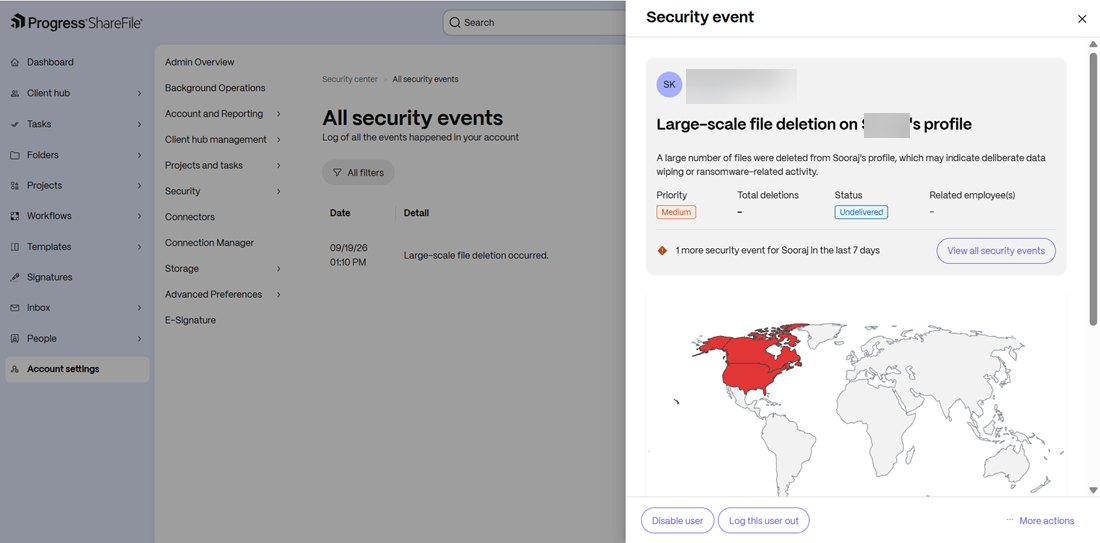
Mass deletion
This event usually identifies unusually large file deletion activity associated with a user account.
Use case
An employee account suddenly deletes a significant volume of files. Security Center surfaces the activity for investigation so administrators can determine whether the deletion was expected or potentially malicious.
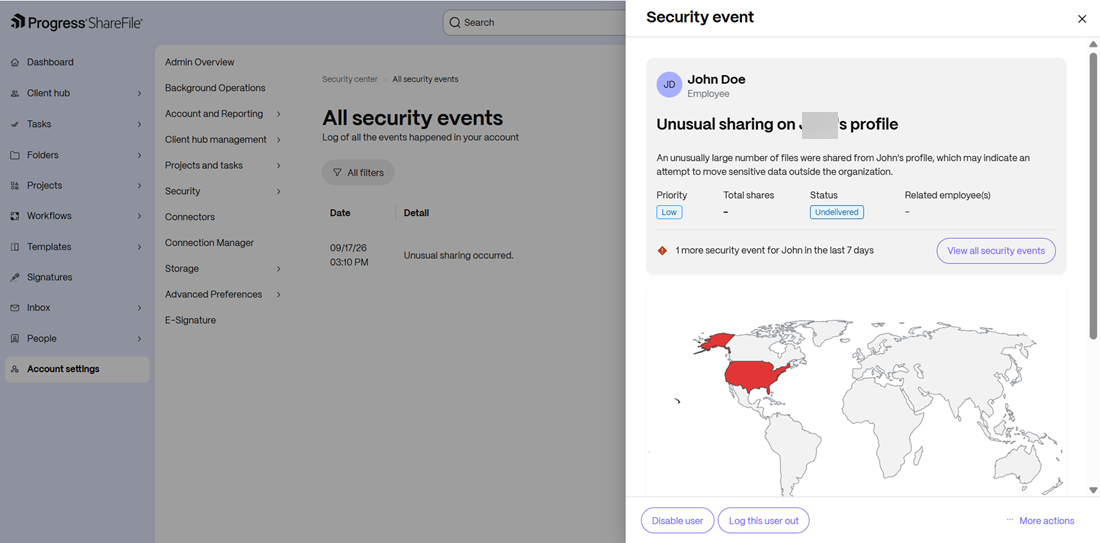
Abnormal sharing
This category is used to identify unusually high file-sharing activity.
Use case
A user suddenly begins sharing large numbers of files. Security Center helps administrators investigate whether the activity is business-related or represents possible data exposure.
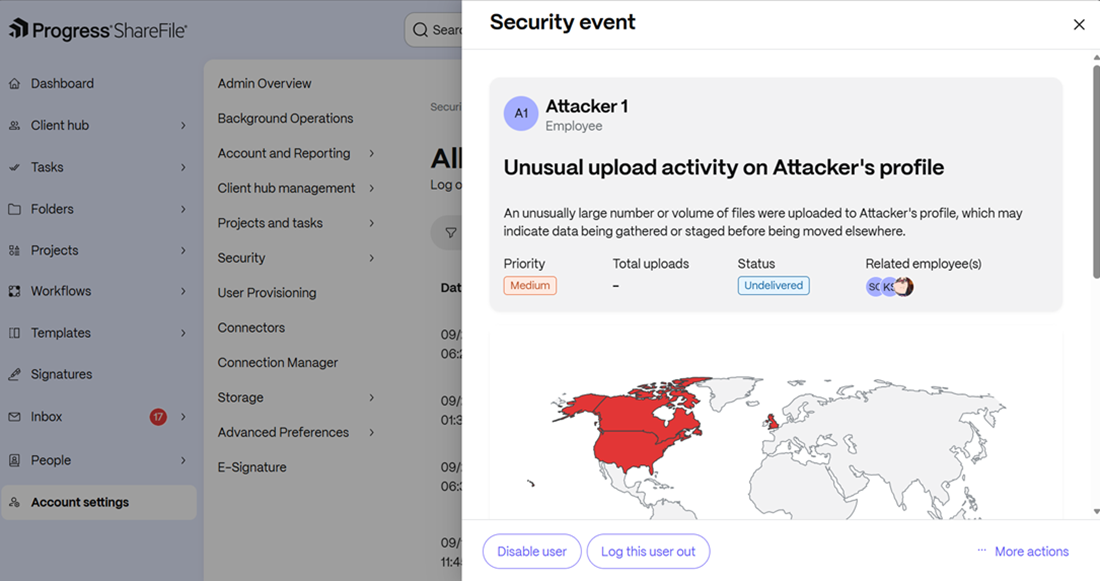
Heavy upload
This event usually Identifies unusually high upload activity.
Use case
Large quantities of files are uploaded into ShareFile within a short timeframe. Administrators can investigate whether the upload reflects a normal migration, a business process, or potentially suspicious activity.
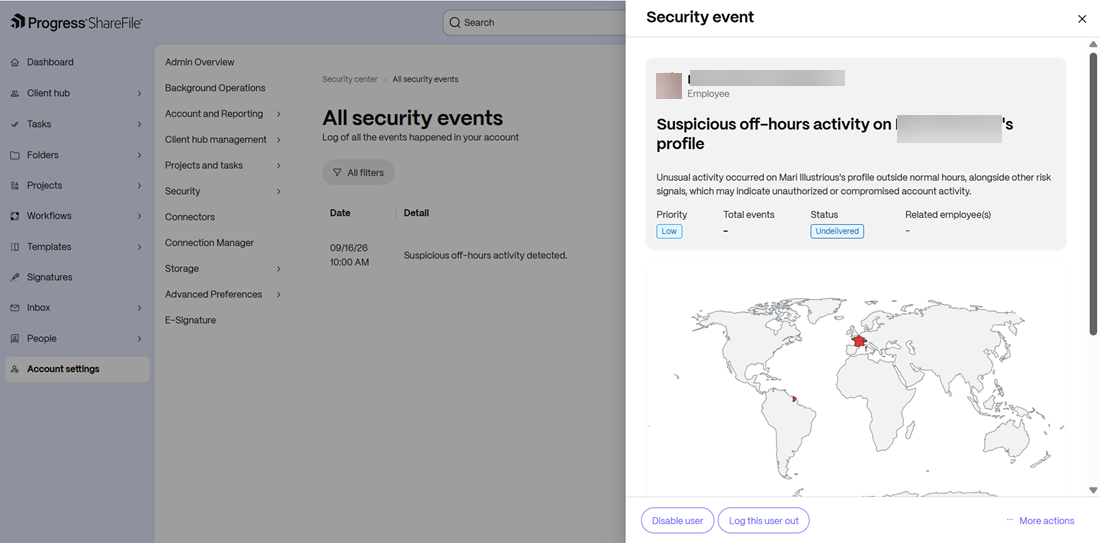
Suspicious timing
This category Identifies activity that occurs outside a user's normal temporal activity patterns.
Use case
A user who typically works during standard business hours suddenly begins accessing content during unusual times. Security Center provides visibility into this behavior so administrators can validate whether the activity is legitimate.
Enhanced alert prioritization
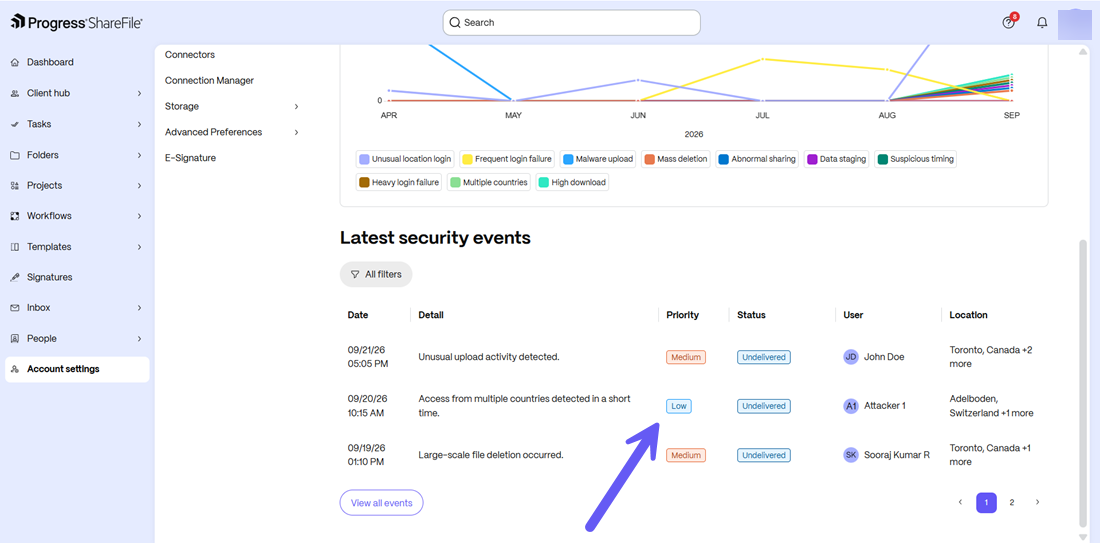
Security Center introduces alert prioritization to help administrators focus on the most important incidents first. This helps administrators identify and address high-priority threats in advance for threat remediation.
Each alert may be categorized as:
- High Priority: Activity that may represent significant security risk. High-priority events are auto-remediated.
- Medium Priority: Activity that may indicate potentially risky behavior and warrants investigation or awareness.
- Low Priority: Activity that is unusual or noteworthy but represents relatively limited immediate security risk.
Enhanced threat investigation experience
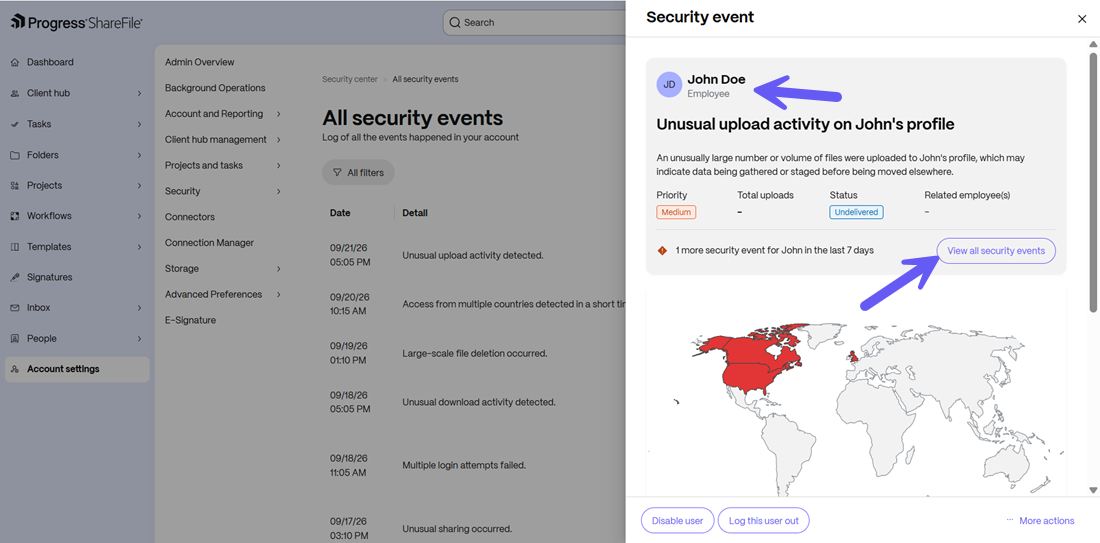
Security Center significantly expands the information available when an administrator opens an alert.
Direct user investigation
In Security Insights, administrators typically navigate to separate user management pages to investigate users. Security Center enables direct navigation from the alert itself.
Admins can:
- Open the affected user's profile directly from the alert.
- Open related users directly from the alert.
- Access additional security information without leaving the investigation workflow.
This reduces investigation time and streamlines incident analysis.
Related security events
Security Center displays additional security activity associated with the affected user.
Examples include:
- Other security events involving the same user.
- Recent security activity within the last seven days.
- Related investigations.
This allows administrators to quickly determine whether an incident is isolated or part of a larger pattern.
Similar incidents across users
Security Center highlights when the same threat type has occurred for additional users.
Example:
An alert for repeated login failures may reveal that multiple users experienced the same event.
This visibility helps administrators determine whether:
- An isolated user issue exists.
- A larger organization-wide attack may be occurring.
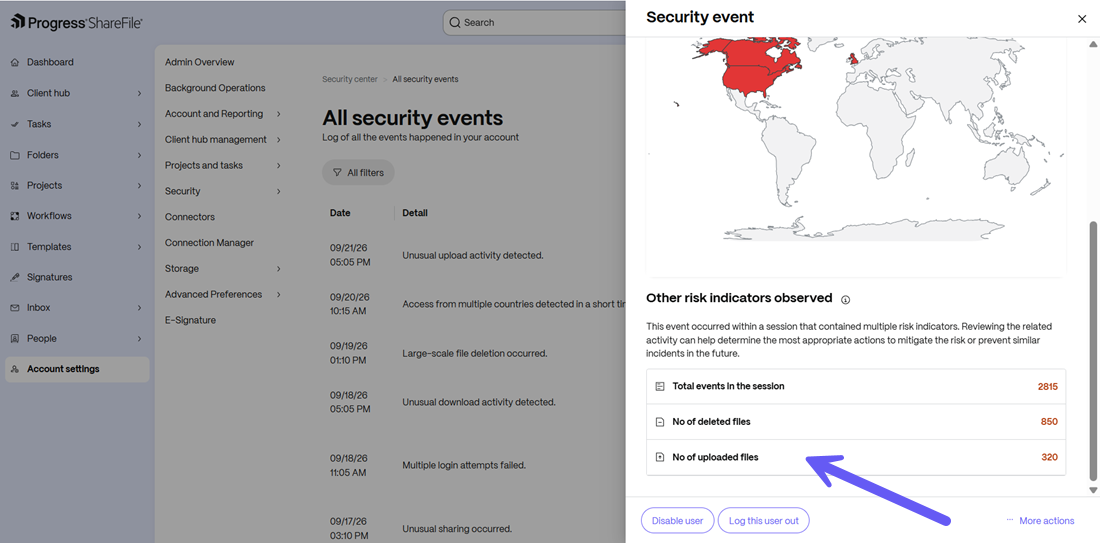
Additional risk indicators
Security Center presents supplemental risk indicators associated with an alert. An event can occur within a session that contains multiple risk indicators. Reviewing the related activity can help determine the most appropriate actions to mitigate the risk or prevent similar incidents in the future.
These indicators provide additional context beyond the primary event category and help administrators understand:
- Why the event was surfaced.
- Additional abnormal activity associated with the event.
- Areas that may require further investigation.
Risk indicators help administrators make more informed decisions during incident analysis.
Event analysis and response
Security Center helps administrators move from detection to investigation more efficiently. Security Center is designed to reduce the number of screens administrators must navigate during an investigation.
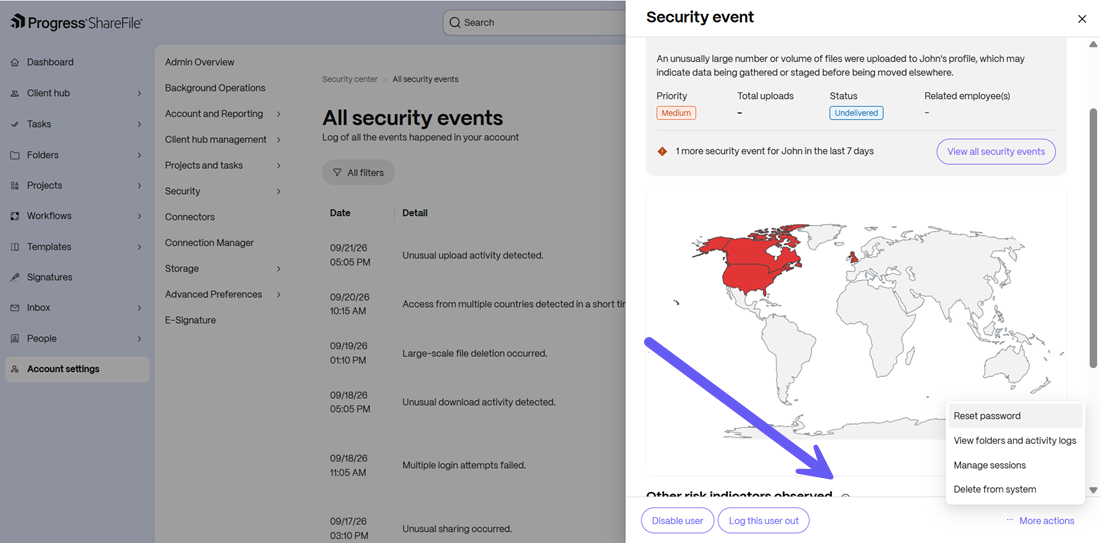
Admins can directly view and investigate any security events and take action in one screen. The actions that an admin can take based on the security incident include:
-
Disabling a user: The user whose account is involved in the security event is temporarily disabled. They need to contact the admin for restoring access.
-
Logging out a user: The user is logged out by the admin and needs to reauthenticate and log in again.
-
Resetting a password: A password reset email is sent to the user for additional security purposes.
-
Viewing folders and activity logs: The admin can directly investigate the folders and activity logs from the screen by selecting this option.
-
Manage sessions: Selecting this option will take admins directly to the activity logs where all user sessions are recorded and managed.
-
Delete user from system: The admin can delete the affected user from the system.