Sentinel Integration With ShareFile
Overview
To download audit logs from ShareFile, users had to previously integrate with third party APIs for compliance monitoring. This is inefficient, prone to human error, and lacks scalability for organizations.
To remediate this, ShareFile now provides native SIEM integration with Sentinel, a cloud-native SIEM and Security Orchestration, Automation, and Response (SOAR) solution. It collects security data across enterprise environments, uses AI to detect and investigate threats, and automates rapid responses to cyberattacks across hybrid and multi-cloud platforms.
SIEM (Security Information and Event Management) is a foundational cybersecurity solution that aggregates and analyzes log data from across an organization’s digital infrastructure. It serves as a centralized command center, helping security teams detect, investigate, and respond to cyber threats in real-time.
With this integration, ShareFile now provides users with the ability to programmatically stream structured audit logs and activity events (uploads, downloads, shares, access changes, etc.) directly for compliance, monitoring, and threat detection.
Key Benefits
SIEM integration seamlessly allows ShareFile users to:
- Configure SIEM integrations
- Ingest ShareFile activity logs and security alerts
- Build basic monitoring and detection workflows
- Troubleshoot common issues
How to set up Sentinel Integration with ShareFile
You need to create a Microsoft Azure account prior to integrating with ShareFile. There are mostly 6 requirements for successful integration with ShareFile:
- Destination URL: This is the logs ingestion URL which is collected from the Data Collection Endpoint.
- Stream name: The custom log table name is added.
- DCR Immutable ID: The DCR Immutable ID for Microsoft Sentinel instance
- Tenant ID: The tenant ID obtained from the Azure OAuth Client Credentials.
- Client ID: The client ID obtained from the Azure OAuth Client Credentials.
- Secret value: The unique secret value obtained from the Azure OAuth Client Credentials.
You can create the above parameters for integration with ShareFile by following the steps given here: https://learn.microsoft.com/en-us/azure/azure-monitor/logs/tutorial-logs-ingestion-portal
Configuring Microsoft Sentinel With ShareFile
-
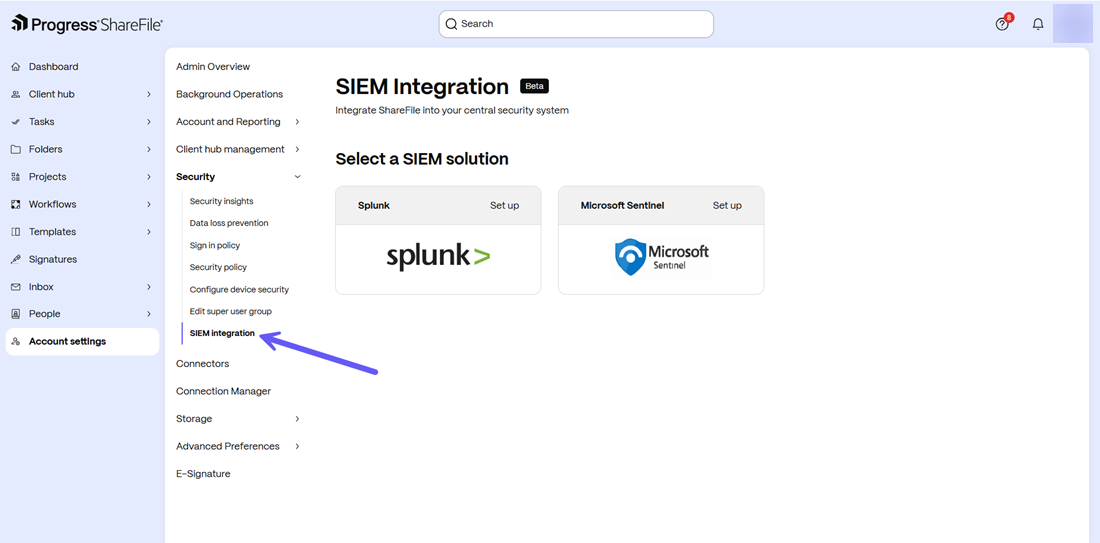
Login to your ShareFile account. From the dashboard, go to Account settings -> Security -> SIEM Integration.
-
Click on the Set up option next to Microsoft Sentinel shown above.
-
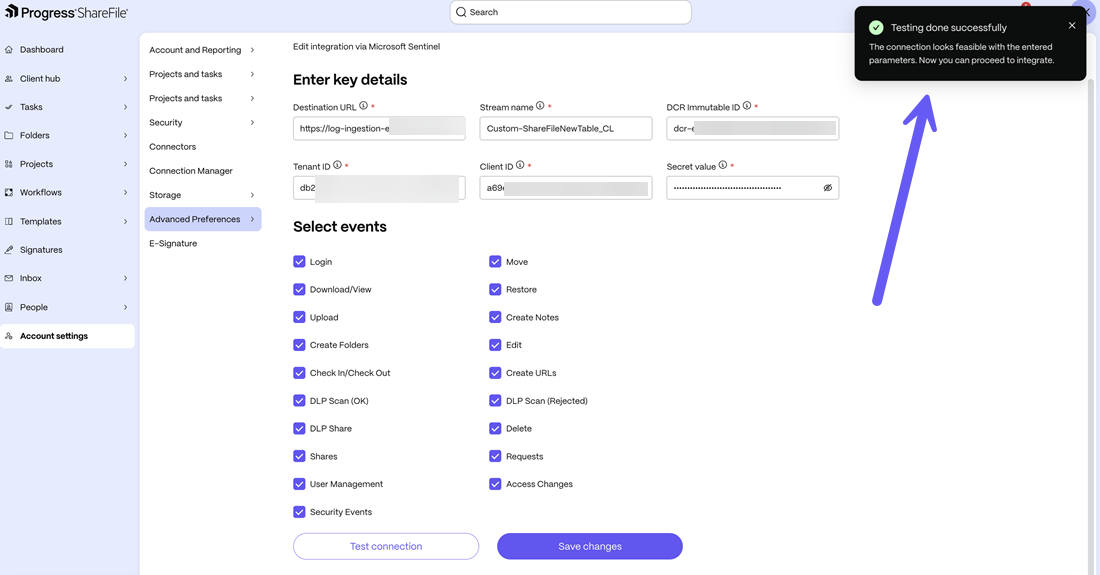
From the screen that opens, enter the Destination URL, Stream name, DCR Immutable ID, Tenant ID, Client ID, and Secret which you have collected from your Azure environment in the previous step.
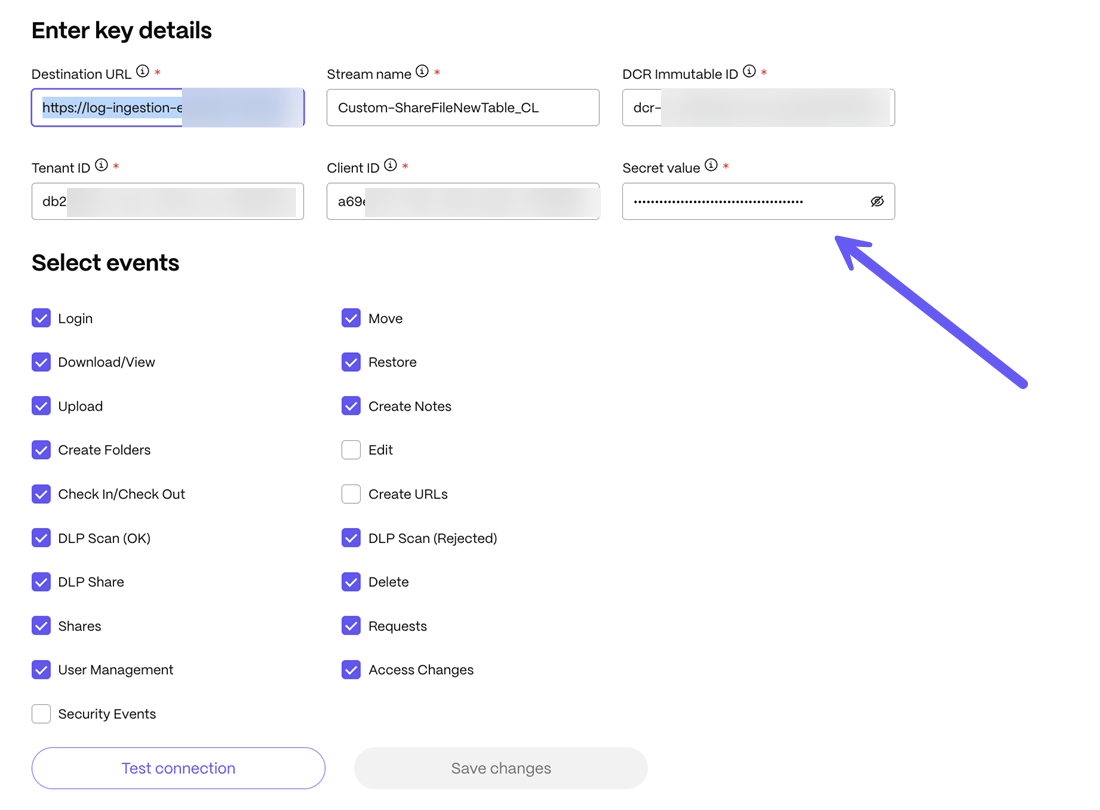
-
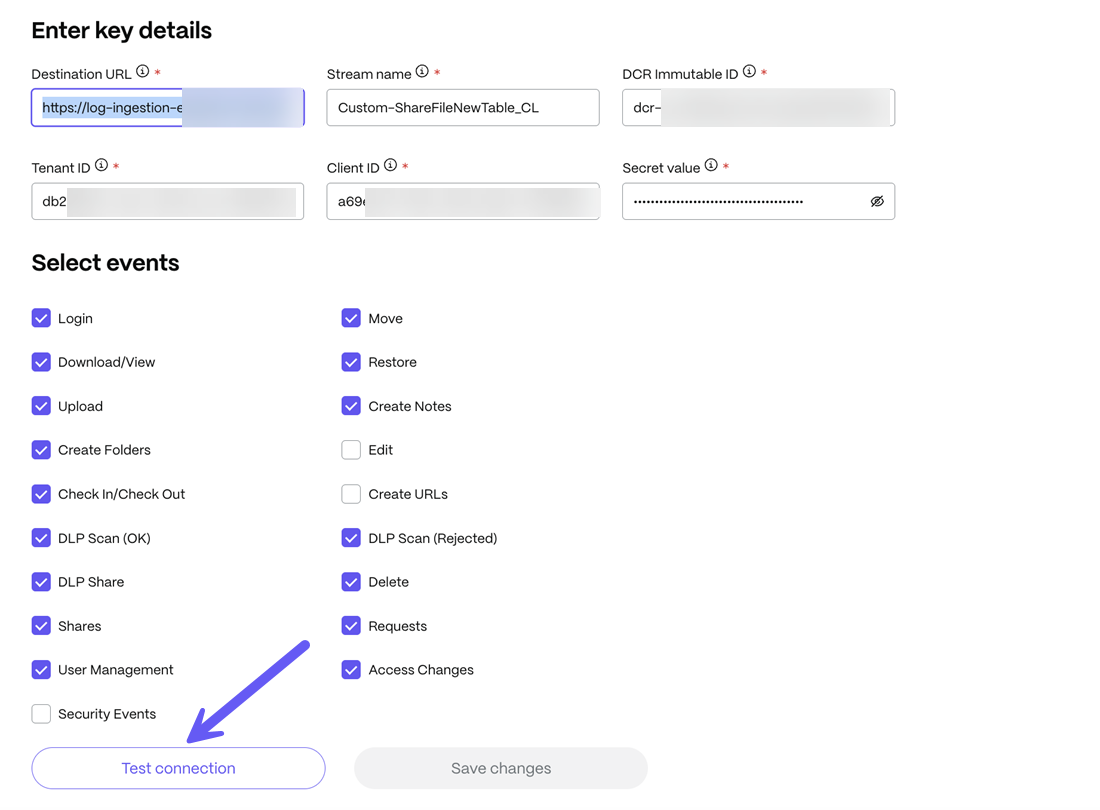
Once all the details are added as shown above, click on the Test connection button as shown below:
-
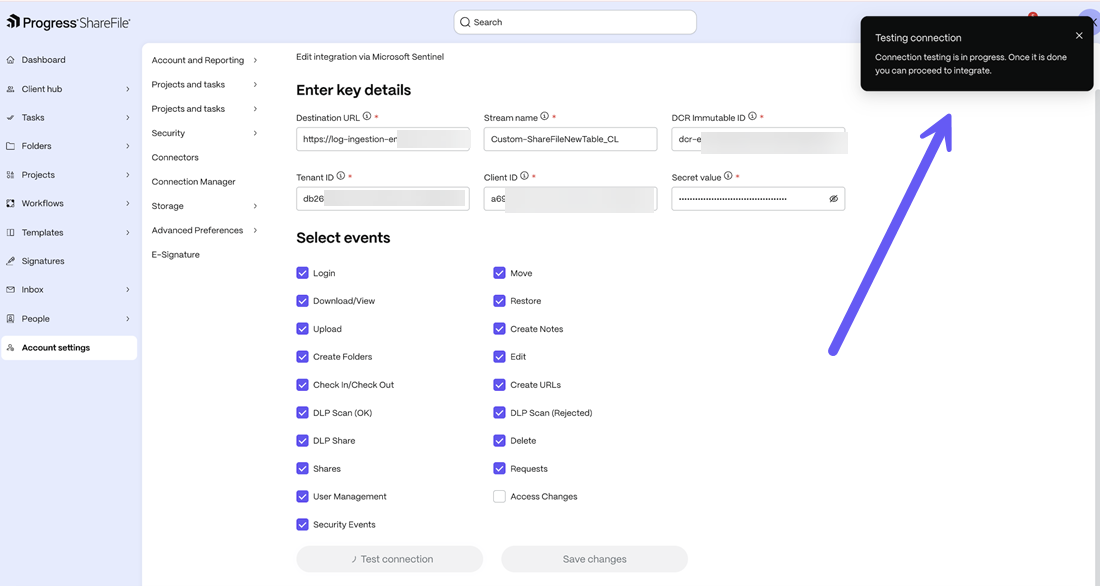
Upon successfully testing the connection, a success message indicating the same is displayed on the top right of the screen.
-
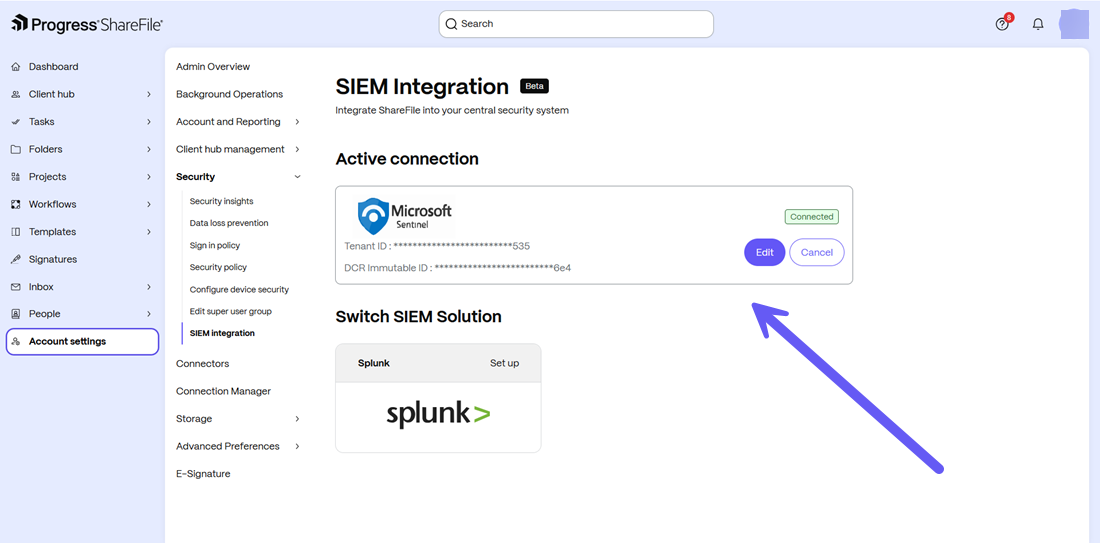
Once done, click on the Confirm setup button and your integration will be completed successfully.
-
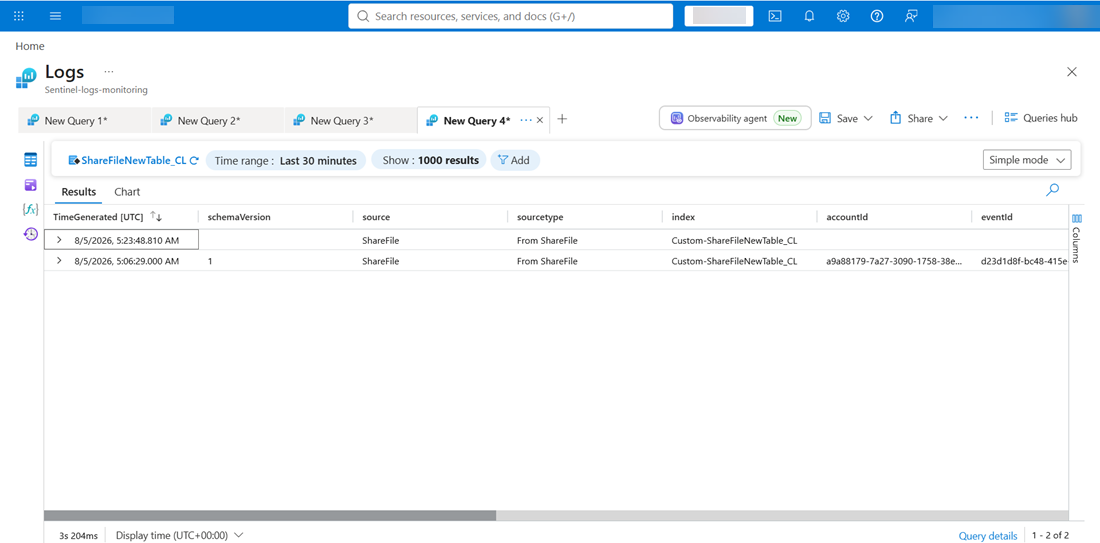
You can now view any recorded data by the integration in the log in your Microsoft Azure workspace as shown below:
Types Of Event Forwarding
The following section lists the ShareFile activity types discovered in the SIEM usage report.
Common field parameters in Sentinel Events
| Name | Description |
|---|---|
| itemName | File, folder, or object path |
| activity | Type of ShareFile activity |
| Actor’s email address | |
| company | Organization or tenant name |
| ip | Source IPv4 address |
| location | Geo/IP-derived location string |
| eventId | Unique event identifier |
| accountId | ShareFile accountId a****** |
| additionalInfo | Extra Fields related to the event |
Create URL
{
"activity":"Create URL",
"accountId":"a086f4f5-45ea-5d5e-1eb4-dc2e9cef32bf",
"itemName":"/users/emily.watson@examplecorp.com/links/onboarding-kit",
"email":"emily.watson@examplecorp.com",
"company":"ExampleCorp",
"ip":"52.118.34.91",
"location":"US, Ashburn, Virginia",
"eventId":"b24f5ce2-06ad-4a98-a502-0f92a97f31de"
}
Create Note
{
"activity":"Create Note",
"accountId":"a086f4f5-45ea-5d5e-1eb4-dc2e9cef32bf",
"itemName":"/projects/alpha/requirements.docx",
"email":"rahul.iyer@acmecorp.com",
"company":"AcmeCorp",
"ip":"20.53.71.33",
"location":"IN, Bengaluru, Karnataka",
"eventId":"9a5d389e-4d12-4d72-a3ce-3c4b67d16291"
}
Move File
{
  "activity":"Move File",
   "accountId":"a086f4f5-45ea-5d5e-1eb4-dc2e9cef32bf",
  "itemName":"/departments/hr/2026/policies/leave-policy.pdf",
  "email":"laura.chen@contoso.com",
  "company":"Contoso Ltd",
  "ip":"40.76.122.141",
  "location":"US, San Francisco, California",
  "eventId":"1b934dc4-8bbd-4e05-891b-0044157059e2"
}
Create Folder
{
  "activity":"Create Folder",
  "accountId":"a086f4f5-45ea-5d5e-1eb4-dc2e9cef32bf",
  "itemName":"/teams/engineering/releases/2026.1/",
  "email":"michael.turner@apexsystems.com",
  "company":"Apex Systems",
  "ip":"103.44.18.231",
  "location":"IN, Hyderabad, Telangana",
  "eventId":"ec4babb4-6f94-4bd0-8aa5-7b59ad02dda1"
}
Edit File
{
  "activity":"Edit File",
  "accountId":"a086f4f5-45ea-5d5e-1eb4-dc2e9cef32bf",
  "itemName":"/design/ui/mockups/homepage-v5.sketch",
  "email":"samantha.reyes@examplecorp.com",
  "company":"ExampleCorp",
  "ip":"52.154.201.16",
  "location":"US, Phoenix, Arizona",
  "eventId":"dc0e8b97-67c4-477e-8fcc-cc3b5ae80a43"
}
Check In
{
  "activity":"Check In",
  "accountId":"a086f4f5-45ea-5d5e-1eb4-dc2e9cef32bf",
  "itemName": "/personal/file_check_in.txt"
  "email":"aditya.menon@acmecorp.com",
  "company":"AcmeCorp",
  "ip":"49.204.33.51",
  "location":"IN, Bengaluru, Karnataka",
  "eventId":"60a0fbe7-e09d-4b49-8bd9-83036e1d7a61"
}
Restore File
{
  "activity":"Restore File",
  "accountId":"a086f4f5-45ea-5d5e-1eb4-dc2e9cef32bf",
  "itemName":"/archives/clients/2024/contract-final.pdf",
  "email":"daniel.cooper@contoso.com",
  "company":"Contoso Ltd",
  "ip":"20.75.91.12",
  "location":"US, Chicago, Illinois",
  "eventId":"4934c685-f4fc-46ef-8ff5-a10c23f86c77"
}
Delete File
{
  "activity":"Delete File",
  "accountId":"a086f4f5-45ea-5d5e-1eb4-dc2e9cef32bf",
  "itemName":"/temp/uploads/system-dump.log",
  "email":"priya.sharma@examplecorp.com",
  "company":"ExampleCorp",
  "ip":"122.172.66.212",
  "location":"IN, Mumbai, Maharashtra",
  "eventId":"e12db4d4-2bae-4fcf-a63a-d325ccdd0106"
}
View
{
  "activity":"View",
  "accountId":"a086f4f5-45ea-5d5e-1eb4-dc2e9cef32bf",
  "itemName":"/security/policies/zero-trust-overview.pdf",
  "email":"kevin.brooks@acmecorp.com",
  "company":"AcmeCorp",
  "ip":"18.221.44.99",
  "location":"US, Columbus, Ohio",
  "eventId":"0c94a7dc-55d1-4cd0-b39d-150e7a2ea33f"
}
Download
{
  "activity":"Download",
  "accountId":"a086f4f5-45ea-5d5e-1eb4-dc2e9cef32bf",
  "itemName":"/shared/resources/hr/employee-handbook.pdf",
  "email":"aisha.khan@contoso.com",
  "company":"Contoso Ltd",
  "ip":"54.184.122.45",
  "location":"US, Portland, Oregon",
  "eventId":"43d97df6-d346-43e5-ab09-6ccd8d28d96a"
}
Upload
{
  "activity":"Upload",
  "accountId":"a086f4f5-45ea-5d5e-1eb4-dc2e9cef32bf",
  "itemName":"/marketing/assets/2026-campaign/banner-final.png",
  "email":"isabella.wright@examplecorp.com",
  "company":"ExampleCorp",
  "ip":"44.232.110.22",
  "location":"US, Seattle, Washington",
  "eventId":"f7627cdf-b1f0-4f3c-b94b-a566d6e9e64f"
}
Check Out
{
  "activity":"Check Out",
  "accountId":"a086f4f5-45ea-5d5e-1eb4-dc2e9cef32bf",
  "itemName":"/finance/budgets/2026/master-budget.xlsx",
  "email":"jonathan.lee@acmecorp.com",
  "company":"AcmeCorp",
  "ip":"73.221.51.112",
  "location":"US, Denver, Colorado",
  "eventId":"8e87e8ef-22d7-4875-8004-772dca4defba"
}
Login
{
"activity":"Login",
"accountId":"a086f4f5-45ea-5d5e-1eb4-dc2e9cef32bf",
"itemName":"Authentication",
"email":"nathan.roberts@contoso.com",
"company":"Contoso Ltd",
"ip":"52.14.102.55",
"location":"US, Indianapolis, Indiana",
"eventId":"c79b17e0-e17b-4b7f-bd20-fc8cf9c7f41c"
}
Login Fail
{
"activity":"LoginFail",
"accountId":"a086f4f5-45ea-5d5e-1eb4-dc2e9cef32bf",
"itemName":"Authentication",
"email":"unknown@contoso.com",
"company":"Contoso Ltd",
"ip":"185.244.32.91",
"location":"NL, Amsterdam, North Holland",
"eventId":"ad80a090-52f3-4eca-a91a-2f12cc88aac7"
}
Create Share
{
 "ip": "43.247.158.229",
 "accountId": "a2b470ae-4b74-f7df-7135-5db14786b968",
 "eventId": "edc1ca90-59cc-4499-b94e-a5159488d868",
 "email": "jonathan.lee@acmecorp.com",
 "company": "AcmeCorp",
 "location": "Bengaluru, IN",
 "itemName": "",
 "schemaVersion": 1,
 "additionalInfo": {
  "shareId": "s693e14f2175e4dc8bd2e706b9ef12519",
  "shareItems": [
   {
    "id": "fi09b417-ce68-0517-4312-36ce765442b3",
    "name": "testJsonForSentinel.json"
   },
   {
    "id": "fi0e3b3e-9aab-fe78-3068-c6c34c447de1",
    "name": "CPO-AWS SSO Model - Using the AWS CLI-070426-043709.pdf"
   }
  ]
 },
 "activity": "Create Share"
}
Send Share
{
 "accountId": "a2b470ae-4b74-f7df-7135-5db14786b968",
 "activity": "Send Share",
 "additionalInfo": {
  "shareId": "s693e14f2175e4dc8bd2e706b9ef12519",
  "shareItems": [
   {
    "id": "fi09b417-ce68-0517-4312-36ce765442b3",
    "name": "testJsonForSentinel.json"
   },
   {
    "id": "fi0e3b3e-9aab-fe78-3068-c6c34c447de1",
    "name": "CPO-AWS SSO Model - Using the AWS CLI-070426-043709.pdf"
   }
  ],
  "shareRecipientEmailIds": [
   "jonathan.lee@acmecorp.com",
   "priya.sharma@examplecorp.com"
  ],
  "shareRecipientIds": [
   "8b976430-870f-48c8-9e5b-7ce4b5524f6e",
   "377aa1cd-ffa7-4403-9912-d6466505af73"
  ]
 },
 "company": "AcmeCorp",
 "email": "jonathan.lee@acmecorp.com",
 "eventId": "8ca67438-9d86-4880-a6ce-eb00a561abc6",
 "ip": "43.247.158.229",
 "itemName": "",
 "location": "Bengaluru, IN",
 "schemaVersion": 1
}
Create Request
{
 "accountId": "a2b470ae-4b74-f7df-7135-5db14786b968",
 "activity": "Create Request",
 "additionalInfo": {
  "requestId": "r8c1efffe9e4742088e328c7252d59e22"
 },
 "company": "AcmeCorp",
 "email": "jonathan.lee@acmecorp.com",
 "eventId": "4dc48c73-03ac-405b-87cb-b6d2ca6f508f",
 "ip": "43.247.158.229",
 "itemName": "",
 "location": "Bengaluru, IN",
 "schemaVersion": 1
}
Send Request
{
 "accountId": "a2b470ae-4b74-f7df-7135-5db14786b968",
 "activity": "Send Request",
 "additionalInfo": {
  "requestId": "r8c1efffe9e4742088e328c7252d59e22",
  "shareRecipientEmailIds": [
   "jonathan.lee@acmecorp.com",
   "priya.sharma@examplecorp.com"
  ],
  "shareRecipientIds": [
   "8b976430-870f-48c8-9e5b-7ce4b5524f6e",
   "377aa1cd-ffa7-4403-9912-d6466505af73"
  ]
 },
 "company": "AcmeCorp",
 "email": "jonathan.lee@acmecorp.com",
 "eventId": "619210f9-5b3b-466b-867b-e37834d8af30",
 "ip": "43.247.158.229",
 "itemName": "",
 "location": "Bengaluru, IN",
 "schemaVersion": 1
}
User Create
{
  "accountId": "a2b470ae-4b74-f7df-7135-5db14786b968",
  "activity": "User Create",
  "additionalInfo": {
    "targetFirstName": "Paul",
    "targetLastName": "Atreides",
    "targetRole": "Employee",
    "targetUserEmail": "paul.atreides@dune.com",
    "targetUserId": "7bc7d159-b082-4768-acf4-12e4e4a61d10"
  },
  "company": "AcmeCorp",
  "email": "jonathan.lee@acmecorp.com",
  "eventId": "0e3c340c-26e9-4648-bbb9-47cb6109d2a4",
  "ip": "43.247.158.229",
  "itemName": "User Account",
  "location": "Bengaluru, IN",
  "schemaVersion": 1
}
User Delete
{
 "accountId": "a2b470ae-4b74-f7df-7135-5db14786b968",
 "activity": "User Delete",
 "additionalInfo": {
  "targetFirstName": "Paul",
  "targetLastName": "Atreides",
  "targetRole": "Employee",
  "targetUserEmail": "paul.atreides@dune.com",
  "targetUserId": "7bc7d159-b082-4768-acf4-12e4e4a61d10"
 },
 "company": "AcmeCorp",
 "email": "jonathan.lee@acmecorp.com",
 "eventId": "571f680e-de05-4772-a95e-f4dc5f84b5e0",
 "ip": "43.247.158.229",
 "itemName": "User Account",
 "location": "Bengaluru, IN",
 "schemaVersion": 1
}
Troubleshooting
1. My events are not appearing in my SIEM. What should I check?
Verify:
- The endpoint URL is correct.
- Authentication credentials are valid.
- Firewalls allow outbound HTTPS traffic.
- Event categories are enabled in ShareFile.
If the issue persists, review the SIEM Integration status page in ShareFile or contact ShareFile Support.
2. My authentication token has changed. What should I do?
Update the authentication credentials in the ShareFile SIEM configuration page. Events will resume automatically after the new credentials are saved.
3.Can I test my SIEM configuration?
Yes. ShareFile allows administrators to send a test event to verify connectivity before enabling continuous event streaming.
Privacy & Compliance
1. Does ShareFile modify my SIEM data?
No. ShareFile only transmits events. It never modifies, queries, or deletes information within your SIEM.
2. Can I disable SIEM Integration at any time?
Yes. Administrators can disable SIEM Integration from the ShareFile Admin Settings page at any time. Once disabled, no new events will be sent.
Best Practices
What are the recommended best practices?
We recommend:
- Use a dedicated ingestion endpoint for ShareFile.
- Rotate authentication tokens periodically.
- Monitor connection health regularly.
- Review event filters periodically to ensure only relevant data is forwarded.
- Build dashboards for common security scenarios such as failed logins, high download activity and administrative changes.
Frequently Asked Questions (FAQ)
General
What is ShareFile SIEM Integration?
ShareFile SIEM Integration enables administrators to automatically stream ShareFile activity logs to their organization's Security Information and Event Management (SIEM) platform. This allows security teams to monitor ShareFile alongside other enterprise systems from a centralized Security Operations Center (SOC).
Which SIEM platforms are supported?
ShareFile supports:
- Splunk
- Microsoft Sentinel
Additional SIEM platforms may be supported in future releases.
What data does ShareFile send to my SIEM?
ShareFile sends:
- Activity Logs
- User sign-ins
- Failed sign-ins
- File uploads
- File downloads
- File edits
- File deletions
- Folder creation
- Share creation and sending
- Request creation and sending
- Administrative user management events
- Other supported account activity
Does ShareFile send data in real time?
Yes. Security alerts are streamed in near real time. Activity logs are continuously streamed with minimal delay.
Configuration
What information do I need to configure SIEM Integration?
Depending on your SIEM platform, you'll typically need:
- Endpoint URL
- Authentication token or API key
- Required HTTP headers (if applicable)
Refer to the setup guide for your specific SIEM.
Can I connect multiple SIEM platforms?
No. Each ShareFile account supports one active SIEM destination.
Can I choose which events are sent?
Yes. Administrators can configure which event categories are forwarded to their SIEM.
Who can configure SIEM Integration?
Only ShareFile administrators with the appropriate administrative permissions can configure or modify SIEM settings.
How is my SIEM authentication token stored?
Authentication credentials are encrypted at rest and protected using ShareFile's secure credential management practices.
Does ShareFile have access to my SIEM?
No. ShareFile only sends event data to the endpoint you configure. It cannot read, modify, search, or delete data stored within your SIEM.
Is my data encrypted during transmission?
Yes. All communication between ShareFile and your SIEM endpoint uses HTTPS with TLS encryption.
What happens if my SIEM is unavailable?
ShareFile automatically retries delivery for temporary failures. If delivery cannot be completed after multiple retry attempts, events are placed into a secure Dead Letter Queue (DLQ). Administrators are notified when delivery failures require attention.
Will I lose events if my SIEM is offline?
Not immediately. ShareFile retries delivery automatically before moving undelivered events to the Dead Letter Queue. The retention period for failed events depends on your organization's configuration and ShareFile service limits.
How will I know if my SIEM connection fails?
ShareFile notifies administrators through:
- In-app notifications
- Email notifications
These notifications include guidance for resolving the issue.
Can I retry failed deliveries?
No. This feature will be added in a future release.
What information is included in each event?
Refer to
Does ShareFile send document contents?
No. ShareFile only sends metadata describing the activity. Document contents are never transmitted to your SIEM.
Does ShareFile send file names?
Yes. When applicable, activity events include the file or folder name associated with the action.
Are recipient email addresses included for shared files?
Yes. Share and Request events include recipient information when applicable.
Are deleted events removed from my SIEM?
No. Once an event has been delivered, ShareFile cannot remove it from your SIEM. Retention and deletion are controlled by your SIEM platform.
How does ShareFile integrate with Microsoft Sentinel?
ShareFile sends activity logs to Microsoft Sentinel through Azure Monitor's Log Ingestion API. Customers configure the required Azure resources, including:
- Data Collection Endpoint (DCE)
- Data Collection Rule (DCR)
- Custom Log Table
Why does Sentinel use a table instead of raw JSON?
ShareFile maps activity data into a structured schema to enable efficient querying using Kusto Query Language (KQL).
Can I build custom dashboards?
Yes. All ingested fields are searchable using Splunk Search Processing Language (SPL) or Sentinel Kusto Query Language (KQL). You can create custom dashboards, alerts, reports, and correlation searches.
Can I create analytics rules using ShareFile events?
Yes. Once ingested, ShareFile events can be used in:
- Analytics Rules
- Workbooks
- Hunting Queries
- Automation Rules
- Microsoft Defender XDR investigations
Is SIEM Integration available on all ShareFile plans?
Availability depends on your ShareFile plan. Contact your ShareFile representative if you're unsure whether SIEM Integration is included in your plan.