Create an Editable Document Template Using Word Online (Browser)
The ShareFile integration with Microsoft Word Online allows you to easily create, edit, and manage fully editable document templates directly from your browser.
NOTES:
Use a supported browser (Microsoft Edge, Google Chrome, or Safari).
Access to Microsoft Word Online is required; no desktop Word installation or Microsoft account login is required.
-
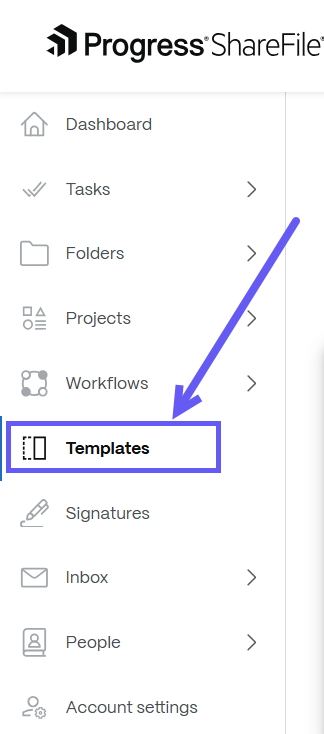
In ShareFile, navigate to Templates.
-
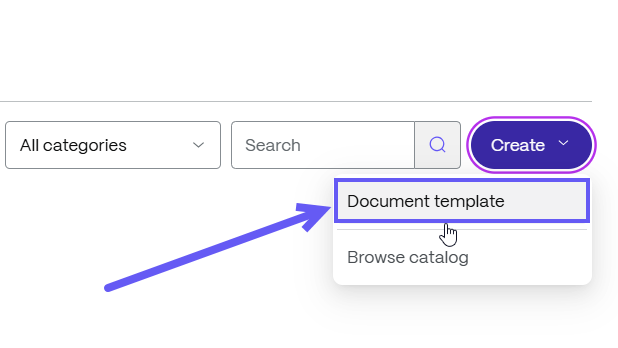
Select Create > Document template.
-
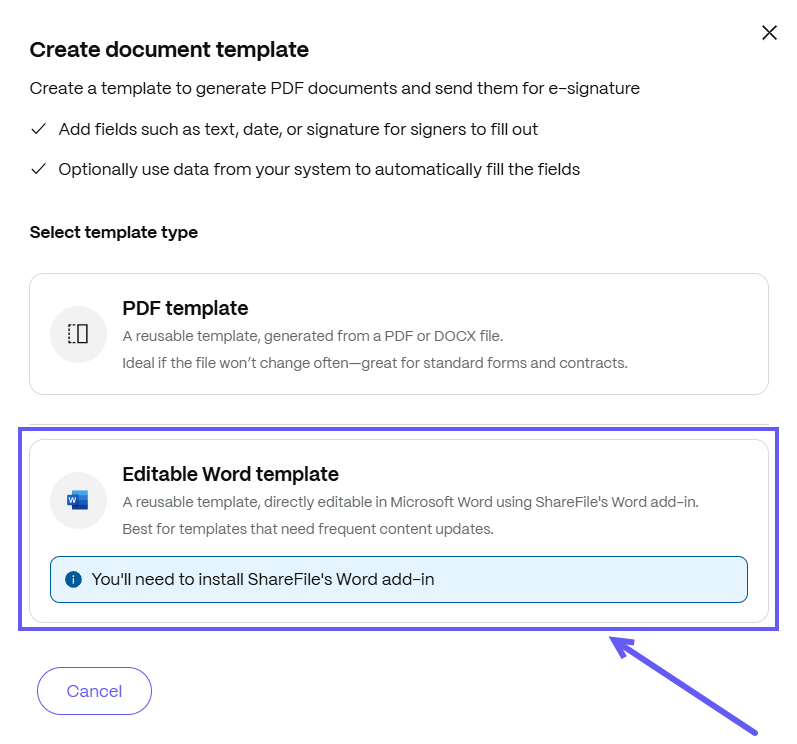
The Create document template page is displayed. Click on the Editable Word template to create a fully editable template in Word online through your browser.
-
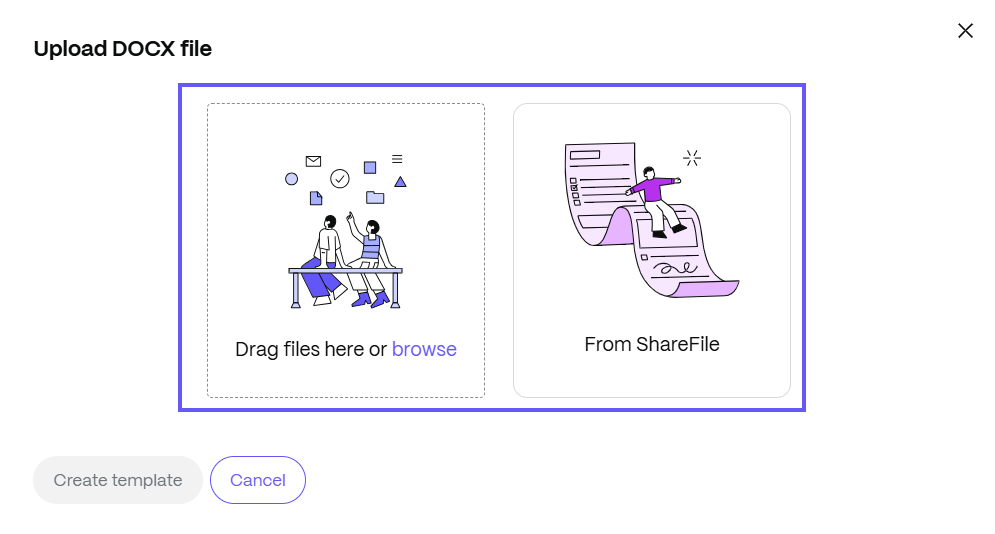
After selecting, you can upload a Word document either from your local device using the Browse option, or you can select From ShareFile to upload a document.
-
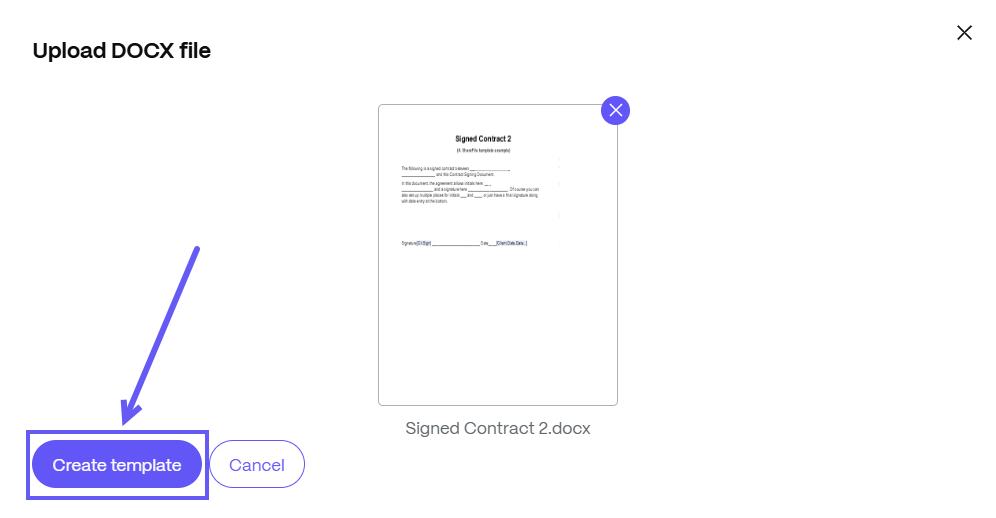
After uploading a document, select Create template.
-
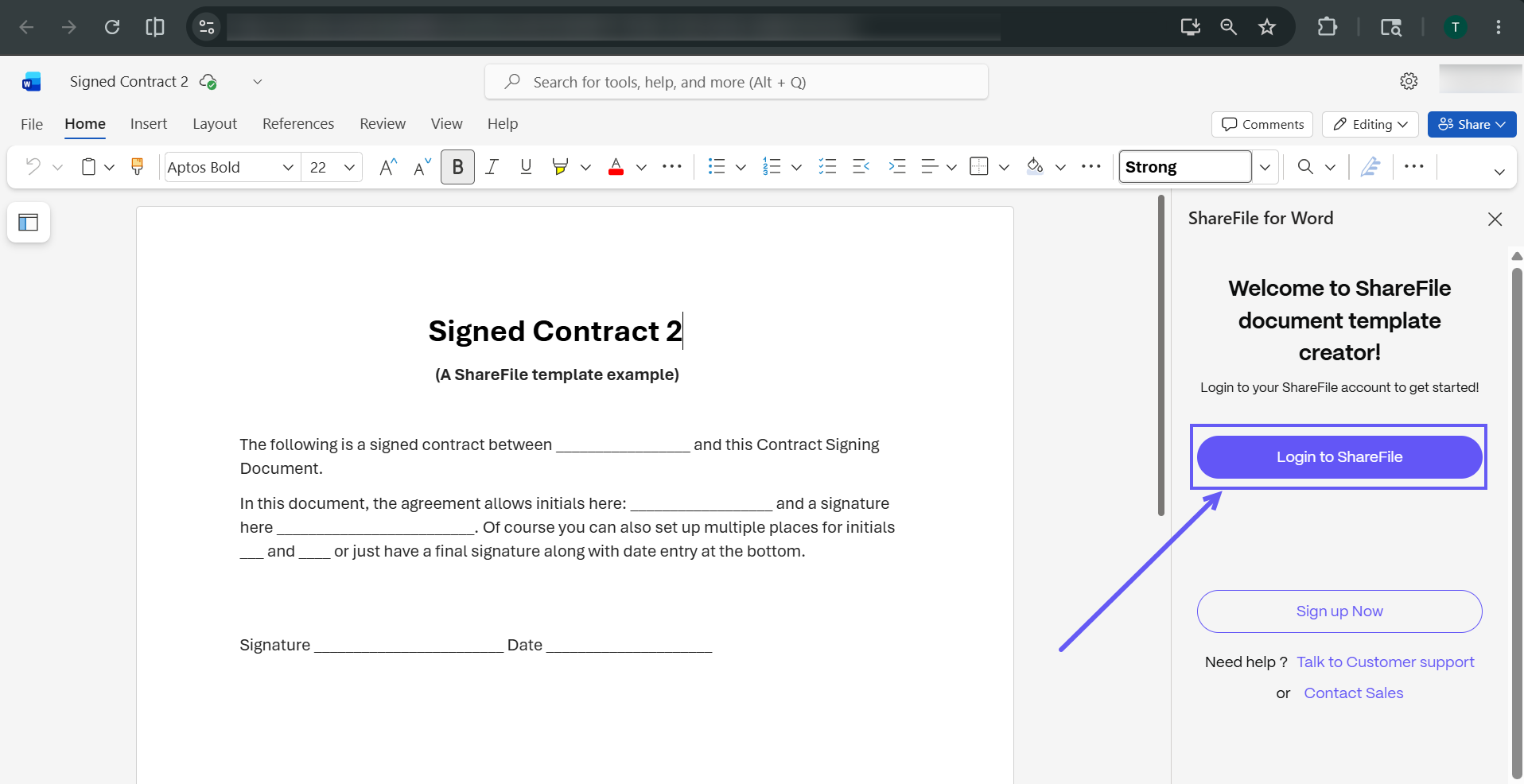
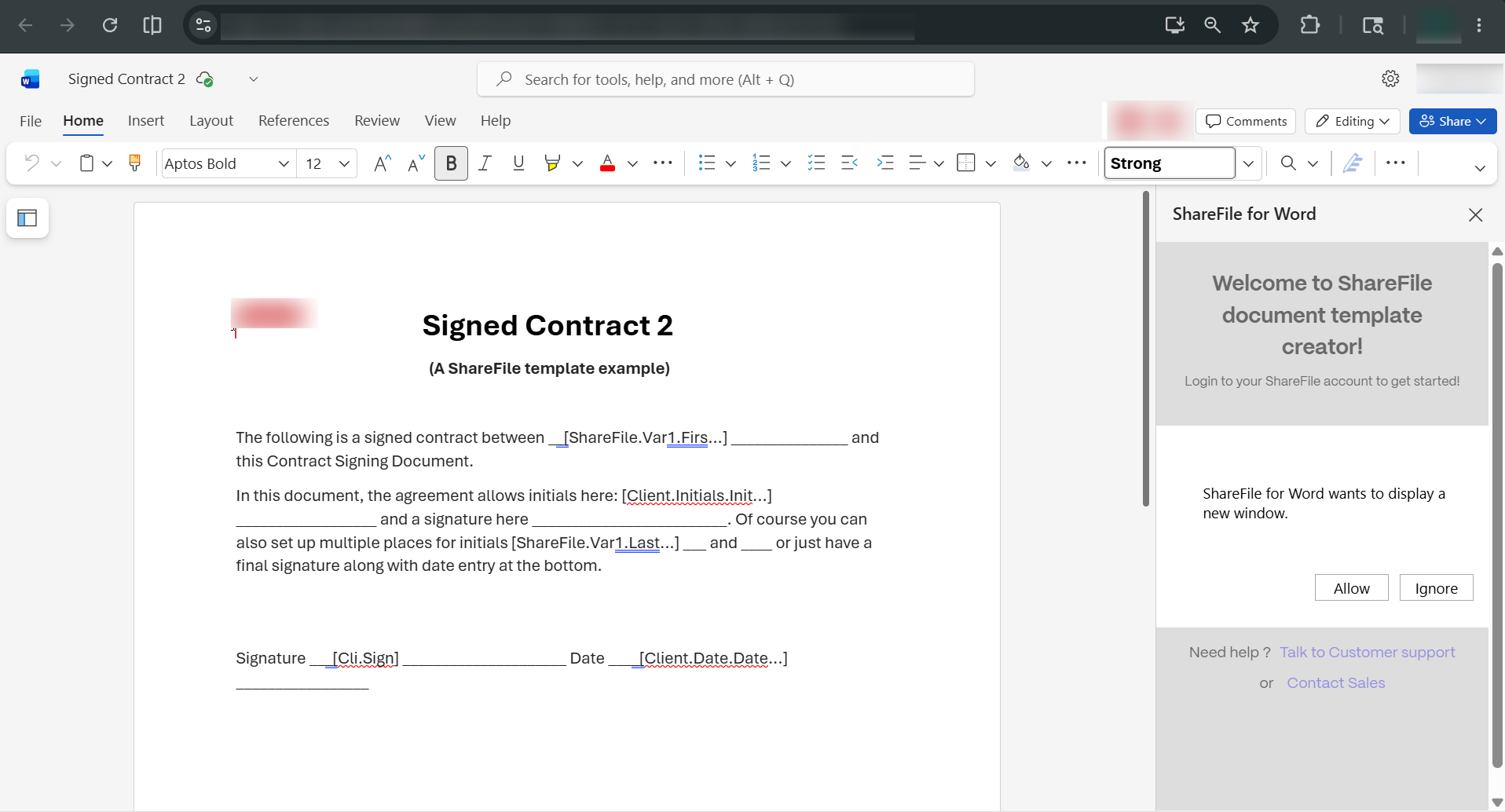
Once the template is created, the document opens in your browser. In the right-hand panel, select Login to ShareFile.
-
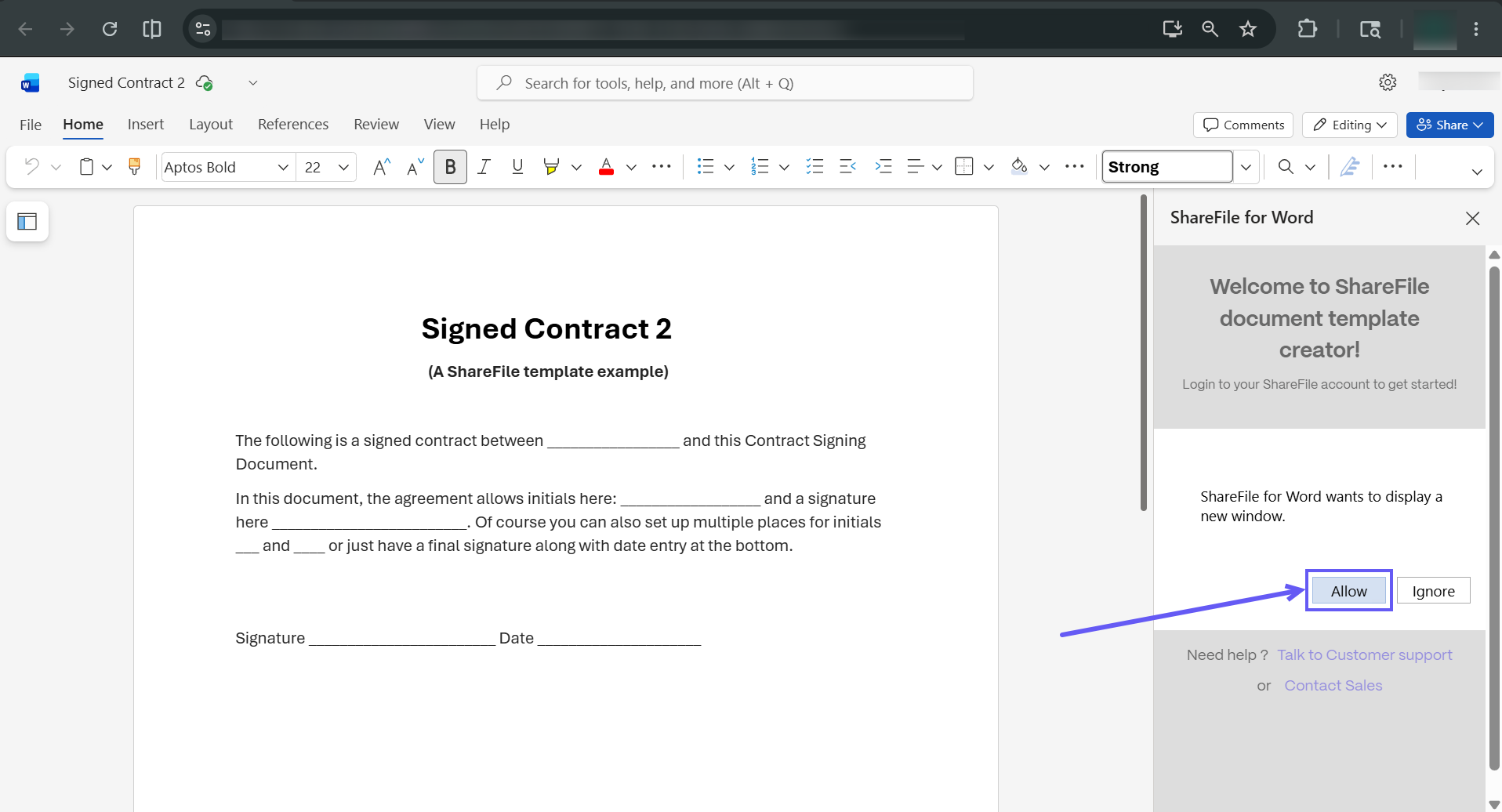
A prompt will appear asking for permission to open a new window. Click Allow to launch the ShareFile login dialog panel.
NOTE:
In Word Online, your Add-in session is tied to your ShareFile browser session, not a Microsoft account. You will be prompted to sign in to the Add-in when your ShareFile browser session expires. To avoid repeated prompts, ensure you are actively signed in to ShareFile in the same browser before opening a template in Word Online.
-
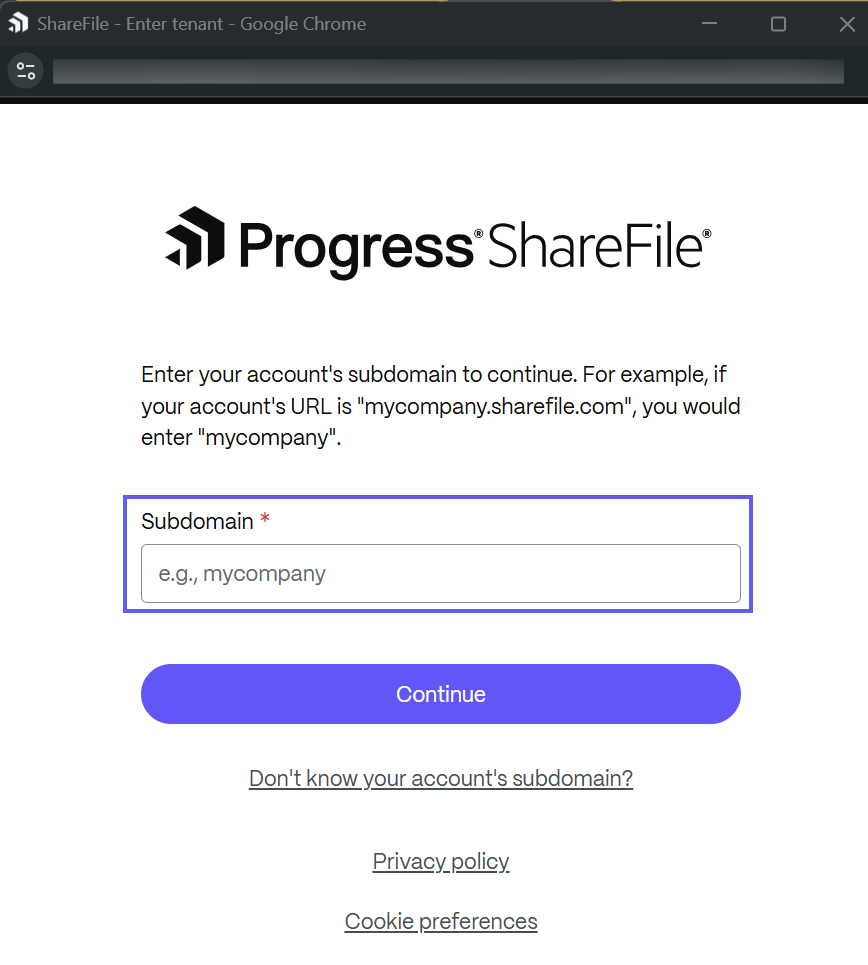
The ShareFile login dialog box will open in a new pop-up window. Enter your subdomain name and click Continue to proceed with editing in the Microsoft Word Add-in (Online).
-
Once you are signed in to ShareFile for Word (Online), use signer fields for recipient actions (e.g., Signature, Text, Date). Use variable fields to automatically populate document data (e.g., First Name, Last Name, Company).
-
Signer fields
-
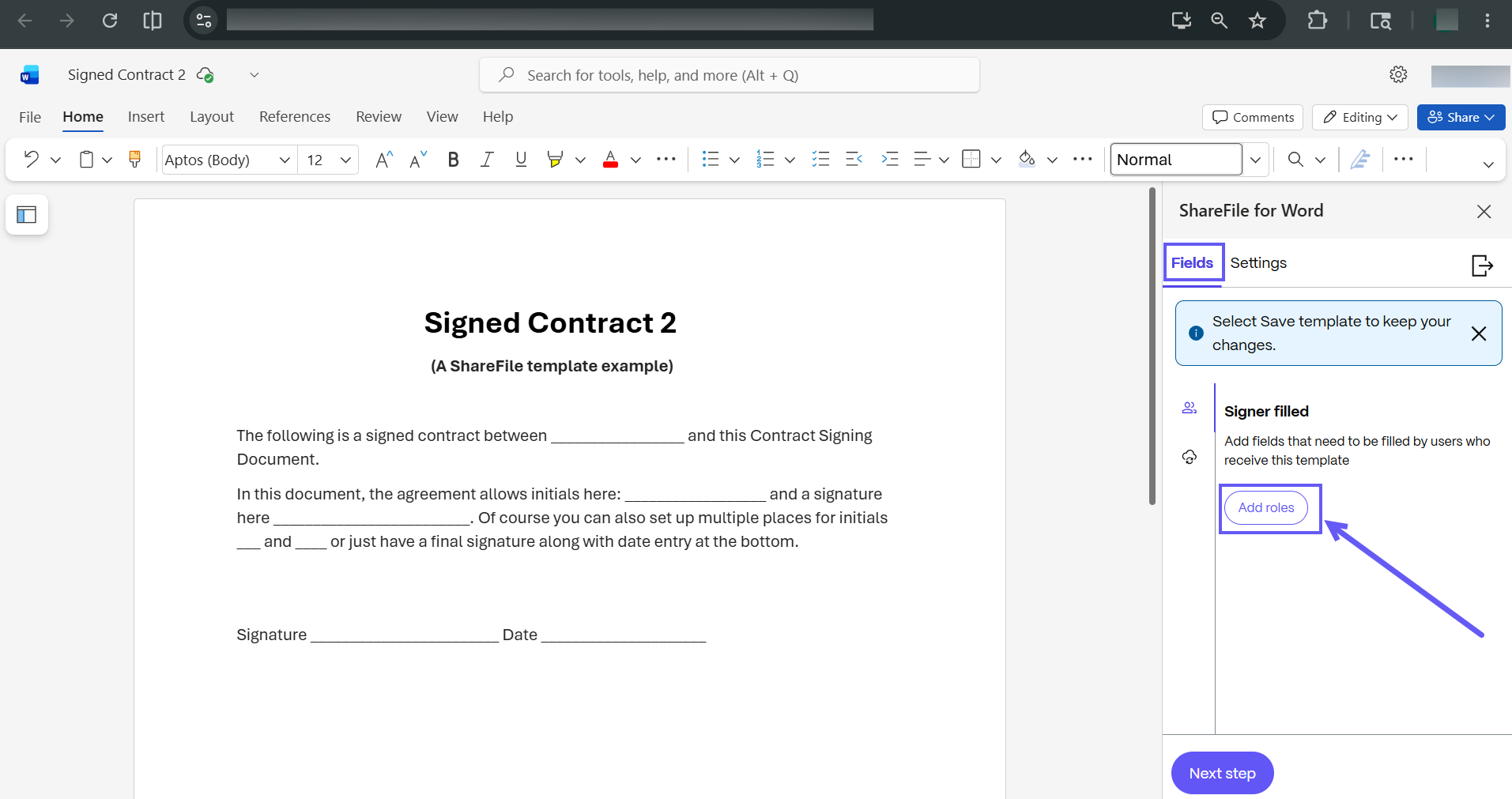
Select the Fields tab in the Add-in > Add Roles.
-
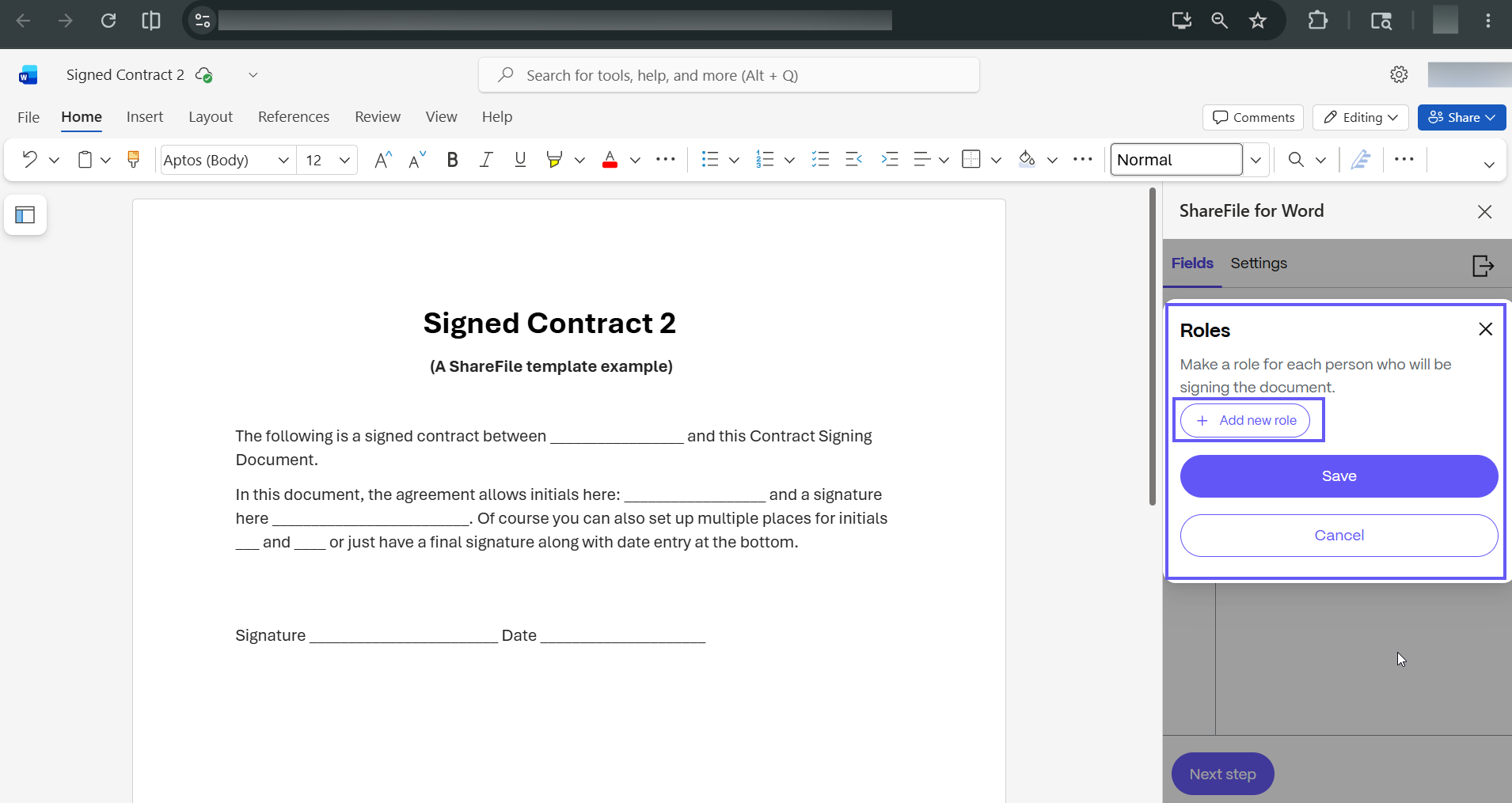
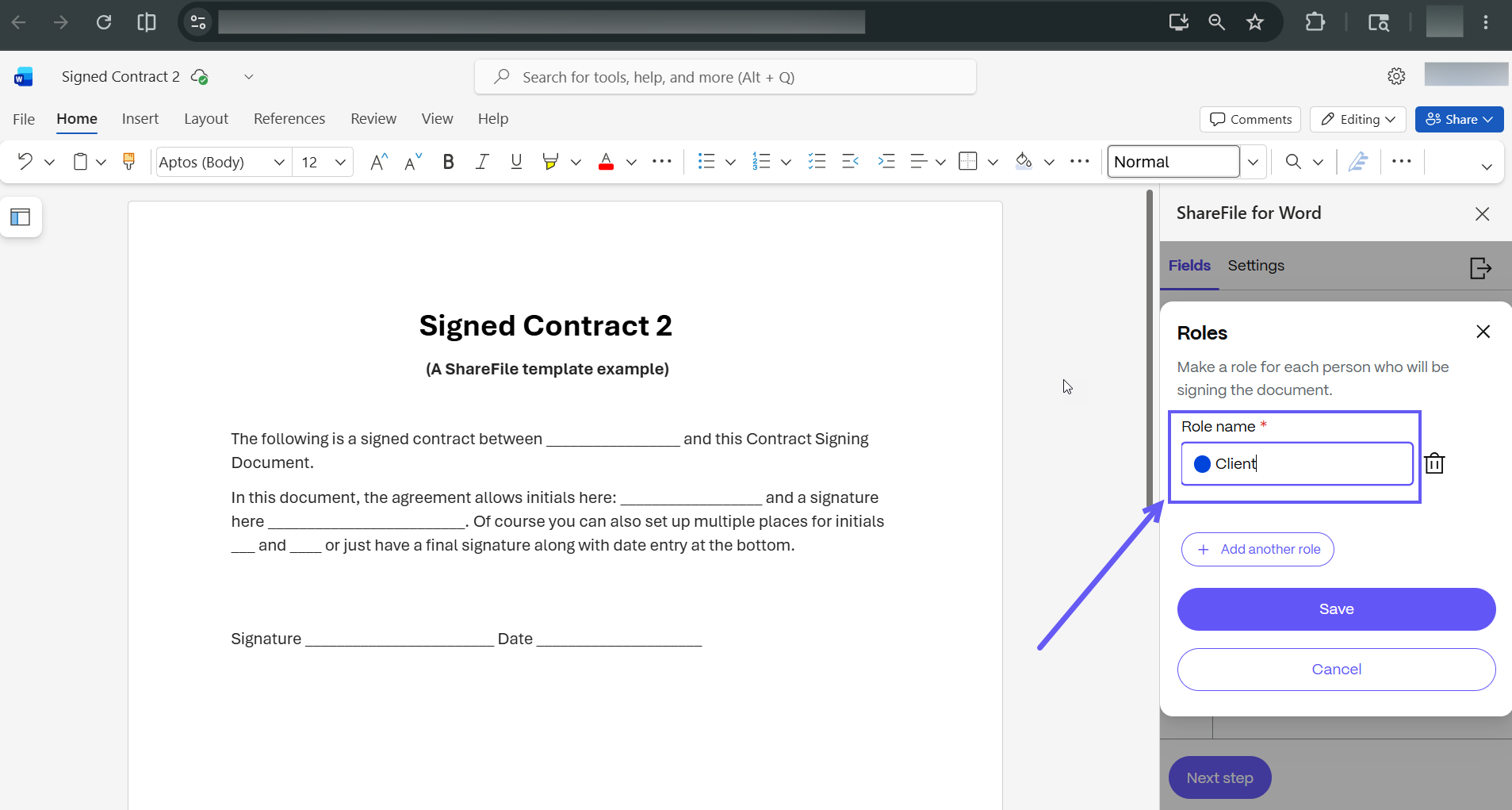
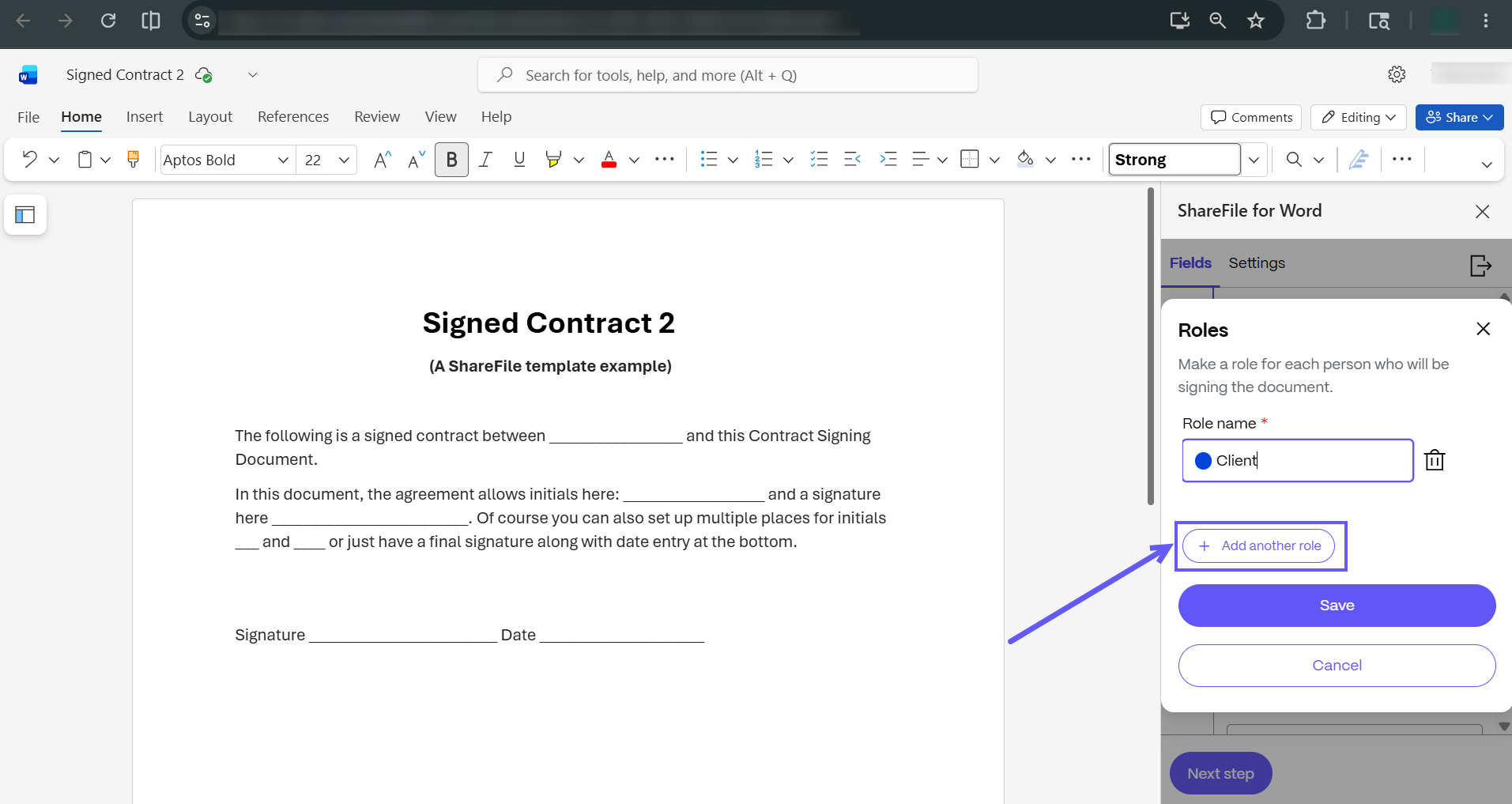
Select Add new role to create a new signer role. Enter a name for the role.
-
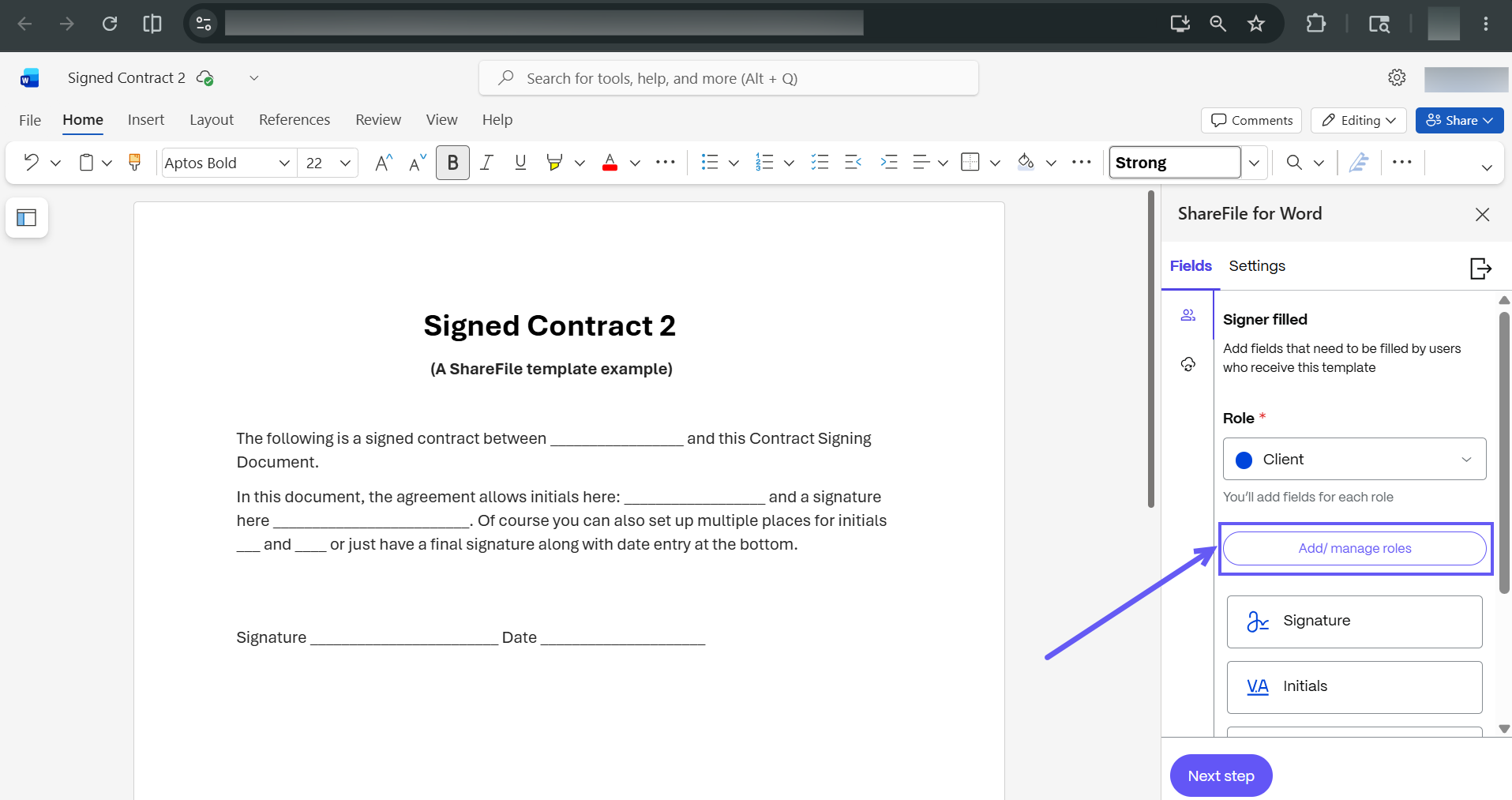
Click Add/manage roles. You can add multiple roles to a single template. Each role represents a stakeholder involved in the signing process.
-
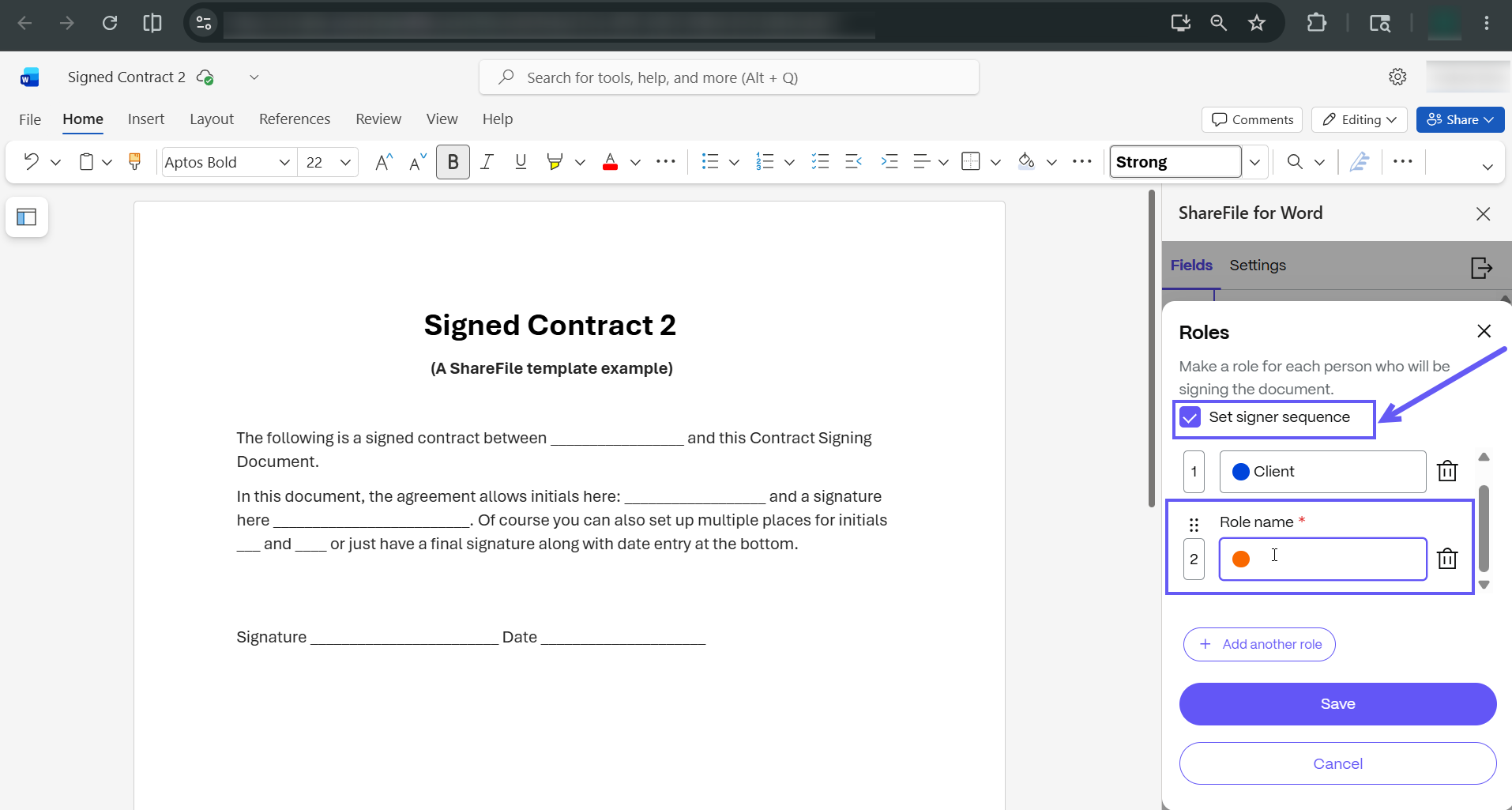
If you have added more than one role, you can define the signing order by selecting the Set signer sequence checkbox. You can also drag and drop roles to rearrange their order.
-
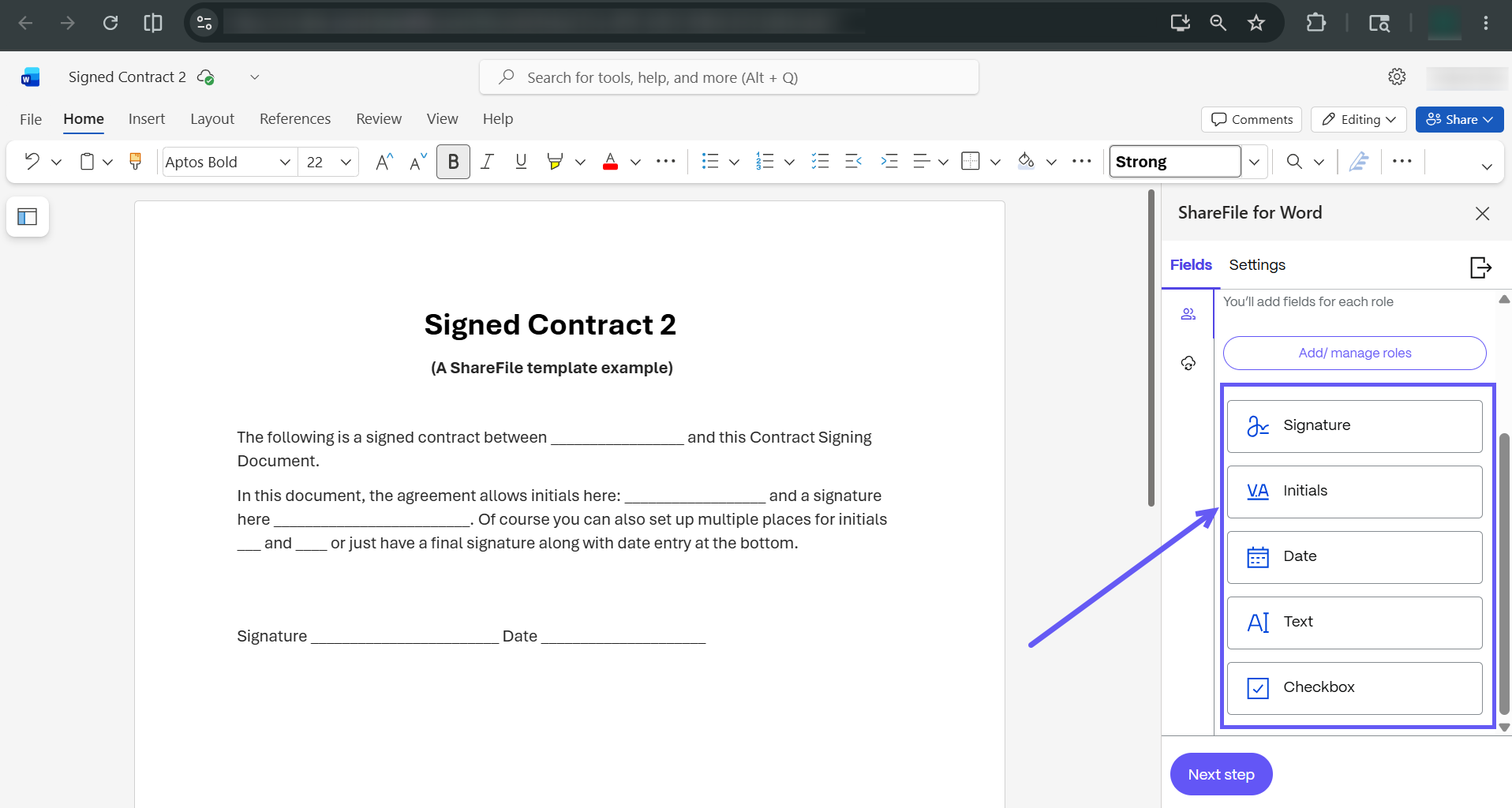
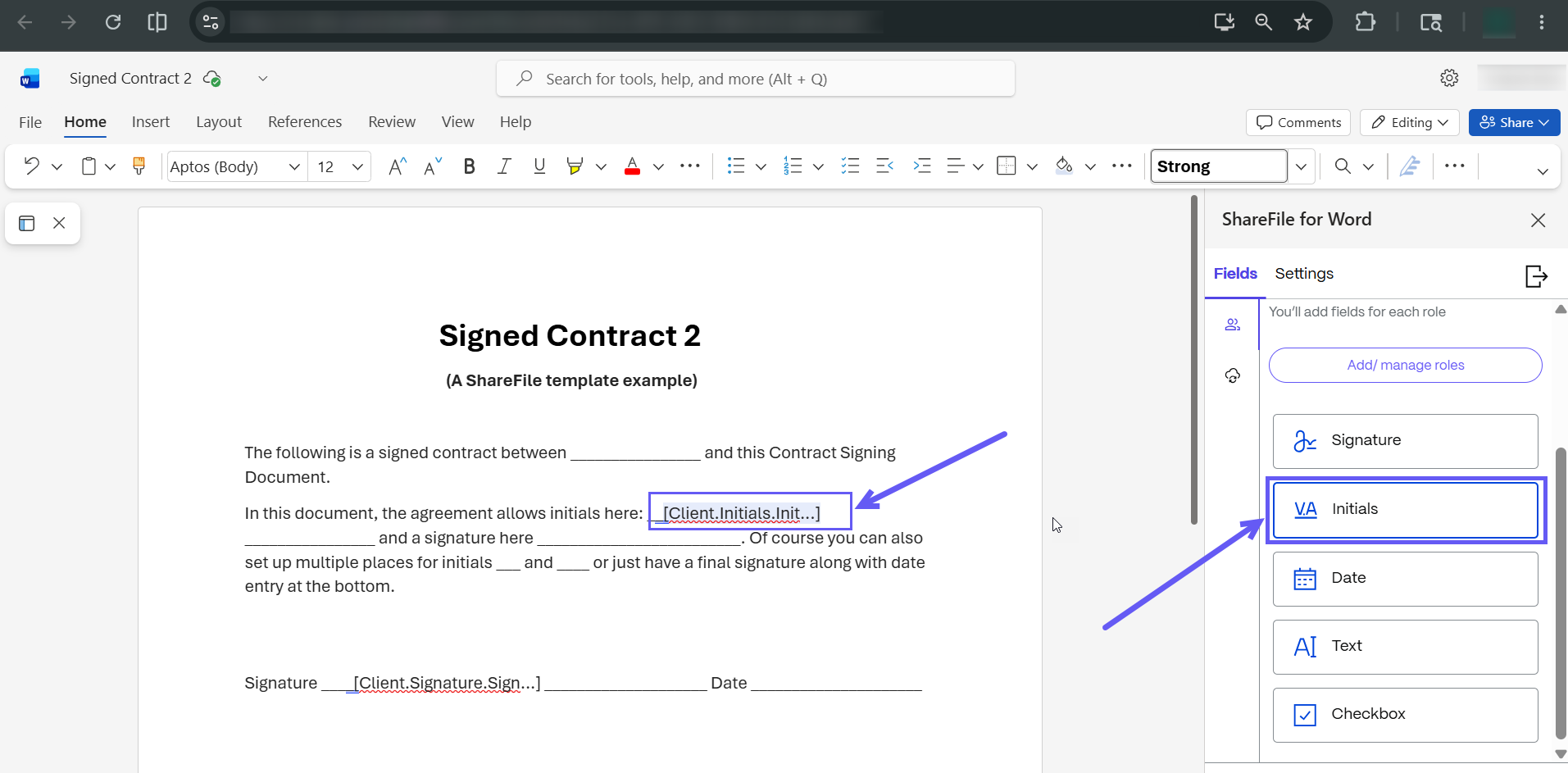
Once a role is added, the available signer fields (e.g., Signature, Text, Date) display as shown below.
-
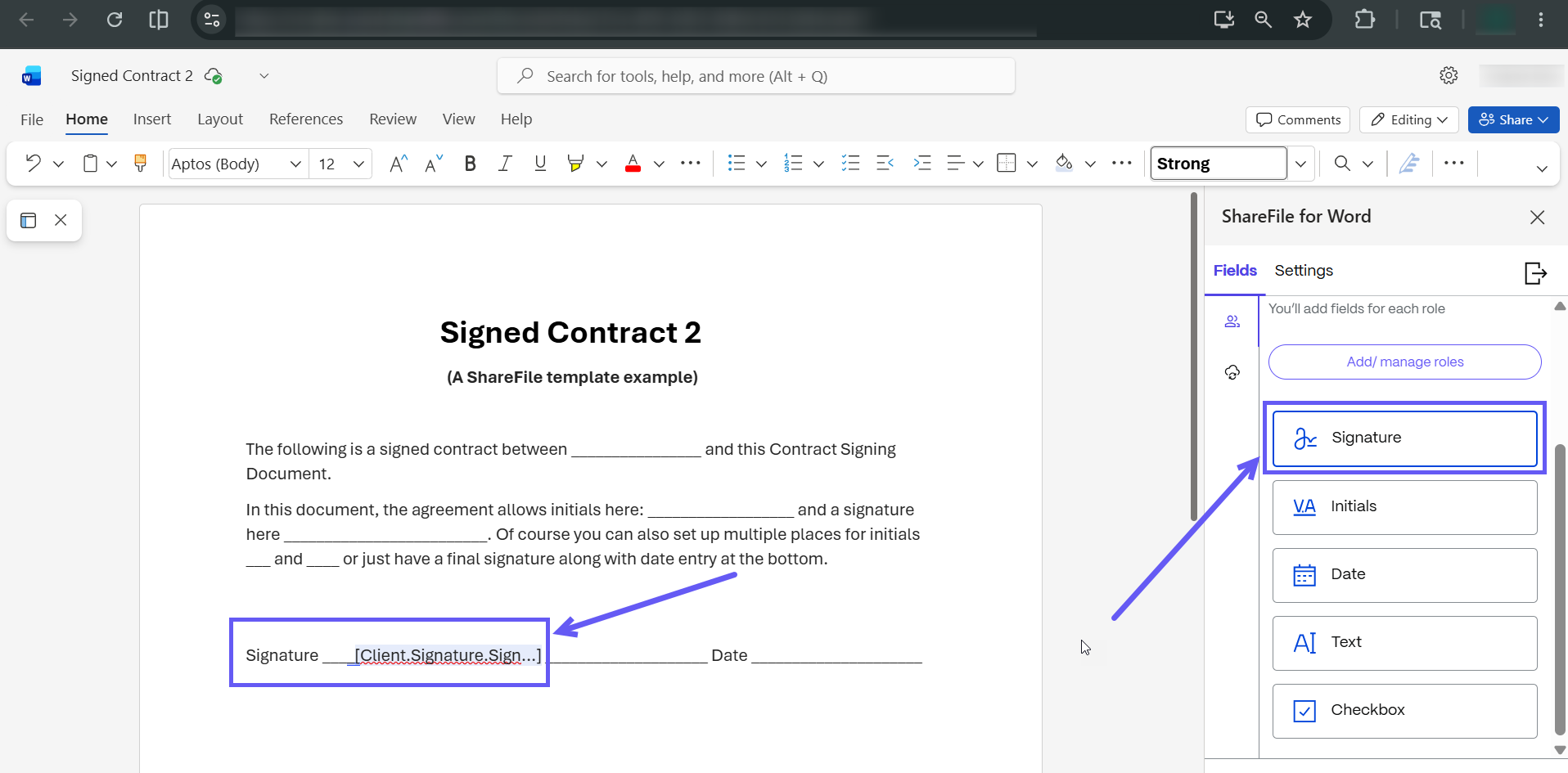
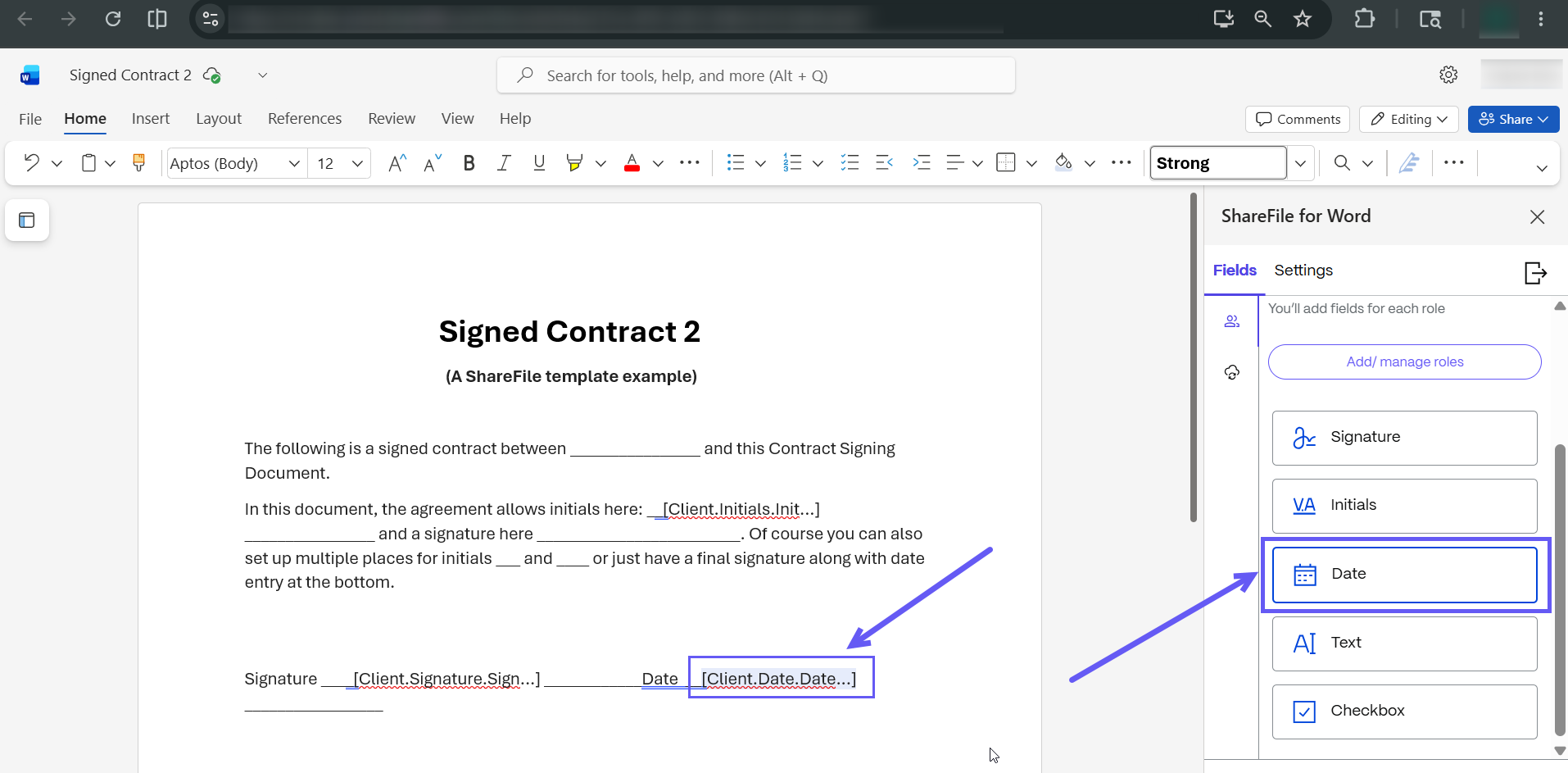
To insert a field, place your cursor in the document where you want the field to appear, then click on the desired field in the Add-in.
-
Repeat the process to add all necessary fields for each role into your template.
-
-
Variable Fields
-
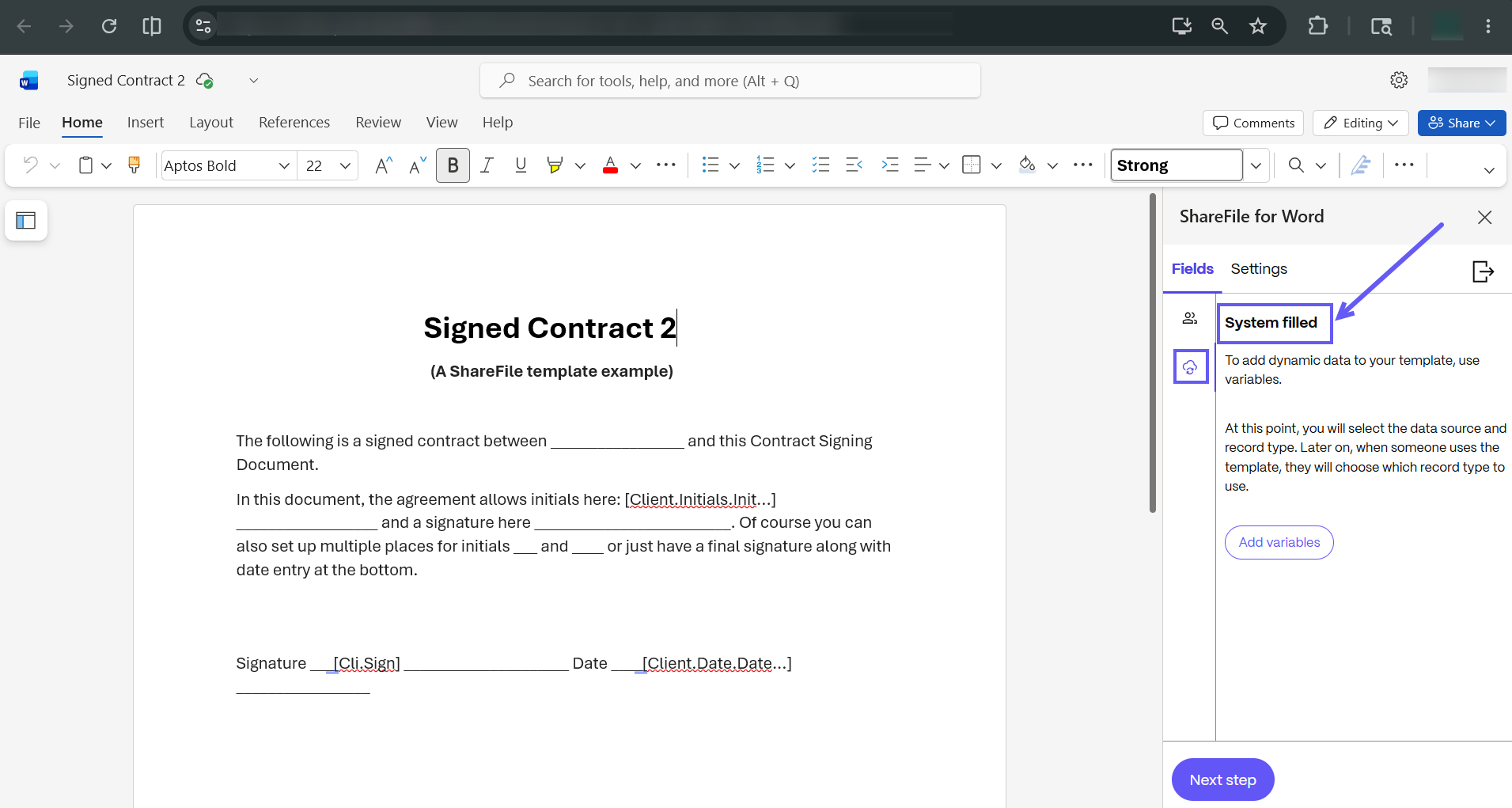
Select System filled fields icon to start adding variables to the document template.
-
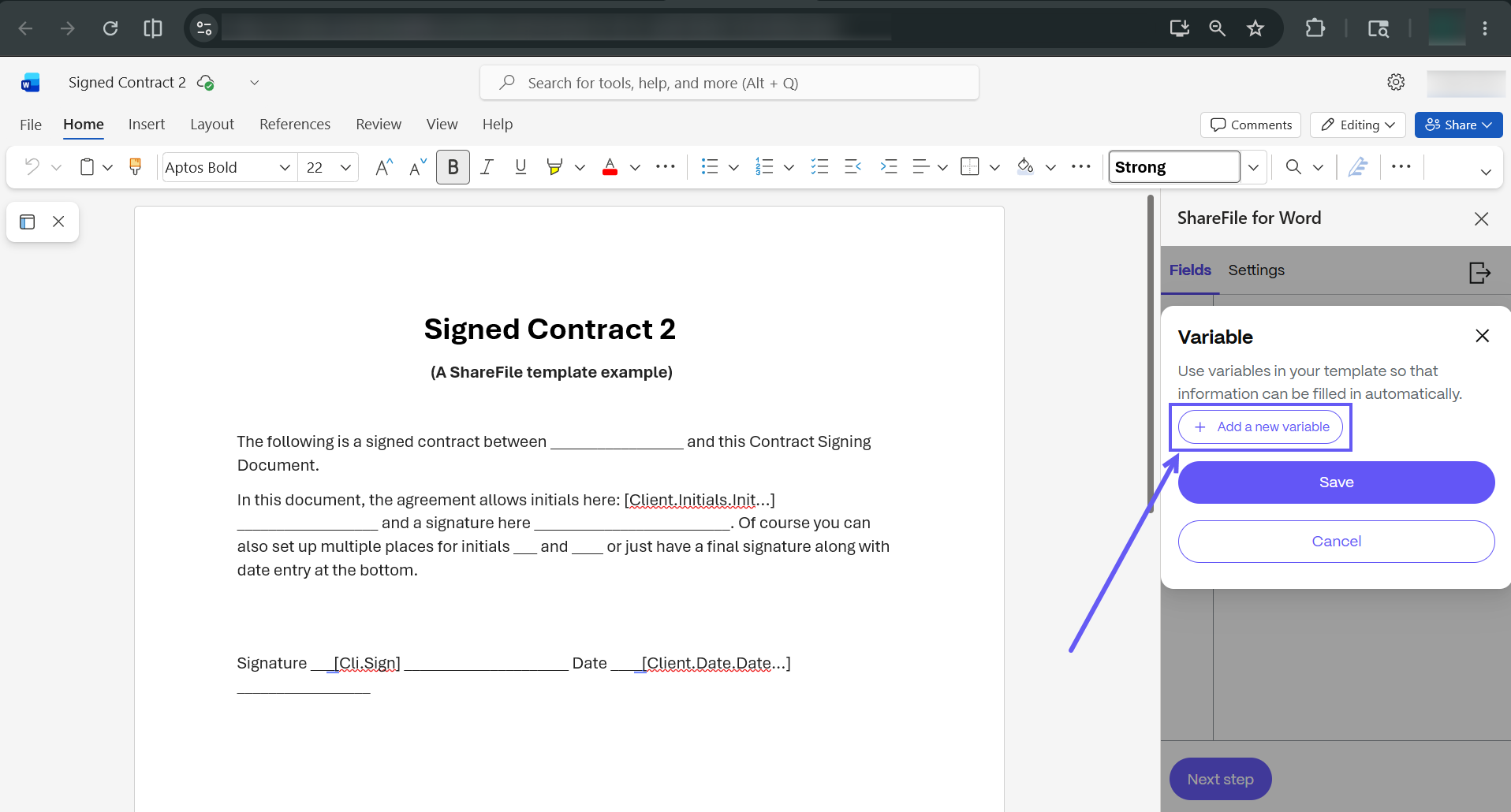
Click Add a new variable. Variables specify the source and type of data that must be automatically filled in the document.
-
For each variable, select a Data Source and Data type from the dropdown menu. The list of supported data sources and types can be found under the section Automatically fill or paste data from ShareFile and third party applications in documents.
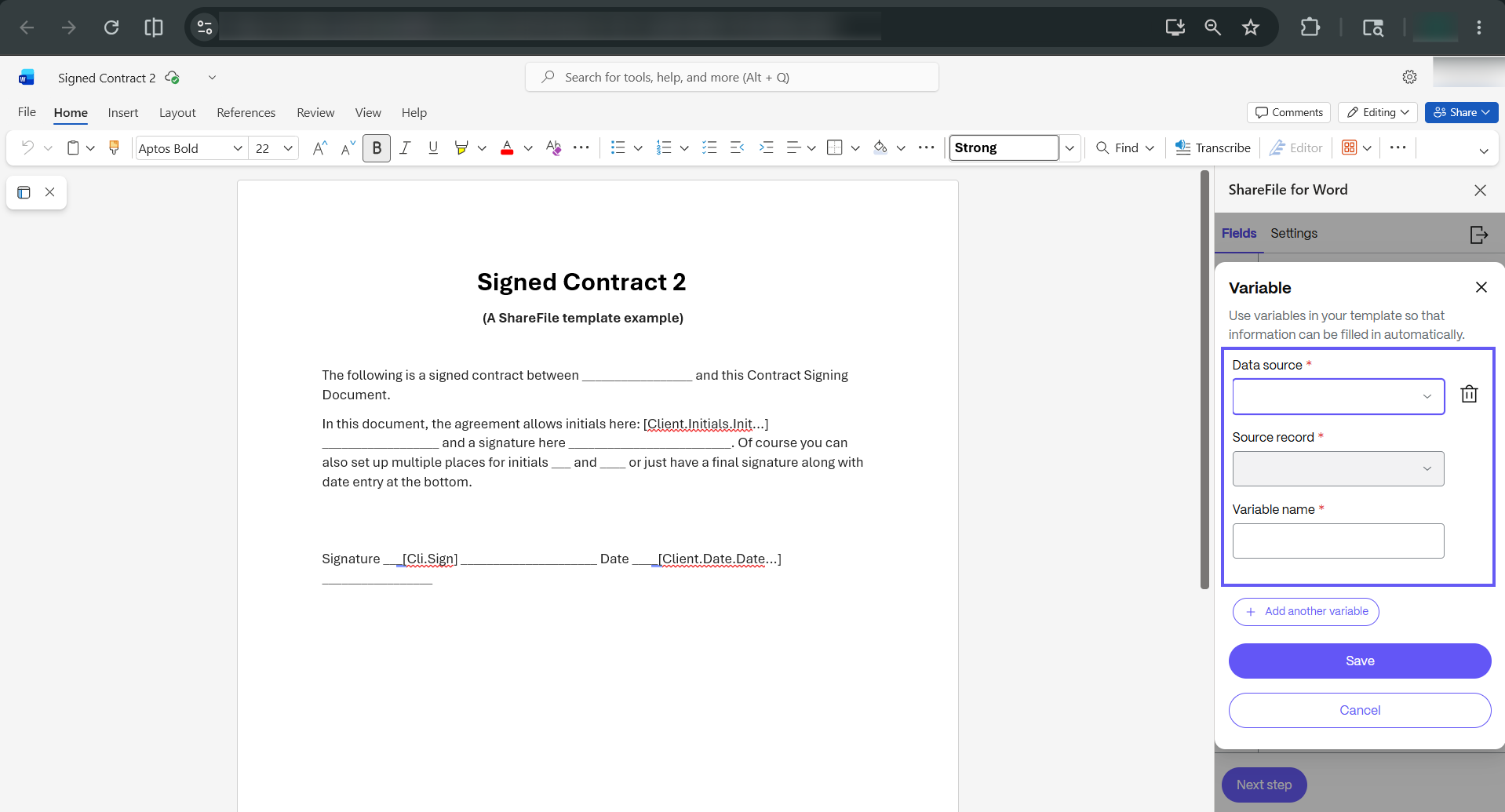
-
Once a variable is added, its attributes display as shown below. To add a variable field into the document template, place your cursor where you want the data to appear, then click on the relevant attribute in Add-in.
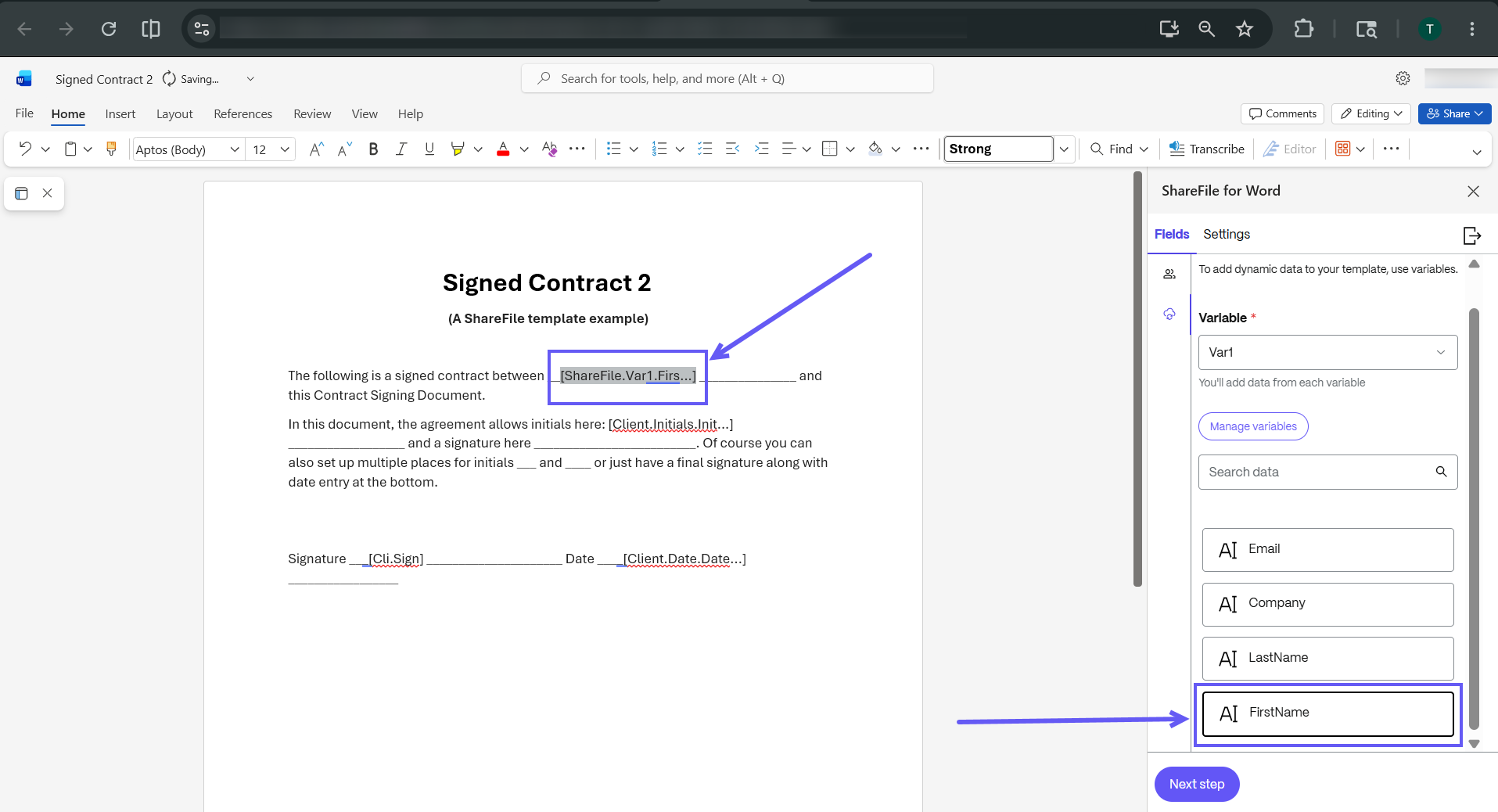
-
Repeat the process to add all necessary variable attributes to your template.
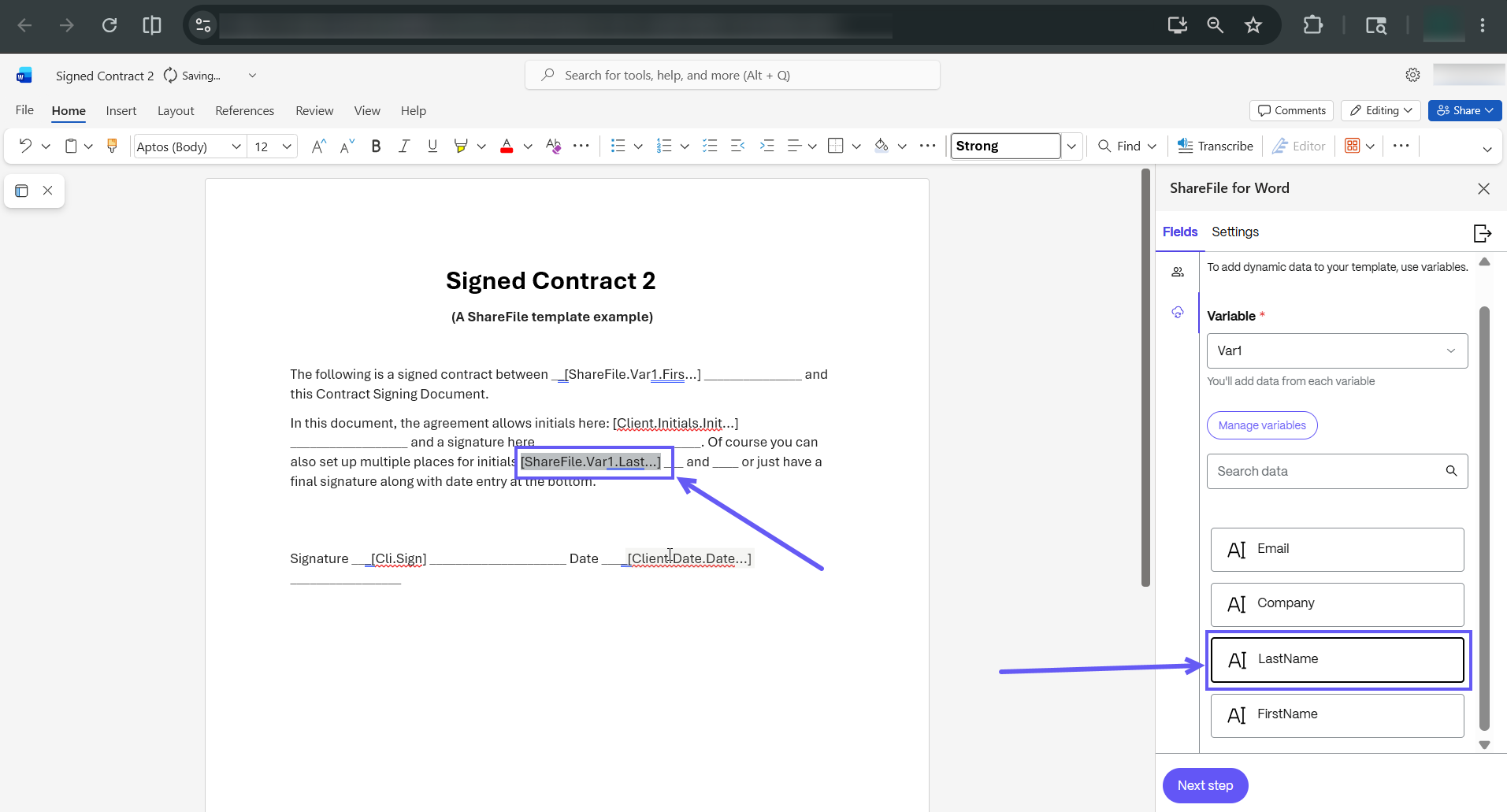
-
After adding all fields, select Next Step to move to the Settings tab.
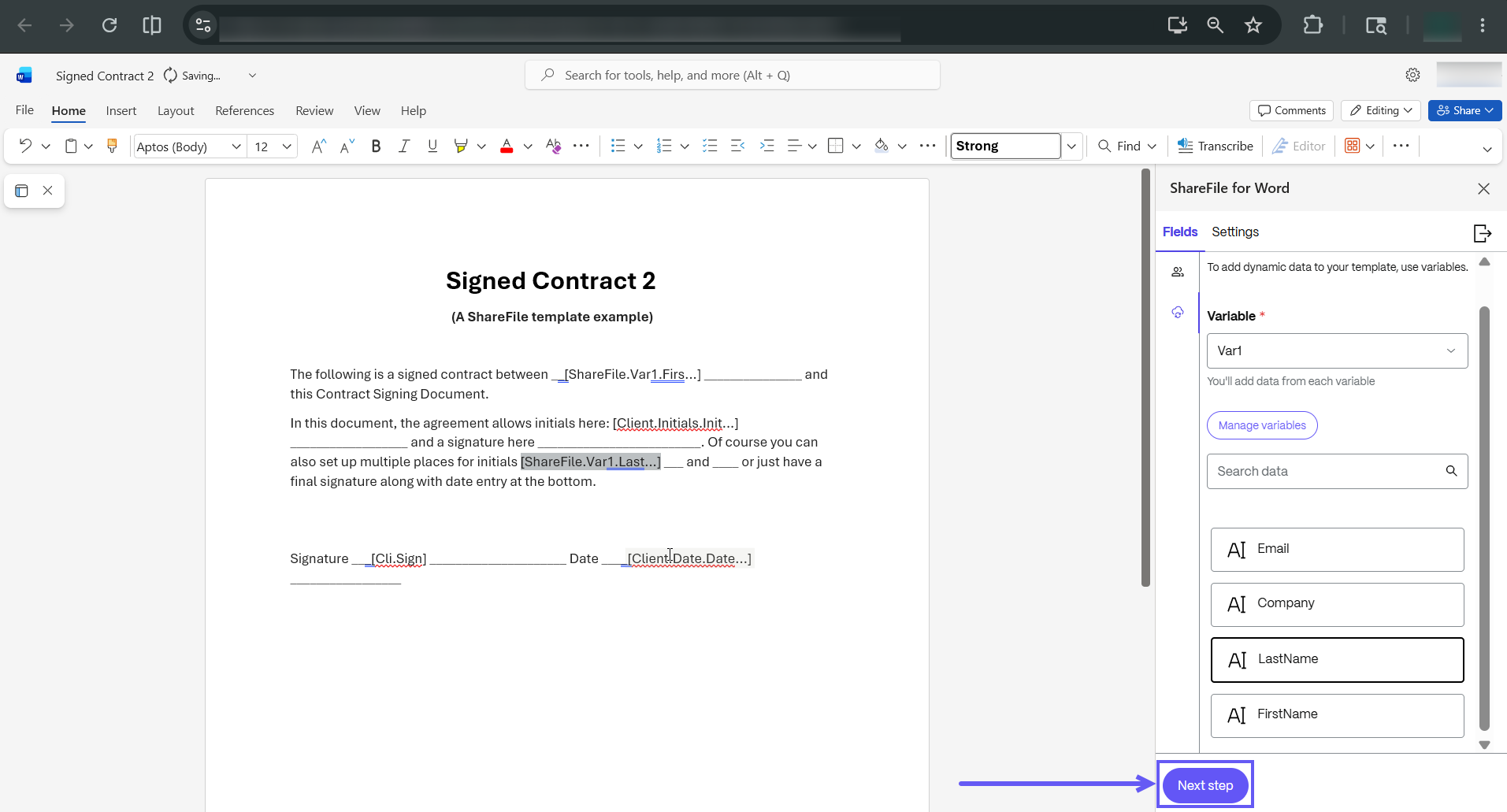
-
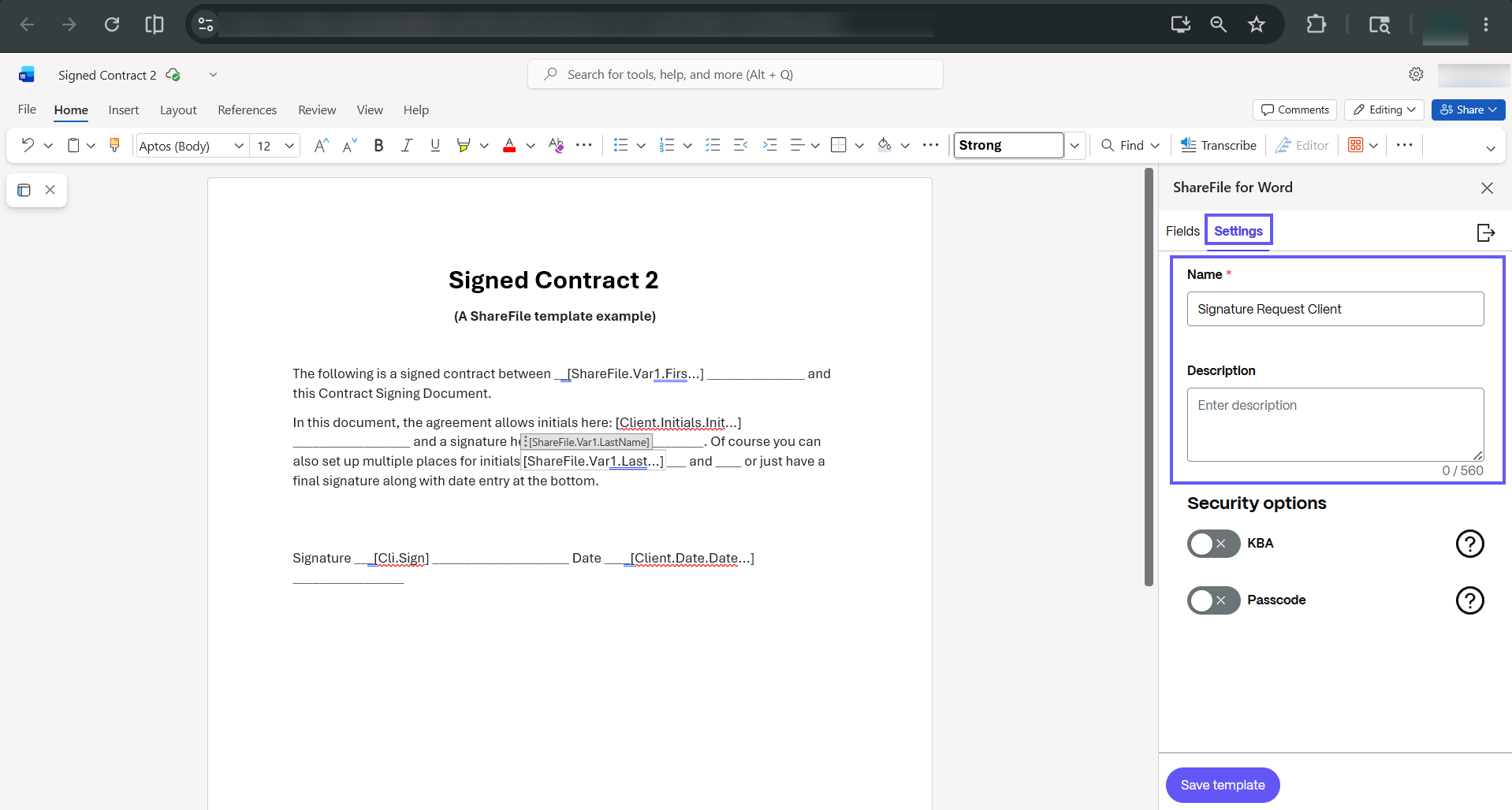
In the Settings tab, enter a name and description for your document template. You can also enable a security feature such as passcode or KBA.
-
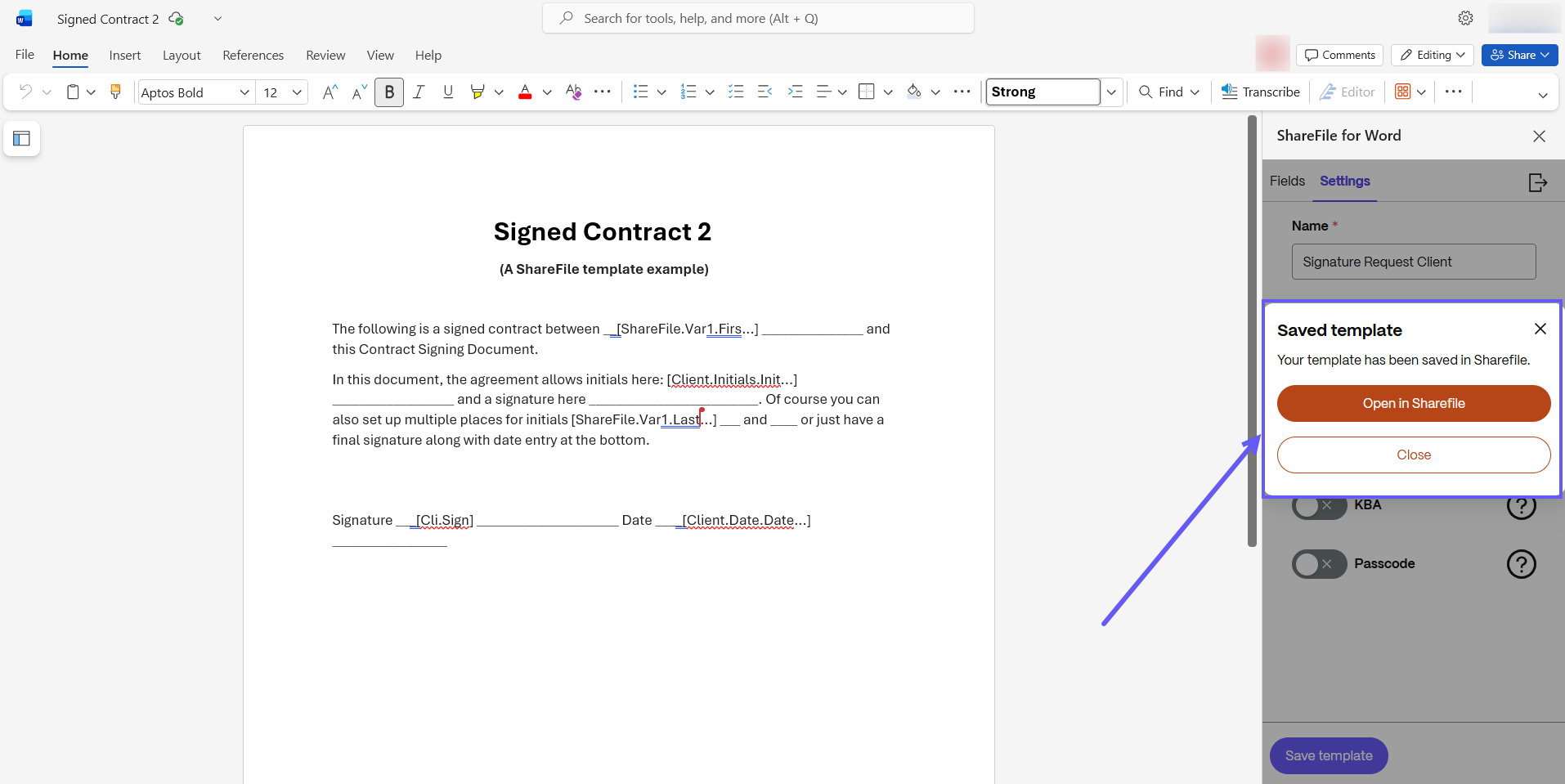
Select Save template. Click Open in ShareFile to find the newly created template in ShareFile.
-
-
To edit an existing template in Word Online (Browser)
-
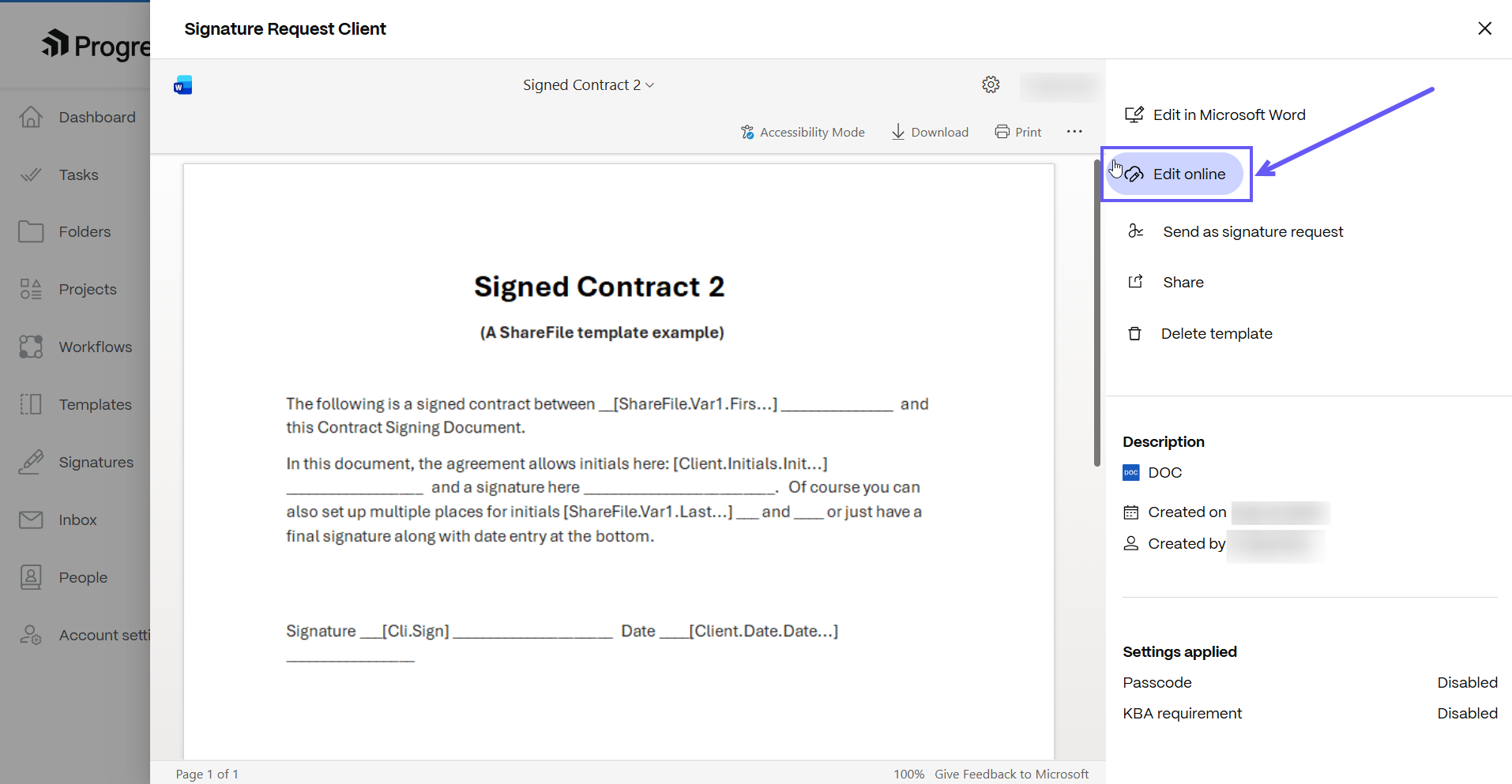
In ShareFile, navigate to Templates and select the document template that you want to edit in Word online.
-
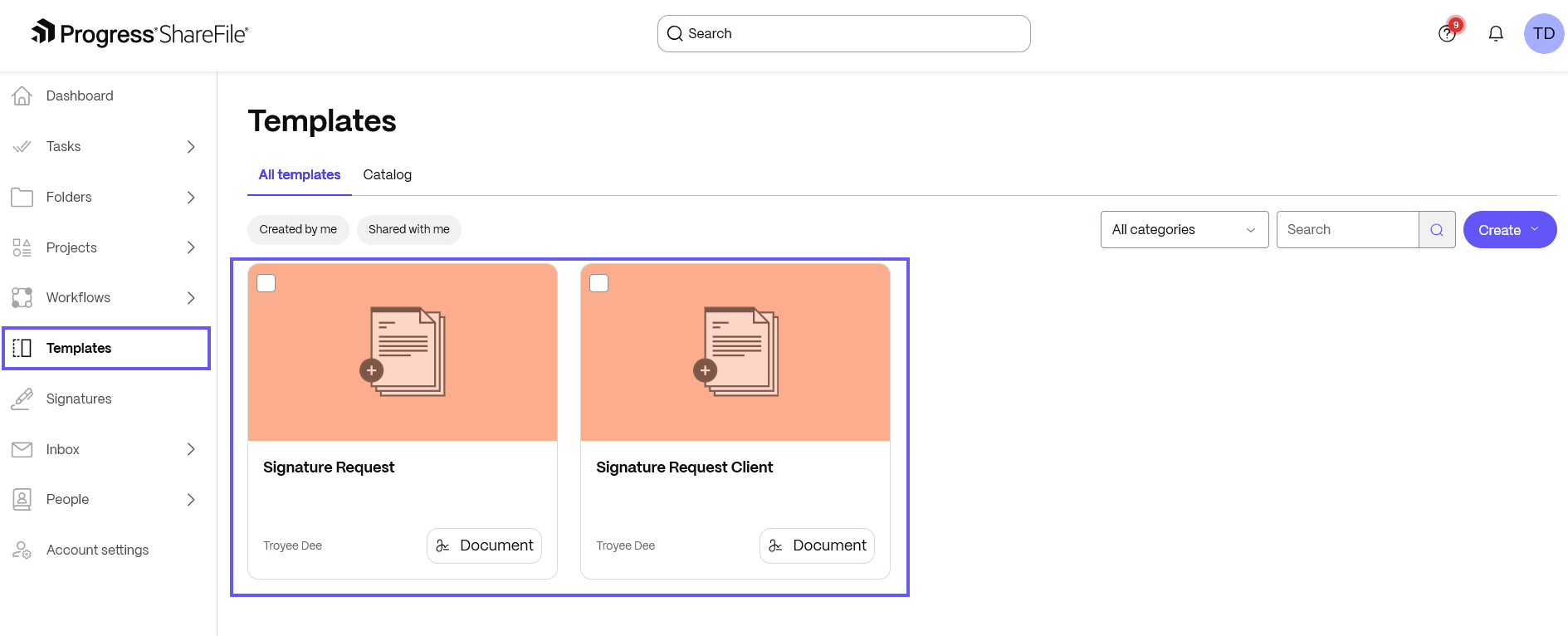
When you click on it, the details page opens. Select Edit online.
-
Click Allow to sign in and follow the steps as highlighted in the Word Online (Browser) section above to complete the sign-in process. Once signed in, you can edit the document.
Send a Document template for Signature
-
In ShareFile, navigate to Templates.
-
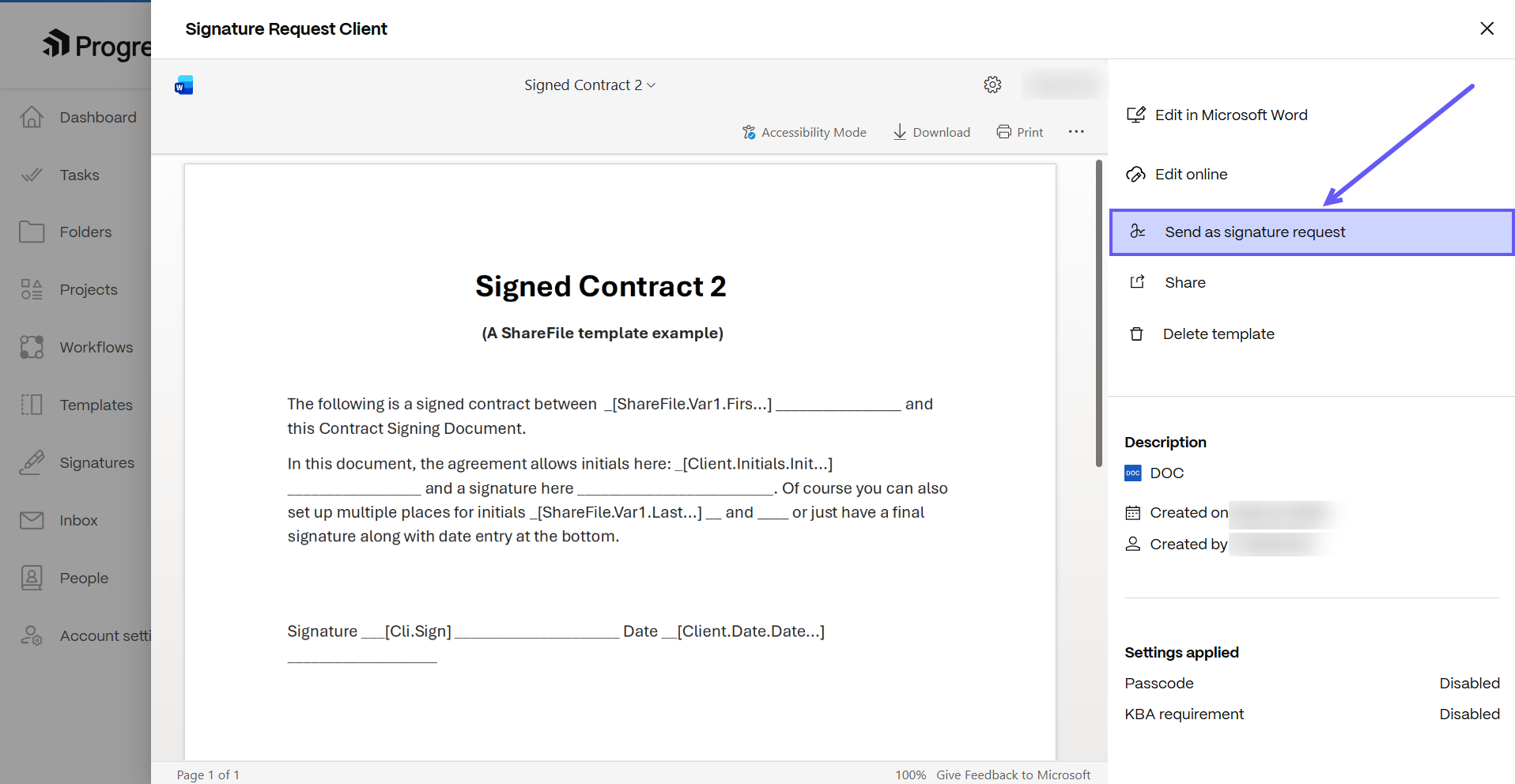
Select the document template that you want to send for signature. When you click on it, the details page opens.
-
On the details page, select Send as signature request.
-
To send a document template for signature, see Send a Docgen Template with variables for Signature and Handling missing data from variables, for more information.