Apply Service Teams to client hub
Article applies to:
- ShareFile Employee users
To apply Service Teams on the client hub:
-
Navigate to the client hub: From the main dashboard, select the client hub tab in the left-hand navigation sidebar.
-
Select a Client Record: Locate and click on the specific Company Name or Client Record (e.g., Acme Company) from your list of clients to open their detailed profile.
-
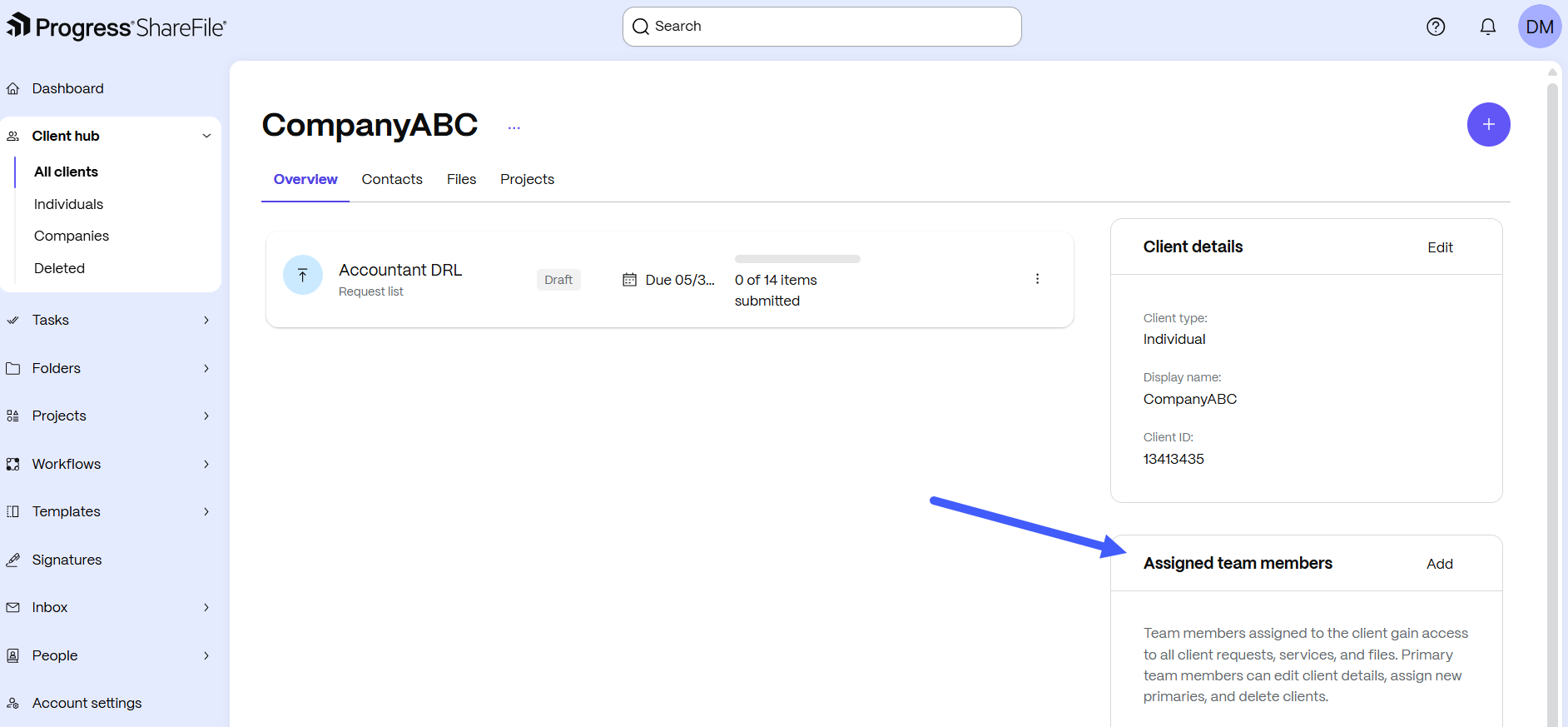
Access Assigned Team Members: On the Client details page, scroll down to the bottom right section labeled Assigned team members. Click the Add button located in the header of this section.
-
Toggle to Service Team Mode: A side pane titled Add team members will appear. By default, this may be set to add individuals. Select the radio button for Add service teams.
NOTE:
Selecting this option changes the search criteria from individual user accounts to the pre-defined groups created in your Admin settings.
-
Search and Select the Team: In the search bar under Select one or multiple service teams, type the name of the team you wish to assign (e.g., "Team A"). Click the team name when it appears in the dropdown results.
-
Review Permissions and Confirm: Verify whether the team selected is correct. Once selected, click the Add button at the bottom of the pane.
IMPORTANT:
Assigning a Service Team automatically grants all members of that team access to the client’s requests, services, and folders. Ensure the team's membership is audited before applying them to sensitive client records.
-
Verify the Assignment: The side pane will close, and the members of the Service Team will now appear in the Assigned team members list on the client profile.
Prerequisites:
- Service Teams must already be created by an administrator on the account.
- The client hub feature must be active for the account.