Customize client views in the client hub
Article applies to:
- ShareFile Employee users
Note:
Before adding a value to a client record, make sure the custom field exists. If it doesn't, ask your administrator to create it.
-
Select Individuals or Companies, depending on the type of client you want to update.
-
Open the client record that you want to update.
-
On the Overview tab, select Edit in Client details.

-
In the Edit client details drawer, enter or select values for the custom fields, then select Save.
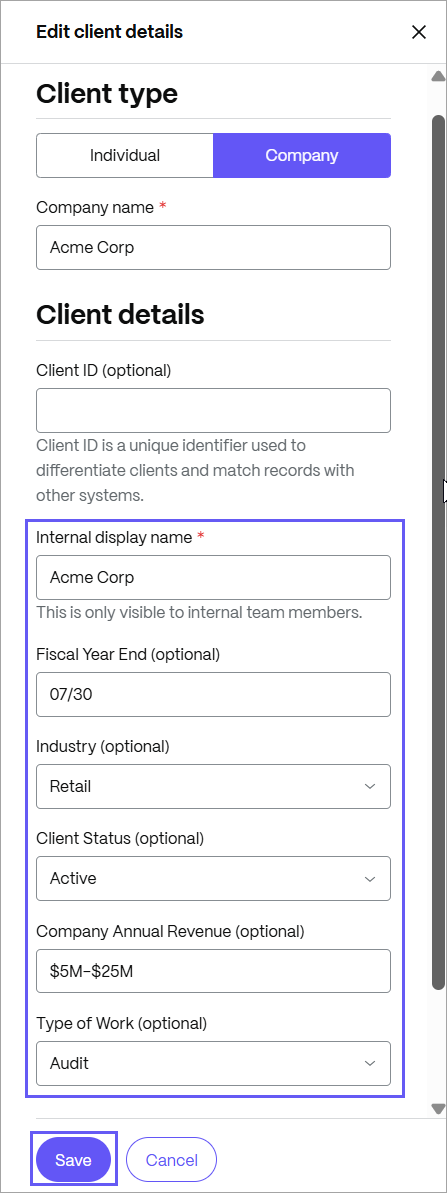
For more information, see Create Custom Fields and Manage Custom Fields.
Edit contact details
In the Contacts view, select the three-dot menu beside a contact and select Edit contact.
In the Personal information drawer, update the contact's personal information and any client-specific details enabled by your administrator, then select Save.
Customize client columns with Edit Columns
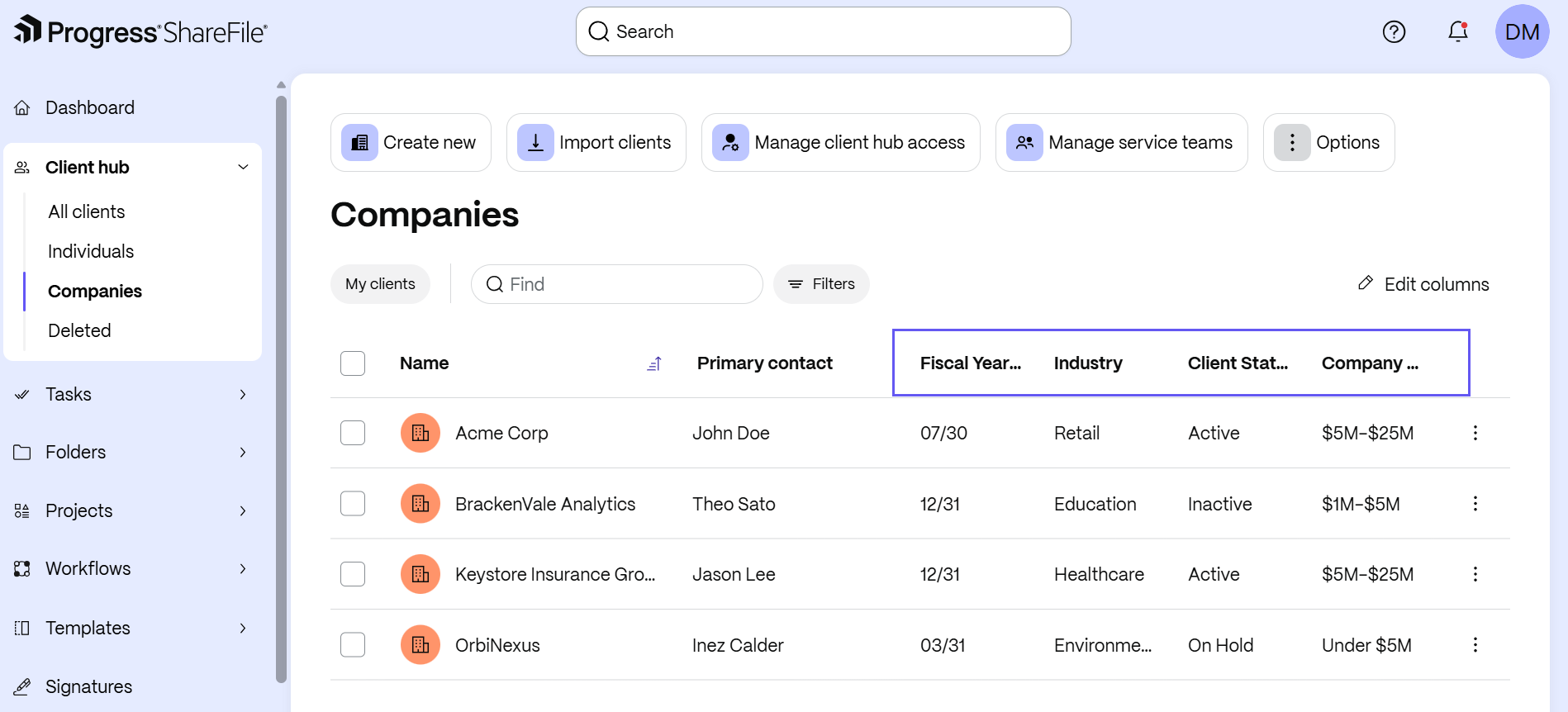
In the Individuals or Companies view, customize the client list columns to show data from your custom fields. These columns make it easier to review custom field data for each client.
-
Select Individuals or Companies from the sub-navigation menu.
-
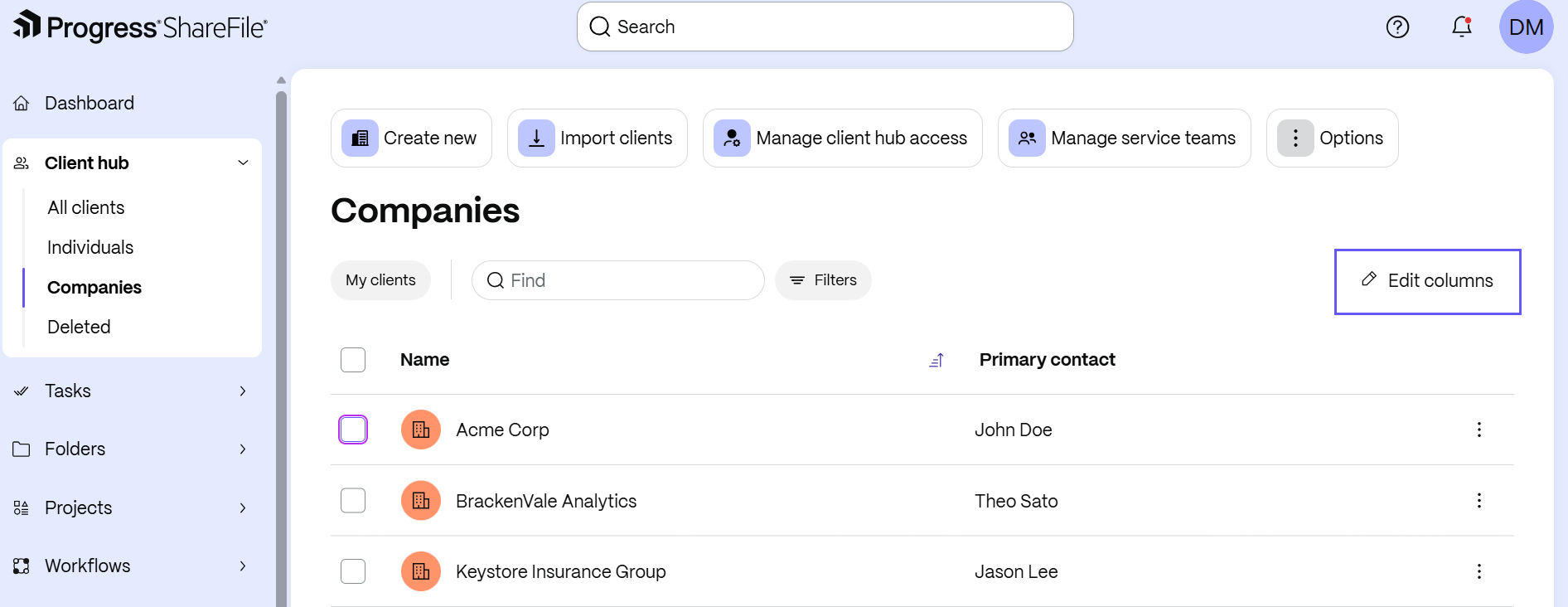
From the client list, select Edit Columns.
-
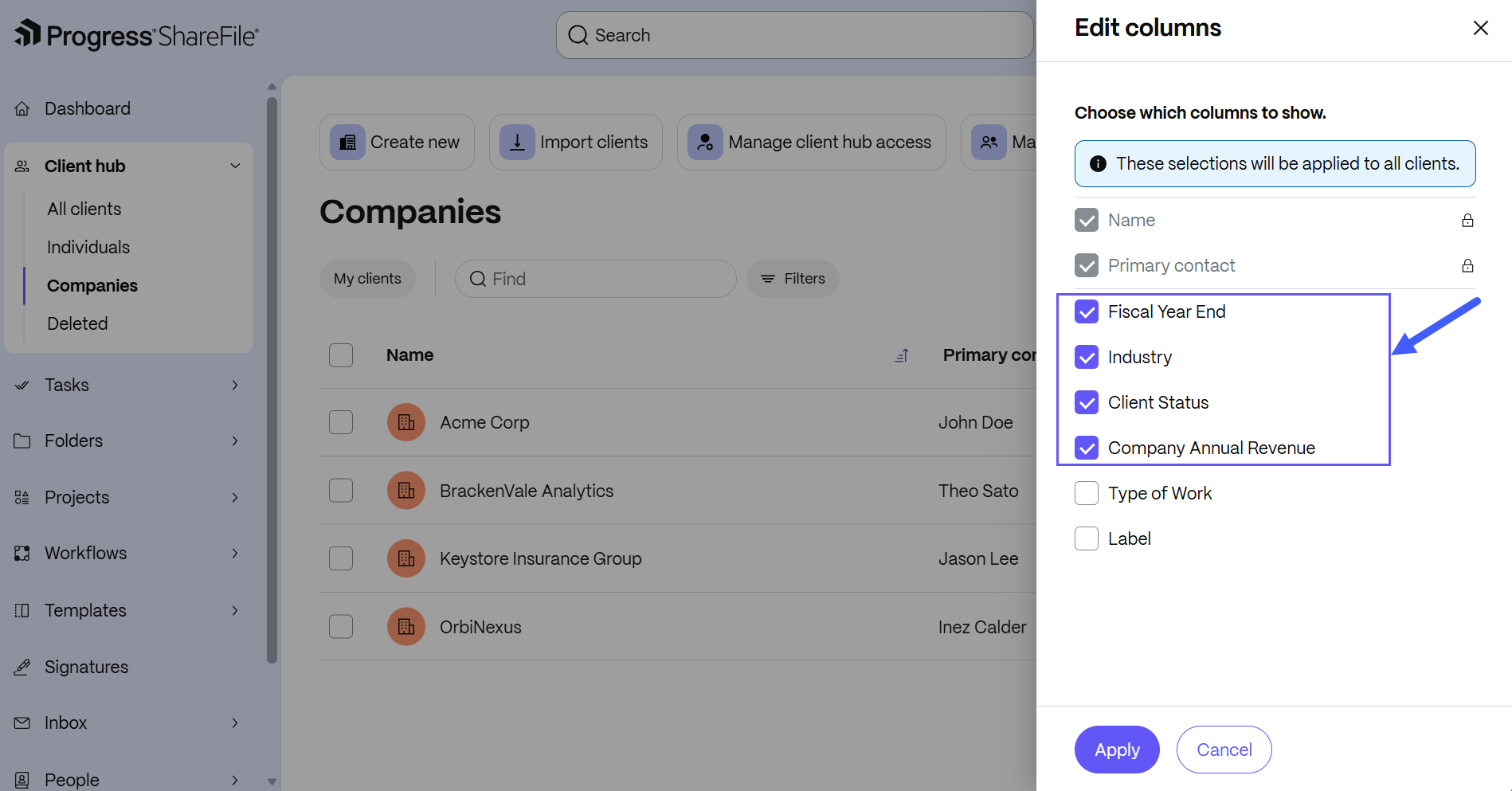
In the Edit columns drawer, select the custom fields that you want to view as columns.
-
Select Apply to save your changes.
Important:
Column selections apply only to your view of the selected client list (for example, Individuals or Companies). They do not affect other client lists or other users' views.
Customize contact columns
In the Contacts view, select Edit Columns to choose which custom fields to display. Select or clear the fields according to your preferences, then select Apply.