Manage Service Team Members for client hub Admins
Article applies to:
- ShareFile Employee users (account Administrator)
This guide instructs administrators on how to add new members to an existing Service Team and manage their access levels within the client hub.
Prerequisites:
User must be logged in with Administrator permissions.
The Service Team must already be created. See Create Service Teams for instructions.
Only employee users can be added to a Service Team.
To add new members to an existing Service Team:
-
From the ShareFile dashboard, navigate to the client hub tab in the left-hand sidebar.
-
Click the Manage client hub dropdown menu in the top right corner.
-
Select Manage service teams from the list.
-
Locate the specific team you wish to update (e.g., "Team A").
-
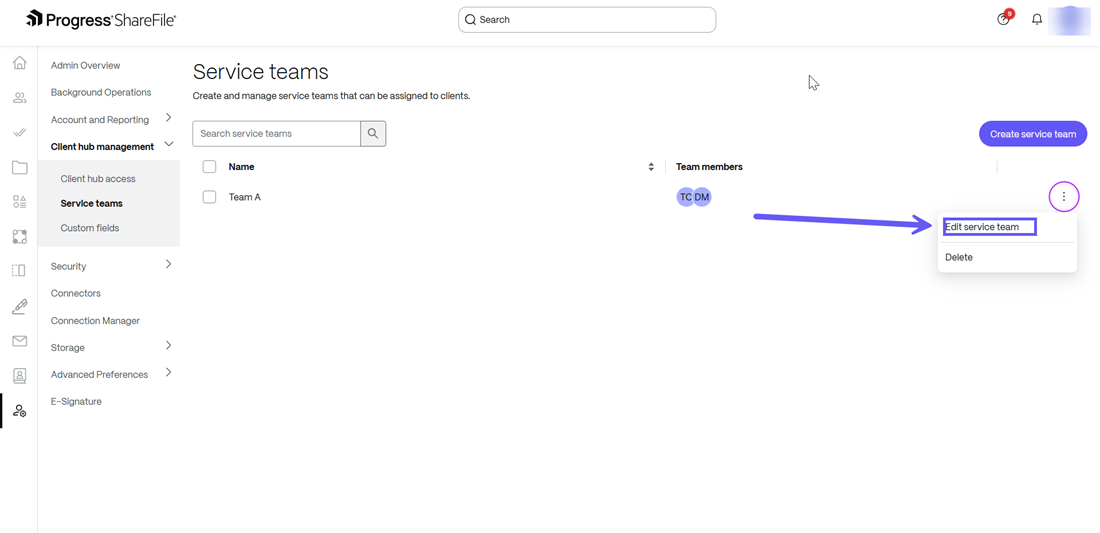
Click the checkbox next to the team name and select Edit service team from the action bar that appears.
-
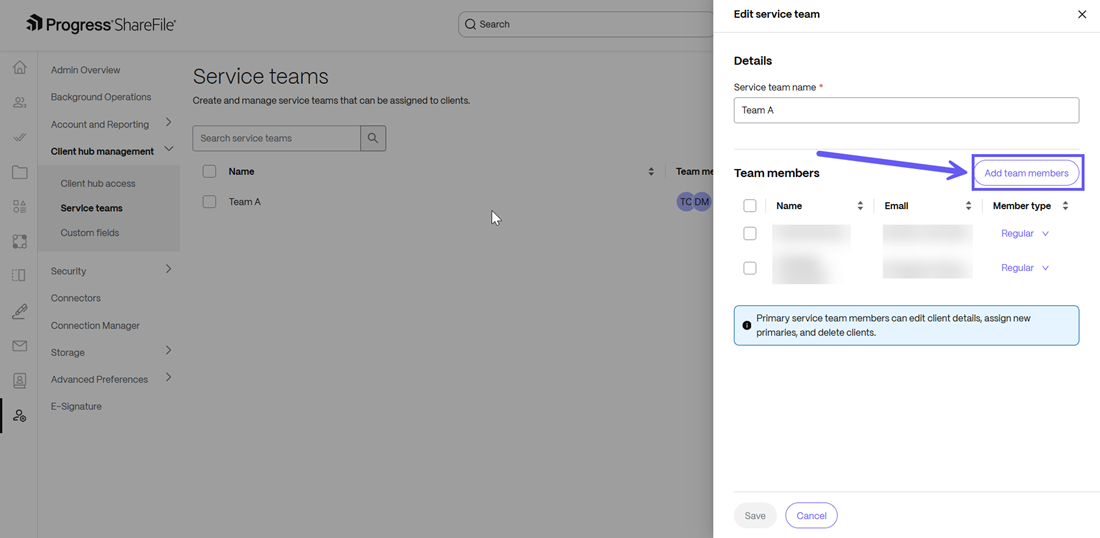
In the Edit service team panel, click the Add team members button.
-
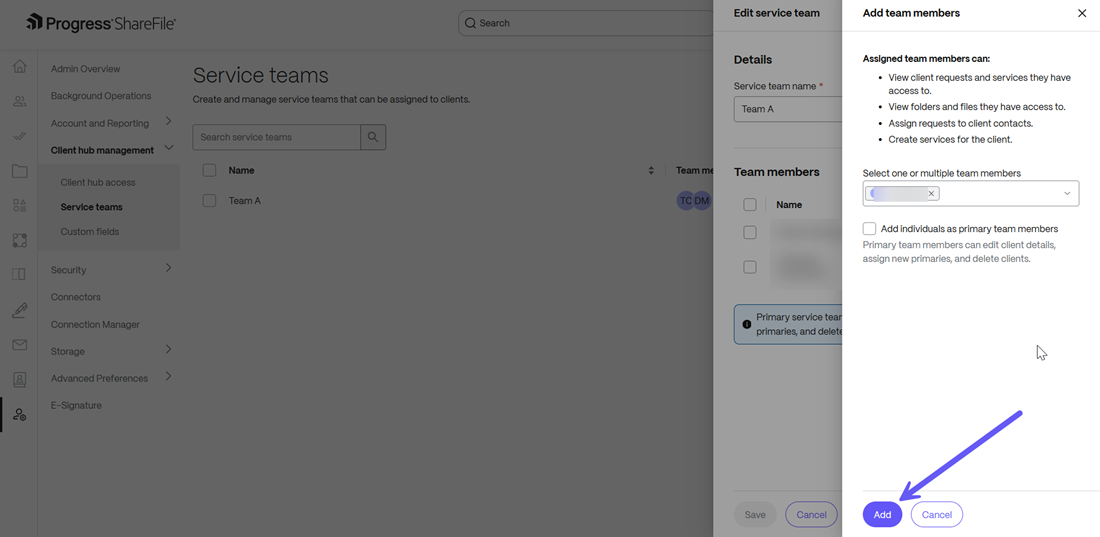
In the search field labeled Select one or multiple team members, type the name or email of the user you wish to add.
-
Select the user from the results list.
-
(Optional) To grant full administrative control over the team, check the box Add individuals as primary team members.
NOTE:
Primary service team members can edit client details, assign new primaries, and delete clients. If this is not checked, the user will be added as a Regular member with standard access.
-
Click the Add button at the bottom of the search panel.
-
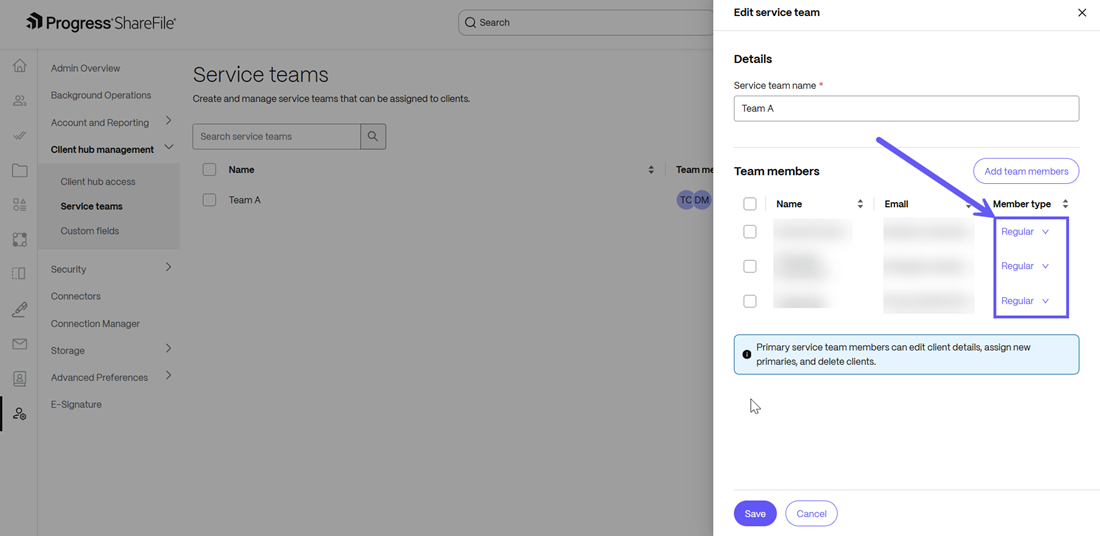
Review the member list to ensure the Member type (Primary vs. Regular) is correct for each individual.
-
Click Save to apply the changes.