Navigate and customize client views in the client hub
Article applies to:
- ShareFile Employee users
This guide explains how to navigate client views in the client hub, update custom field values, and display custom field data in client list columns.
Navigate client views
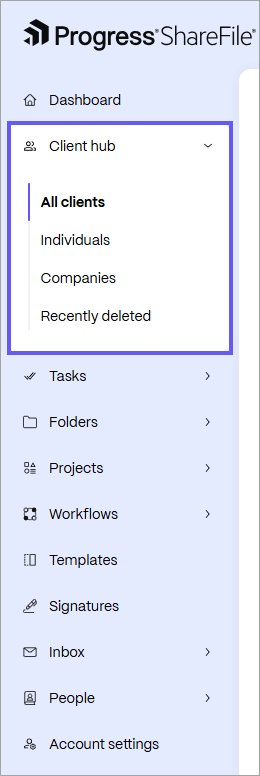
- Navigate to client hub, and select the dropdown arrow to expand the sub-navigation menu.
- Select the view you want to access:
-
All clients: Shows all clients in your account, including both Individuals and Companies.
-
Individuals: Shows only individual clients.
-
Companies: Shows only company client records.
-
Recently deleted: Shows clients that were recently deleted from your account.
-
Add a custom field value
Note:
A custom field must already be created before you can add a custom value to a client record. If the custom field is not available, contact your administrator to create one.
-
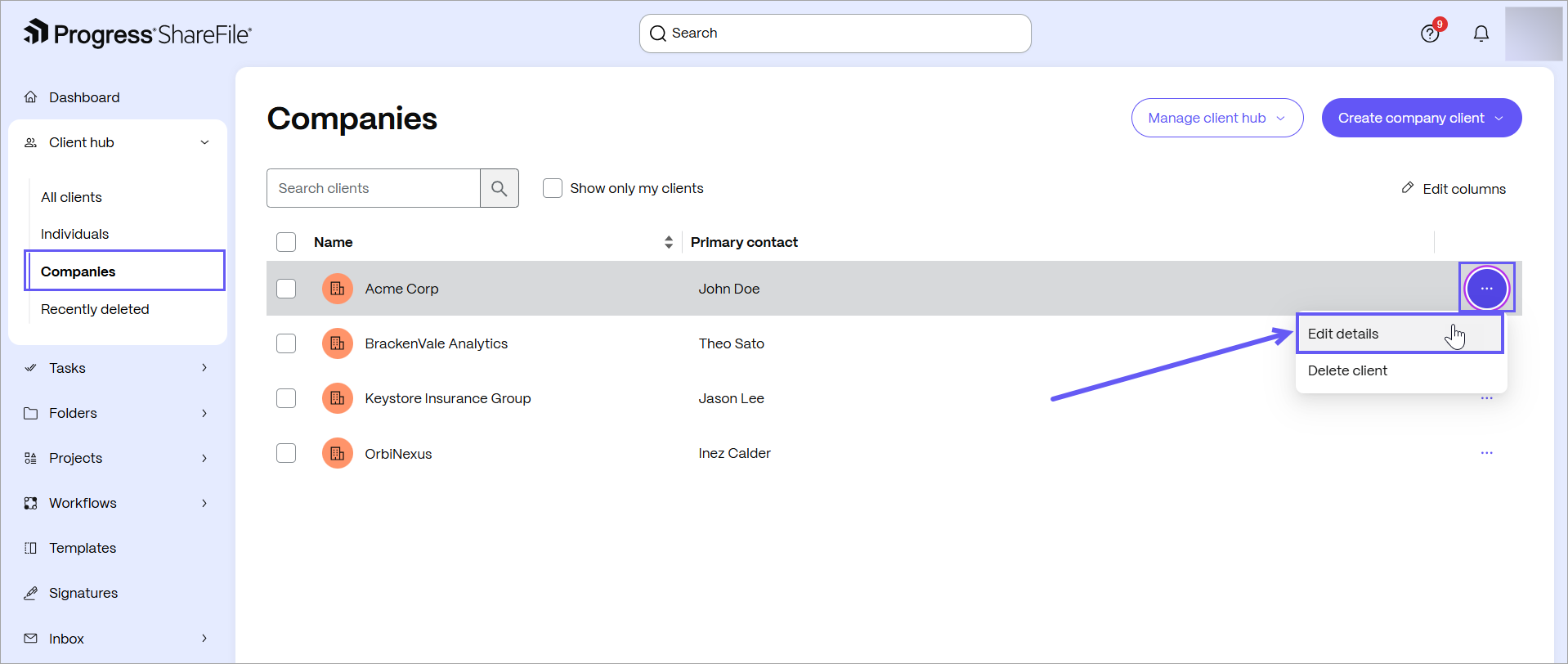
Select Individuals or Companies, depending on the type of client you want to update.
-
Open the client record that you want to update.
-
Select the three-dot menu > Edit details.
-
In the Edit client details drawer, enter or select a value for the custom fields. Select Save.
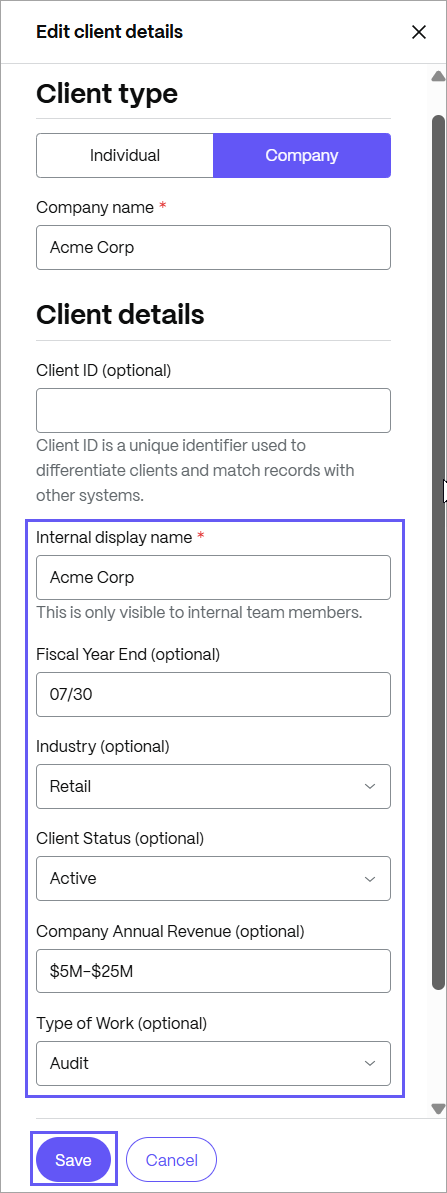
For more information, see Create Custom Fields and Manage Custom Fields.
Customize columns with Edit Columns
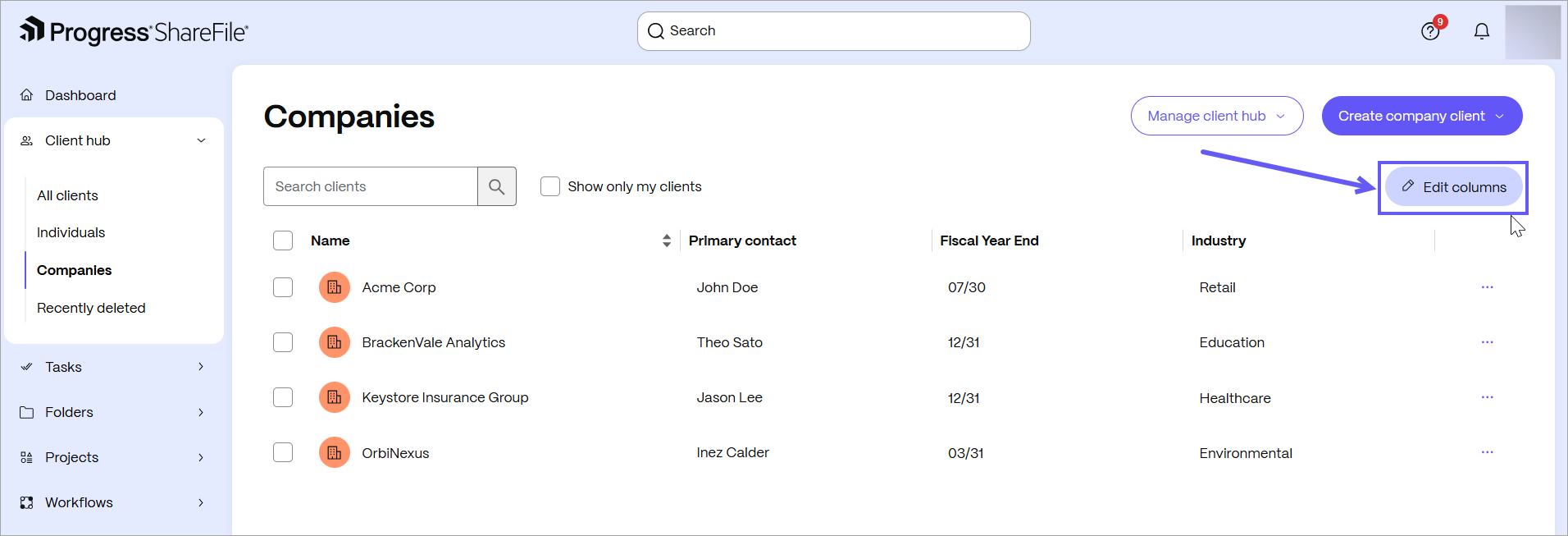
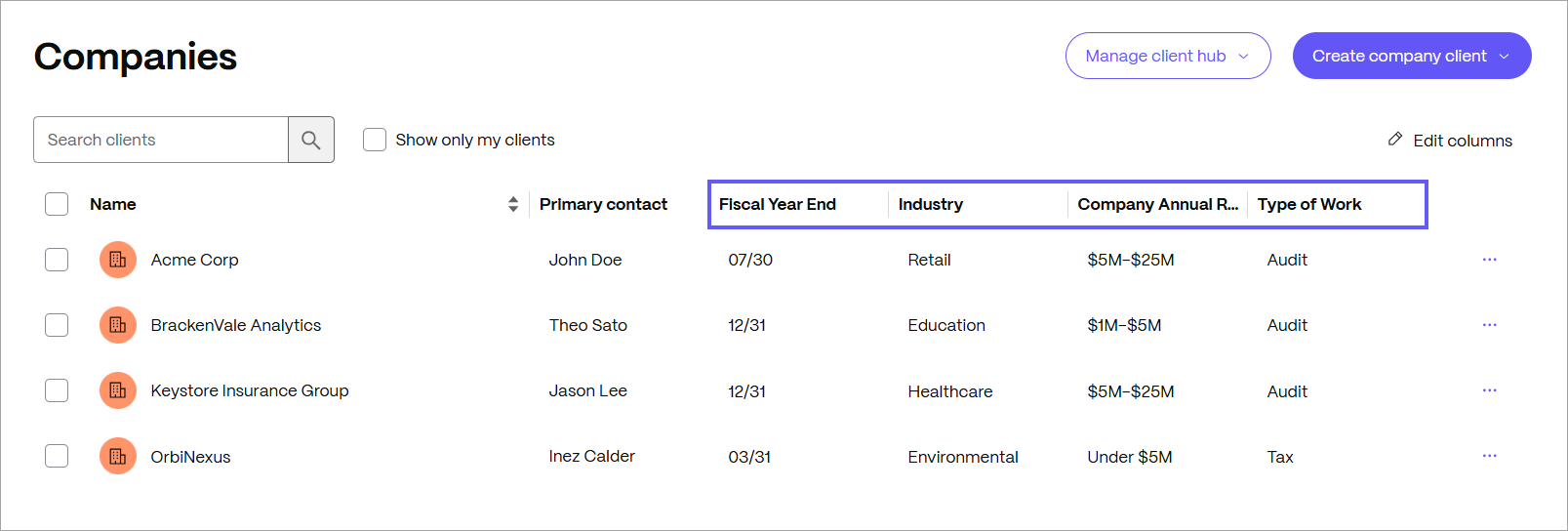
In the Individuals or Companies view, you can customize the columns in the client list to show data from your custom fields. This gives you a clearer view of the custom field data entered for each client and helps you work more effectively in client hub.
-
Select Individuals or Companies from the sub-navigation menu.
-
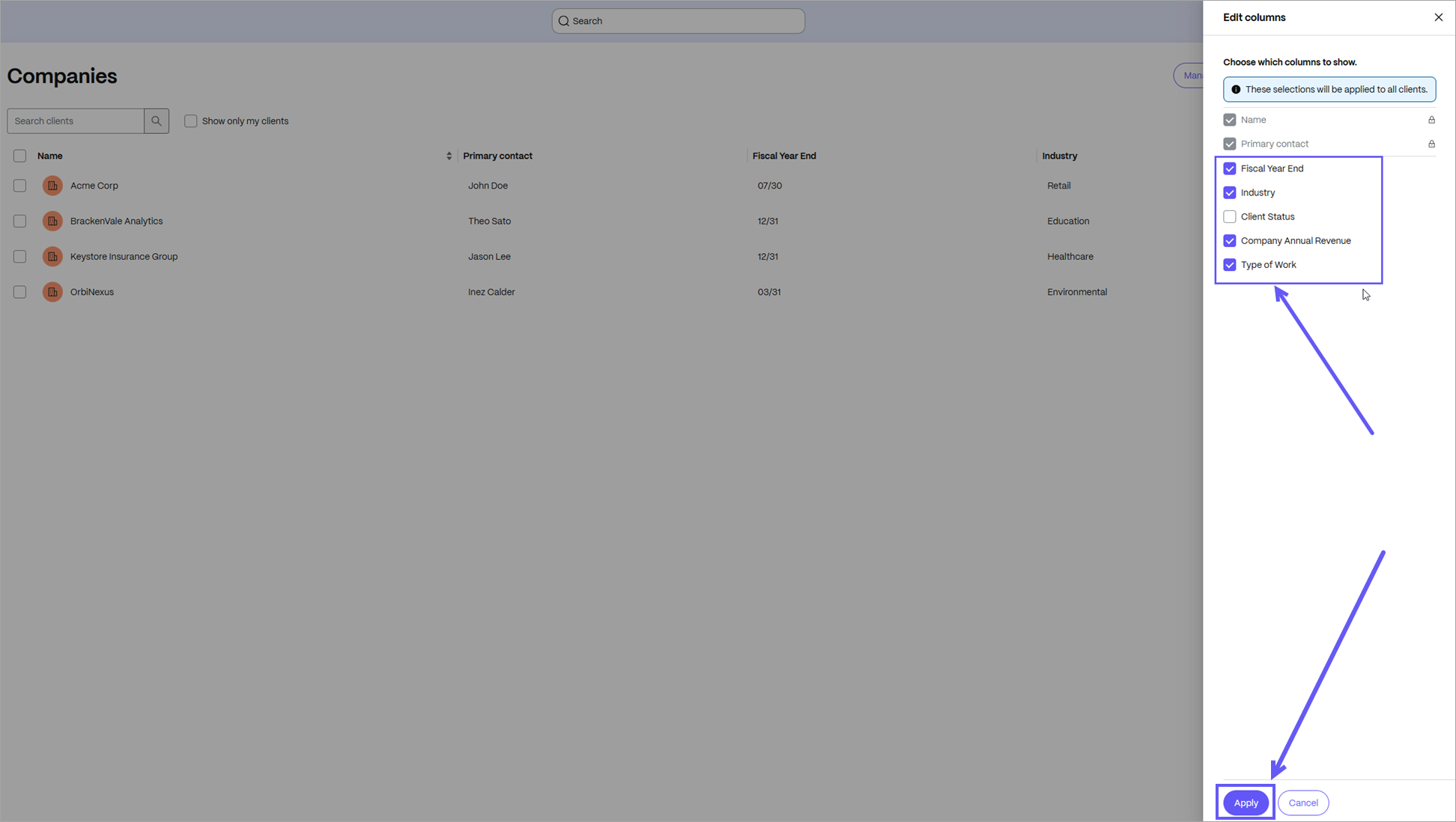
From the client list, select Edit Columns.
-
In the Edit columns drawer, select the custom fields that you want to view as columns.
-
Select Apply to save your changes.
Important:
Column selections apply only to your view of the selected client list (for example, Individuals or Companies). They do not affect other client lists or other users views.