Financial Records Archiving
This specialized archiving feature is designed to support customers’ recordkeeping and retention obligations under SEC Rules 17a-3 and 17a-4 (17 C.F.R. § 240.17a-3 and § 240.17a-4, as applicable).
Notes:
- Records will be retained in accordance with ShareFile's obligations as an electronic recordkeeping service provider under SEC Rules 17a-3 and 17a-4.
- The storage allocation is 200GB per license.
- Once enabled, financial records archiving cannot be turned off.
- May impact your ability to perform certain actions.
- Supported only on ShareFile Premium plans and above.
For more information regarding features and plan requirements, please consult the ShareFile Pricing page.
Please contact ShareFile Sales or Support to review if you are on a compatible account to have this feature enabled.
Financial Records Archiving Account Differences
Financial records archiving modifies the standard ShareFile account so that files, folders, activity logs, and messages sent via ShareFile’s email server are retained for an extended period beyond ShareFile’s ordinary record deletion schedule.
Customer Retention Responsibilities
Customers are responsible for determining their own recordkeeping and retention obligations under SEC Rules 17a-3, 17a-4, and other regulatory and compliance requirements, as applicable. When financial records archiving is enabled, ShareFile applies a uniform retention period of either three (3) years or six (6) years, as selected by the customer.
Customers are solely responsible for determining which financial records are stored in ShareFile and for selecting a retention period that satisfies their applicable legal obligations. Required retention periods may vary depending on the type of specific financial record. Customers who are uncertain regarding retention requirements applicable to their financial records should consult their legal or compliance advisors. Progress does not provide legal or other professional advice.
Note:
Records will be retained in ShareFile for the selected retention period only while the customer maintains an active ShareFile subscription, unless otherwise required by law.
How to use Investigative Search
When needed, an internal employee or authorized third party can be given access to the Investigative Search menu to access retained files, folders, sent messages and and messages sent via ShareFile’s email server.
Investigative Search can be accessed in the Account settings section of your ShareFile account.
Investigative Search Requirements
- Employee User
- Member of the Super User Group
- Granted the Allow this user to run and view archived searches permission.
From this menu, you can Schedule a New Search or browse Existing Searches (searches already created on the account).
When creating a new search, provide the terms you wish to search for (or the item ID, if it is known to you), as well as a unique Search Name that you can reference at a later date.
You can search for files, messages, and activity logs. Activity logs will display account activity such as uploads or downloads. You can also limit your search range using the drop-down menu.
Once you run a search, it can be found under the tab for Existing Searches. Depending on the size of your account, it may take a few minutes for the search to complete. To view your search results, click on the Name of the search.
The results page will allow you to export the data or view additional information on the items. Depending on your search settings, your results may be in the Files, Messages, or Activity log tabs. You can view additional information by clicking on the Details button to the right of an item in the search results. You may also download the item from the Details menu.
You may use the Run Again or Duplicate options on a completed search.
- Run Again will repeat the search. The results will appear as a new line item in the Existing Searches tab.
- Duplicate will bring you to New Search tab with the preferences pre-filled from the existing search. You will then have the option to edit the search before clicking Save and Run Search.
Features that are not supported for Financial Records Archiving Accounts
- Share or Send a Folder
- Edit files
- Rename files
- Rename folders
- Check Out files
- Add Notes
- Modify Folder Version Number or Retention Policy
- Delete files (Archived instead)
- Encrypted Email
- Dynamic Folder Templates
- File Drops
- Projects
- Personal Cloud Connectors
Additional Info - ShareFile: Drive Mapper Features
Due to the above limitations, accounts with financial records archiving enabled are not able to use the "Create New Folder" button to create new folders in the Windows Explorer window, since this function will first "create" a new folder with the default "New Folder" folder name, then attempt to "rename" the newly created folder.
Workarounds
-
From the ShareFile right-click menu option select More options, then Open in Website.
You can now create the folder from the web app then refresh Windows explorer.
OR
-
Create and name the folder on your desktop then copy it to the ShareFile folder location.
Changes to File Version Control
- Due to the nature of the feature, you cannot set or modify the number of file versions once financial records archiving has been enabled.
- The File Versioning menu item will not be present in the Admin or Folder Options sections of your account.
- Due to the above, you will not have the option of "linking to the latest version of the file" when creating a new Share or Get a Link message.
Archived Items
Items in Pending Archival can be restored to their regular folder within seven (7) days.
Enablement
-
To activate financial records archiving on your account, reach out to sales or support.
-
Indicate your desired retention period.
-
The master admin of your account will be prompted in-product to accept the terms of the SEC Addendum. The financial records archiving feature will not be enabled until this agreement has been electronically accepted by the master admin.
-
After the master admin accepts the SEC Addendum, the web app confirms the acceptance.
Storage Enforcement
An account admin will be notified when an account reaches 90-98% and continues until 100% of the account storage limit. Notifications are provided to the account admin and user as follows:
Storage Enforcement Notifications for FINRA Admin
-
Account at 90-98% of storage
-
The account administrator receives notifications when an account has consumed 90-98% of its storage limit.
-
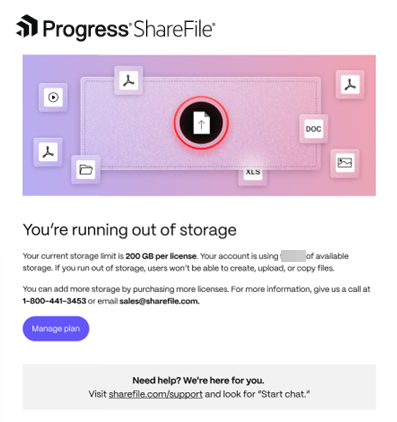
A dismissible banner on the ShareFile UI is displayed and an email notification is also sent to the admin.
-
Click on View usage to view the existing storage data.
-
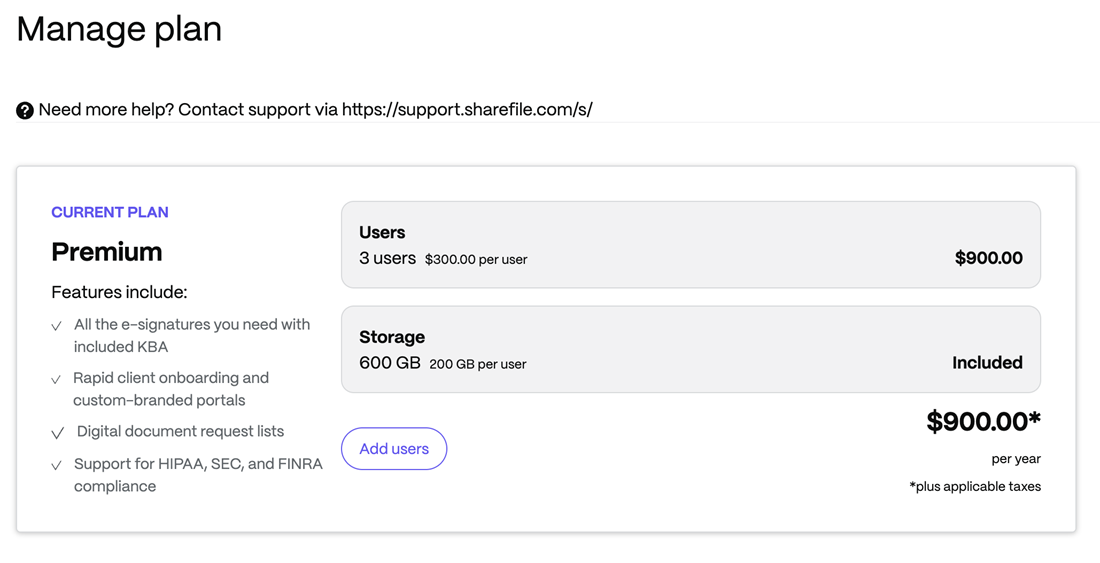
Clicking on the Add storage on the account banner as shown above or on Manage plan option in the email above will redirect admins to buy additional licenses to upgrade existing plan.
-
-
Account at 98-100% of storage
-
The account administrator receives notifications when an account has consumed 98-100% of its storage limit.
-
A persistent warning banner on the ShareFile UI is displayed and an email notification is also sent to the admin.
-
You can click on View usage to view the existing storage data.
-
Clicking on the Add storage on the account banner as shown above or on Manage plan option in the email above will redirect admins to buy additional licences to upgrade existing plan.
-
-
Account at 100% of storage
-
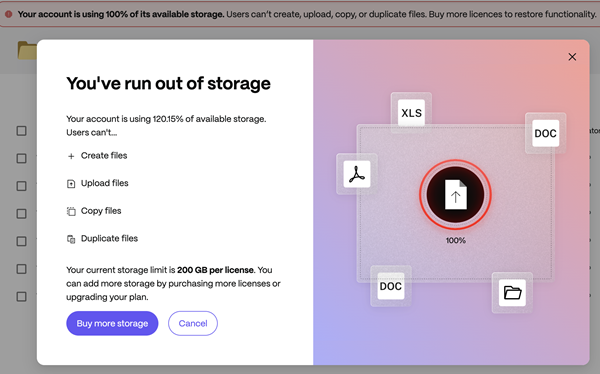
The account administrator receives notifications when an account has consumed 100% of its storage limit.
-
A persistent error banner on the ShareFile UI is displayed and an email notification is also sent to the admin (as shown above).
-
Click on View usage button to view the existing storage data.
-
Clicking on the Add storage on the account banner as shown above or on Manage plan option in the email above will redirect admins to buy additional licenses to upgrade existing plan.
Note:
- Additional licenses need to be purchased for extra storage.
-
Storage Enforcement Notifications for Account User
- Account at 100% of storage
- The user receives notifications when an account has consumed 100% of its storage limit.
- A persistent error banner on the ShareFile UI is displayed and an email notification is also sent to the admin.
- Click on Request more storage button and the admin will receive the notification to upgrade the existing plan.