Migrate folders with permissions
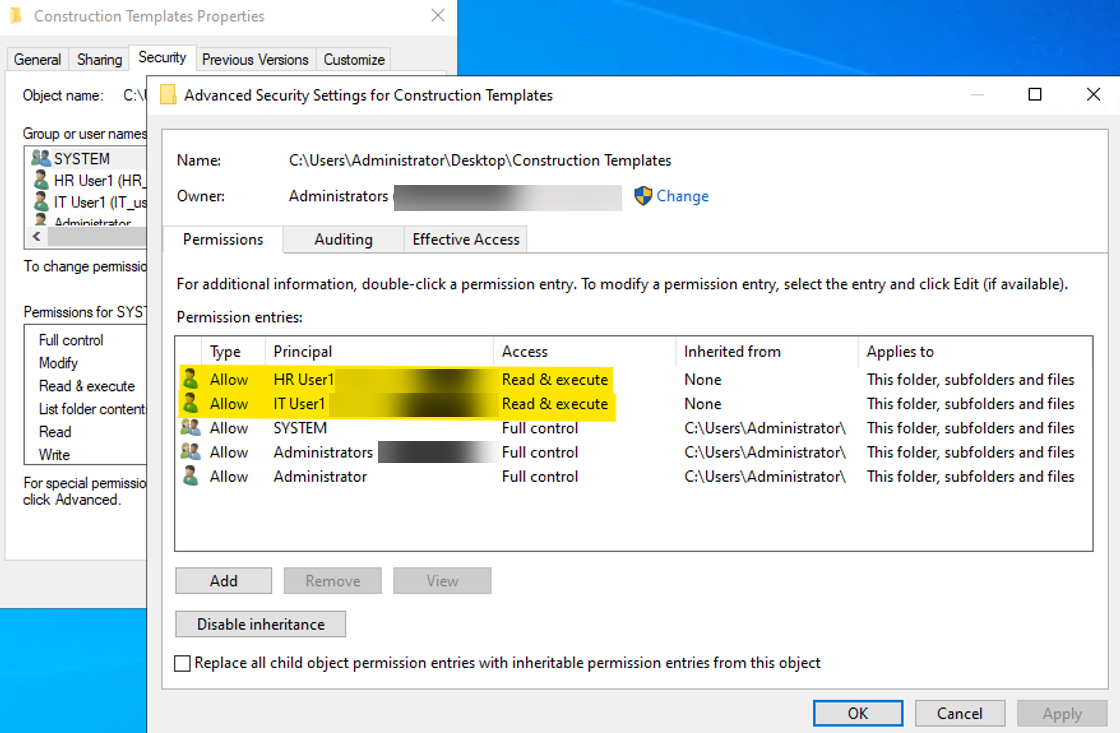
Use a Data + Permissions transfer to map Active Directory access to existing ShareFile users while migrating data. Before you begin, make sure the corresponding ShareFile user accounts already exist.
- On the home page, select New Transfer.
- Select Data + Permissions (Map to Personal Folders) or Data + Permissions (Map to Shared Folders).
Map permissions to personal folders
-
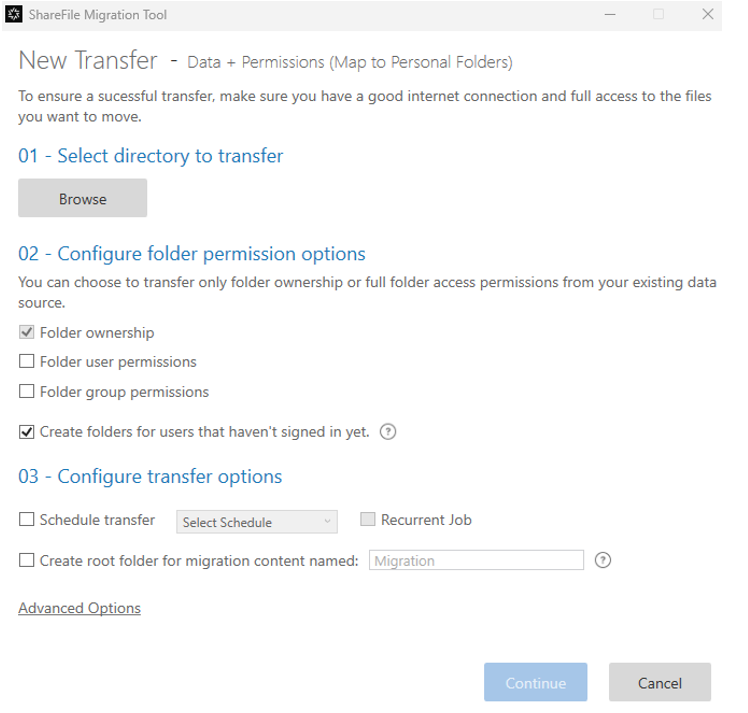
Select Browse and choose the data to migrate.
-
Select the permissions to migrate:
- Folder ownership assigns the folder owner.
- Folder user permissions assigns individual user permissions.
- Folder group permissions assigns distribution-group permissions.
- Create folders for users that haven’t signed in yet creates personal folders for users who have not signed in to ShareFile.
-
Set a schedule or configure the other transfer options, then select Continue.
-
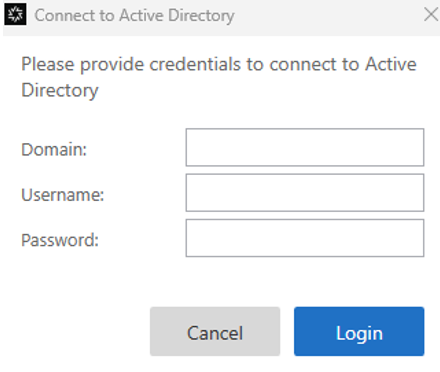
Enter the Domain, Username, and Password for a service or administrator account that can read Active Directory permissions.
-
Match the Active Directory users to ShareFile users, then start the migration.
Map permissions to shared folders
-
Select a destination in Shared Folders for the directory you are transferring.
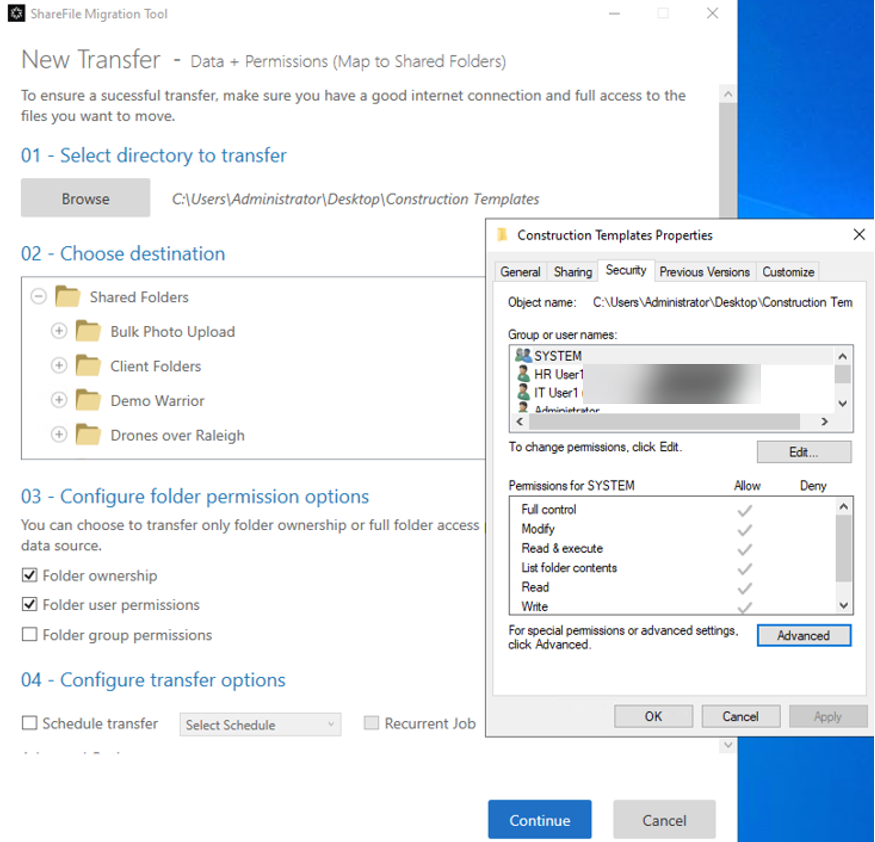
-
Match Active Directory users to ShareFile users, then start the migration.
-
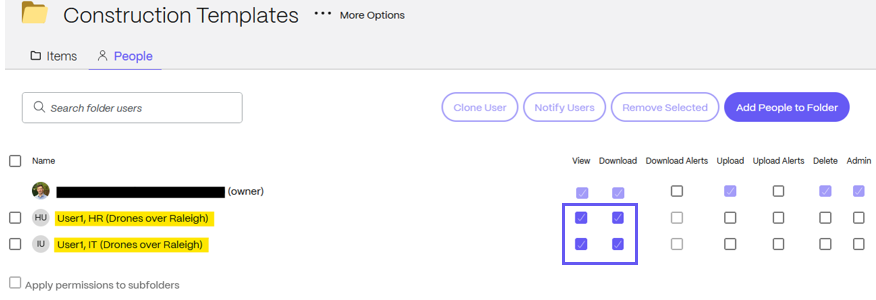
After the transfer completes, open the destination folder and review People to confirm the permissions were applied.