Storage Zone Data Migration
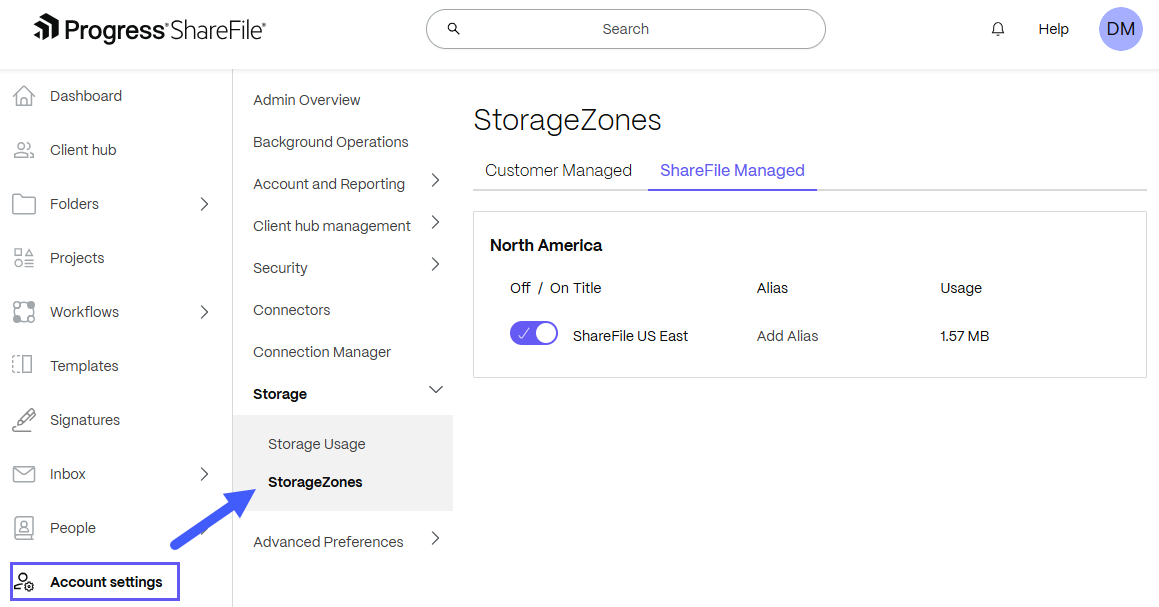
Account owners can choose to migrate Customer-managed storage zones to ShareFile-managed cloud storage on their account. Storage zones can be viewed at Account settings > Storage > StorageZones.
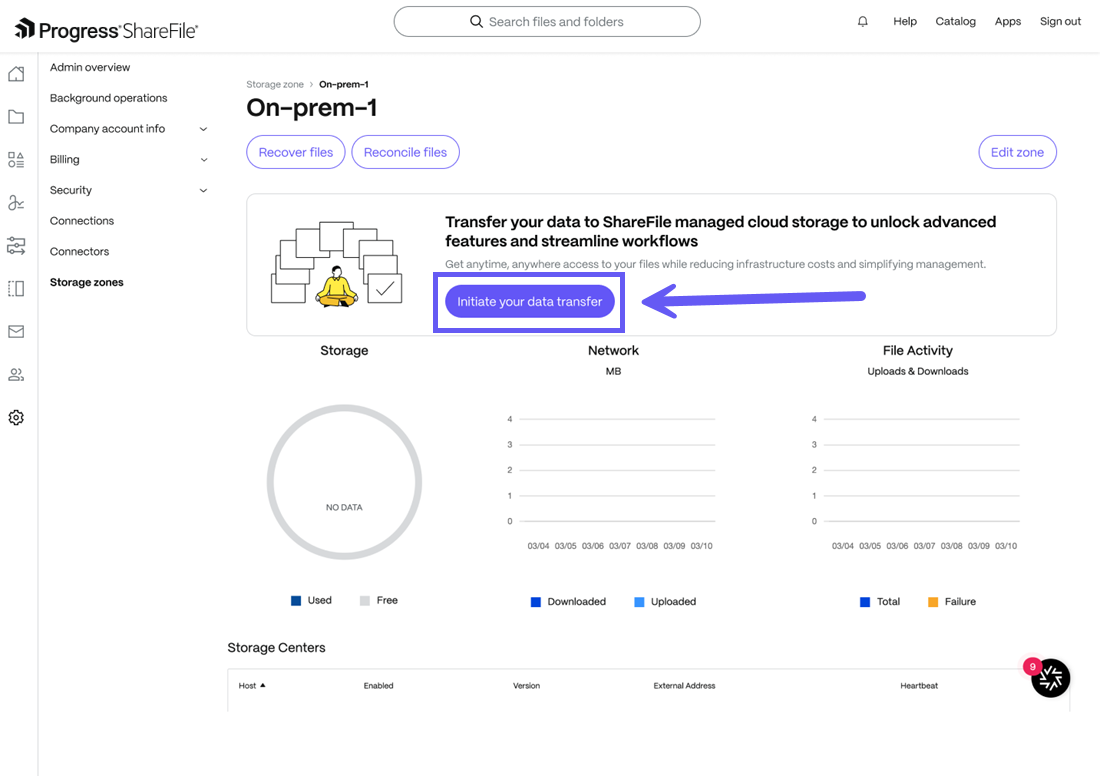
From the storage zones menu, select Customer Managed. Click on the storage zone to migrate and the selected storage zone managegement screen will be displayed. To begin the migration process, click on the "Initiate your data transfer" button.
Data Migration for single Customer-Managed Storage Zone
Storage Zone Data Migration is successfully completed
-
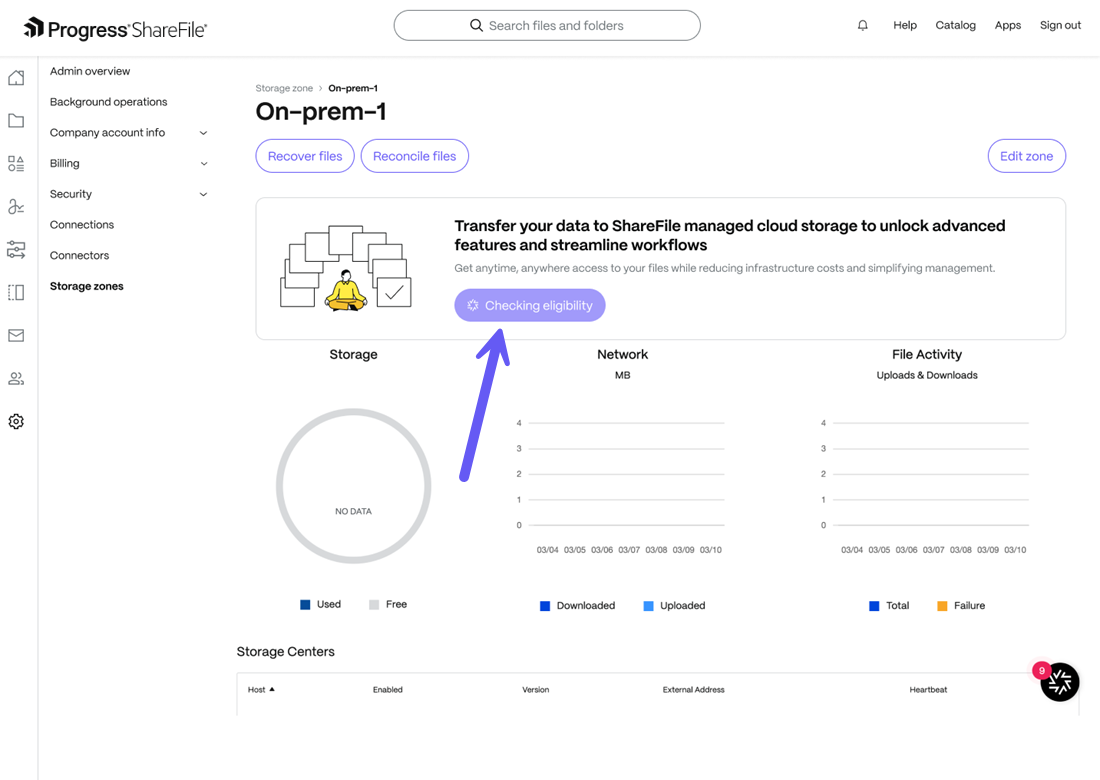
ShareFile checks your eligibility for the data transfer as shown in the screen below.
-
A success message is displayed as shown below and you can click on the Select Storage Zone button and you will be directed to select the destination storage zone where you want the data to be migrated.
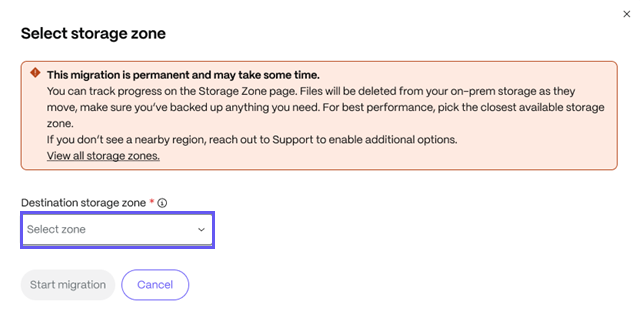
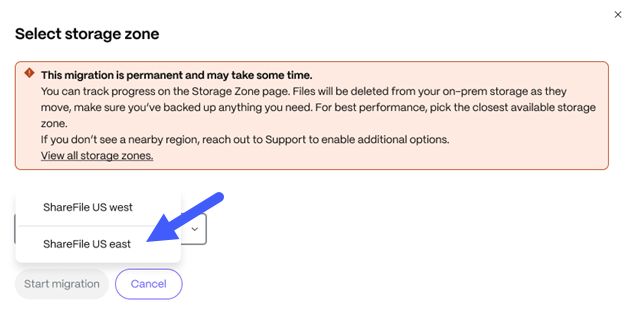
-
Once you have selected the ShareFile storage zone, click on the Start migration button and the data migration will begin as shown below.
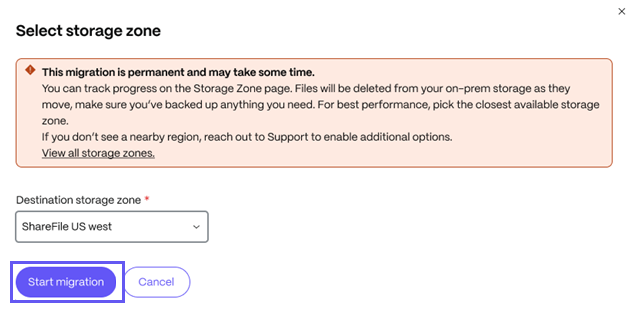
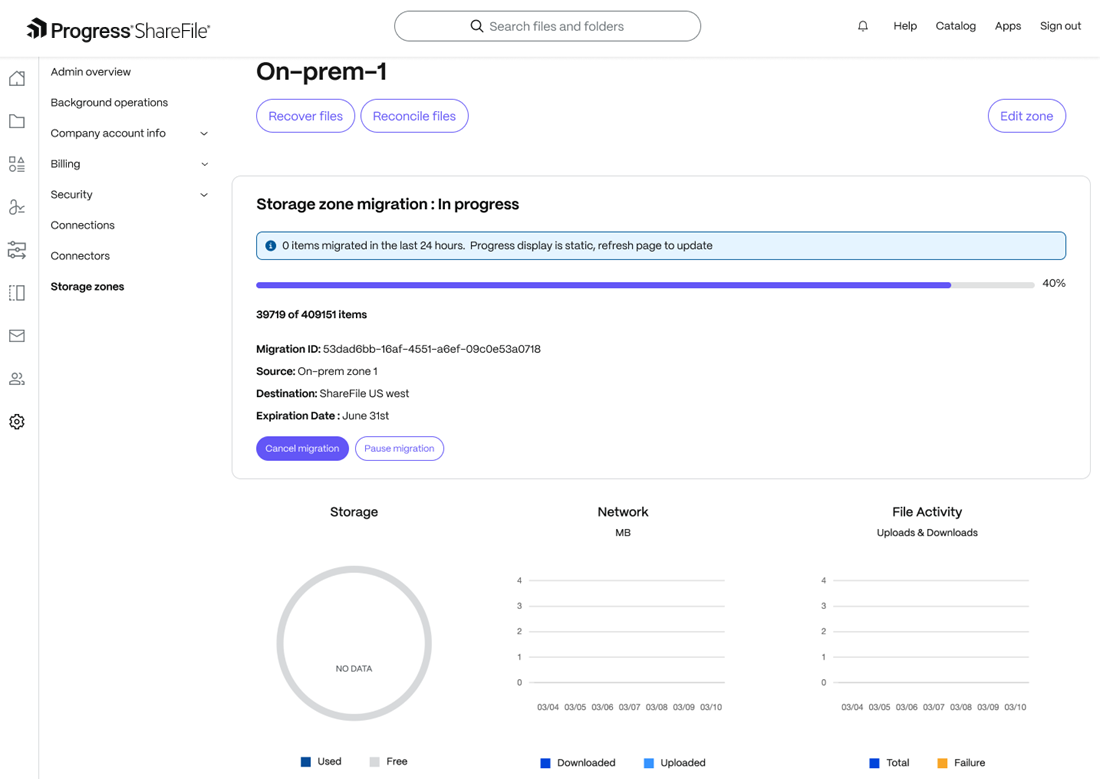
-
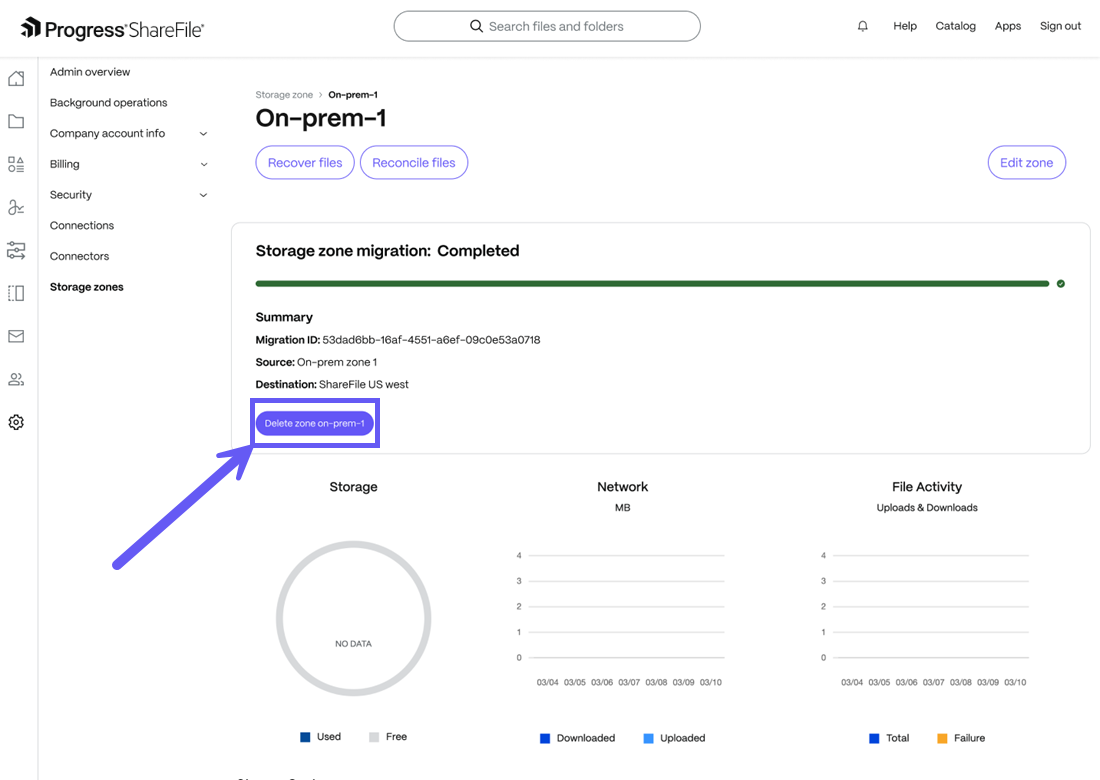
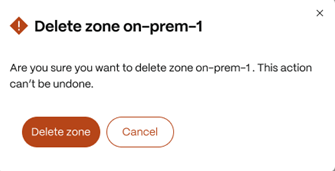
A success message is displayed upon completing the migration and you may choose to delete the existing Customer-managed storage zone as shown below:
Storage Zone Data Migration fails to clear eligibility checks
-
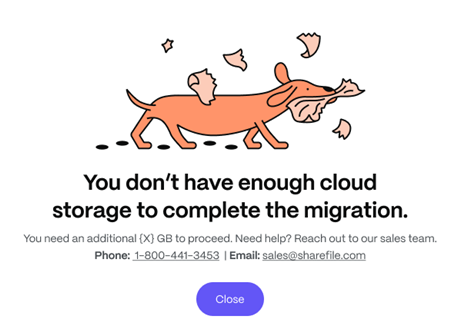
If the eligibility criteria is not met (Your account is not entitled to ShareFile cloud storage), then a warning message is displayed as shown below:
-
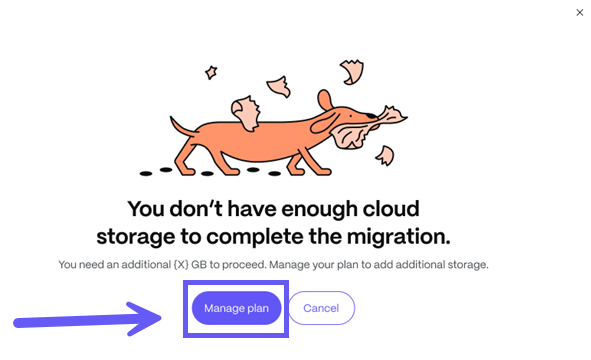
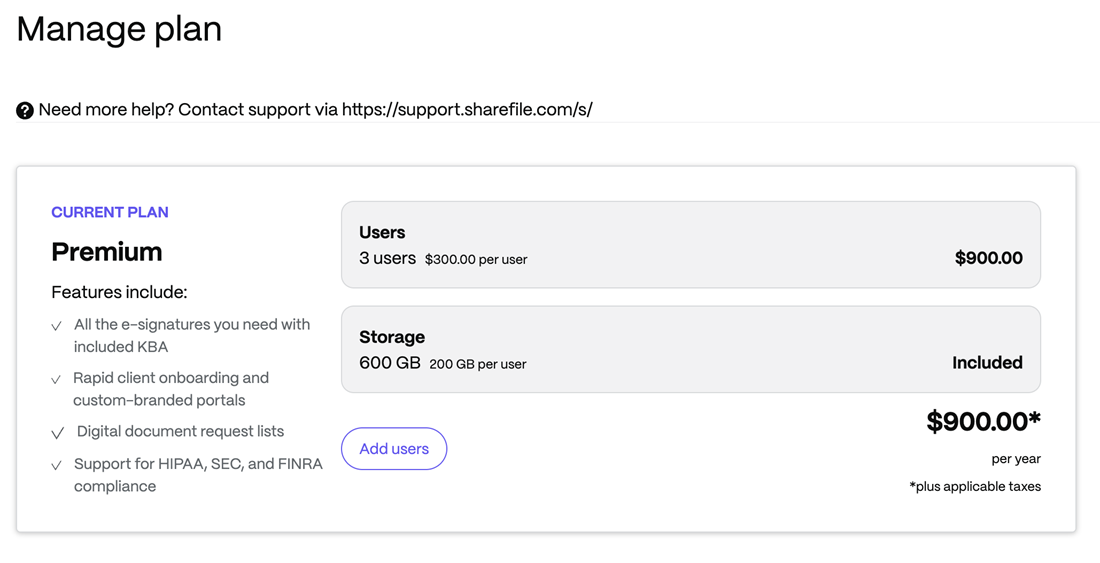
If you are on a SF Hybris billing type and you do not have sufficient cloud storage to migrate your data, the following warning message is displayed. You may click on the Manage plan button to purchase additional storage to complete the data migration process if you are a billing admin.
Storage Zone Data Migration is unsuccessful
-
ShareFile checks your eligibility for the data transfer as shown in the screen below.
-
A success message is displayed as shown below and you can click on the Select Storage Zone button and you will be directed to select the destination storage zone where you want the data to be migrated.
-
Once you have selected the ShareFile storage zone, click on the Start migration button and the data migration will begin as shown below.
-
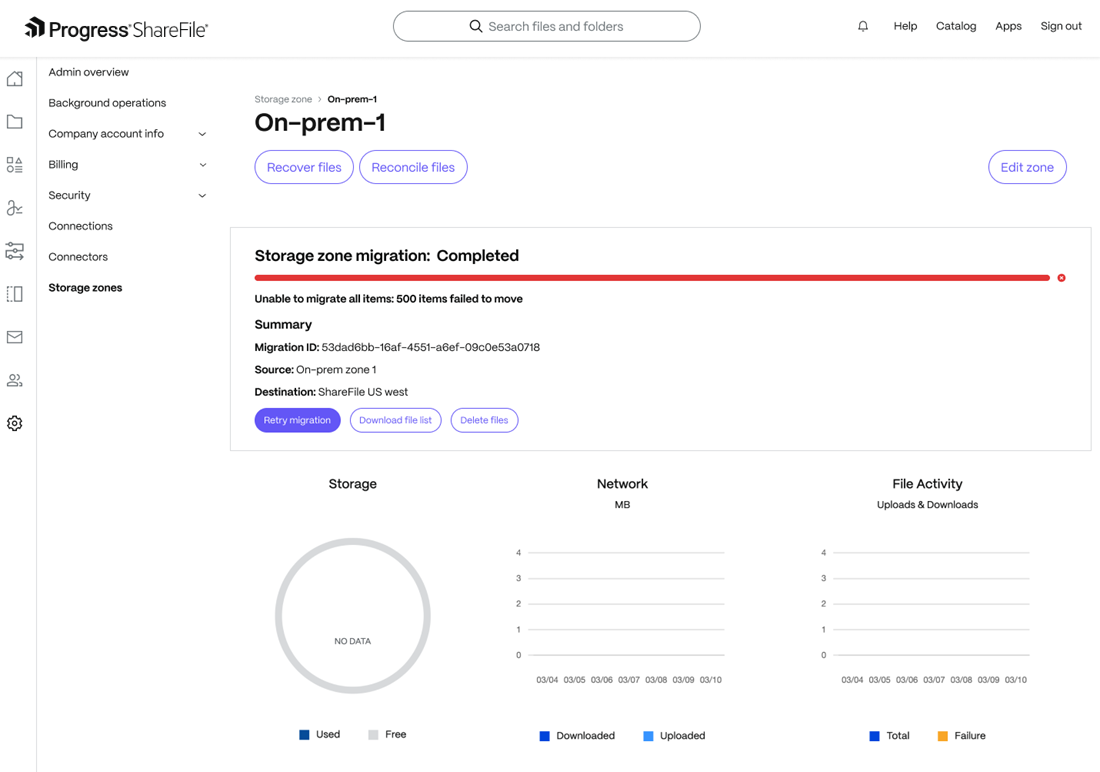
The data migration is completed but some files are not transferred due to some unknown reason. The following screen is displayed
-
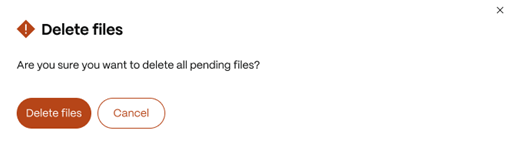
From the above screen, you may choose the Retry migration option to re-attempt the process. You can also choose to Download file list to get the list of files not migrated or you may select the Delete files option to delete the files which were not migrated as shown in the screen below: