Folder permissions and subfolders
Folder permissions control what each user can do within a folder. Each user on the folder can have their own permission set.
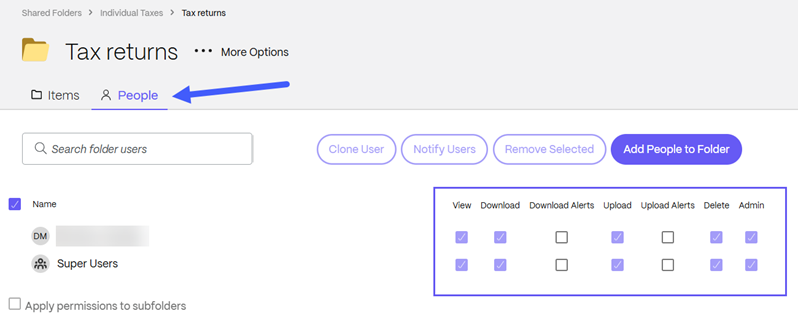
To change folder permissions for an individual folder, navigate to that folder and access the People menu. Select the checkboxes to make the permission changes.
Note:
Users who own the respective folders manage the folder permissions. It is the intended functionality that admins, members of the Super User Group, and account owners are unable to alter the permissions of folders belonging to users.
All subfolders created inherit the parent folder’s permissions. The user creating the subfolder cannot manage users on the newly created subfolder unless they were also granted admin permission on the parent folder.
View permission
Granting a user view permission allows them to view a document without downloading it. A user must be granted View permission if you want them to view the document with a watermark. If you grant a user Download Permissions on the folder, they are automatically granted view permissions.
Note:
Only ShareFile Premium plans and higher can grant View-Only permissions.
Download permission
With download permission, a user can download any document in the folder to their computer or mobile device.
Download alerts
With download alerts, users are notified via email that files have been downloaded from the folder. A user must be granted admin permission on the folder to be granted download alerts. Download alerts allows them to identify other users on the folder when they download documents.
Upload permission
Granting a user upload permission gives the user the ability to upload files or folders to the folder. With this permission, the user is able to create subfolders within this folder.
Upload alerts
With upload alerts, users are notified via email that files have been uploaded to the folder. To be granted this permission, users must also be granted view or download permission. Users with view or download permission can grant themselves this permission through a checkbox on the folder.
Delete permission
The delete permission grants a user the ability to delete files within the folder that they did not upload.
Notes:
By default, all users are able to delete files that they uploaded to the folder. This can be turned off for an account by an administrator’s request to ShareFile Support.
Subfolders within a folder created using folder templates cannot be deleted.
Admin permission
A user granted admin permission has the ability to manage folder access on this folder and can add or remove users. They will also be able to edit some folder options.
Note:
The user listed as Owner (usually the creator of the folder) cannot be removed by any user.
Apply permissions to subfolders
Selecting the Apply permissions to subfolders checkbox lets you assign permissions to subfolders in bulk. This is useful in the following scenarios:
- Adding a user to an existing folder: Checking this option ensures that the selected permissions apply to all subfolders.
- Granting additional permissions: If a user is already added to a folder, you can grant them additional permissions by marking this option before saving.
Permissions required for common actions
The following table shows which permissions a user needs to perform common actions on files and folders.
| Action | View | Download | Upload | Delete | Admin | Details |
|---|---|---|---|---|---|---|
| View file (preview) | ✅* | ✅* | Either permission is sufficient; both are not required | |||
| Download file | ✅ | Required to access file locally | ||||
| Upload file | ✅ | Also allows creating subfolders | ||||
| Edit / Update file | ✅ | ✅ | Requires both download (open) and upload (save changes) | |||
| Overwrite file | ✅ | ✅ | Requires both download (open) and upload (save changes) | |||
| Delete file | ✅* | Users can delete their own uploads by default; this permission is required to delete files uploaded by others | ||||
| Delete folder | ✅ | Only the folder creator can delete a root-level folder | ||||
| Create subfolder | ✅ | Requires upload permission | ||||
| Rename file/folder | ✅ | ✅ | Requires both download (access) and upload (save changes) | |||
| Move file/folder | ✅ | ✅* | ✅ | Requires download (access) on source, upload on destination, and delete on source | ||
| Copy file | ✅ | ✅* | Requires download (access) on source and upload on destination | |||
| Share file (send) | ✅ | Requires download (access) permission | ||||
| Preview with watermark | ✅* | ✅* | Either permission is sufficient; both are not required | |||
| Restore items | ✅ | Requires admin permission on the folder | ||||
| Add notes/comments | ✅ | ✅ | ✅ | Requires download (access), upload (save changes), and delete permissions | ||
| Check-in / Check-out | ✅ | ✅ | Requires both download (access) and upload (save changes) | |||
| Favorite item | ✅* | ✅* | Either permission is sufficient; both are not required | |||
| Receive upload alerts | ✅ | ✅ | Requires view or download permission | |||
| Receive download alerts | ✅ | ✅ | Requires download and admin permission by default | |||
| Manage folder access | ✅ | Requires admin permission |