Access and manage files and folders
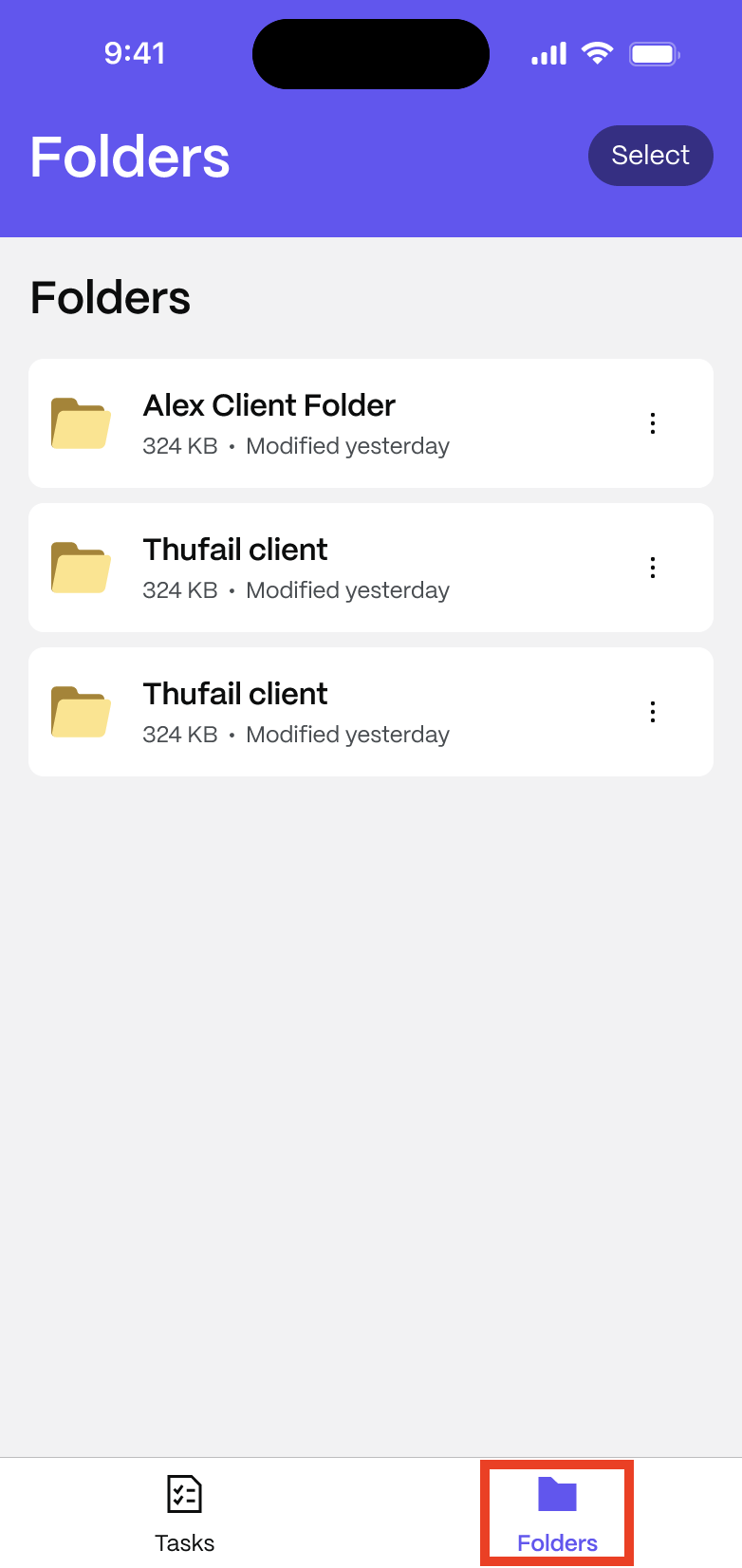
The Folders section in ShareFile for Clients lets you access and manage files shared by your service provider. You can browse, download, upload, and delete files directly from the app.
Access folders
To access your shared folders:
-
Open the ShareFile for Clients app.
-
Select Folders from the bottom navigation bar.
-
Tap a folder to view its contents.
View files
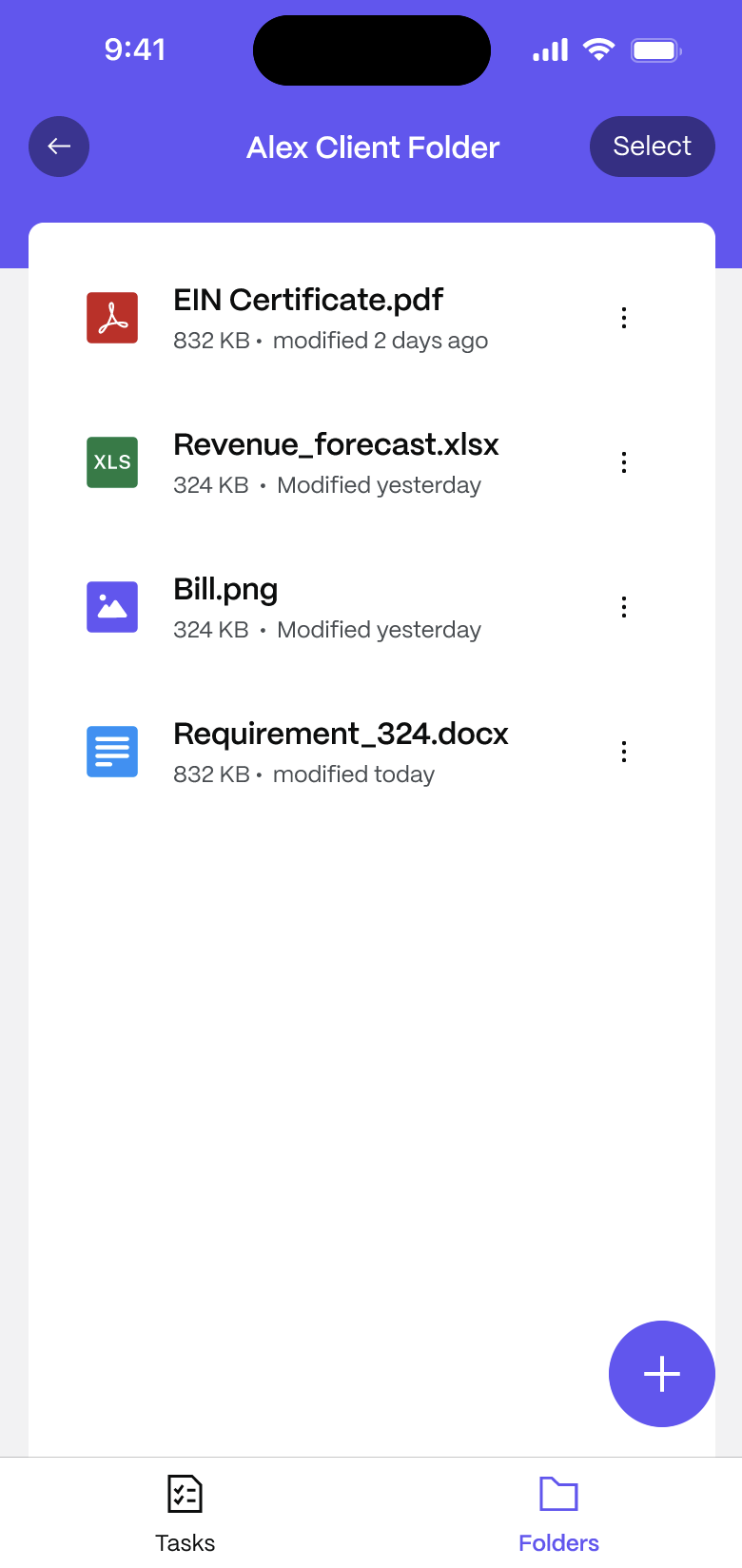
To open a file:
-
Open the folder that contains the file.
-
Tap the file to open a preview.
Download a file
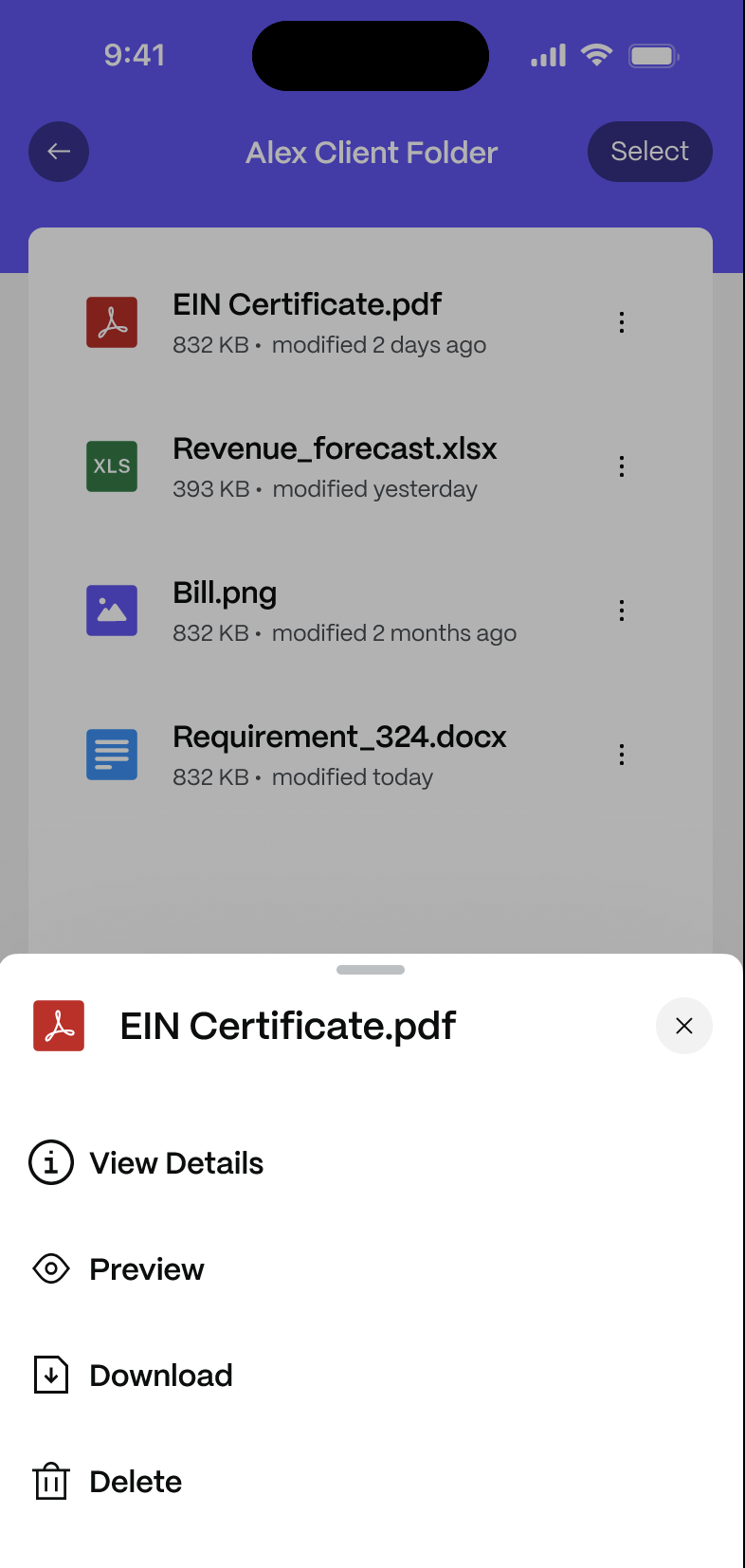
To download a file to your device:
-
Tap the three-dot menu (⋮) next to the file.
-
Select Download.
Select and manage multiple files
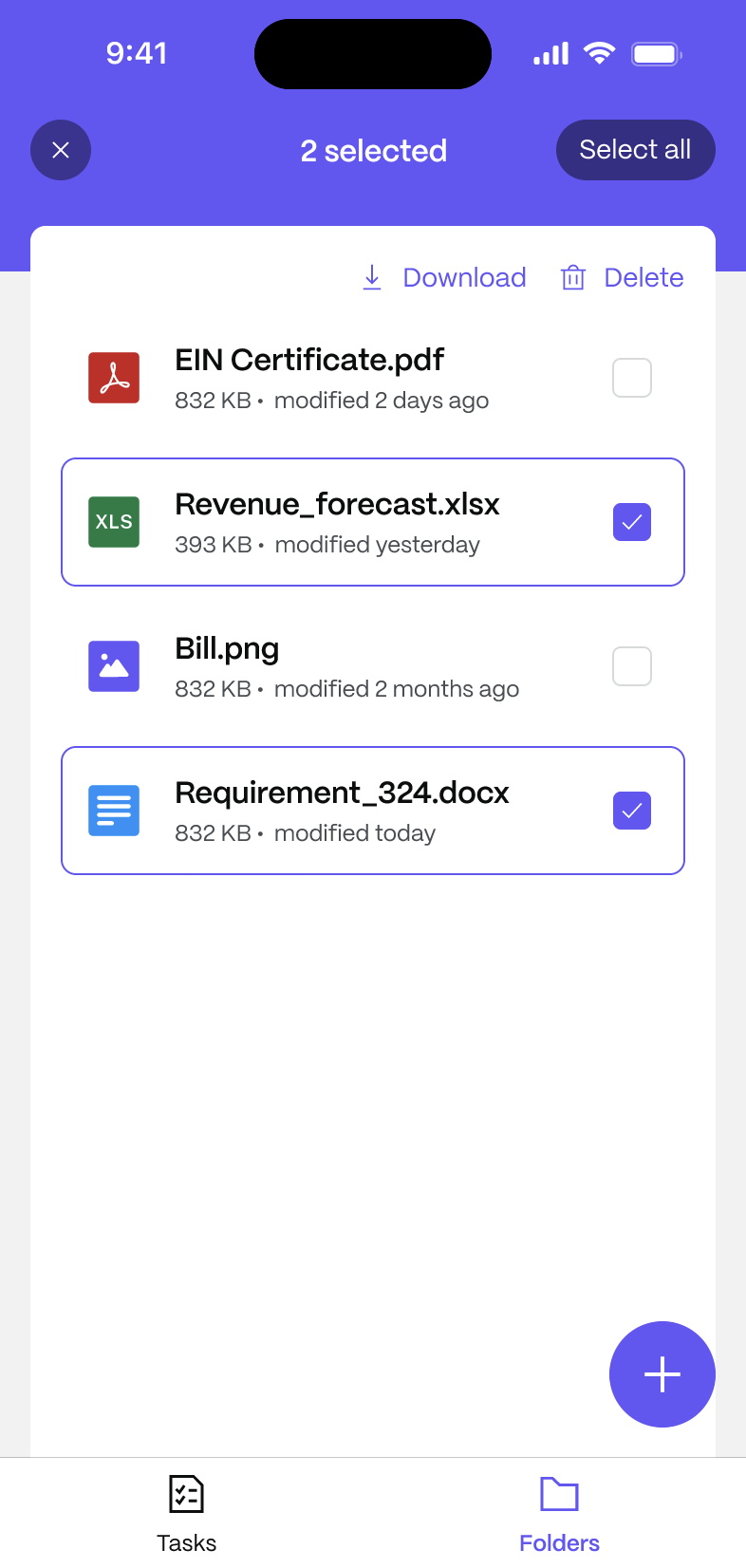
To perform actions on multiple files at once:
-
Tap Select in the top-right corner.
-
Tap each file you want to include.
-
Select Download or Delete from the toolbar.
Upload files
To upload files to a folder:
- Open the folder where you want to upload.
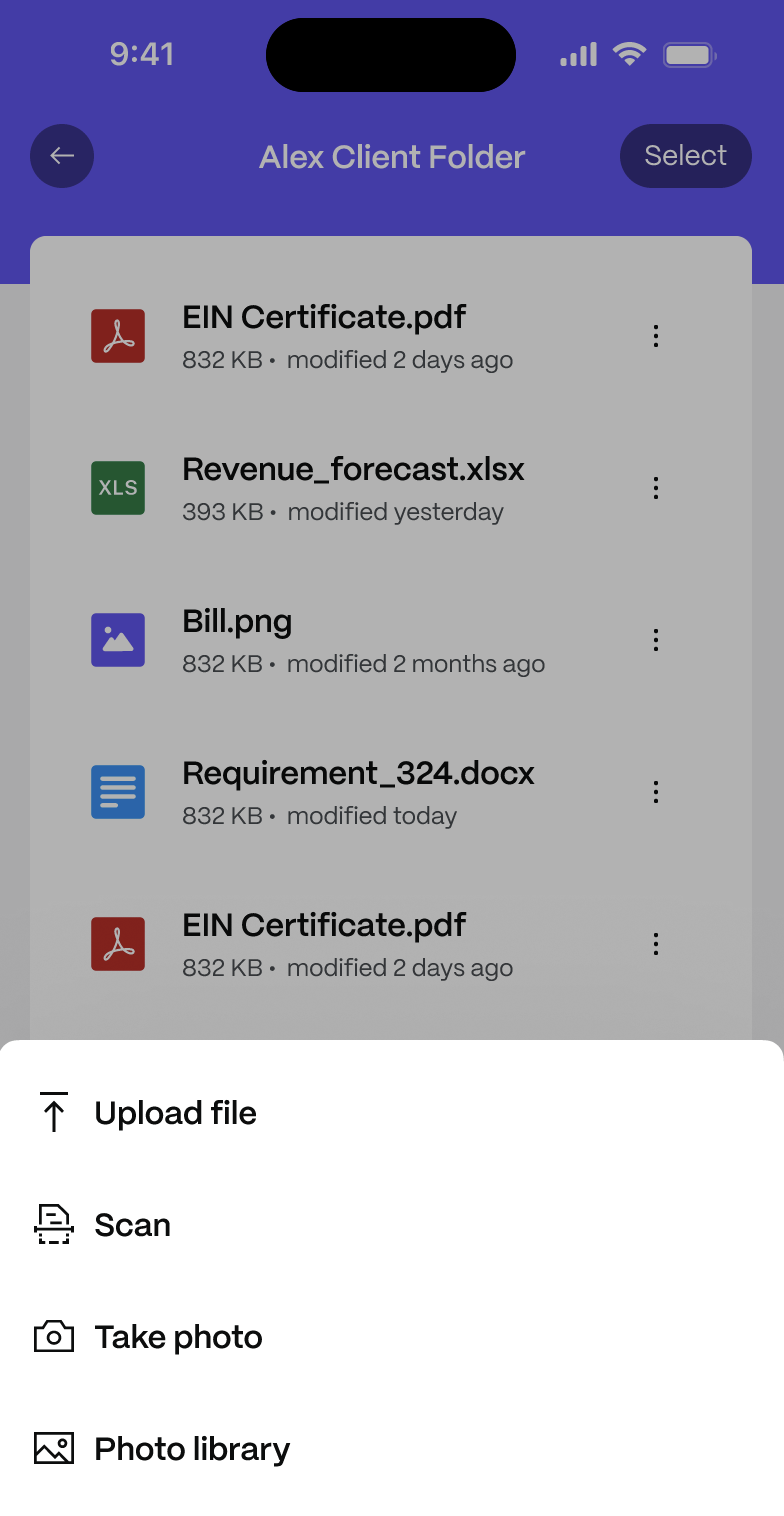
- Tap the + button.
- Choose an upload method:
- Upload file – select a file from your device storage.
- Scan – scan a physical document and save it as a PDF.
- Take photo – capture a new image with your camera.
- Photo library – choose an image from your gallery.
Using The Recent Files Tab
The Recent Files tab provides quick access to files that were recently viewed or accessed. The Recent Files tab can be found next to Folder on the app as shown below:

-
You can browse recently accessed files in this tab. The files show the file name, file size and last modified date by default.
-
You can also use the More Actions (three dot) menu next to each file to access the available file actions.


-
You can tap on the View details button to view the file description and other details or the Preview button to view the file as well.
-
You can also select the Add to favorites button to add the file to the Favorites folder.
-
Tap on Show file location to see the current location of the shared folder where this file has been saved.
-
You can also choose to Download the file or Delete the file by tapping on the buttons respectively.
Using the Favorites Tab
The Favorites feature helps you quickly access important files and folders. The Favorites tab is located right next to the Recent Files tab.

-
To add a file to the Favorites tab:
-
Open the More Actions (three dot) menu for a file.
-
Tap on the Add to Favorites menu option.
-
A success message is displayed, and the file is added to your Favorites list.


-
-
You can browse and view all the files you have marked as favorites from the Favorites tab. All items marked as favorite display a star indicator next to the file.

-
You can also view the location of the file by selecting the Show file location option from the More Actions (three dot) menu.
-
You can also remove a file from the Favorites menu. To do so:
- Open the Favorites tab.
- Tap the More Actions menu for the item.
- Tap on Remove from Favorites.

The file is removed from the Favorites tab and a confirmation message appears.
