Request a file using ShareFile in Google Workspace
Use the following instructions to request a file using ShareFile in Google Workspace.
-
Navigate to your Gmail account.
-
Select Compose to open up a new message window.
-
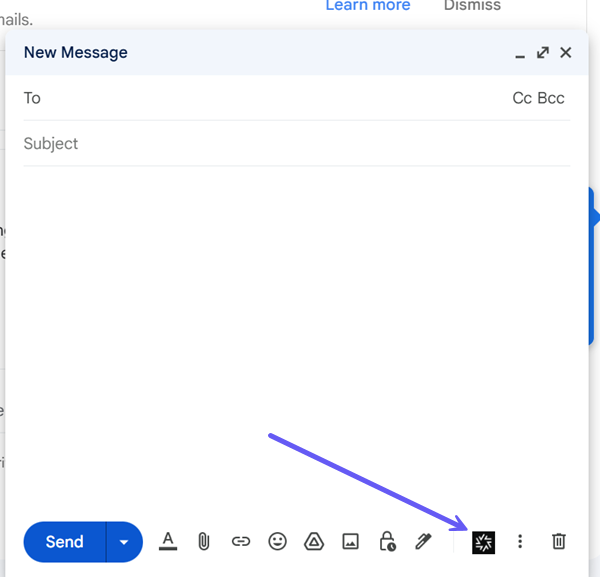
Select the ShareFile icon at the bottom of the new message window.
-
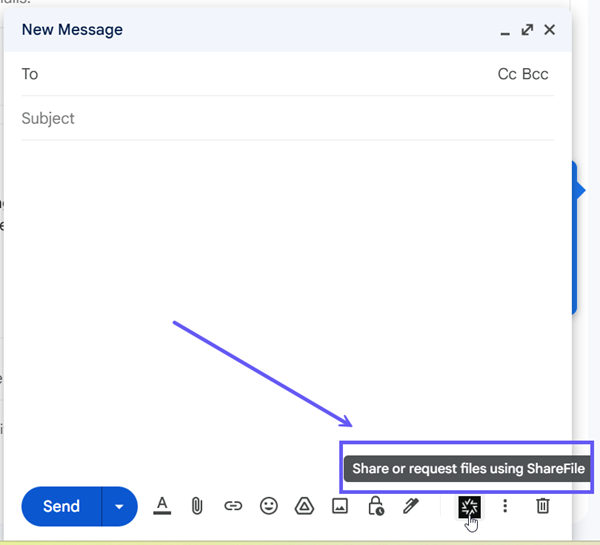
Select Share or request files using ShareFile.
-
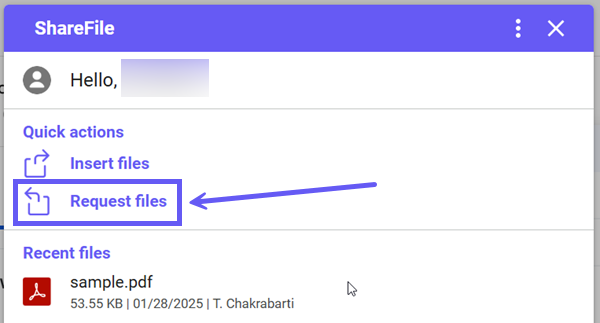
Select Request files.
-
Select Edit options to set the request details.
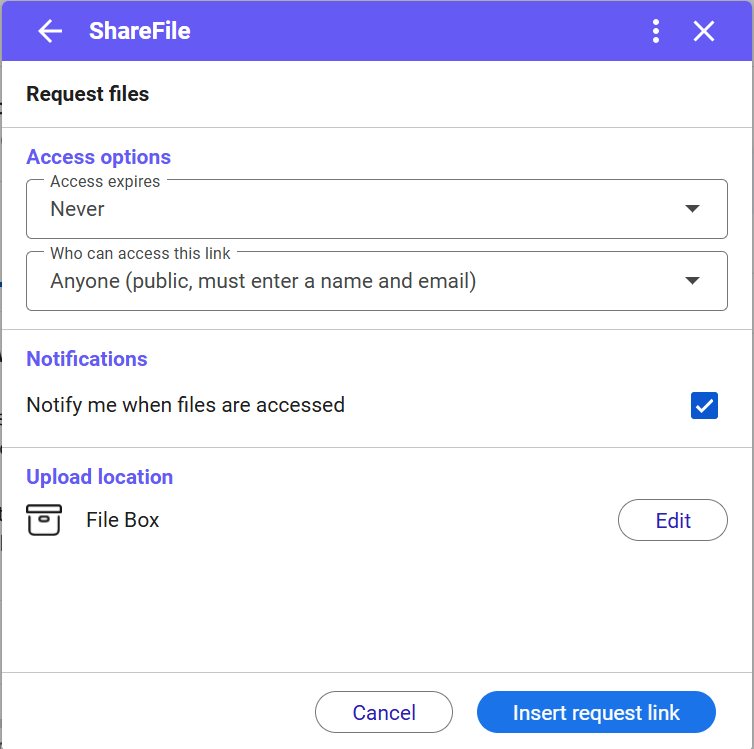
The options screen displays.
You can review and set the following options:
-
Access options:
-
Access expires - select from various expiration settings for recipients.
-
Who can access this link - select from the following:
-
Anyone (anonymous) - recipients can upload the file anonymously.
-
Anyone (name and email required) - Recipients can download the file.
-
Employee users (sign in required) - the recipient will be presented with a sign in screen. The recipient must be an existing employee user in the account to sign in. If the recipient is not a user in the account, then it is necessary to create the user account for the recipient before they can access the file.
-
Client and employee users(sign in required) - the recipient is presented with a sign-in screen. The recipient must be an existing user (either an employee or client user) in the account to sign in and view the content. If the recipient is not a user in the account, then it is necessary to create the user account for the recipient before they can access the file.
-
-
-
Notifications:
- Check box for Notify me when files are accessed.
-
Upload location - the default is set to your File Box but you can set another ShareFile folder for the requested file.
-
-
Once the options are set, select Insert request link at the bottom of the window.
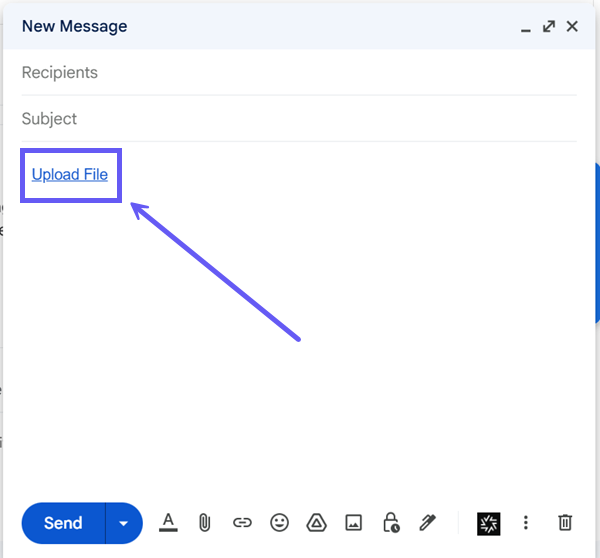
The Gmail message then displays an Upload File link in the message.
-
Verify your receipients, the Subject, and optional message to requesting a file, then select Send.