Send Logs in ShareFile for Mac
If ShareFile Technical Support asks you to send logs, provide a log file to help diagnose your problem more quickly.
To provide a log file to ShareFile Technical Support:
-
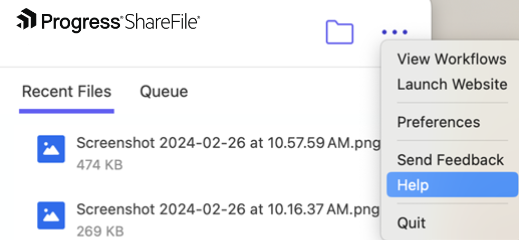
Click the ShareFile logo in the Mac bar, then select Help from the ellipsis drop-down menu.
-
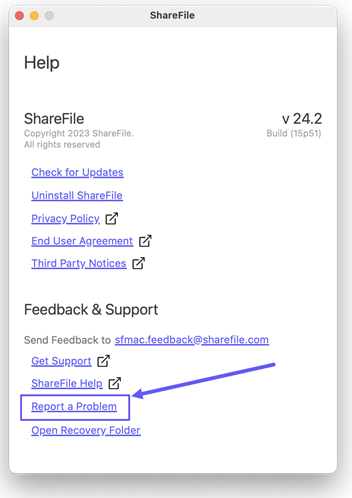
Select Report a Problem.
-
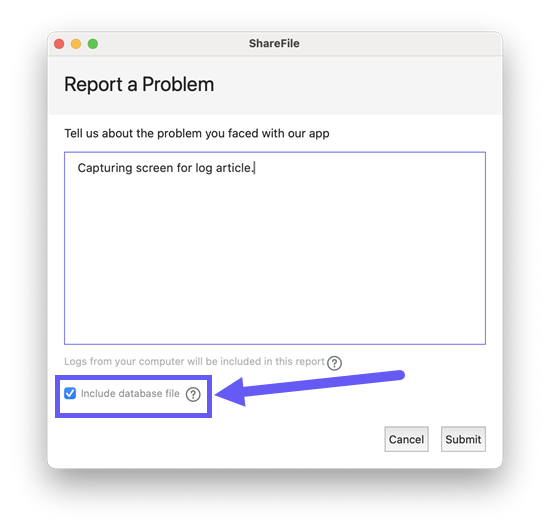
Enter any information to assist the technical support representative.
Note:
Check the box for Include database files if the technical support representative asks for it.
-
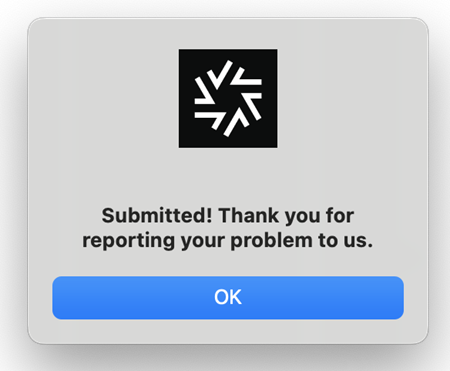
Select Submit. The confirmation message displays.
When to send logs
- When ShareFile Technical Support asks for logs.
- When you experience sync issues, crashes, or sign-in problems.
- When you troubleshoot file access or performance.
What happens after submitting logs
- Logs are securely sent to ShareFile Technical Support.
- You do not need to send anything else unless requested.
- Keep the app open until submission completes.
Troubleshooting
If you do not see the ShareFile logo:
- Make sure the app is running.
- Restart your computer.
- Contact ShareFile Technical Support if the issue persists.