Add a Request File link to Outlook Signatures
Having a Request a File link in your email signature saves you from having to insert a link every time you send an email. With the link already in your signature, clients are able to easily upload files to your ShareFile account.
Each user must create their own Request a File link and add it to their email signature. An admin cannot create links and add them to every user's signature because the link identifies the admin as the person requesting the files. Unless the link is configured to use a shared folder for uploads, files sent through it are uploaded to the admin's File Box.
-
Open a New Outlook Email Message.
-
From the ShareFile integration button, click Request Files:
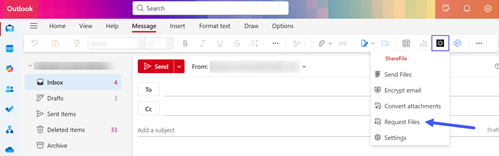
The Request Settings screen displays.
-
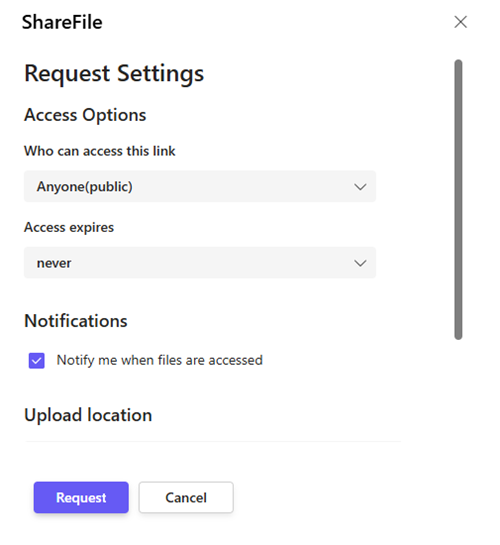
From the Request Settings screen, configure:
-
Access Options - Choose who can access the link:
- Anyone (public, must enter a name and email)
- Anyone (public)
Note:
For the purposes of placing a secure link in your signature, the Sign In requirement cannot be used. "Sign In" requires that the recipient of your email message (the To field) be a user on your ShareFile account. Since many different recipients can access your signature link once its done, ShareFile cannot specify which user should be created as a user on your account, and will display an "Invalid Link" error when trying to send any email containing the link you generated using the Sign In option.
-
Access expires - Select "never" as this will prevent your link from expiring and displaying an "Invalid Link" error.
-
Upload Location - This defaults to your File Box which is accessible from web app Folders> File Box.
Note:
If you are using ShareFile for Windows (S drive) or ShareFile for Mac (Finder) this location will not be visible. You can create a Personal or Shared Folder for your Request link to upload in to.
-
-
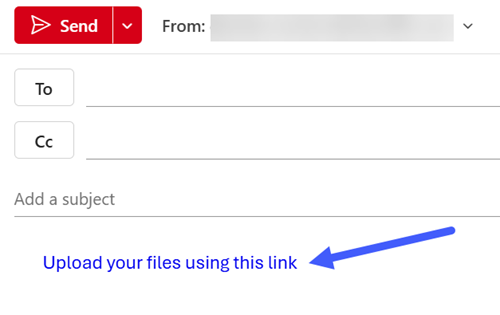
Click Request to generate the link. The link is added to your email message: "Upload your files using this link:
-
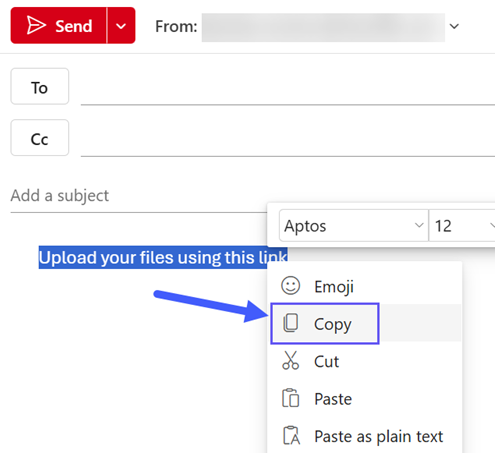
Highlight the newly generated Request a File link, Right-Click and select Copy.
-
Go to Outlook Settings > Accounts > Signatures > Email Signature and edit the Signature. Paste the Upload your files using this link into the signature.
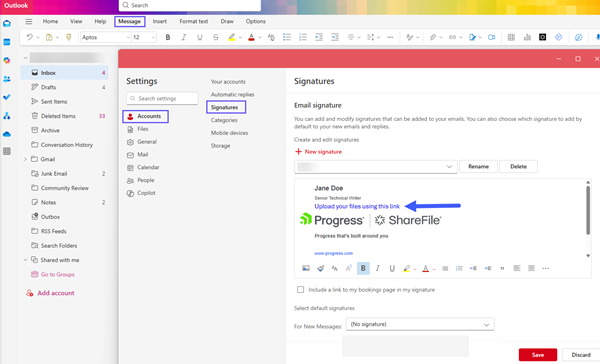
-
Click Save to save the changes to your signature.