Request files using ShareFile for Windows
The following steps explain how to request a file(s) using ShareFile for Windows.
-
Navigate to and open the ShareFile (S:) drive in Windows Explorer.
-
Acces the folder you want the requested file to load then click ShareFile and select Request.
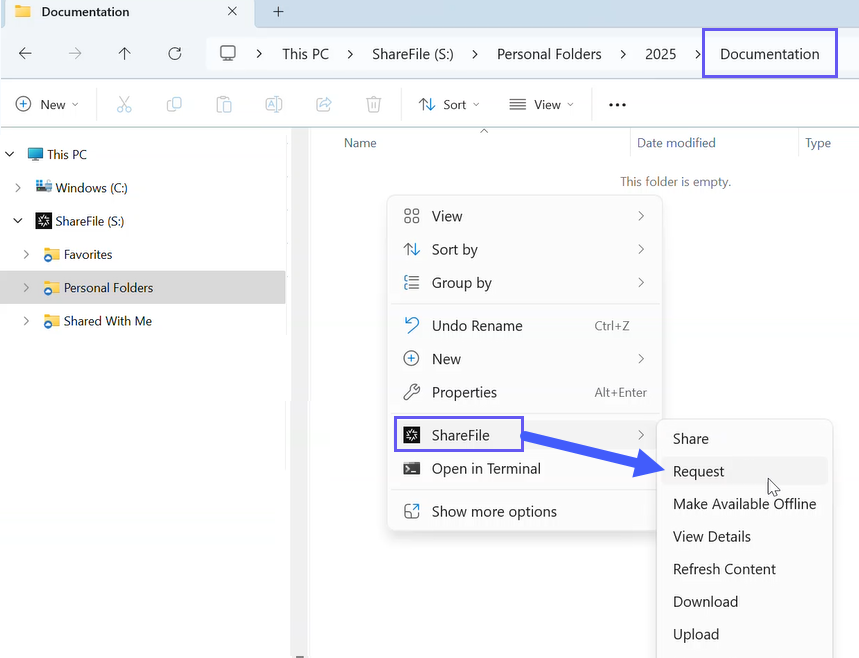
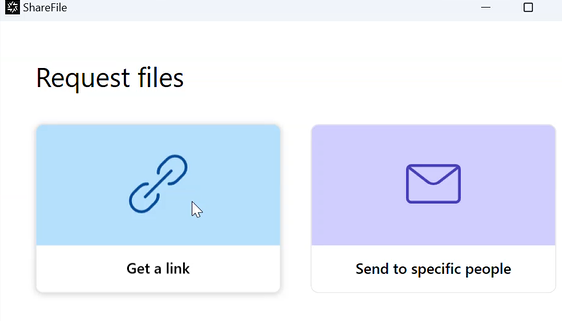
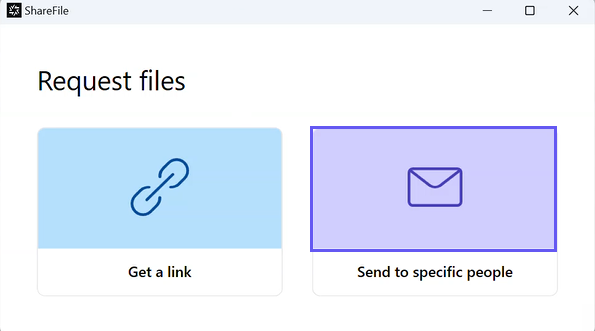
The Request files popup displays.
-
Select either Request files - Get a link or Request Files- Send to specific people.
Request files - Get a link
-
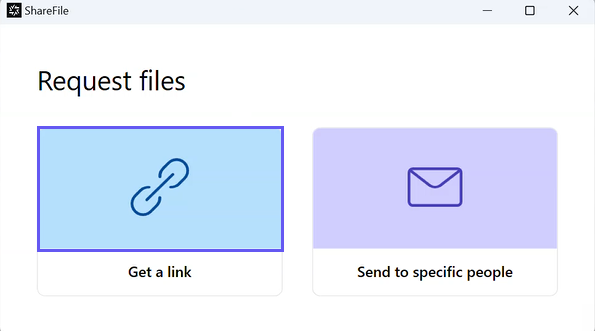
Select Get a link.
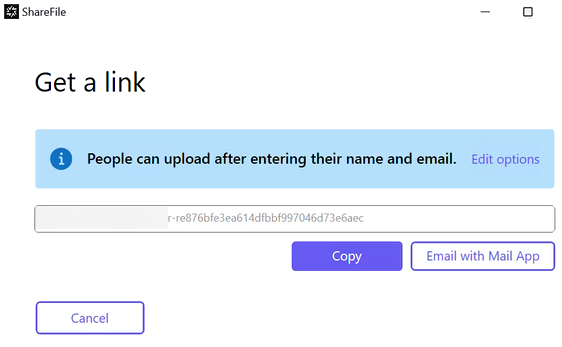
The Get a link popup displays.
-
Select Copy under the options offered.
The Link copied to your clipboard message displays briefly.
-
Use the copied link to share with your email or another communication app.
Request files - Send to specific people
-
Select Send to specific people.
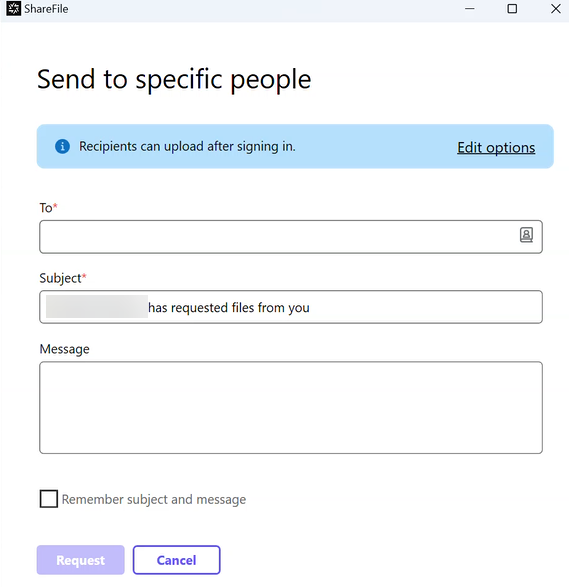
The Send to specific people message window displays.
-
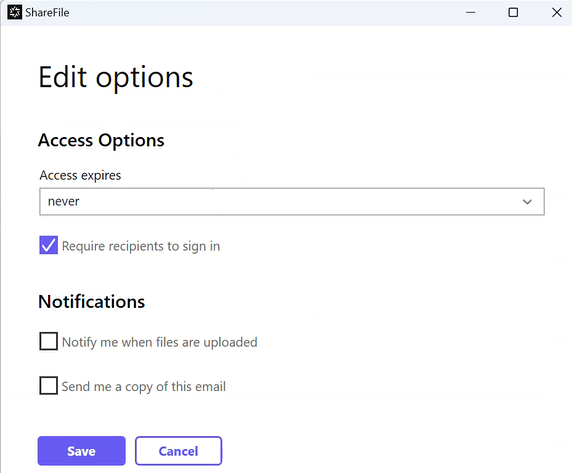
Select Edit options to review and set the following options:
-
Access options:
-
Access expires - select from various expiration settings for recipients.
-
Check box for Require recipients to sign in.
-
-
Notifications:
-
Check box for Notify me when files are uploaded.
-
Check box for Send me a copy of this email.
-
-
-
Select Save.
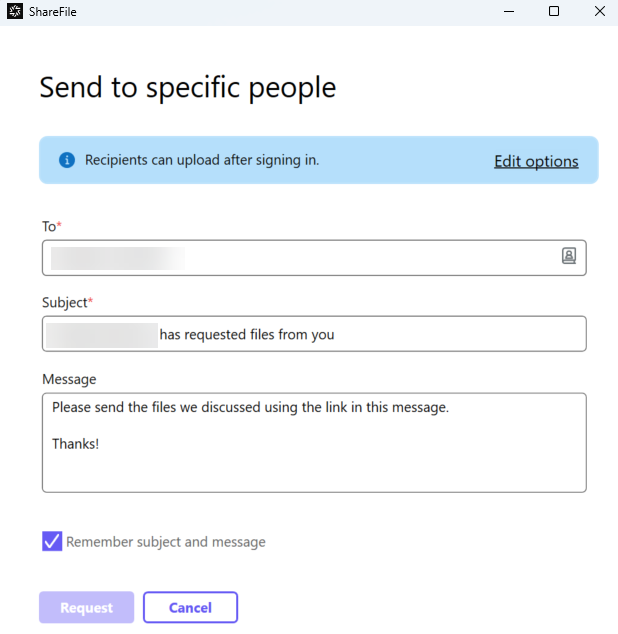
Complete the Send to specific people screen.
-
Type in the email address of the recipient in the To text box.
-
Though the Subject is prefilled, you can type in replacement text.
-
Type in a message if necessary.
-
Select the Remember subject and message check box if wanted.
-
Select Request.
The Request is sent.