Use Offline Access - ShareFile for Windows
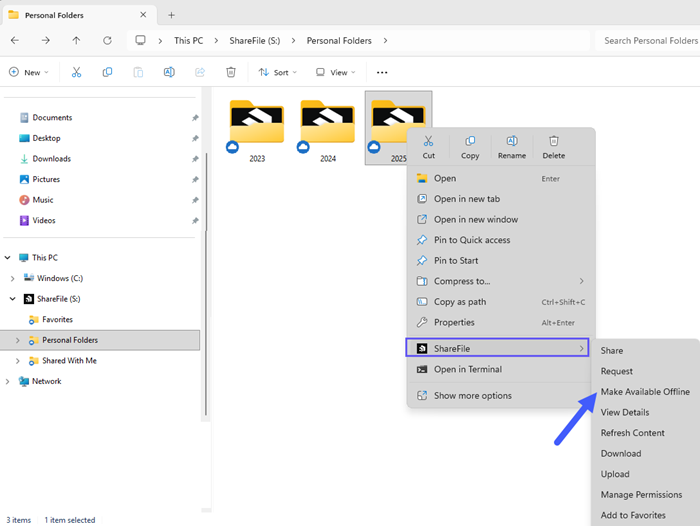
Employee users are able to right-click on a Folder / File and select ShareFile > Make available offline.
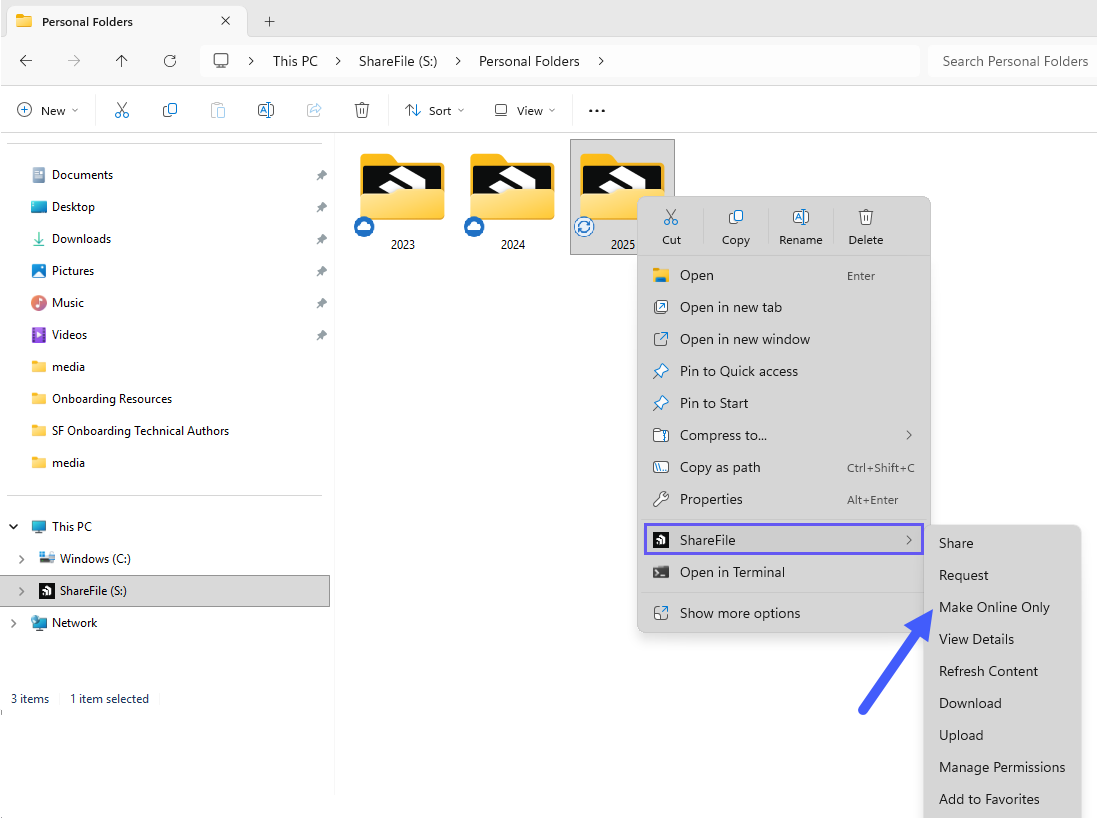
Once a file or folder is selected for 'Make Available Offline,' upon a future right-click, you will have the option to select Make Online Only which will bring the file or folder back to an online only experience.
If the files are in a sync and "downloading these files to make them available offline" is currently in process, the end user will see the status of the process from the dashboard.
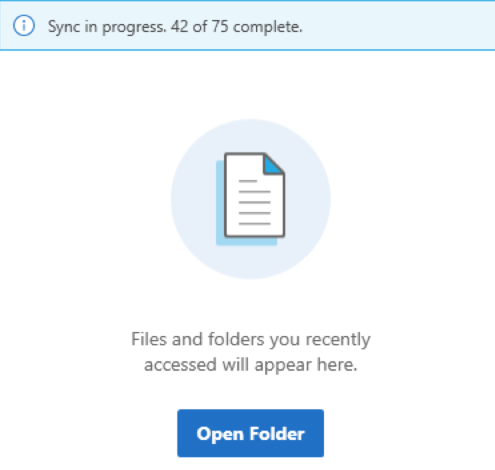
Users may also pause / resume the sync process.
Moving forward, end users may not able to set their 'cache limit' in the application UI. Instead, the application will default to 5 GB of cache space, however, admins can set a predefined cache limit through a Group Policy.
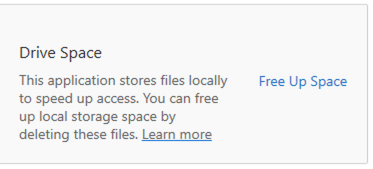
In the ShareFile for Windows Settings UI, end users have the ability to Free Up Space. When clicked, ShareFile for Windows will move any cached files to an online only experience.
Note:
It will not move any files or folders you brought offline to an online only experience.
Manage Offline Sync Folders (Requires ShareFile for Windows v4.4+)
Users can specify which folders are to be designated for Offline Sync. The Manage Offline Sync menu can be accessed in the Settings Menu of ShareFile for Windows.
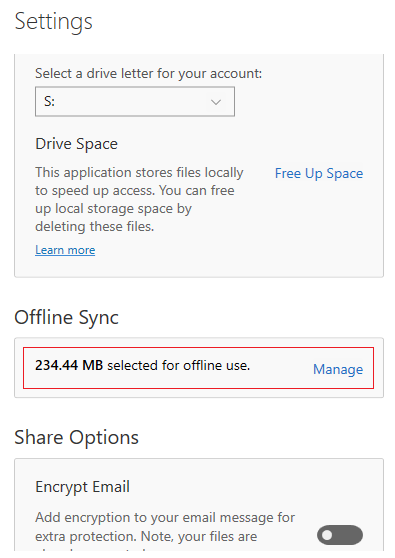
Folders selected for Offline Sync will make all files and folders within that folder available for offline access. Newly added files or folders to that folder will be automatically made available for offline access. To remove a folder and files from Offline Sync, simply de-select that folder from the Manage Sync menu.
Restricting Offline Access through Group Policy
Administrators can limit Offline Access functionality to specific computers through Group Policy.
To enable/disable Offline Access from Group Policy, an administrator can use the following setting:
| Setting | Purpose |
|---|---|
| Computer Configuration/Administrative Template/ShareFile/Enable Offline Access | If Enable Offline Access is unchecked, users will not be able to mark folders or files to be available while not connected to the internet. |
Unsupported scenarios
- When offline, Folder actions are not support, such as but not limited to, creating a new folder, moving a folder or renaming a folder.
- If creating a new Folder and quickly going offline, moving files that that folder may fail. Once the client is brought back online, move operations to that folder will be successful.
- Files or Folders marked for offline that fail to download will continue to have the Sync in progress overlay.
- If there is no available disk space when attempting to make files offline, explorer may become unresponsive without any error notification.
Troubleshooting and Tips
The following considerations apply when working with Offline Access in large-scale scenarios.
Large Data Sets
Offline Access is not intended for bulk migration use cases. For large data volumes (for example, 100 GB or more), segment the data and process it into smaller batches. Initiating large operations in a single action may result in prolonged or stalled background activity.
Disk Space Considerations
Ensure adequate local disk space is available before marking files or folders for Offline Access. Insufficient disk space may impact system performance and can cause Windows Explorer to become unresponsive during sync operations.
Cache Behavior
The default maximum cache size is 5 GB (unless modified through Group Policy). This limit applies only to online files that are temporarily downloaded into the cache.
Files and folders marked as Available Offline are stored in the cache but are not restricted by the 5 GB limit. These files remain in the cache until explicitly removed or reverted to online-only. If a large number of files, or large-sized files, are marked for Offline Access, they will continue to reside in the partcache folder and may consume significant disk space over time.
Sync Behavior
When working with large files or a high number of files:
-
Sync operations may take longer than expected
-
Files may remain in a “Sync in progress” state for extended periods
-
Operations may retry automatically if interrupted. These behaviors are expected under heavy load conditions.