One-time manual installation for ShareFile for Windows version 26.11.01.0
When you receive an update notification in ShareFile for Windows, follow the steps below to install the update manually. This is a one-time requirement; subsequent upgrades are expected to use the normal automatic update process.
Who needs to take action?
These instructions apply to customers who receive an update notification requiring manual installation. The installer will download, but it will not start automatically. When the update window closes, open the downloaded installer to complete the update.
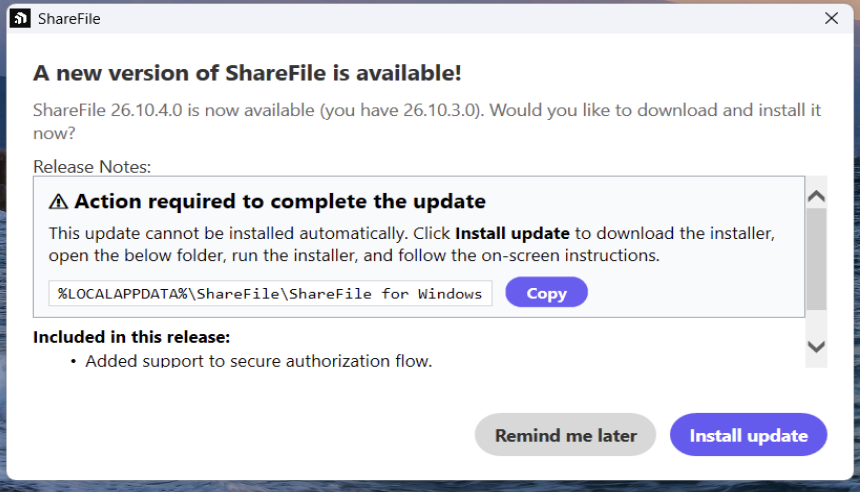
Manual installation of updates
If your organization manages software installations, check with your IT administrator before installing the update yourself.
-
When the update prompt appears, review the instructions and copy the installer folder path:
%LOCALAPPDATA%\ShareFile\ShareFile for Windows -
Select Install update and wait for the installer to finish downloading.
-
Once the download is complete, open Windows File Explorer, paste the copied path into the address bar, and press Enter. Alternatively, press Windows+R, paste the path, and select OK.
-
In that folder, open ShareFile for Windows.exe to start the installer.
-
Follow the on-screen instructions to complete the installation.
-
Open ShareFile for Windows and confirm that the installed version matches the version offered in the update prompt.
If you are not ready to install
Select Remind me later in the update prompt to postpone installation. You may receive further reminders until the update is installed.
Guidance for administrators
Deploy the update through your organization’s managed software-deployment process or share the manual installation steps with users who receive the update prompt. Devices already running version 26.10.3 do not need to repeat the one-time manual installation.
Frequently asked questions
-
Why does the update window keep returning?
- On earlier versions, the installer can download without starting automatically, leaving the update incomplete. Open the folder shown in the update prompt, run the downloaded installer, and follow the on-screen instructions to complete the update.
-
Will I need to install every future update manually?
- No. After the one-time manual installation, subsequent upgrades are expected to use the normal automatic update process.
-
What if the installer is missing or installation fails?
- Confirm that the download is complete and that you have opened the folder shown in the update prompt. If the installer is missing or the installation fails, contact your IT administrator or ShareFile Support. Provide your installed version, the version you are trying to install, and any error message.
-
Is there an upgrade deadline?
- No mandatory upgrade deadline is planned for this update. Complete the installation when the update becomes available, following your organization’s deployment process.