Sign in to ShareFile using one-time codes
When an administrator enables the one-time code feature, client users can choose to receive a temporary code via email instead of resetting their password.
Note:
If you are an account Administrator, refer to Enable one-time codes for authentication for set up instructions.
Authenticate into ShareFile
-
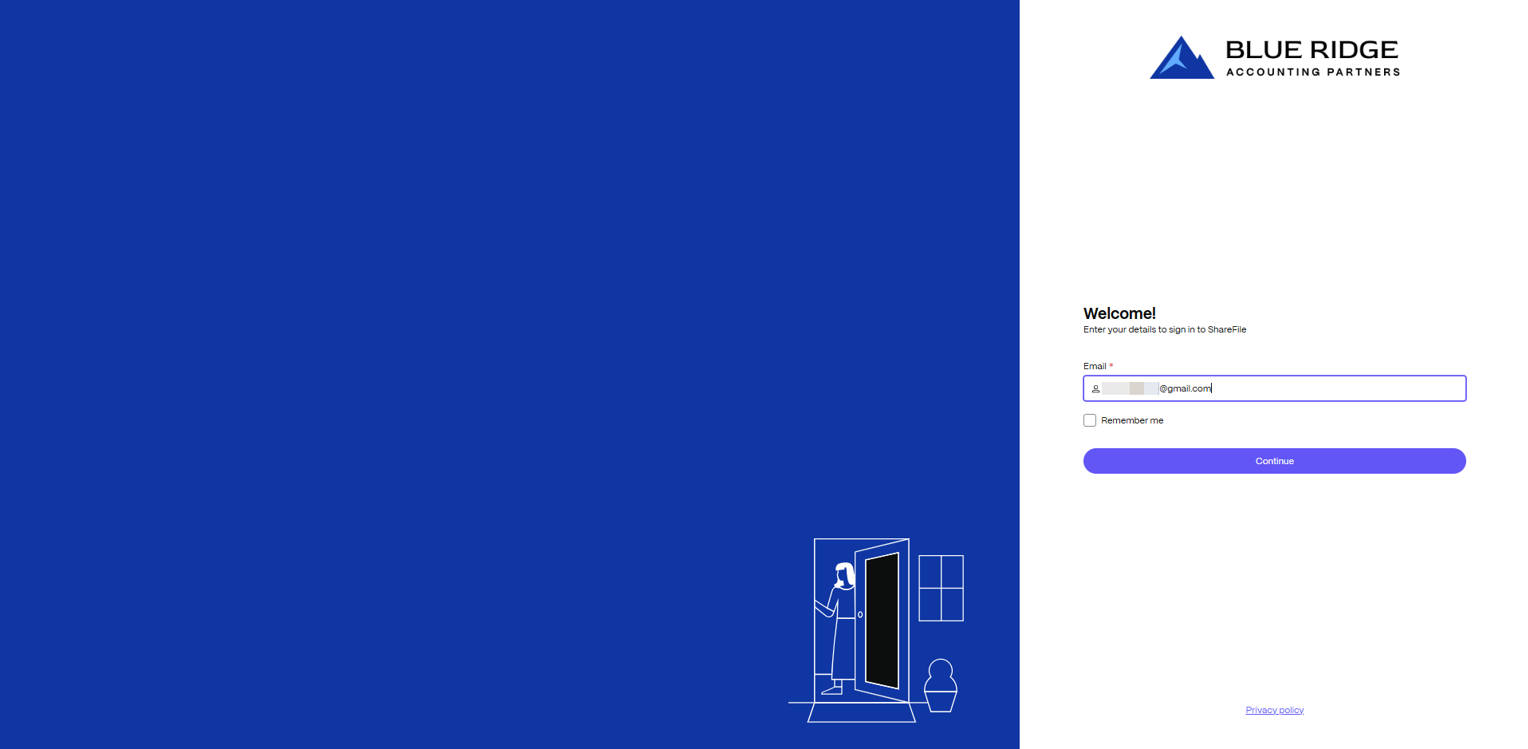
Go to your service provider's ShareFile portal URL (https://companyname.sharefile.com).
Note:
If you're unsure of the URL, check your ShareFile invitation email or use the Forgot your ShareFile Subdomain for guidance.
-
Enter your email address as the username, then select Continue.
-
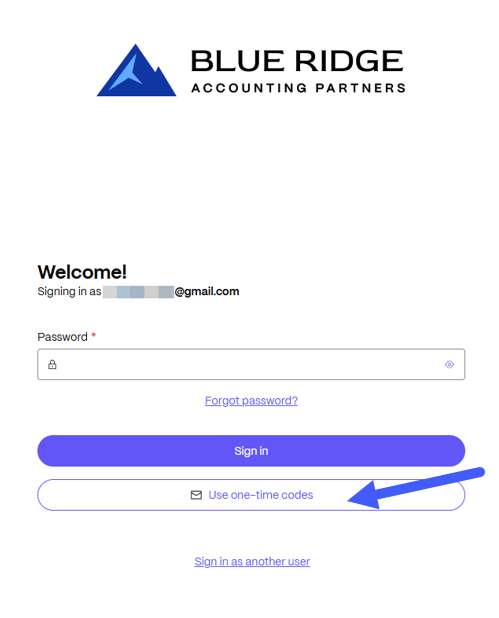
Select Use one-time codes. The system will automatically send an email containing a unique 6-digit code to your registered email address.
Note:
The options displayed on this page may vary based on the authentication methods enabled for the account and the settings configured by the user in their Personal Settings section.
-
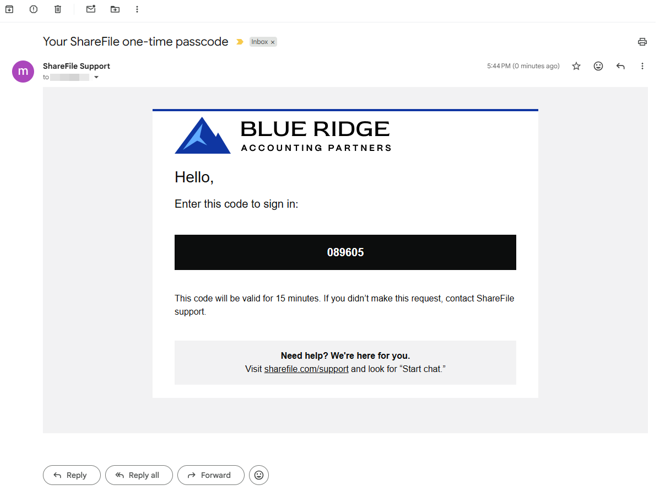
Check your email for the one-time passcode notification.
Note:
For security, each code is temporary and will expire after a pre-configured duration of 10, 15, or 20 minutes, as set by the account administrator.
-
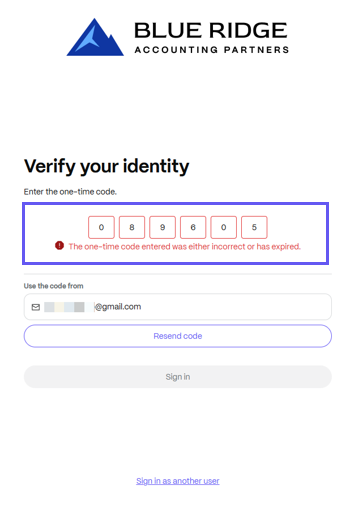
Enter the code received to verify your identity. Then, select Sign in.
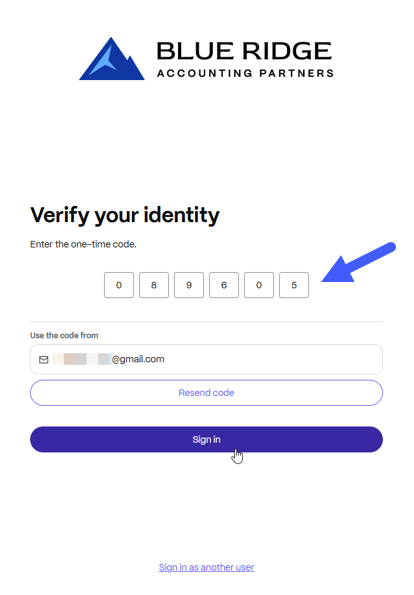
If the code is accepted, you’ll be taken to your account. If it’s not, an error message will appear stating, “The one-time code entered was either incorrect or has expired.” In that case, select Resend code to receive a new code via email.
Note:
For security reasons, a user account may become temporarily locked if too many attempts for one time codes are submitted or requested during a certain window of time.