Share files using the ShareFile web-app
Important:
We’re taking steps to improve the security posture of file sharing. All links default to use secure sharing options which apply across all ShareFile locations: ShareFile desktop app for Mac and Windows, ShareFile Web app, ShareFile Mobile app, ShareFile Plug-in for Microsoft Outlook and Gmail.
Default share permissions
The default share permission is "employee and client users sign-in" for every new link shared. The default share makes it easier for users to understand the access permissions of the shared links they’re creating.
Anytime you share a file, it starts with the secure option. You can change the view and download permissions if you don’t require security or privacy for that file.
Notes:
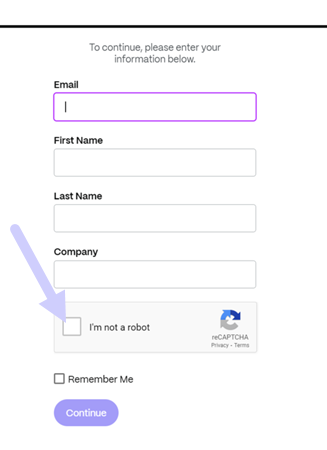
When selecting the "Anyone (public, must enter a name and email) option, the recipient is required to complete the reCAPTCHA request.
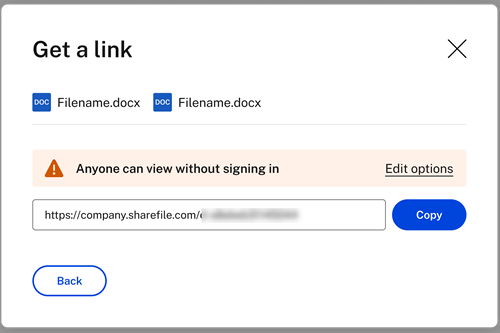
After the link is created, a notation will remain next to the notating the view or download permissions:
Anyone can view without signing in
Anyone can download without signing in
- ShareFile admins can manage the defaults for both sharing and requesting files. For more information, see:
- Share Settings
- Request Settings
Getting a Share link
We recommend watching this video on how to share a file using a ShareFile link:
-
Navigate to the file that you want to share in your ShareFile account.
-
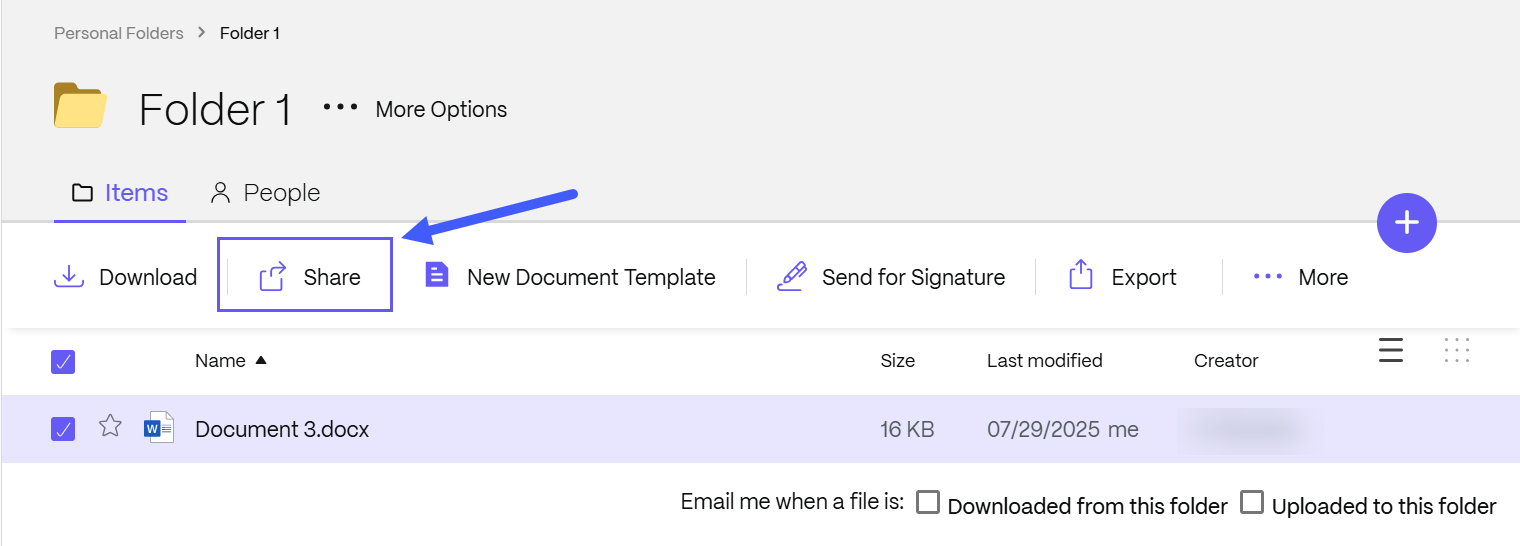
Select the file or files that you want to share.
-
Select Share from the menu.
-
Select Copy under the options offered.
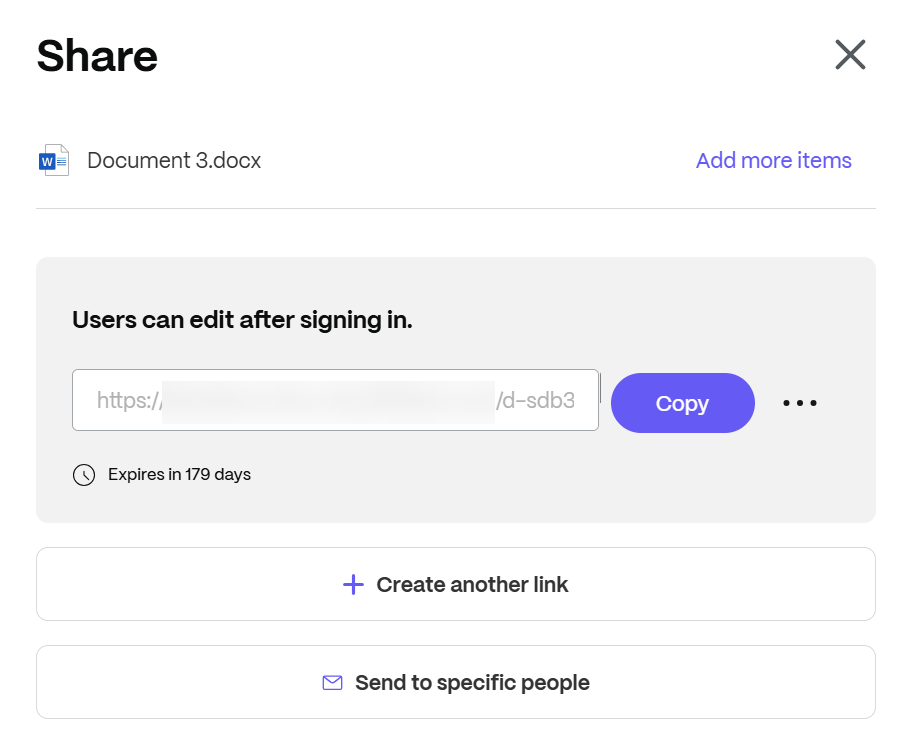
The Link copied to your clipboard message displays briefly.
-
Use the copied link to share with your email or another communication app.
Send to specific people
We recommend watching these videos on how to share a file using ShareFile email and using encryption:
Use this option when you want to send using ShareFile to send a Share message to a specific person.
-
Navigate to the file that you want to share in your ShareFile account.
-
Select the file or files that you want to share.
-
Select Share from the menu.
-
Select Send to specific people under the options offered.
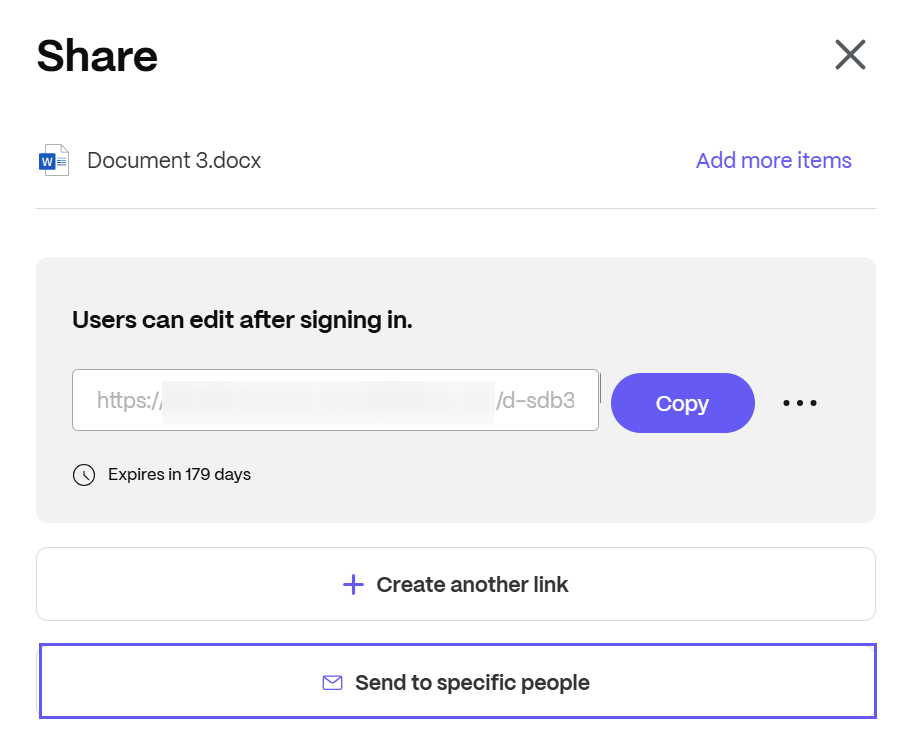
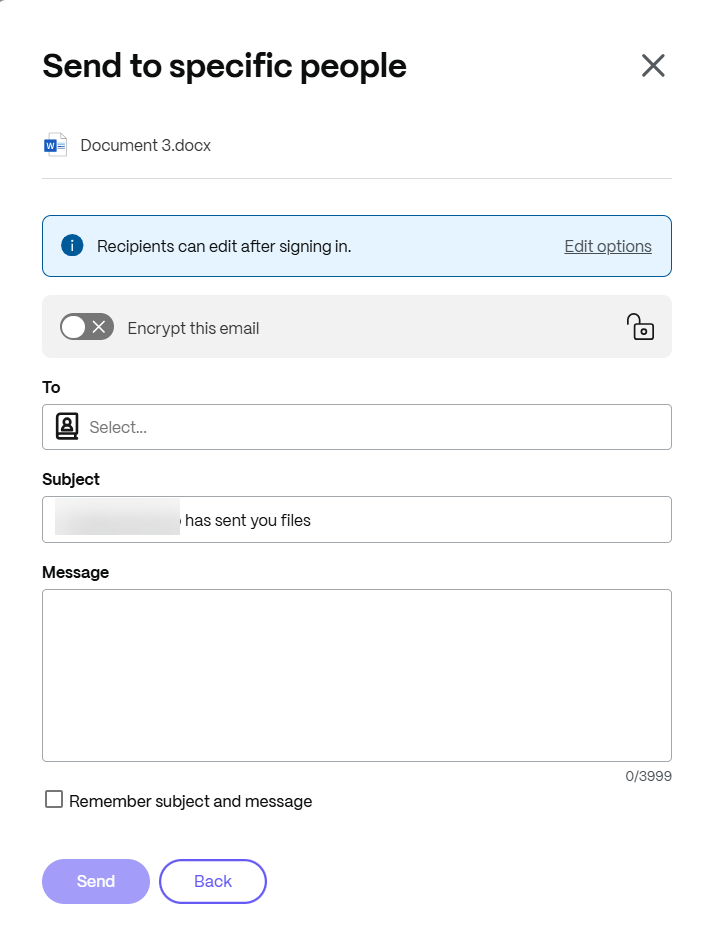
The Send to specific people window displays.
-
If enabled, you can choose to Encrypt this email which provides an extra layer of security when sharing confidential files.
Notes:
-
Encrypt this email allows you to encrypt the body of your message to your recipient, along with any attachments, with industry-standard AES 256 bit encryption. This feature also includes the ability to compose and receive encrypted emails directly from the ShareFile web application.
-
Encrypt this email is not available in the ShareFile Standard plan.
-
Distribution groups are not supported for encrypted messages.
-
-
Select Edit options to review and set the following options:
-
Access options:
-
Allow recipients to: - select from various options including View, Download, and Edit (sign in required).
-
Access expires - select from various expiration settings for recipients.
-
Check box for Require recipients to sign in.
-
Check box for Always link to the latest version of the file.
-
-
Notifications:
-
Check box for Notify me when this is accessed.
-
Check box for Send me a copy of this email.
-
-
-
Select Save.
-
Type in the email address of the recipient in the To text box.
-
Though the Subject is prefilled, you can type in replacement text.
-
Type in a message if necessary.
-
Click the Remember subject and message check box if wanted.
-
Click Send.
The Share sent successfully message displays briefly.
Link options
Choose ... to Edit the options for the link, Replace the link, or Delete the link.
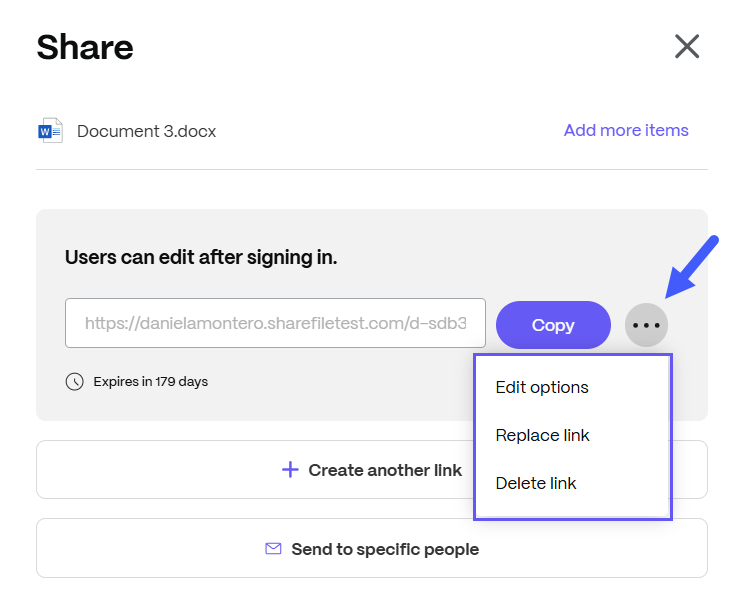
Edit options
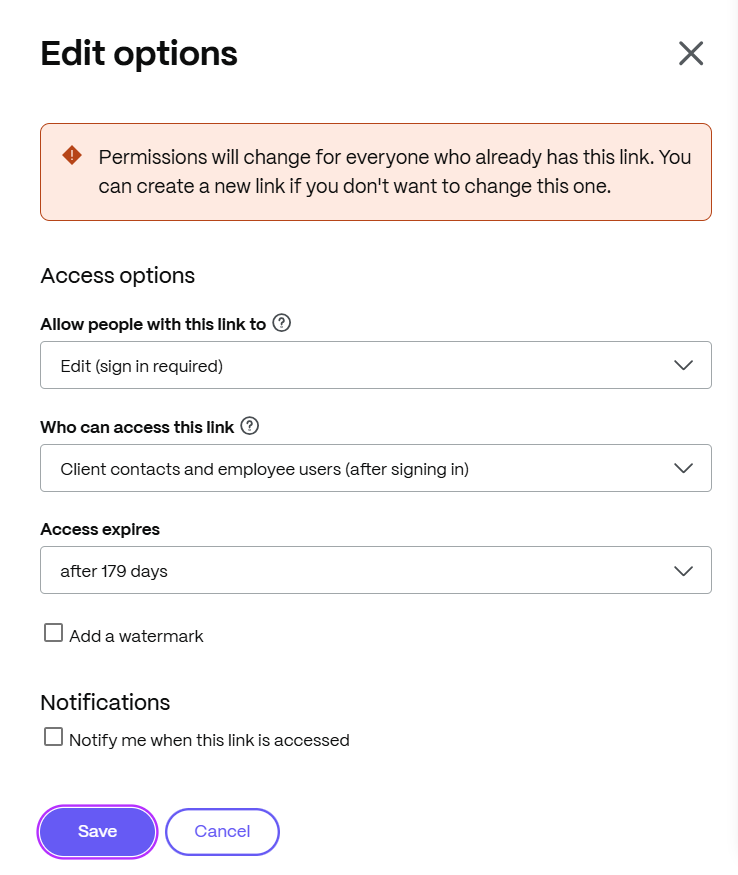
In Edit options, you set the parameters for recipient access and notifications.
Access options
We recommend watching this video on how to better utilize Access options:
Under Access options, select the access parameters for the recipients.
-
Allow people with this link to:
-
View - Recipients can view the file but prevents users from downloading it.
-
Download - Recipients can view and download the file.
-
Edit (sign in Required) - Recipients can edit the file but must sign in either with their client or employee sign-in. For information about co-editing a Microsoft 365 shared file, see Co-editing in ShareFile.
-
-
Who can access this link:
-
Client contacts and employee users (after signing in) - The recipient is presented with a sign-in screen. The recipient must be an existing user (either an employee or client user) in the account to sign in and view the content. If the recipient is not a user in the account, then it is necessary to create the user account for the recipient before they can access the file.
-
Employee users (after signing in) - The recipient is presented with a sign-in screen. The recipient must be an existing employee user in the account to sign in. If the recipient is not a user in the account, then it is necessary to create the user account for the recipient before they can access the file.
-
-
View access expires can be adjusted to the available presets.
-
Always link to the latest version of this file is selected by default. The current version of files will be immediately available within the link.
Notifications
This check box default is set for the sender of the file to receive notifications when the file is accessed. If you prefer not to receive this notification, uncheck the box.
Replace link
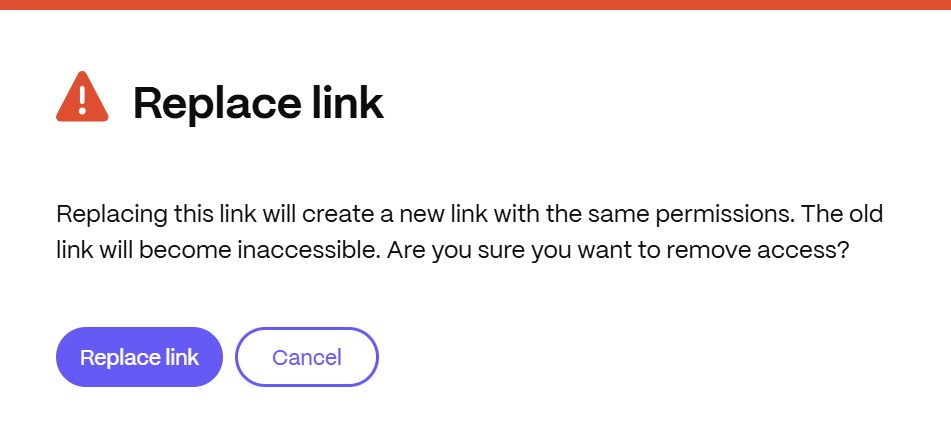
Replace link allows you to create a new link with the same permissions. The old link will become inaccessible.
Delete link
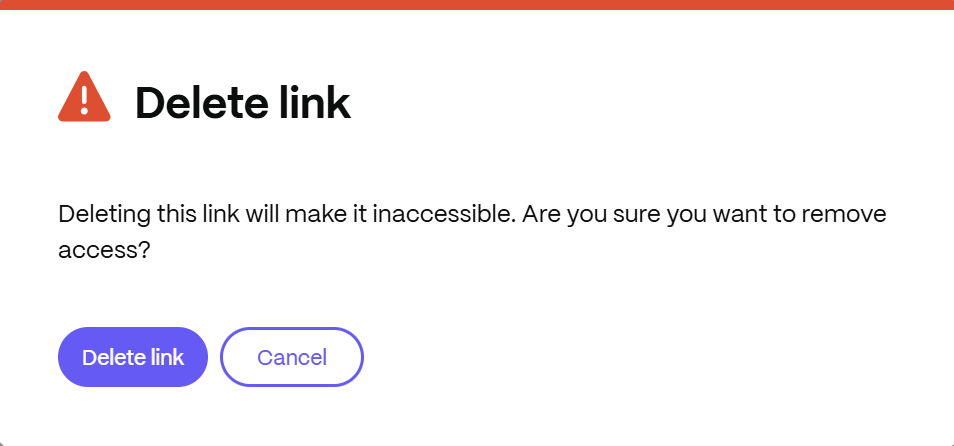
Delete link allows you to make the link inaccessible. A new link is created by starting the share process again.
Add more items
To add more items to a share link, select Add more items.
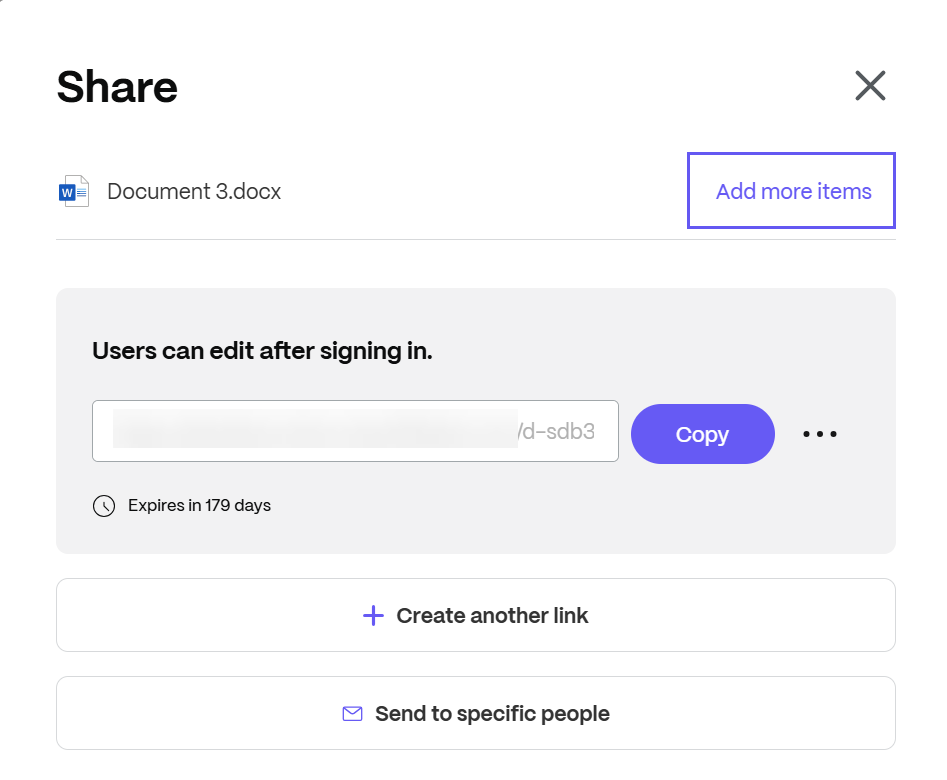
You are provided the option to add more files from ShareFile or from your device.