Add description in files and folders inside projects
You can now add descriptions in files and folders inside projects. To do so, login to your ShareFile account and from the dashboard, go to the Projects section and access the desired project.
From the selected project, go to the Files section and select any file or folder where you want to add the description.
There are 2 ways to Add description to the file inside the project in ShareFile. You may choose any one of the following methods to add a description:
From the context bar
-
You can select the file/folder by clicking on the checkbox and then click on the More option and select Add description from the drop-down list.
-
The Add description window opens.
-
After the description has been entered, click Save.
-
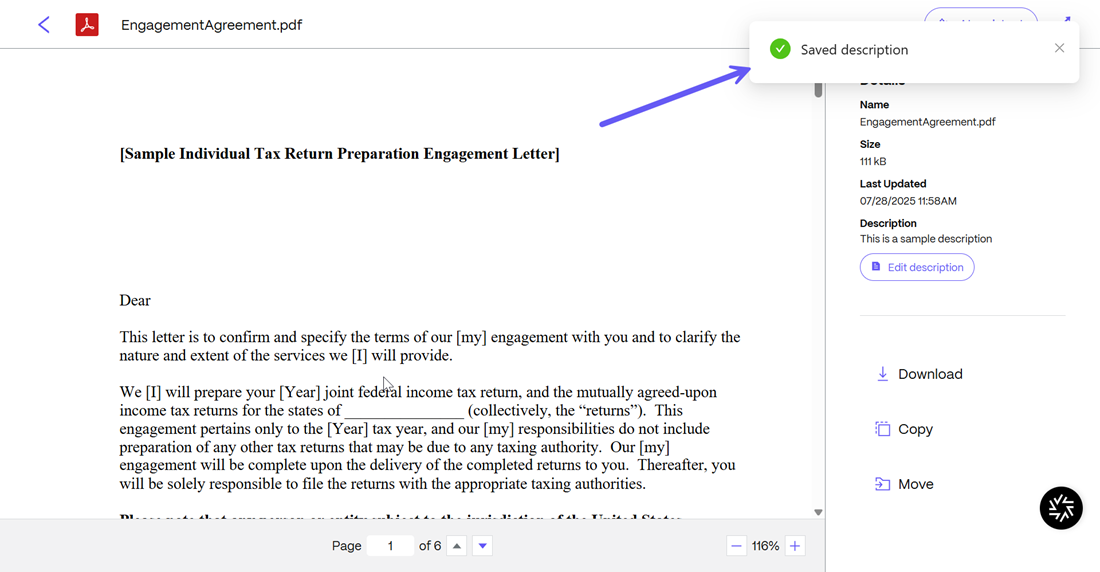
You can click on the Edit description button to go back and edit the description created. Once done, click on Save and the description will be updated. A success message stating "Saved description" displays.
From the content viewer
-
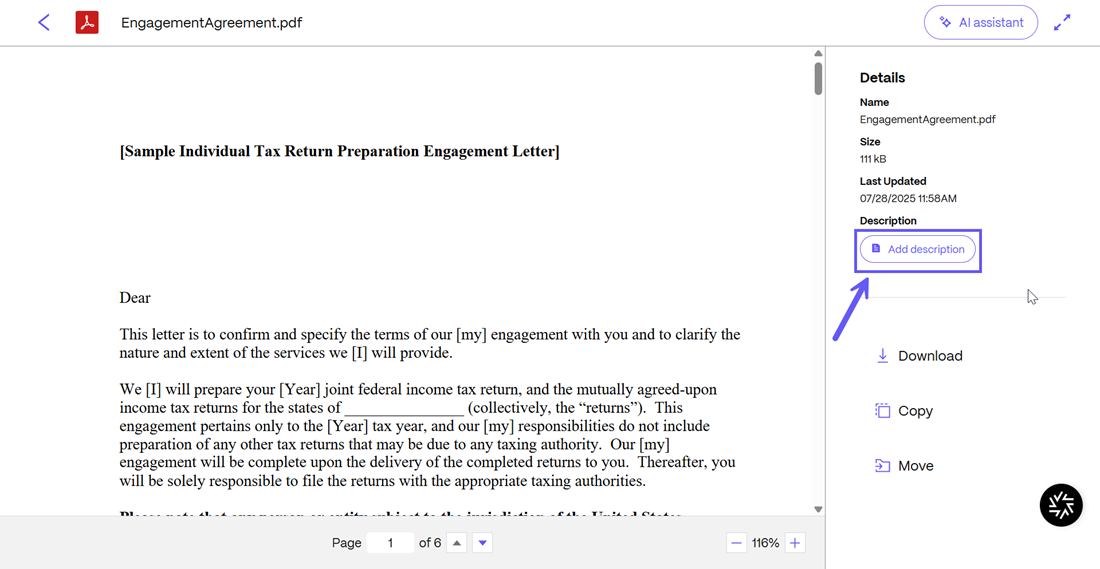
You can also open any file and from the preview window that opens, select the Add description button on the right.
-
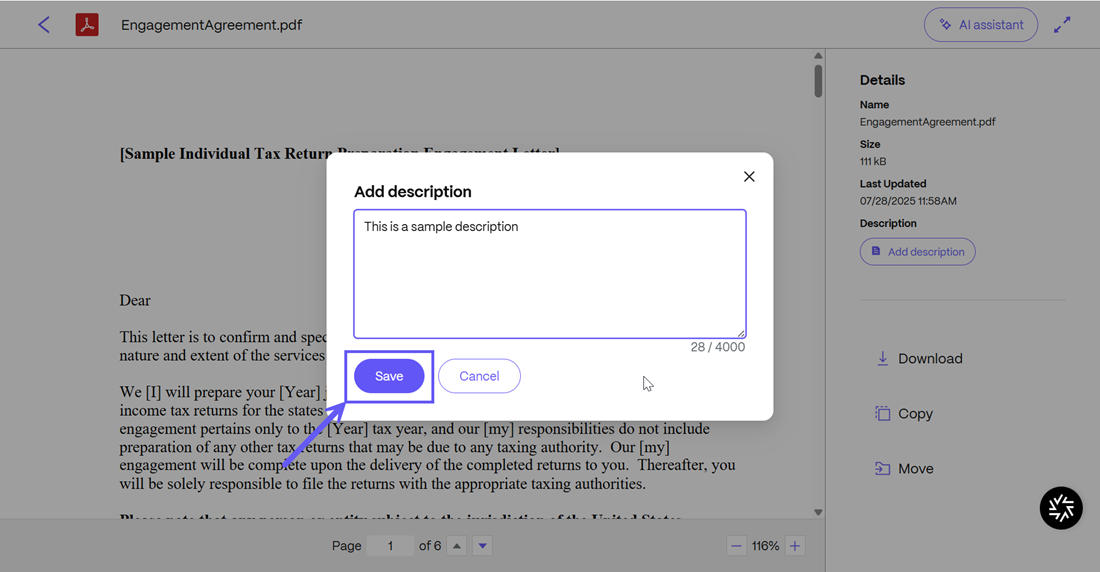
The Add description window opens. After the description has been entered, click on the Save button.
-
Upon success, the Saved description notification is displayed.