Comment capability at Tables record level
You can access comment capability at record level to enable seamless collaboration between customers using table for storing structured data such as Timesheet, Client Billings, Asset Repositories etc.
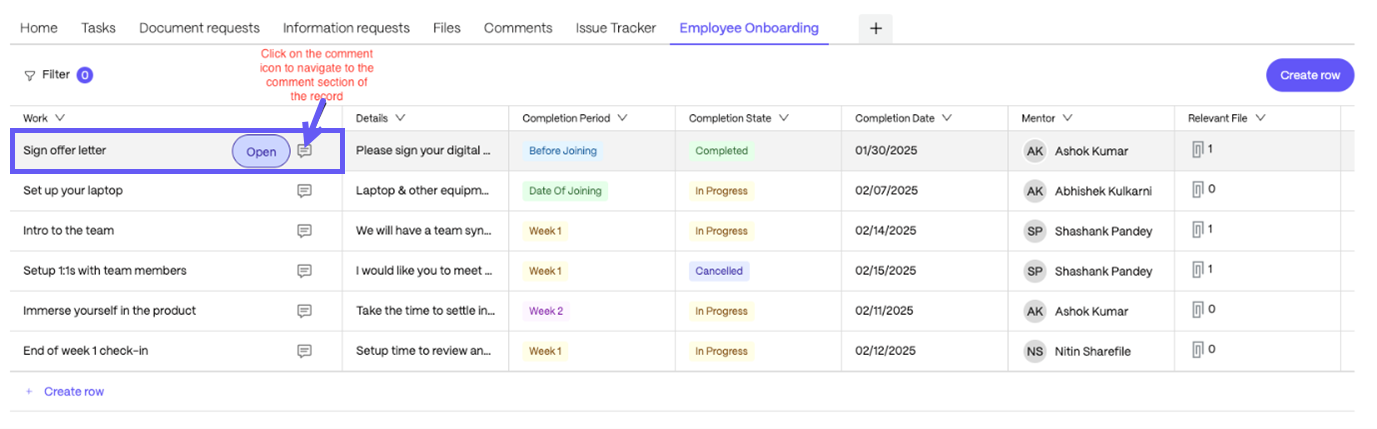
- All tables created within a project will have comment capability available at every record level. Once a user adds a title to a record, indicating it is an active record, the comment icon gets active. User can click on the Comment icon next to each record in the table or can open the record and user can navigate to the Comments section by clicking on the comment icon to add their comment.
- Anyone with whom a project has been shared can view and add comments.
- In case a record in a table is assigned to a client, then the client will get an option to add or view comments from their client portal.
- When a comment is added by a user, it will get updated in the Comments tab and appear in the shortcut widget on the Home tab. User can click the hyperlink to quickly navigate to the Comment section.
NOTE:
Client contacts cannot comment in table view.
Add comments to a table record
-
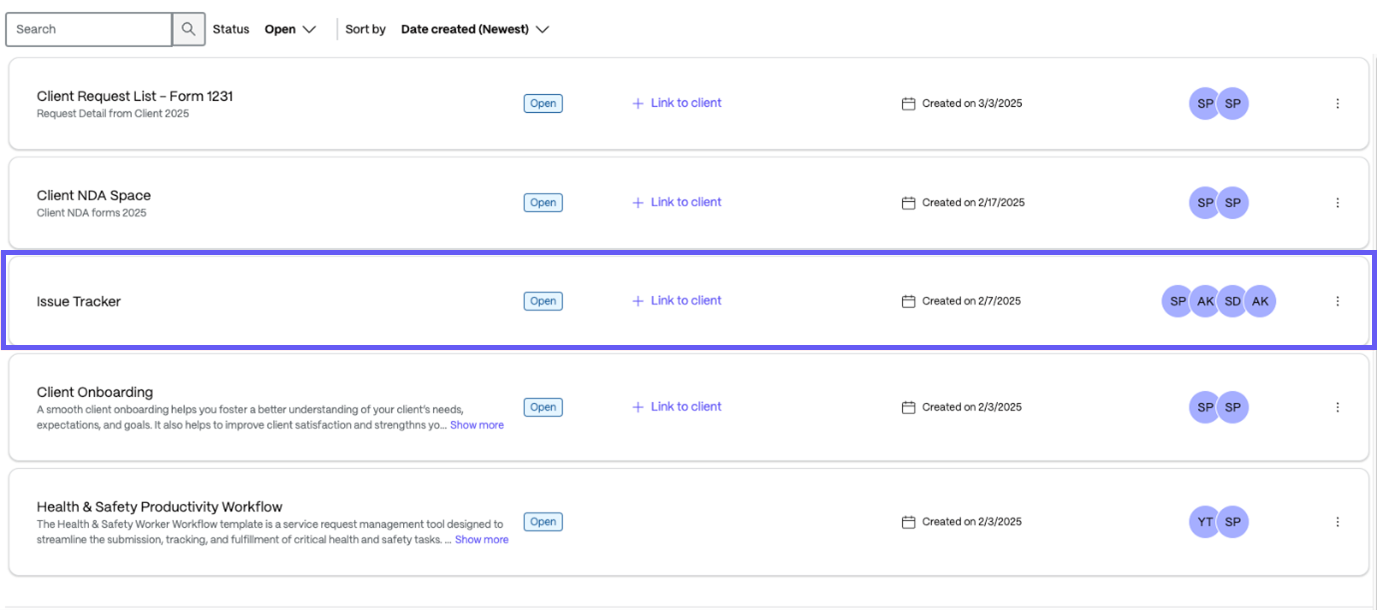
Click on the Project that you have created.
-
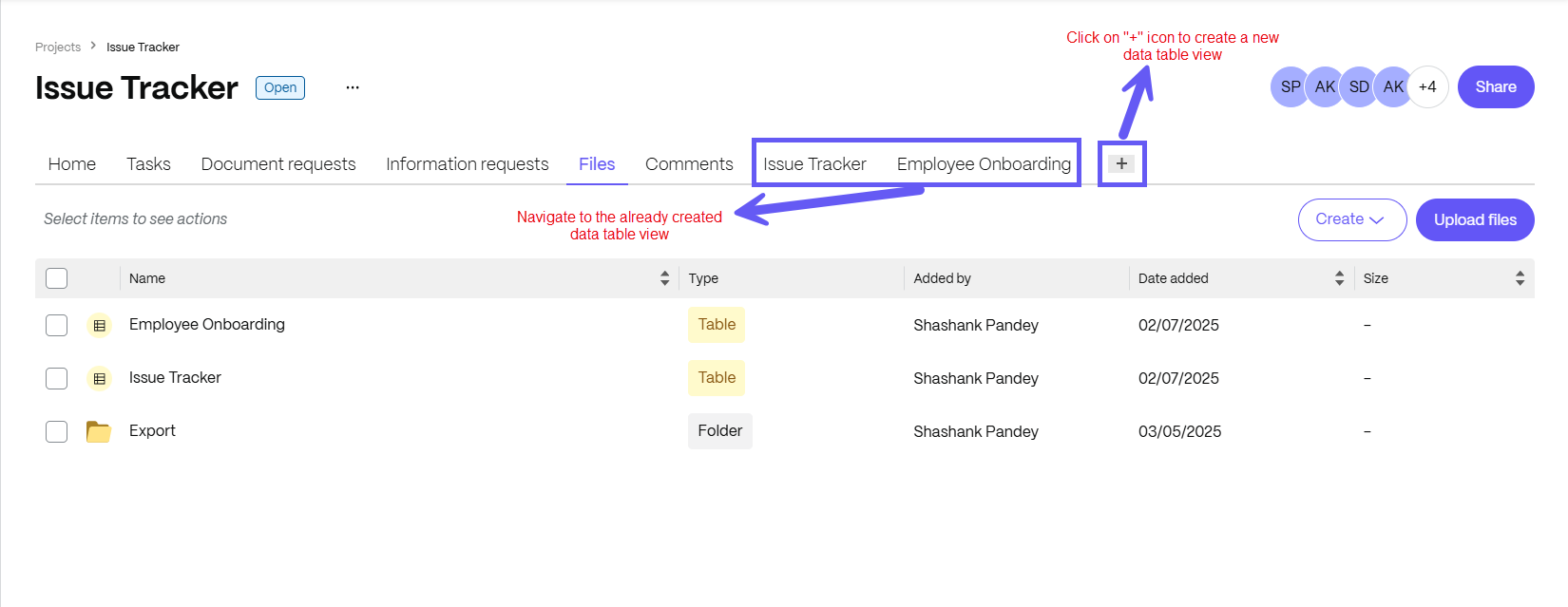
Select an existing project or create a table. In these instructions, we selected an existing project and navigate to the already created table view.
-
To create a new table, you can select the '+' icon or choose from the available templates.
-
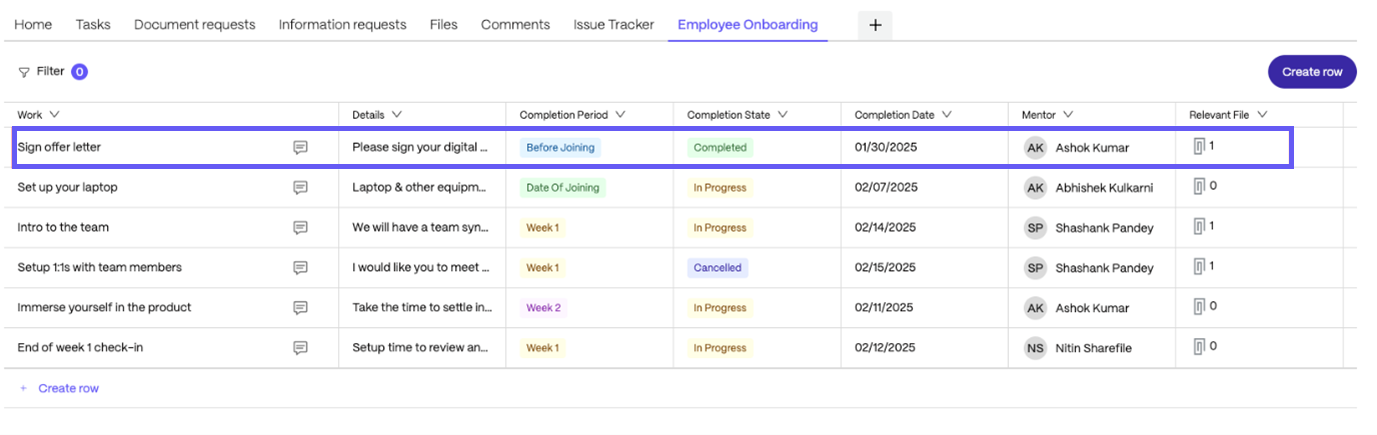
Navigate to Employee Onboarding, then click on existing record or add a new record by providing the necessary details.
-
To view or add a new comment, click on the comment icon available in the first column and it will redirect to the comments section of a selected project.
-
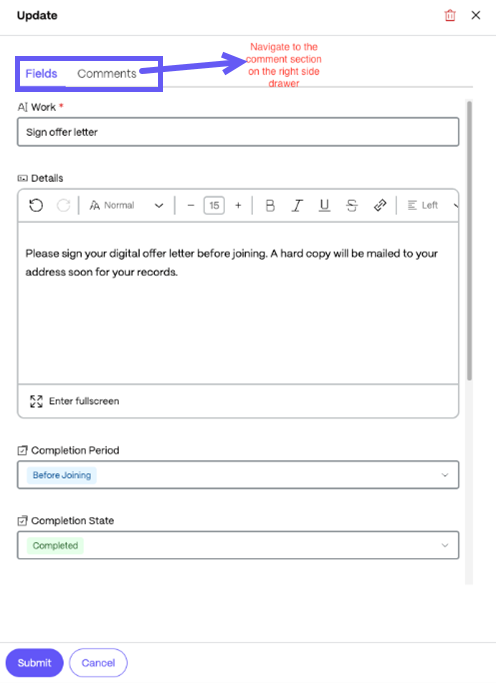
Users can also open the record and navigate to the comments section in the right- side drawer.
-
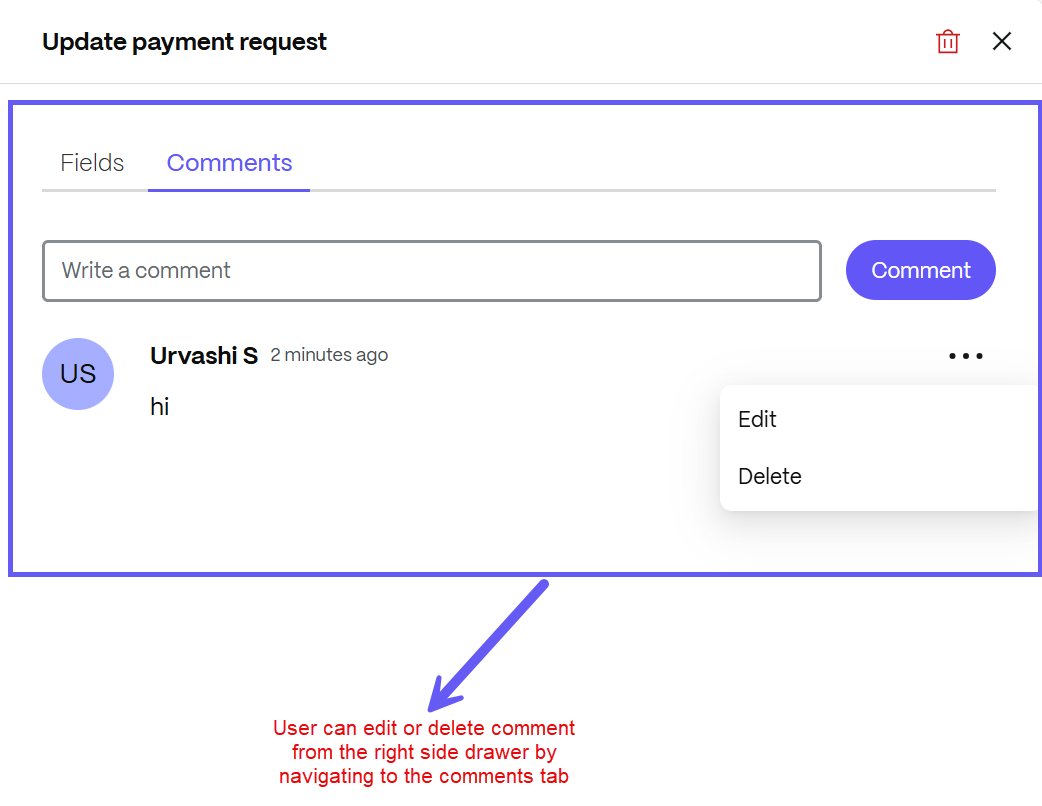
You can add a comment at the record level and click the Comment button. Users can also view and edit comments next to each record in the table by clicking on the three- dot icon.
-
After the comment has been posted, it will automatically get updated in the Comments tab, allowing users to view comments, access hyperlinks and navigate to the comment section by clicking on it.
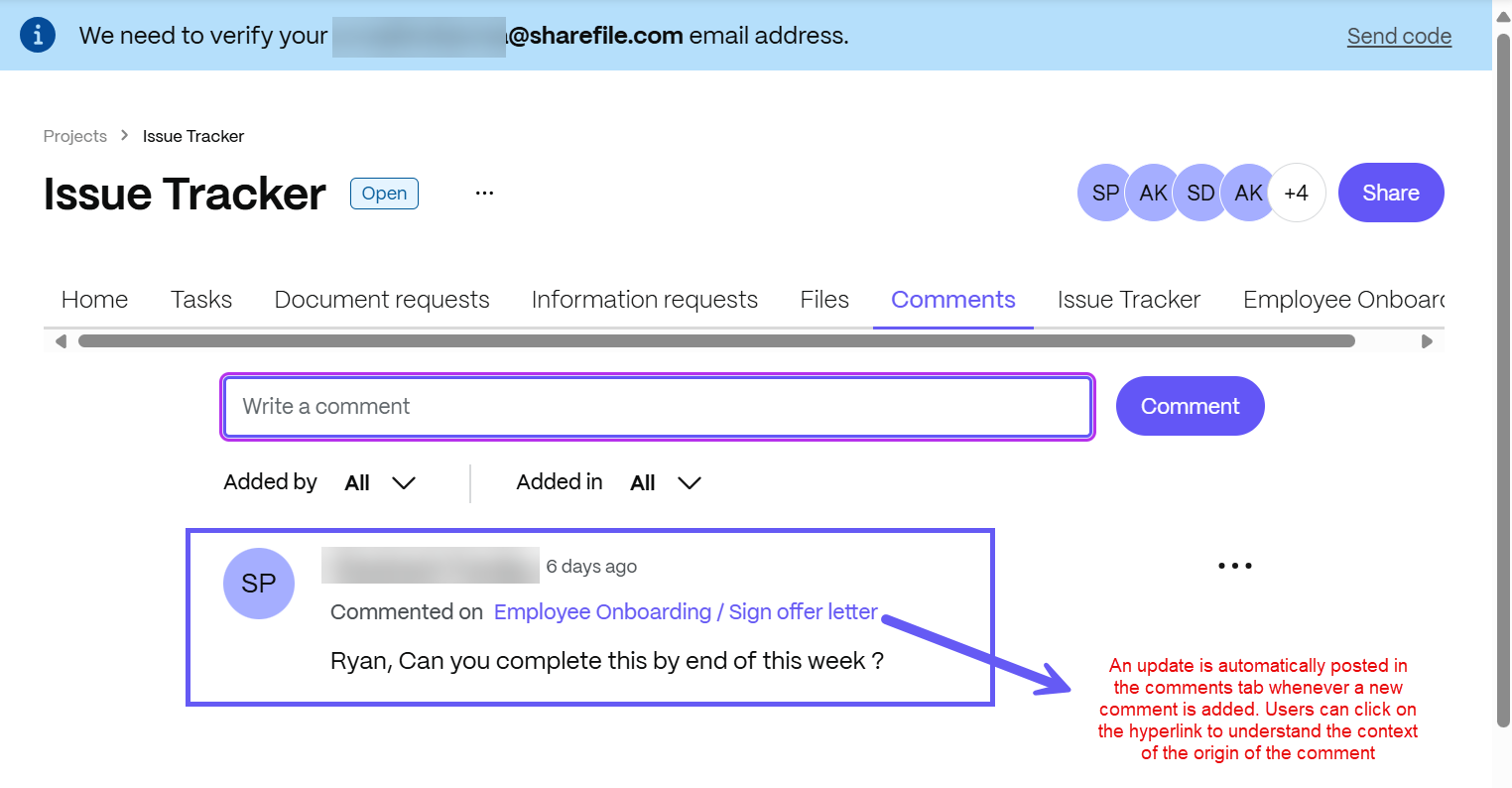
The functionality mentioned above also ensures that users have visibility to any conversation and collaboration taking place at the project level or a record level in the table. The hyperlinks help users keep track of the context of the comments made in the project.
NOTE:
Users who are part of a project can access both the table and the comments section.