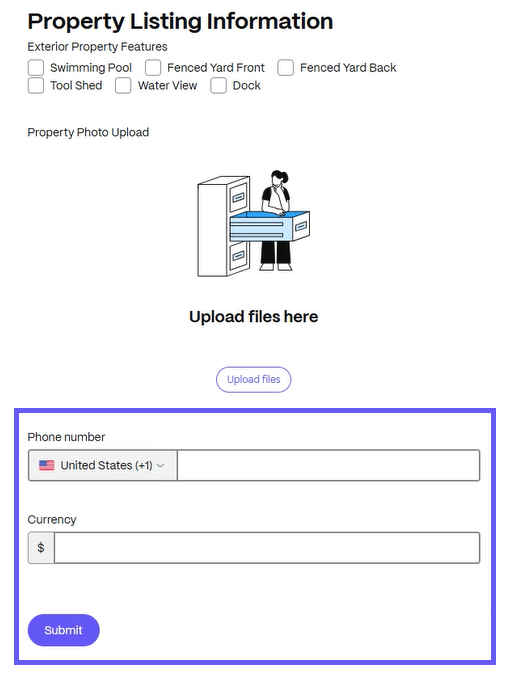
Respond to a Form
Article applies to:
- Client contact (external user)
The following information provides you, the assignee, with the steps necessary to respond to an assigned Form.
-
Access your email to open the ShareFile message you received.
-
In the message, select Complete request.
Note:
You might be required to sign in first.
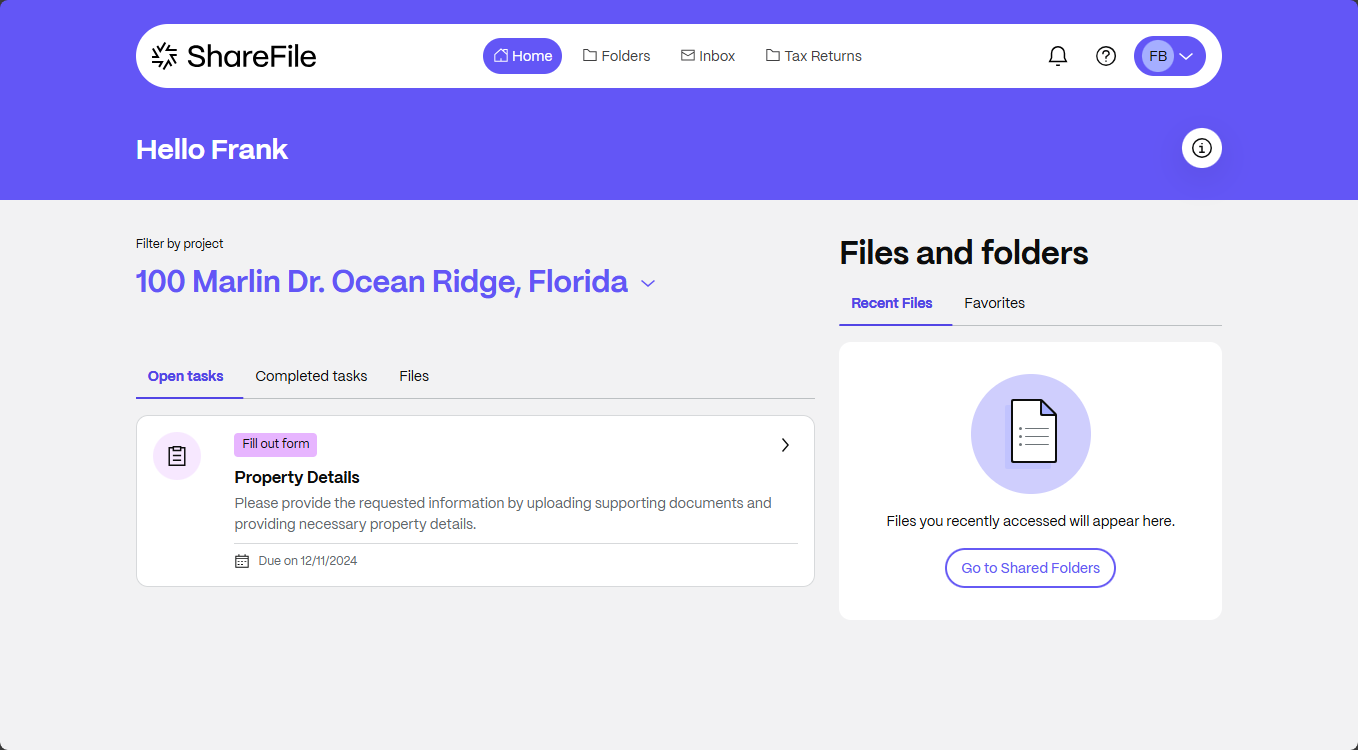
Your ShareFile account opens the tasks page displaying the request.
-
Select Fill out form to fill the request.
-
Complete the Form and then select Submit. If a file upload field is required, you must upload a file before you can submit the form.
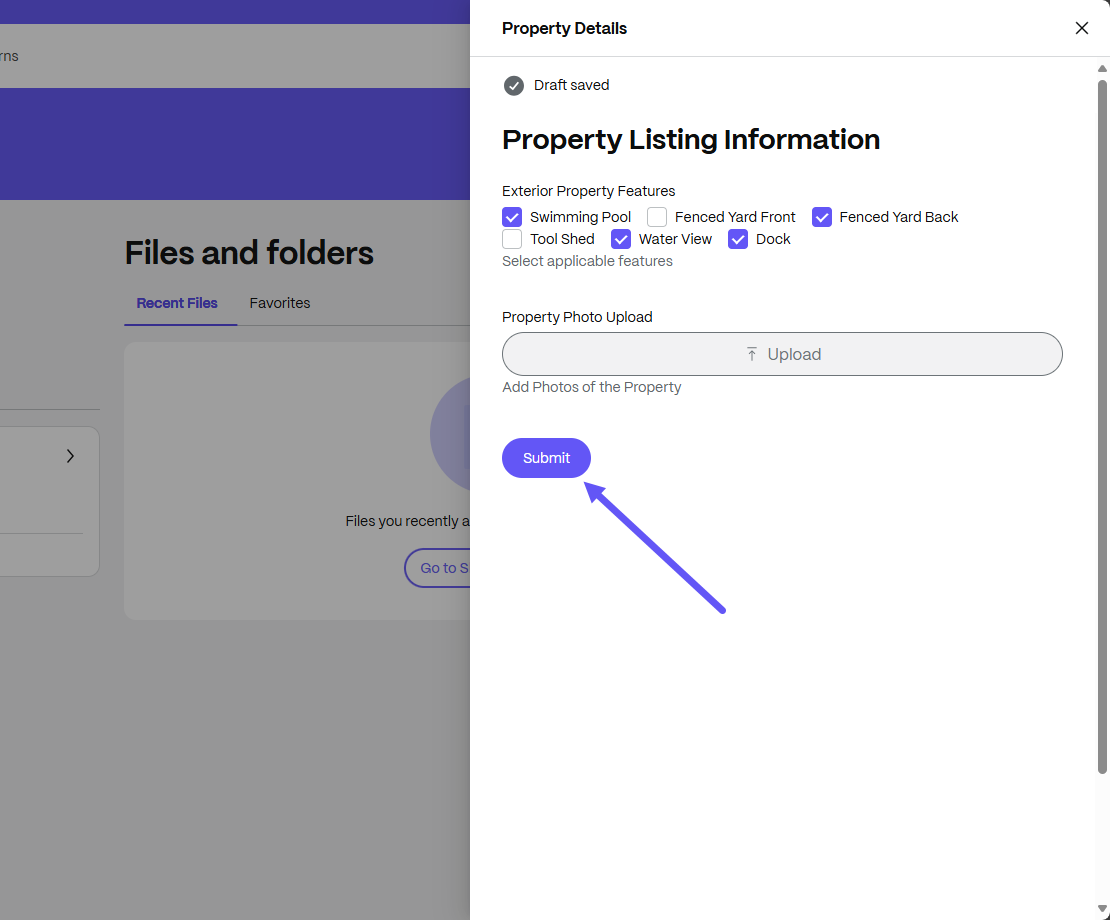
Once you have submitted the Form, the Success message displays on the right side of the page. To edit a response, contact the service provider.
-
In the Client Portal form drawer, select the Attachments tab to view files uploaded across all fields.
Temporary link and form submission: Assignee view
-
Clients who receive the temporary link can log in to the client portal and access the Form.
-
Users can fill out and submit the Form after logging in.