Share a Form
Article applies to:
- ShareFile Employee users
The Shareable links feature allows users to share forms with Project Members and Clients.
Access the Form you need to share
-
Go to Tasks > Forms.
-
Open the form you want to assign and share with your assignees or clients.
-
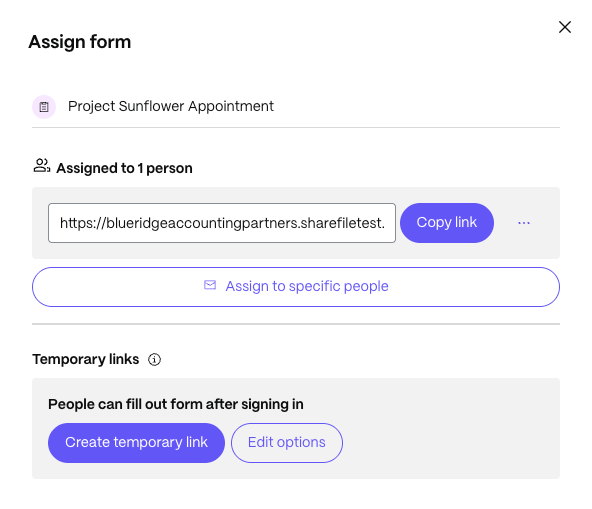
Click the Assign button. This action opens the Assign form dialog.
Create and share a permanent link for assignees and clients
A Permanent link is displayed and assigned to all project users within the dialog box.
Usage: Click on Copy Link and share this with any member already assigned to the Form.
NOTE:
Users who haven't been assigned to the form, and do not have Assignee permission will not be able to fill out the Form using this link.
Assign to specific people
-
Click Assign to specific people in the dialog box to add users to the form.
-
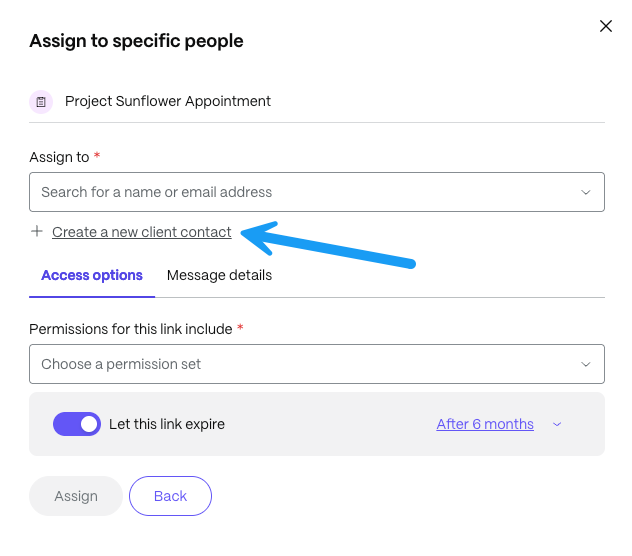
In the Assign to field, enter the client's details to assign the Form if the client is already added to the ShareFile account.
-
If the client is not part of ShareFile, click Create a new client contact in the dialog box to add users as shown next.
Add new clients
-
Click on Create a new client contact if the client has not been added.
-
Optionally, manage the form permissions by using the Access options or add a personalized email message using the Message details. The email is sent to the assignee once the Form has been assigned.
NOTE:
In this scenario, when creating a Permanent link, an email is sent to the client assigned to the Form. Additionally, you can share the Temporary link with the client via third-party tools such as Gmail and Outlook.
Create and share a temporary link for external clients
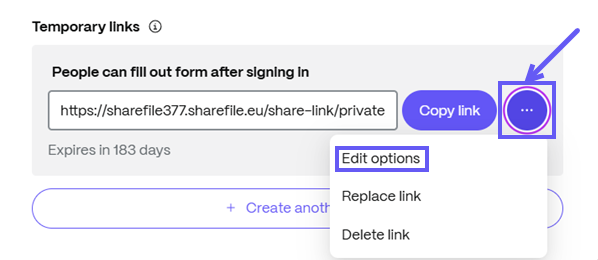
To share the form with clients not included in the project, click Create temporary link under the Temporary links section. A temporary link is generated.
Usage: Share this temporary link with your clients. Existing ShareFile clients can use this link to log in and access the Form on the client portal.
Edit access for temporary link
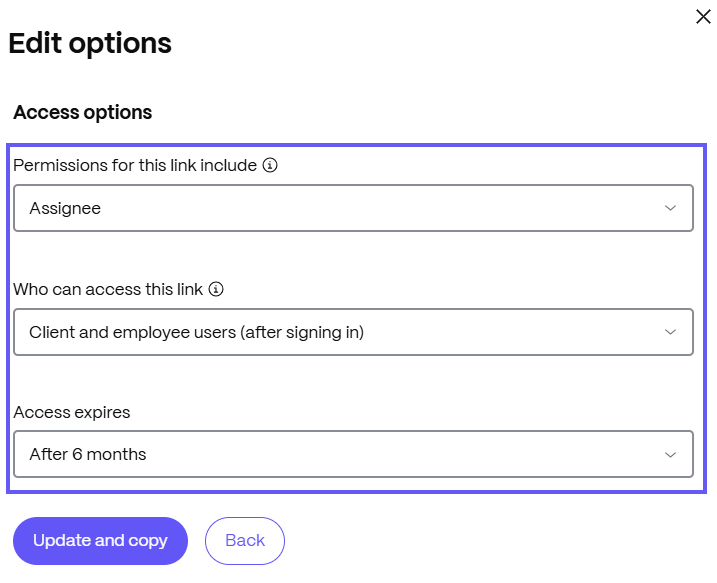
To edit access for the temporary link, click on three-dot icon and select Edit options.
In the Edit options you can:
-
Provide access as a Reviewer if the Form needs to be reviewed.
-
Provide access as an Assignee if the Form needs to be assigned and filled out.
-
Define the role who will have access to the Form - client or employee, by selecting the relevant option from the Who can access the link dropdown field.
-
Set the expiration period from the Access expires dropdown field.