Review and approve a Request List
Article applies to:
- ShareFile Employee users
Tracking the client responses and documents on the service provider side is available in the Projects folder for the specific client.
To approve and close a Request List:
-
From the Projects dashboard, select the clients project to open it.
-
Go to Request List and click the request to view items.
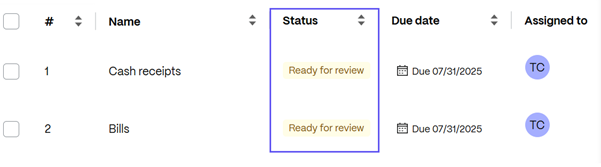
The items pending review display ready for review in their status:
-
Click the item. The Request List drawer opens on the right corner of your screen. Review item Details, Attachments and Comments, then select Approve.
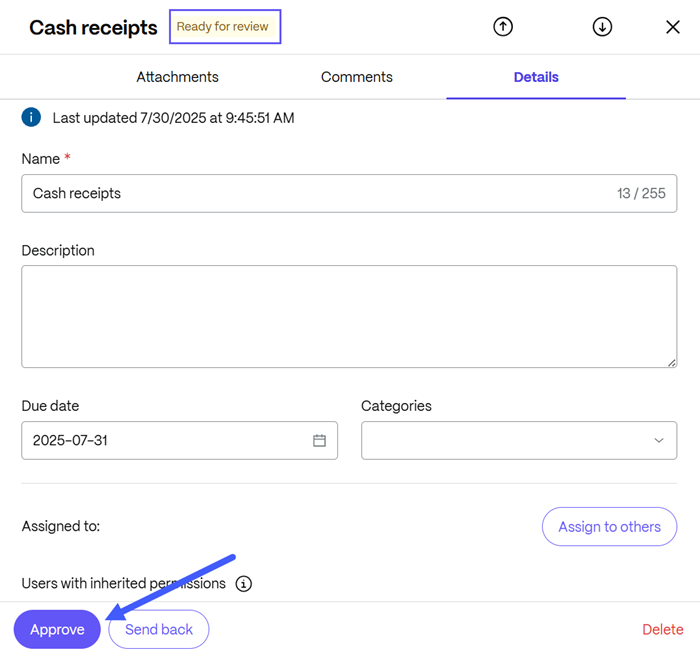
The Approved item confirmation message displays briefly and the item status changes from "Ready for review* to "Approved".
Repeat this for all requested items received.
-
Once all items are approved, a pop-up message displays advising if you would like to close the request. Select Close request to confirm.
The Closed request message displays briefly. If the checkbox Notify people on this request was selected, the client receives a confirmation email.
The client can select View Request List to review the request.
NOTE:
You can always reopen a closed Request List, if necessary. The client receives a confirmation email if the request is reopened.