Enable SharePoint Online Connector
-
Navigate to Account settings > Connectors to view all Connectors available for your account.
-
Select Add for the SharePoint Online connector. The Add Connector window displays.
-
From the Add Connector window:
- Enter a name for the connector.
- Provide a Site URL - Enter the URL path to your SharePoint Online account. Enter the URL as follows, replacing "mysite" with your own domain/site name and adding the shared%20documents wildcard where indicated. If you do not know your subdomain, you can find it in your web browser when you sign into SharePoint.
https://mysite.sharepoint.com/sites/siteName/shared%20documents- Select Continue. The Manage Access window displays. By adding a user to the access list for a specific Connector, that user is able to use the Connector to link their account to another data storage service. Alternatively you can add the Connector app to the respective SharePoint Online account.
- Select Save to continue.
Admin approval for SharePoint Online Connector
Once the SharePoint Online is enabled, users must authenticate in the ShareFile App. Both client and employee users must have admin approval before accessing SharePoint files or folders.
Use the following instructions to get access to the SharePoint Online connector.
-
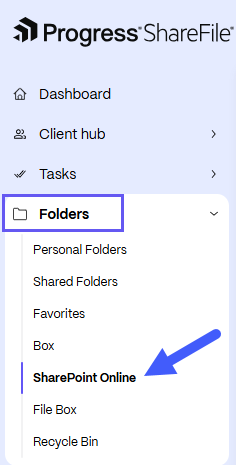
Navigate to Folders > SharePoint Online you then be redirected to the Microsoft account page.
-
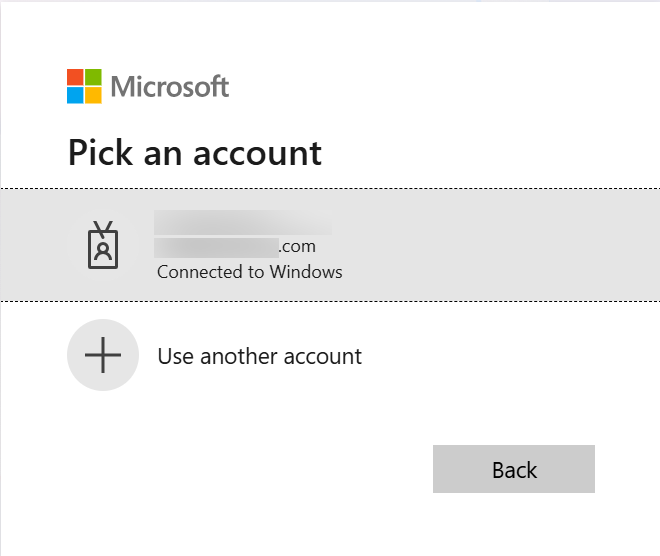
Select your Microsoft account.
-
Access SharePoint Online
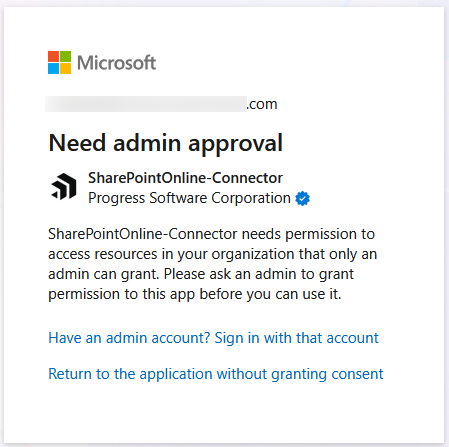
a. If you do not have permission to access SharePoint Online files/ folders, the Need admin approval page is displayed.
b. Admin approval is required to access folders.
-
Admin Authentication and Consent Approval
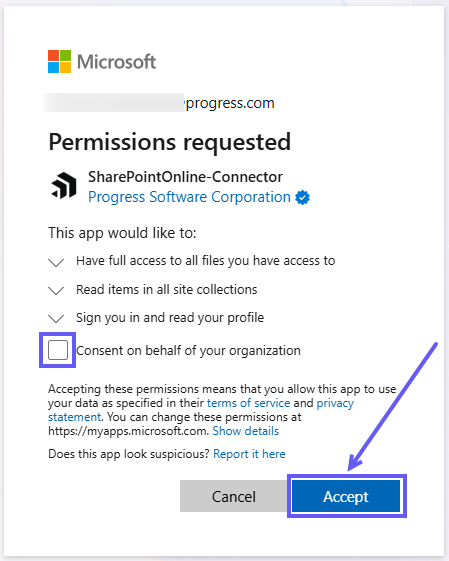
a. The admin should log in to the ShareFile app, complete authentication, and then respond to the Permission requested message.
b. To grant access, check the consent box and click Accept.
NOTE:
The admin only needs to provide consent once for all users.
-
User Re-authentication
a. Once approved, user can navigate to Folders > SharePoint Online within the ShareFile App.
b. The Authentication required screen is displayed, prompting you to re-authenticate before accessing the SharePoint Online connector.
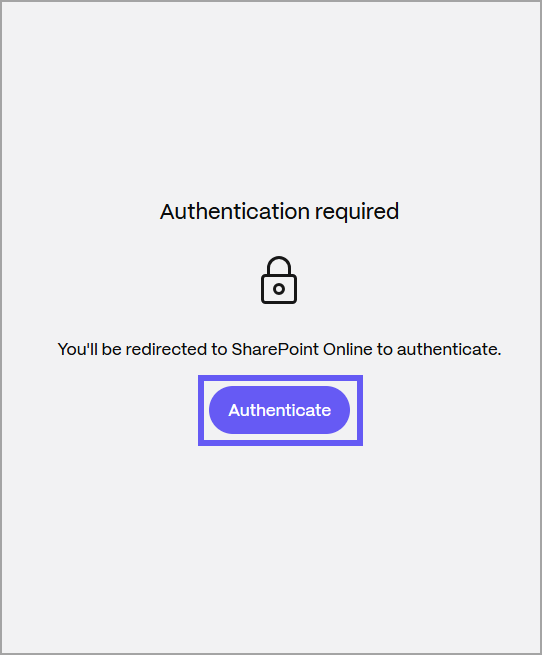
-
After successful re-authentication, you then be redirected to access SharePoint Online folders.
-
Select any files to download, share, delete, or preview as needed.