Use OneDrive for Business connector via ShareFile for Windows application
While using the OneDrive for Business connector via the ShareFile for Windows application, a default Folder and Files setting within the Windows operating system may lead to a large amount of API calls to the Microsoft Graph API when hovering over files or folders in the UI to display file size and file count information.
Recommendations
To avoid a large number of inadvertent calls to the Graph API, ShareFile recommends that you or your administrator disable the Display file size information in folder tips using the following steps:
-
In Windows Settings navigate to File Explorer Options > View tab > Advanced Settings > Files and Folders menu.
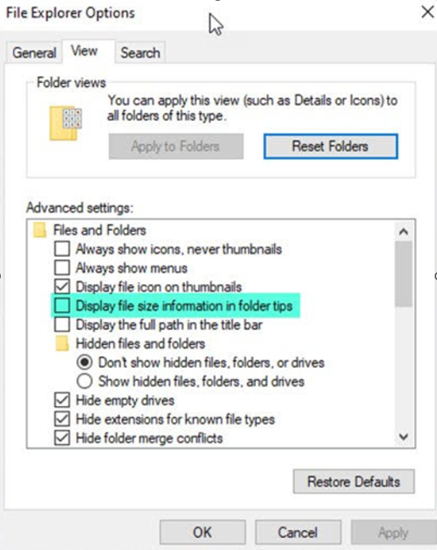
-
Deselect the Display file size information in folder tips option.
NOTES:
This setting drastically reduces your API calls to Microsoft Graph API resulting in optimized performance of the ShareFile connector. For more information about throttling limits posed by Microsoft, see Microsoft's API throttling limits.
As a best practice to lessen the complexities, ShareFile recommends avoiding large and complex folder structures when creating a Connector.
Configuration requirements
- Personal Cloud Connector access is enabled for a ShareFile account.
- Existing on-premises storage zone has connector features enabled on the primary storage zone controller.
- Employee users with the permission to Create and Manage Connectors have access to Connector settings in Account settings.
- To share files from connectors, Connector Sharing access must be enabled for the ShareFile account.
- Users with access to Connectors require Use Personal File Box permissions to share files from Connectors. Files shared from Connectors are copied to the File Box first. Recipients of the share link or email might not have immediate access to download those files until the copy is complete.
- This feature requires the users Personal Folder to be located in ShareFile Managed storage zones (cloud storage).