Add email addresses
To add an email address and make it primary:
-
From your ShareFile dashboard, click the user icon located in the upper right corner of the screen.
-
Select Personal settings from the dropdown options.
-
Go to Profile > Email addresses.
-
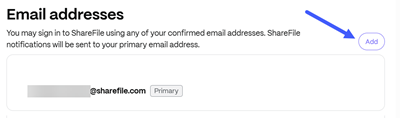
Click the Add button in the top right of the Email addresses.
-
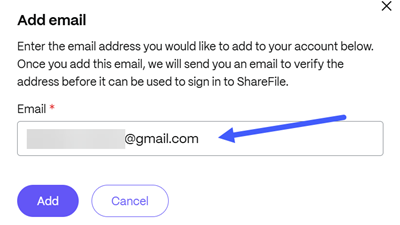
From the Add email box, enter the email address:
-
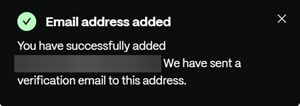
Click Add. ShareFile will send the newly added email address a verification email containing an activation link.
Note:
To use this email address, you must click the activation link in the verification email. If you did not receive the verification email, or your activation link is expired, return to the Add/Edit Email Address section and select Resend verification to resend the verification email and check your spam settings.
-
Once you have clicked on the activation link, sign back into your account to confirm the new email address works for login.
-
Return to Personal settings > Profile.
-
Select Make Primary to the right of a verified email address.
-
Select Delete on any unwanted additional email addresses. Then, click Delete on the additional confirmation pop up to confirm.
You may log in to ShareFile using any of your confirmed emails. ShareFile notifications will be sent to your primary email address.
Troubleshooting
- If you do not see Add in Personal settings > Profile > Email addresses, ask an account administrator to verify that secondary email addresses are enabled.
- The administrator can go to Account settings > Advanced preferences > Email settings, set Secondary Email Address to Yes, and select Save.
- Each email address must be unique within your ShareFile account.
- If ShareFile reports that an email address cannot be added, confirm that another user is not already using it before you try again.