Create a project
Creating a project in ShareFile is the first step toward managing structured client collaboration. Once a project is created, you can add users, create Request Lists or Forms, and track progress — all within a single dashboard.
To create your first project:
-
To create a new project, go to Projects in ShareFile dashboard and click on Create project.
-
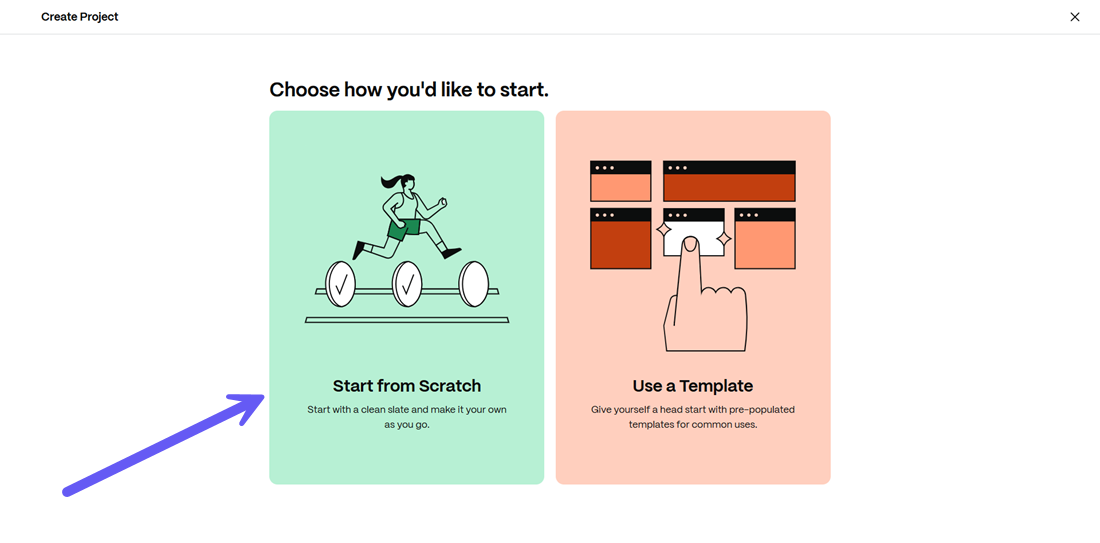
The Projects Creation window is displayed. You can choose to Start from Scratch to create a project from the beginning or you can select the Use a template option to create a project from a template. Let us select the 1st option to explore the new projects experience.
-
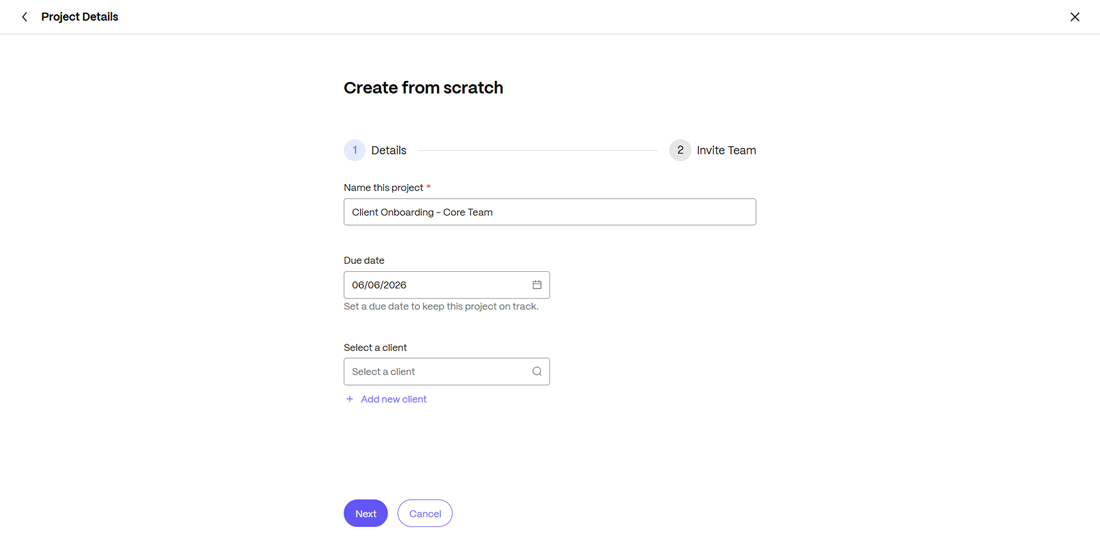
The Project details page opens and here you can choose to add the Project details like Name of the project,Due date and also Select a client to add the client details.While it is mandatory to add the name of the project, you may choose to fill the other details later.
-
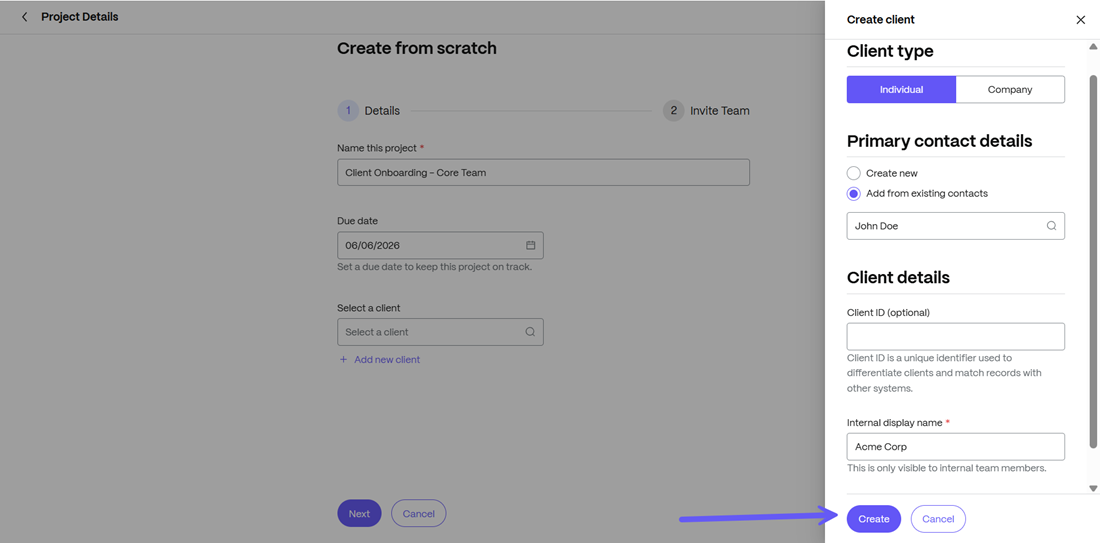
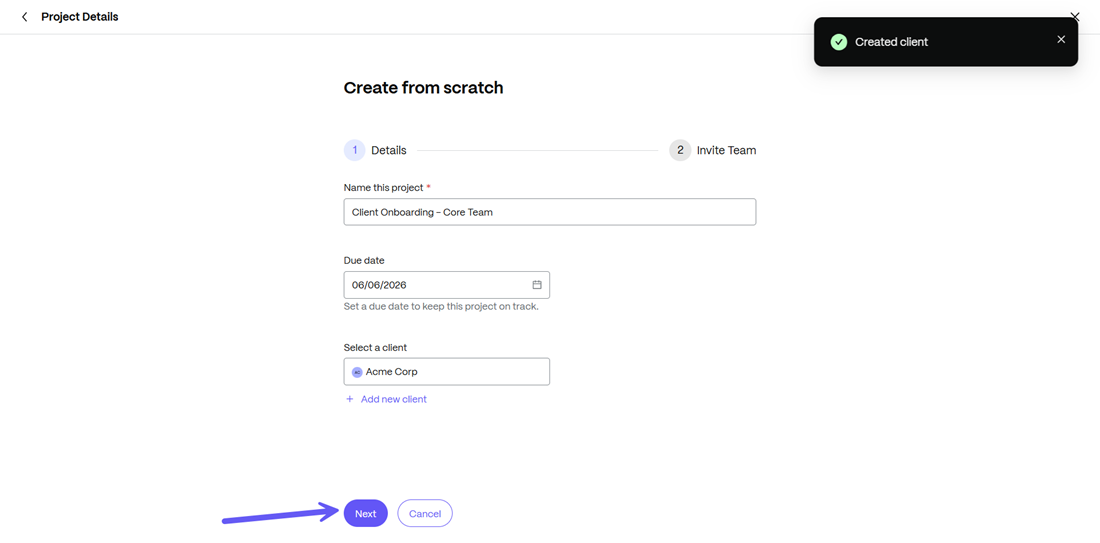
You can choose to search for a new client or click on the +Add new client to add new client details. Once complete, click on Create and a success message is displayed which states that the new client details have been created. Select the Next button to continue.
-
The Invite Team screen opens and here you can add the team members you wish to add to the project. You can search for specific team members and add them here. As part of the new projects experience, you can directly assign project permissions directly as shown below. Once all team members have been added, click on Create project.
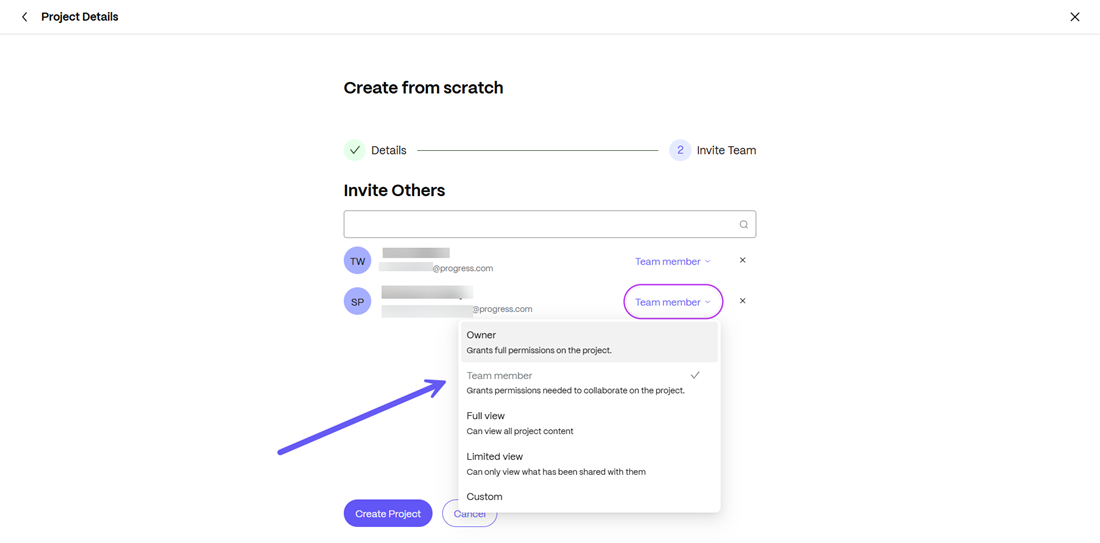
-
The Create Project loading page is displayed. Once the project is created, you will be taken to the project home page.
-
In the Project home page that opens, you can now find the key actions to perform directly on the page as shown below. You can create Request Lists or forms, send for signature request or even create a to-do. The new experience also allows you to add team members from the Project screen.
-
You can click on the Upload files button to add files/folders directly to your project.
NOTE:
You can link clients from the Projects dashboard in case you have not linked any during Project creation. For more information, visit step 6 of Projects listing.
Share project
You can share the project during creation by adding team members as shown in step 5 in the previous section. You can also share a project with team members from the Project management screen.
To add team members to the project, go to the desired project from the Projects screen and select the Add team members button located at the top-right. The Add team members window displays.
-
Share with
- Search for a name or email address to share the project with existing users.
- Select Create a new client contact to share the project with a new client.
-
Grant user permissions - Depending on the user's role, choose a permission set:
- Owner - Grants full permissions on the project.
- Team member - Grants permissions needed to collaborate on the project.
- Full view – The user can view all project content.
- Limited view - The user can only view what has been shared with them.
- Custom - Choose your own permissions.
-
Add a message (optional).
-
Select Share.
After adding users, you return to the main project dashboard. The user you shared the project with receives a notification email.
Finalize project setup
After adding users, you can begin adding resources to the project such as: