Create a conditional Form
Article applies to:
- ShareFile Employee users
Use the following instructions to complete a conditional request for a Form.
-
Go to Tasks > Forms and open an existing form or create a new one.
-
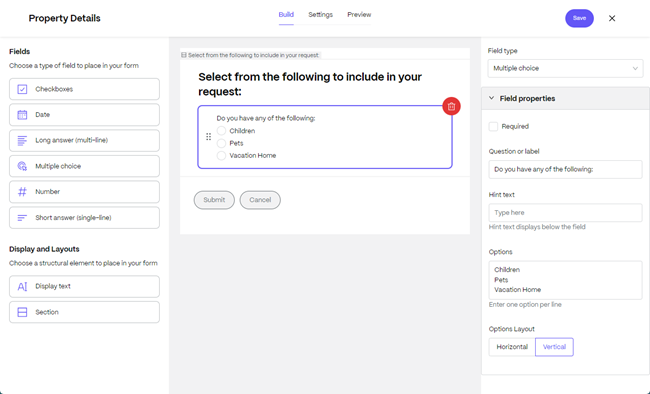
While in the Form builder, select a field to create the conditional response for. In this example, we chose Checkboxes.
Note:
Only Checkboxes, Multiple choice, and Number fields can be used with conditional requests.
-
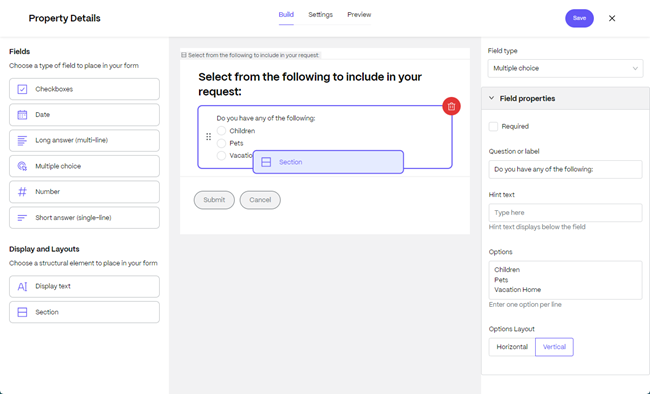
Once you define the field, drag a Section from Display and Layouts to the build.
NOTE:
Drag and drop sections can be added before, after, or in between sections. You cannot insert a new section into a section.
-
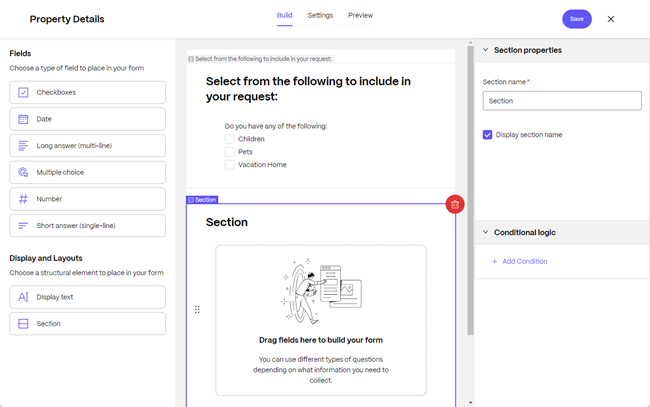
Select the Section you want to show/hide, then you will see the option to add Conditional logic in the Section properties.
-
Select Add Condition.
-
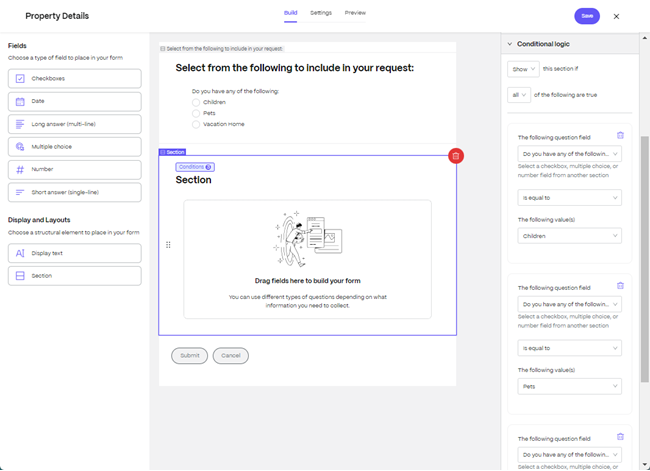
In Conditional logic set the parameters using the following conditional fields:
NOTE:
Conditional dropdown selections might vary from the descriptions below with an example being if you select checkboxes, one selection available will be has any of.
-
Show/Hide dropdown - in the section if you desire a selection to be displayed or hidden.
-
The following question field dropdown - allows you to select which question in the previous section(s) you want to create a condition for. In this example, it is Do you have any of the following:
-
Condition dropdown - select from the following conditions:
- is equal to
- is not equal to
- has no selection
- has any selection
-
The following value(s) - the values created in the previous section.
-
-
Once the selections for the conditions are made, select Save.