Sign into your Client Portal
Article applies to:
- Client contact (external user)
Use the following instructions to sign into your client portal after receiving a request email from your servcice provider.
-
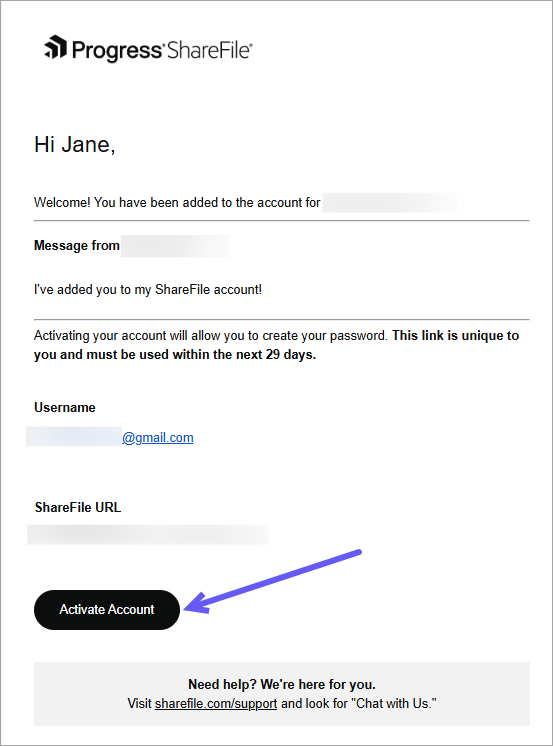
Open the email and select Activate Account.
-
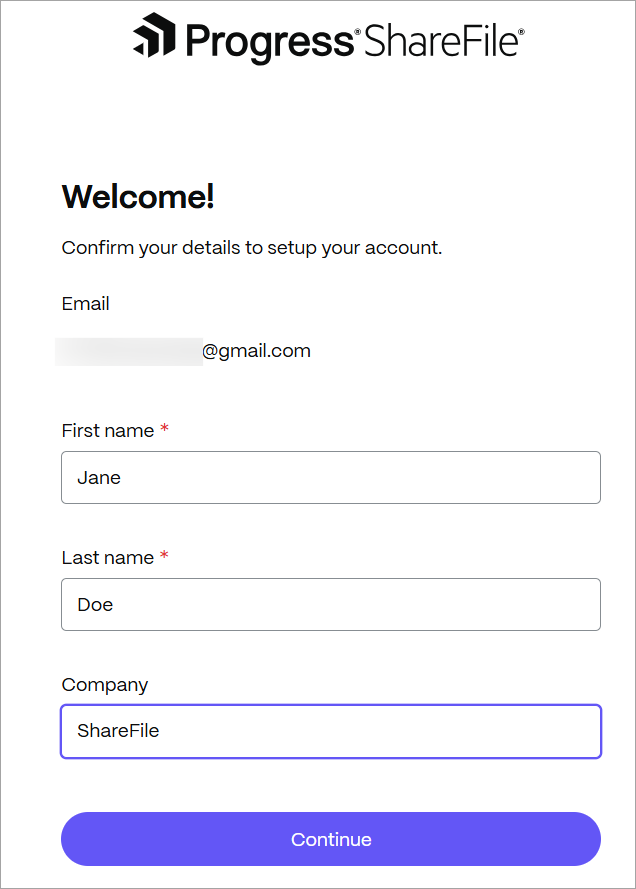
When the ShareFile Welcome screen displays, select Continue.
-
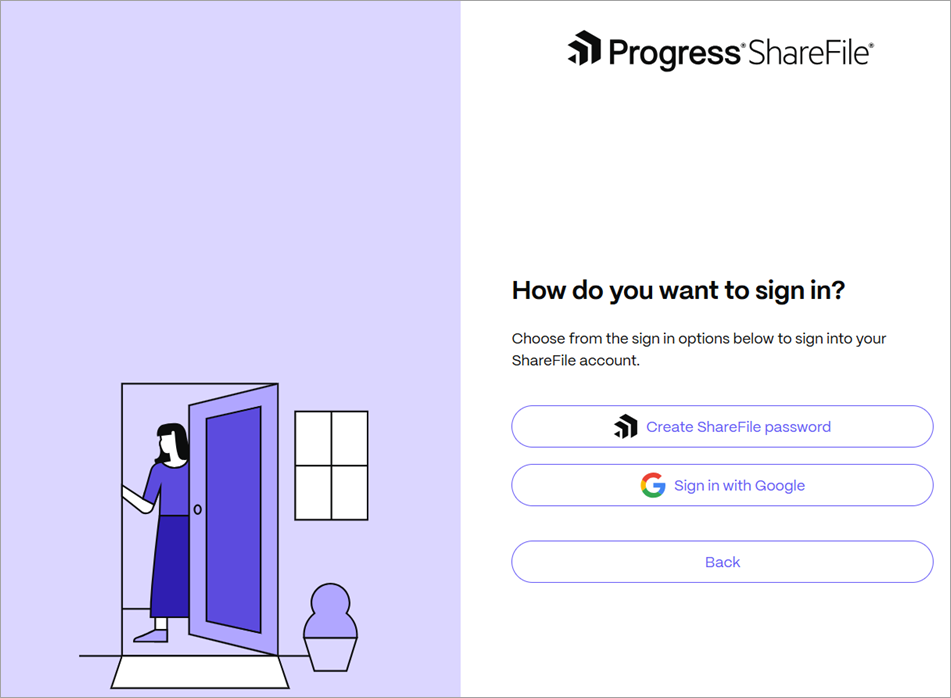
In the How do you want to sign in? screen, select Create a ShareFile password.
Note:
ShareFile now allows clients to use a social sign in. For more information on using a social account to sign into ShareFile, see ShareFile Social sign in.
-
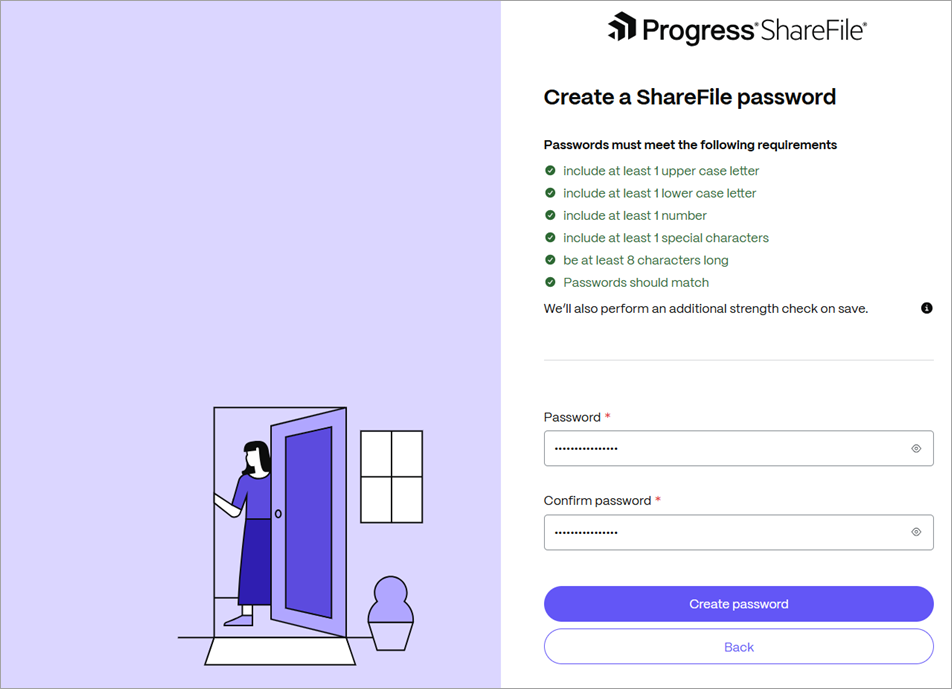
Create a ShareFile password for your account using the requirements stated on the page.
-
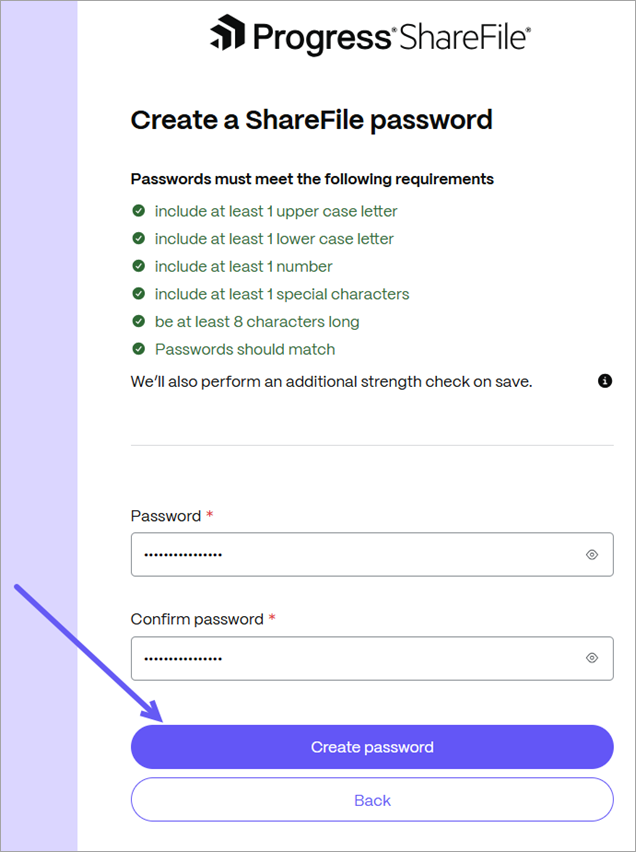
Select Create password.
-
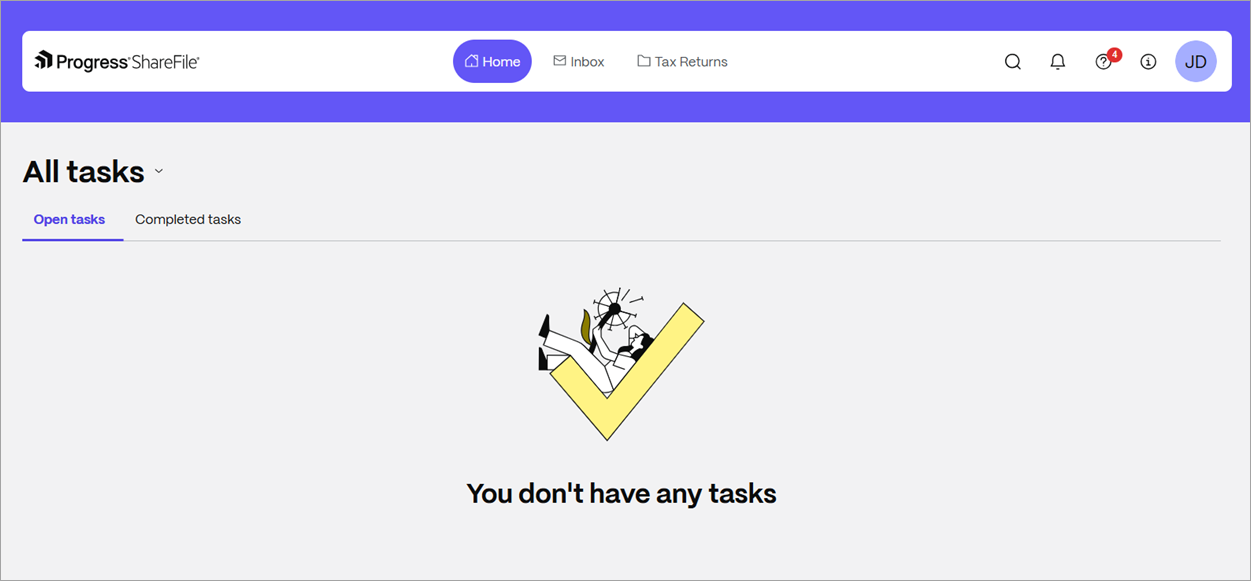
Your ShareFile Client portal page displays.