FAQ - Income Tax Return solution
Find answers to common questions about the Income Tax Return solution available in the ShareFile Catalog.
Service provider FAQ
These questions cover solution installation and access.
-
Why do I not see the Tax solution? How can I use it?
- The Income Tax Return solution is available with the Industry Advantage plan and as a 30-day trial with the Premium plan. If your plan includes the solution, ask your administrator to check its installation in the Catalog.
-
Who can install the Tax solution?
- Account administrators can install the solution. Other employee users can review it in the Catalog and contact an administrator to request installation.
-
Who can see the Tax solution after installation?
- All employee users can access the installed solution through Tax in the left navigation.
-
How does installing the Tax solution affect my ShareFile account?
- The solution adds tax engagement functionality to your account. Installing it also updates the client portal experience for all client users, including how they view and complete their assigned tasks.
Solution customization
You can customize templates to match your firm's tax preparation process.
-
How can I create my own template?
-
To create a template based on an existing one, see Define engagement details for the Income Tax Return solution:
- Open Tax and select Create engagement(s).
- Under Template, select Change if you want to choose a different starting template.
- Select Duplicate to create a copy and open the template editor.
- Customize and save your template before using it for engagements.
-
-
What can I add to my solution template?
- You can add request lists and forms to a Tax template. For Tax-specific instructions, see Create templates.
-
Who else in my organization can use the template I created?
- Initially, only you can access the template. To give colleagues access, open the template editor and use Share to select recipients and their permissions.
Engagement functionality
Use engagements to organize client requests, files, and tax preparation workflows.
-
Are there limits to the number of files a user can upload to a request list item or an engagement?
- There is no limit to the number of files in an engagement.
-
How can I select the engagement type when I create an engagement?
-
Choose the template when creating an engagement:
- Open Tax and select Create engagement(s).
- Under Template, select Change and choose the template for the return type.
- In Select one or more contacts, select your clients.
- In Select tax year, choose the year.
- Select Create engagement(s). ShareFile creates a separate engagement for each selected contact.
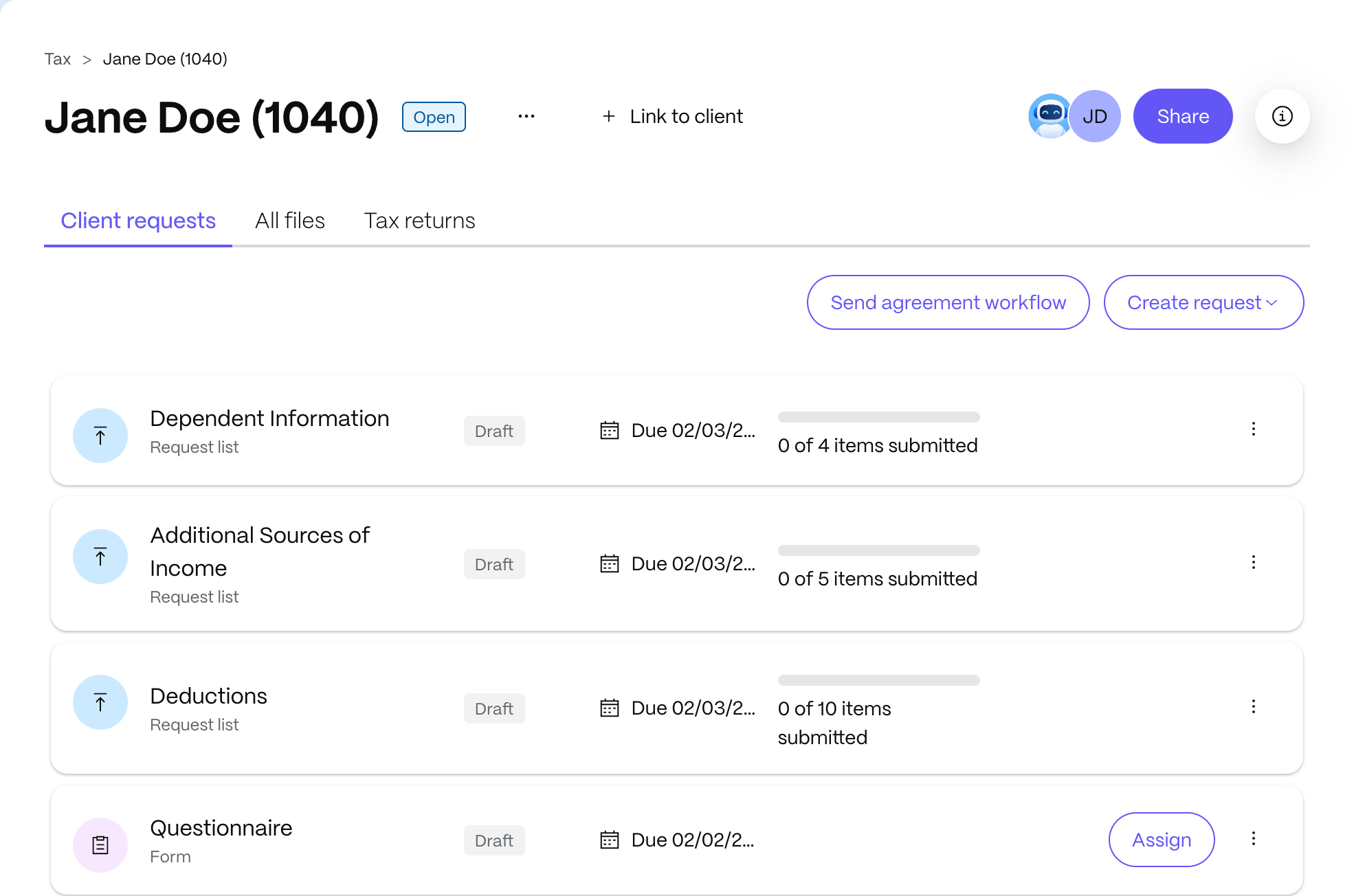
The solution includes templates for U.S. income tax return forms 1040, 990, 1120, 1120-C, and 1065. You can customize templates for your clients.
-
-
Are there limits to the number of engagements I can create?
- There is no limit to the number of engagements you can create.
-
Can I modify an engagement?
- Yes. You can modify its agreement template, request lists, items, and questionnaire.
-
What if I uninstall the solution? Will my data still be available?
- You cannot access your engagement data while the solution is uninstalled. The data is retained and becomes accessible again when you reinstall the solution.
-
How can I share an engagement with colleagues?
-
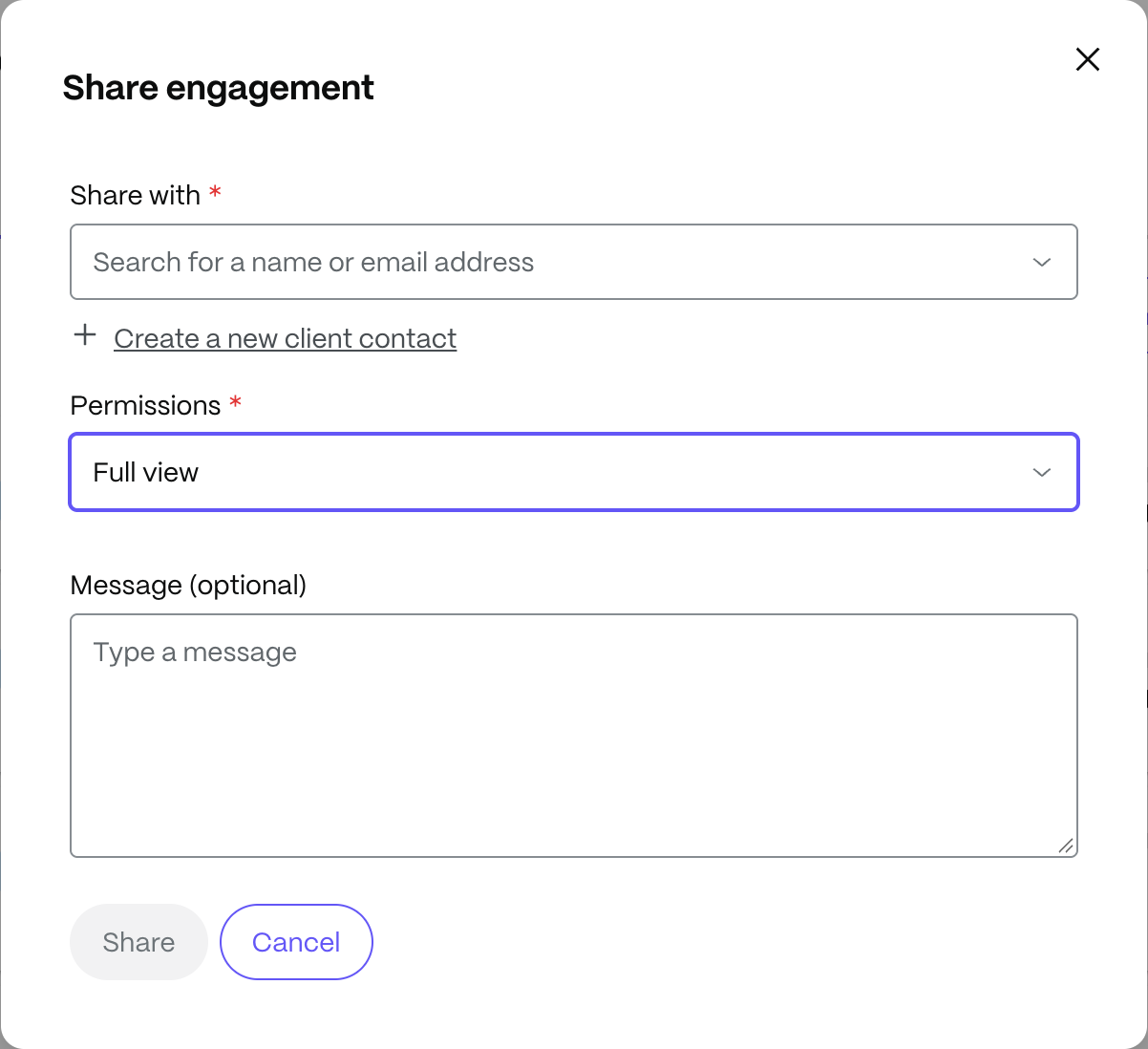
To share an engagement and choose permissions:
- Open the engagement and select Share.
- In Share with, select your colleagues.
- In Permissions, choose Full view, Limited view, or Custom. Full view allows recipients to view all engagement content; Limited view allows them to view only content shared with them.
- Review the permissions, add an optional message, and select Share.
-
-
How can I share an engagement with clients?
-
The contact you selected when creating the engagement is associated with it. To share requests with the client, open the engagement's Client requests tab and share the relevant request lists or assign individual items.
You can also use Send agreement workflow to send the agreement and automatically share the questionnaire and request lists after the client signs.
-
-
Where can I change permissions for clients?
-
To add clients to an engagement, select Share, choose recipients in Share with, and select Full view, Limited view, or Custom in Permissions.
To review existing access, open More options beside the engagement name and select Manage users.
-
-
Can I give clients permission to assign tasks to others?
-
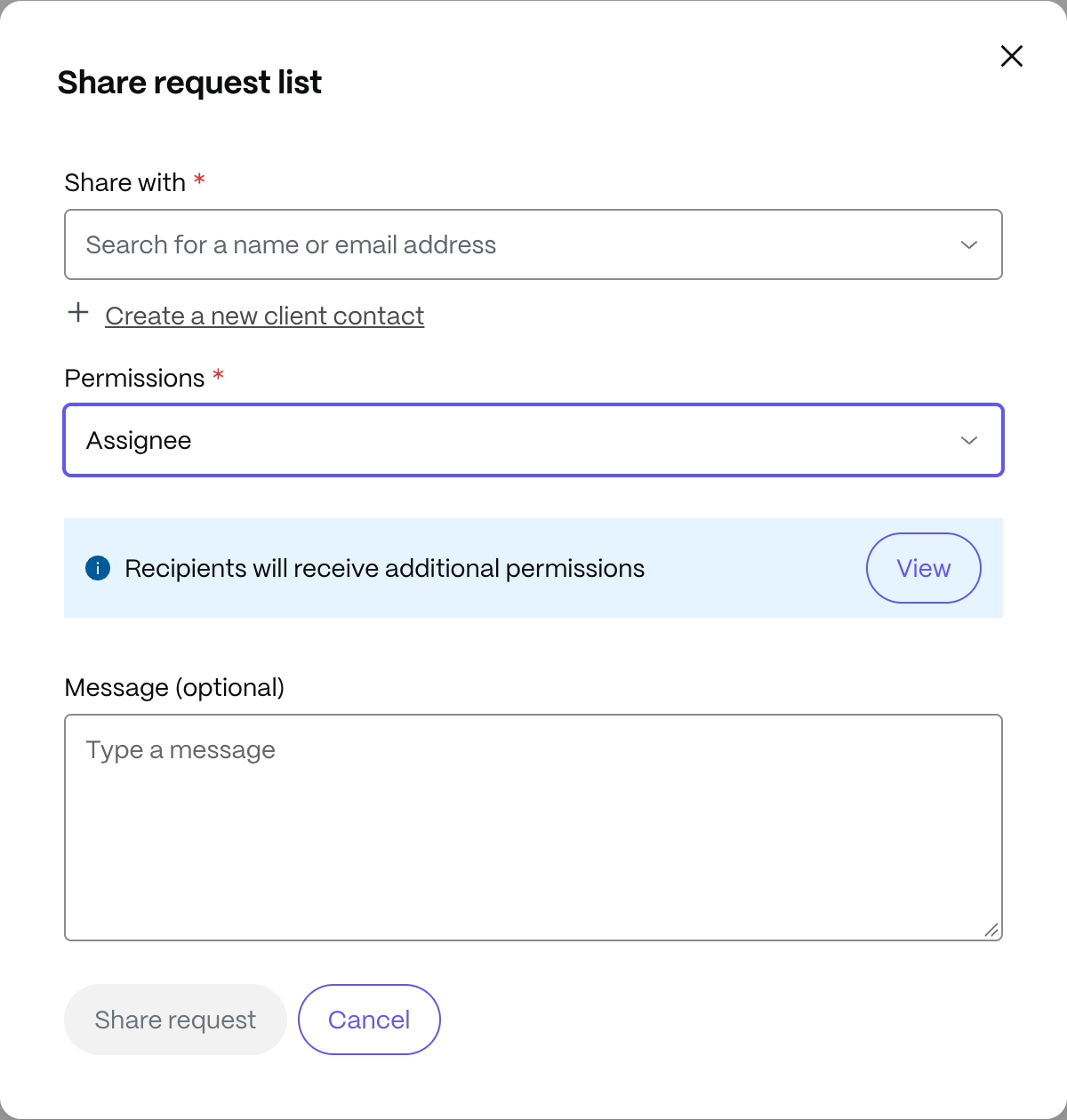
Open the request list and select Share request. Select the client in Share with and choose Assignee in Permissions. Review the permissions before selecting Share request.
The Limited assignee preset restricts access to items assigned to that recipient. Use Custom when you need to select individual permissions.
-
-
Who has permission to create engagements?
- After an administrator installs the solution, employee users can create engagements. Industry Advantage accounts have access to the solution; Premium accounts can trial it for 30 days before an upgrade is required.
-
Can I reopen an engagement or make changes after it is closed?
- Yes. You can still change its content. To change its status, open More options beside the engagement name and select the option to reopen it. To close an open engagement, select Change to closed.
-
Is there workflow automation in the Tax solution?
- Yes. Send agreement workflow sends the agreement for signature. After the client signs, the workflow shares the questionnaire and request lists with the client and adds them to the client's tasks.
-
Is there an easy way to import files into an engagement from third-party software?
-
Creating an engagement also creates a shared folder with the same name. Use this folder to import files into the engagement, including files saved from third-party software through ShareFile for Windows or ShareFile for Mac.
To choose that folder when downloading a file, enable your browser's option to ask where to save downloads:
- Chrome: Settings > Downloads > Ask where to save each file before downloading.
- Edge: Settings > Downloads > Ask me what to do with each download.
- Firefox: Settings > General > Files and Applications > Always ask you where to save files.
-
-
Does the shared folder sync with the engagement?
- Files added to the engagement's shared folder are imported into the engagement. Files added directly to the engagement do not sync back to that folder. See Import third-party files into an engagement.
-
Can I save files from an engagement into a ShareFile folder?
-
Open the engagement's All files tab, select Save all to a folder, and choose the destination folder.
Note:
Do not choose the engagement's import folder as the destination. That folder is intended for importing files into the engagement.
-
-
Can I save all files to a ShareFile folder multiple times? Will it create duplicates?
-
Yes. Duplicate handling depends on the destination's versioning settings. To review those settings, go to Account settings > Advanced Preferences > File Settings > Versioning.
With versioning enabled, saving the same file again creates a new version rather than another copy. With versioning disabled, the original version is retained.
-
-
Can I move files from an engagement into my tax or CRM software?
-
Yes. Open All files, select the files, and choose the appropriate action:
- Export: Use an installed file-export integration. Available integrations depend on your account and region; see Export ShareFile files to integrated applications.
- Download: Save files locally or to a mapped drive used by your tax or CRM software.
Note:
The EU control plane no longer supports Salesforce File Export, QuickBooks File Export, FreshBooks File Export, Pipedrive File Export, QuickBooks Document Generator, or Salesforce Document Generator. This change took effect on September 9, 2025.
-
-
Can I track engagement events?
- Open More options beside the engagement name and select Create activity report. See Create a project activity report.
-
If I am trialing the Income Tax Return solution, what happens when the trial ends?
- You can upgrade to the Industry Advantage plan to retain access. If you do not upgrade, your engagement data is retained but unavailable to you until you upgrade. Clients can continue completing their assigned tasks.
-
What happens to my data when I uninstall the solution?
- Your engagement data is retained but unavailable to you until you reinstall the solution. Clients can continue completing their assigned tasks.
-
Can I create an e-signature request for clients from the solution?
-
Yes. Open an engagement's Client requests tab, select Create request, and then select Signature request.
The Create request menu also includes Document request, Information request, and Approval request.
-
-
Why can't I send an agreement or create a signature request?
- You need the Send documents for e-signature permission. If you cannot send an agreement or create a signature request, ask your administrator to check this permission.
-
Do I have to follow a particular order in the solution?
- You can send individual requests in any order. Send agreement workflow follows a defined sequence: the client signs the agreement before the questionnaire and request lists are shared automatically.
-
Can I use my own template for the client agreement?
-
Yes. To choose your agreement template, see Create a new engagement agreement template, or follow these steps:
- Select Send agreement workflow.
- Review the workflow and select Next: Select Template.
- Under Selected agreement template, select Change template and choose your template.
- Review the selected client and template before selecting Send agreement.
-
Folders access
You can work with ShareFile folders alongside your tax engagements.
-
Can I navigate to folders from the solution?
- Use Folders in the left navigation to access personal and shared folders. You can also upload files from the ShareFile for Windows or ShareFile for Mac drive into an engagement.
-
Can I save solution files to ShareFile folders?
- Yes. Open the engagement's All files tab and select Save all to a folder.
-
Can I add a file from ShareFile folders to a tax engagement?
- With ShareFile for Windows or ShareFile for Mac installed, open All files and use Upload files or drag files into the upload area.
-
Why can't I download files directly into my ShareFile drive from another application?
- Enable your browser's option to ask where to save downloads, then select the appropriate location in your ShareFile drive. Without that option, the browser saves files to its default download location.
Client experience
These questions cover what clients can access and complete in their portal.
-
What capabilities does the client portal offer?
- Clients can view their assigned tasks from the client portal. Shared folders, the inbox, and settings remain available.
-
Where can clients find uploaded files?
-
Clients can find files in the locations you share with them:
- Folders: Files in shared folders.
- Request list items: Files attached to their assigned items.
- Tax returns: Tax return files shared with them.
-
-
What can clients view in their tasks?
- Clients can view questionnaires, request lists, and files shared with them. They can also access shared folders and items sent or received through the inbox.
-
What if I don't want clients to see some files?
- Share only the files and requests you want clients to access. Use Limited view engagement permissions to limit access to shared content, and review request and folder permissions separately.
-
Can clients create and reuse templates for tax engagements?
- No. Template creation and customization are service-provider tasks, not client-portal tasks.
-
How will clients know I submitted a comment?
- A badge on the item indicates a new message in ShareFile. Clients must open the task to read the comment; submitting a comment does not send them an email.
-
Can clients see files from previous and current projects?
- Clients can see tasks assigned to them in projects shared with them. To give clients file access, share the relevant folder or attach the files to a request list item they can access.
-
What will clients see if they have open tax engagements and projects?
- They can see assigned items in their aggregated task view or within the relevant project.
-
Can a client add another person to requested items?
- Yes, if their permissions allow it. They can assign another client to an item and review the available permissions. They can also select multiple items to assign another person.
-
Why can't clients see all their request lists?
-
Check that the request lists and their items are open and shared with the client.
To share a whole request list, open it and select Share request. Sharing a draft request changes its status to open.
To assign specific items, select them in the request list and use the assignment action, or use Assign users for an individual item.
-