ShareFile for Windows Basic Operations
ShareFile integrates with the Windows Explorer context menu to give the application access to additional ShareFile options.
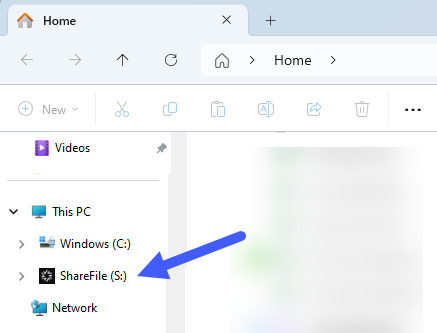
Right click on a file or folder inside your S:\ to view the options:
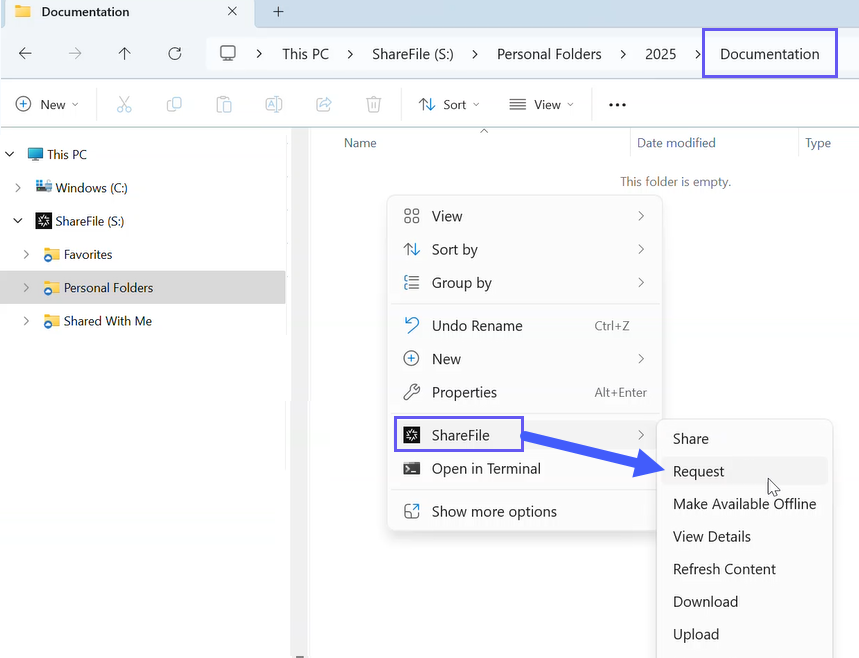
Context Menu Options
- Open and Edit
- Share
- Request
- Initiate Workflow
- Make Available Offline
- Check Out
- View Details
- Refresh Content
- Download
- Upload
- Manage Permissions
- Add to Favorites
- Open in Website
Open and Edit
Open a file in your S: drive, make some edits and save. Your changes will automatically be saved back to your ShareFile account.
Share
Available when you right click on a file or folder.
See Share files for additional information.
Request
Available when you right-click on a folder, or within a folder when no files are selected.
See Request files for additional information.
Initiate Workflow
Initiate a Feedback and Approval workflow.
See Initiate a Feedback and Approval Workflow for additional information.
Make Available Offline
Keeps files locally on your PC.
See Offline Sync for additional information.
Check Out
Check out a file. If the file is already checked-out, the Check-in option will appear.
View Details
View advanced details of a file including file properties, previous versions, and notes.
Refresh Content
Manually refreshes the contents of a folder.
Note:
Folder contents should update automatically as remote changes are made, but you can use this function if you need to refresh manually.
Download
Download files or folder to a specific location on your computer. Drag a file or folder from the S: drive to your desktop or any other folder to download. You can also perform a copy and paste of files and folders to download.
See Download and view files for additional information.
Upload
Upload files or folders directly from your computer. Drag a file or folder to the S: drive to upload. You can also perform a copy and paste to upload a file or folder.
See Upload files for additional information.
Manage Permissions
Allows you to manage access permissions for a folder. You can add/remove users to that folder or limit which operations they are allowed to perform.
Note:
This context menu option is only available on Folders.
Add to Favorites
Add a file or folder to your Favorites folder. If a file or folder is already a Favorite, you will have the option to remove from Favorites.
Open in Website
Opens up your default browser to the current folder location on the ShareFile website.
Notifications
-
Windows provides notifications of actions only done in ShareFile for Windows (i.e. uploads or downloads in the web app will not generate notifications).
-
Some notification settings are managed by your administrator/organization.
-
ShareFile notifications are visible in the notification area at the end of the Windows taskbar. Settings for ShareFile for Windows will show immediately after files have been uploaded or downloaded within the tool.