In-app security notifications in ShareFile
ShareFile delivers security alerts by email and in-app to help you respond to suspicious account activity. To view in-app alerts, select Notification center in the upper-right corner of the ShareFile web app.
Security alert notifications
Security alerts notify the appropriate users when ShareFile detects suspicious activity.
Types of security alerts
- Unusual location detected
- Unusual location and device detected
- Multiple failed sign-in attempts
- Malware upload
Who receives security alerts?
Recipients and delivery methods depend on the alert type and applicable security alert settings.
| Security alert type | Recipient | Delivery method |
|---|---|---|
| Unusual location | Affected user, folder owner, administrator | Email and in-app |
| Unusual location and device | Affected user, folder owner, administrator | Email and in-app |
| Multiple failed sign-in attempts | Affected user, folder owner, administrator | Email and in-app |
| Malware upload | Folder owner, administrator | Email and in-app |
For more information about security email recipients and account-level preferences, see Threat detection alerts and Security alert settings.
Automated remediation notifications
For high-risk activity, ShareFile can take protective actions through automated threat remediation and send notifications about those actions.
Auto-remediated scenarios
- Impossible travel detected
- High download activity detected
- Access from multiple IPs
- Mass deletion
- Abnormal sharing
- Heavy upload
- Suspicious timing
Who receives remediation notifications?
Affected users receive email notifications. Administrators receive email and in-app notifications for the following events.
| Remediation type | Affected user | Administrator |
|---|---|---|
| Impossible travel | Email and in-app | |
| High download activity | Email and in-app | |
| Access from multiple IPs | Email and in-app | |
| Mass deletion | Email and in-app | |
| Abnormal sharing | Email and in-app | |
| Heavy upload | Email and in-app | |
| Suspicious timing | Email and in-app |
Frequently asked questions
These questions explain the difference between security email preferences and general notification settings.
-
How do I review security notification preferences?
-
To review your security email preferences:
- Select your user icon in the upper-right corner of the ShareFile web app.
- Select Personal settings.
- Select Notifications.
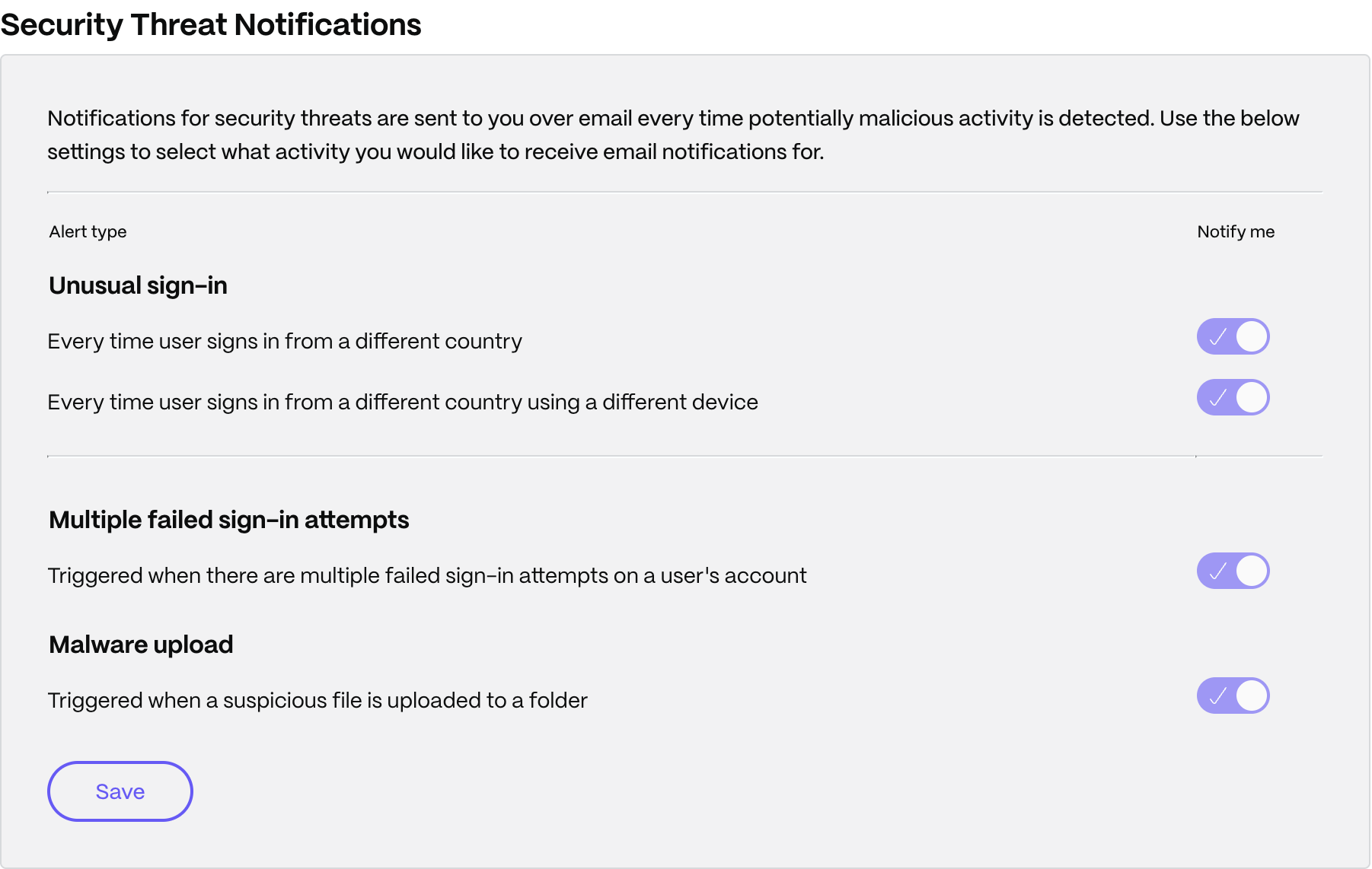
- Review Security Threat Notifications. If the Notify me switches are available, choose the alerts you want to receive and select Save.
Note:
These controls concern security emails. They are separate from the general Email and In-app notification switches in Notification center.
For account-level security email preferences, see Security alert settings.
-
-
Can individual users opt out or change their alert preferences?
-
You can review your preferences under Personal settings > Notifications > Security Threat Notifications. Account-level security settings can affect whether you can change these preferences. If the Notify me switches are disabled, contact the administrator responsible for your account's security alert settings.
For the interaction between account-level and individual email preferences, see Manage notifications.
-
-
How do I change general email and in-app notification preferences?
-
To change general notification delivery:
- Select Notification center.
- Select More options, then Settings.
- In Notification settings, use the Email and In-app switches to choose how you receive general notifications.
Note:
System alerts and reminders are not affected by these general notification settings. Do not use these switches to opt out of security alerts.
-
-
Are all alerts delivered both by email and in-app?
- No. Delivery depends on the alert and recipient. For example, affected users receive remediation notifications by email, while administrators receive them by email and in-app. Refer to the recipient tables above.