Create standalone Document templates
To create a standalone Document template:
-
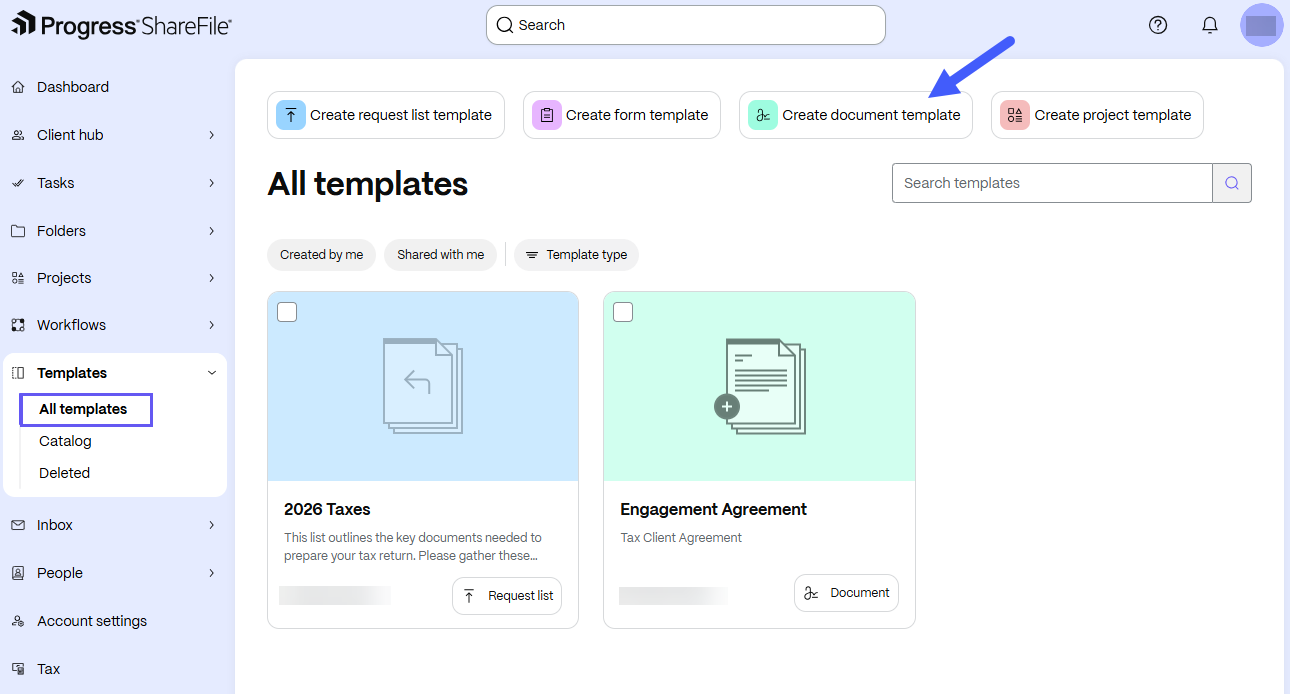
From the ShareFile navigation pane, select Templates.
-
Under All templates, select Create document template.
-
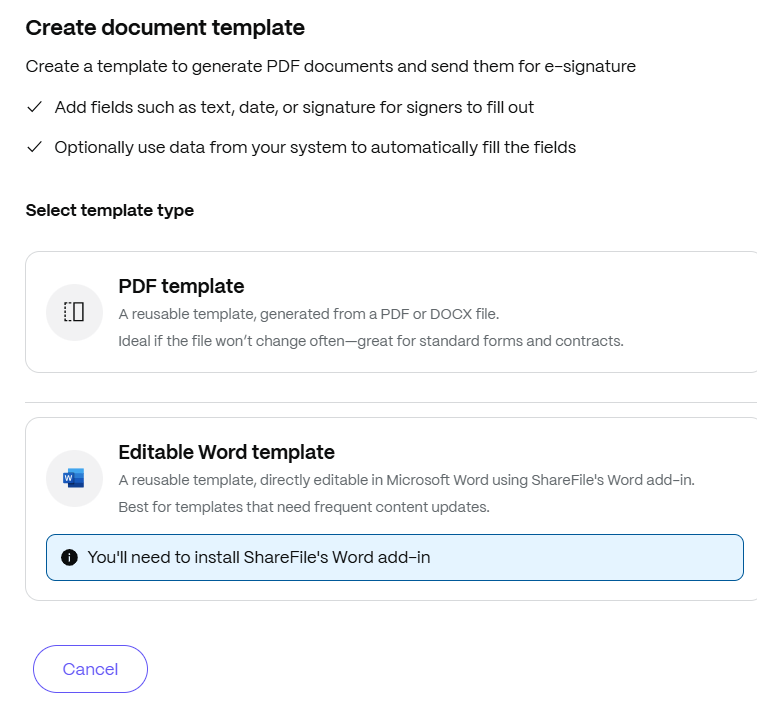
Select PDF Template or Editable Word template. The Create template - Prepare template step opens.
-
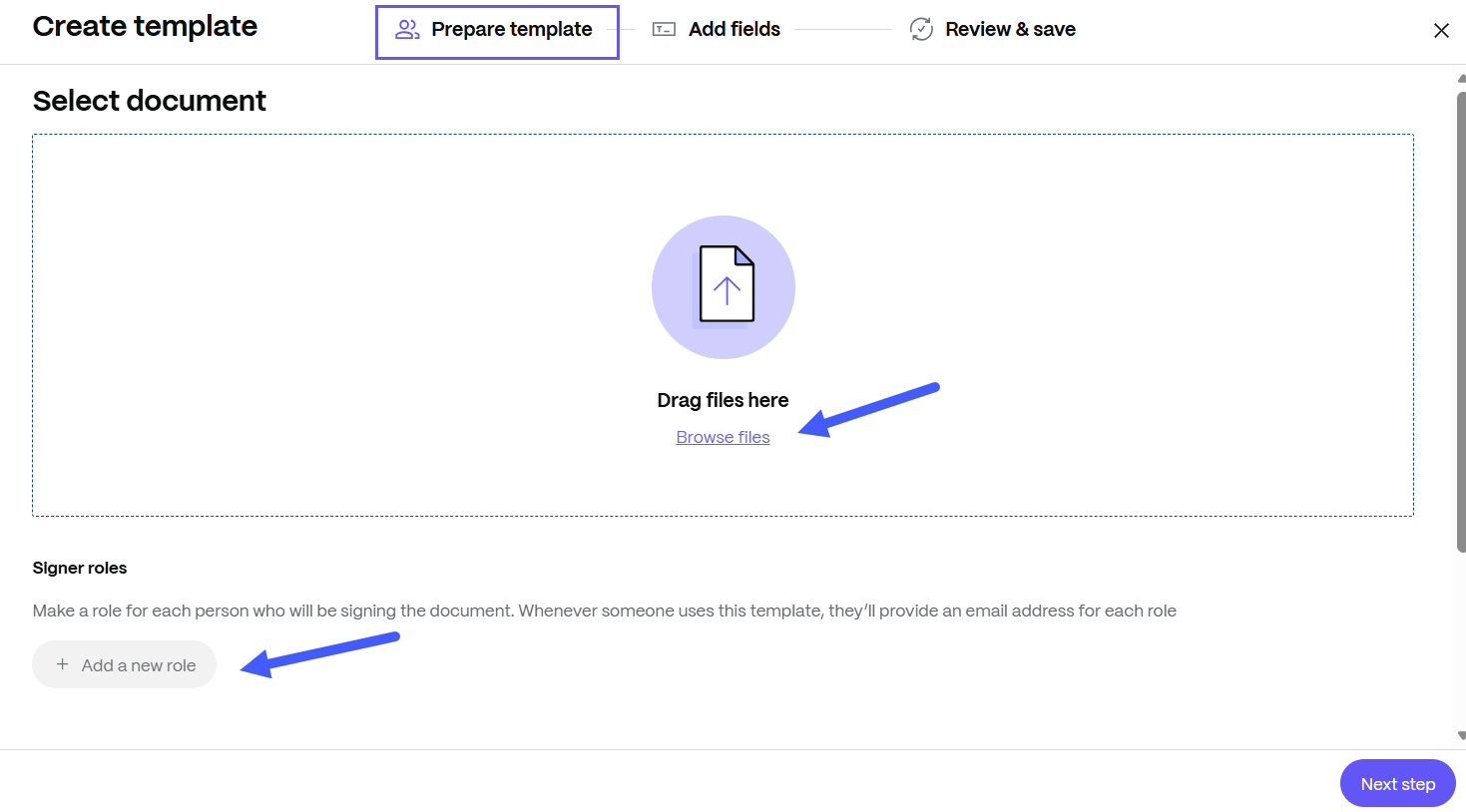
From the Create template - Prepare template step:
-
Add document - To add a document, drag a file to Drag or browse files, or select Drag or browse files to browse for a file on your computer.
-
Add signer roles - To add signer roles, select Add a new role. Create a role for each person who signs the document.
-
-
Select Next step.
-
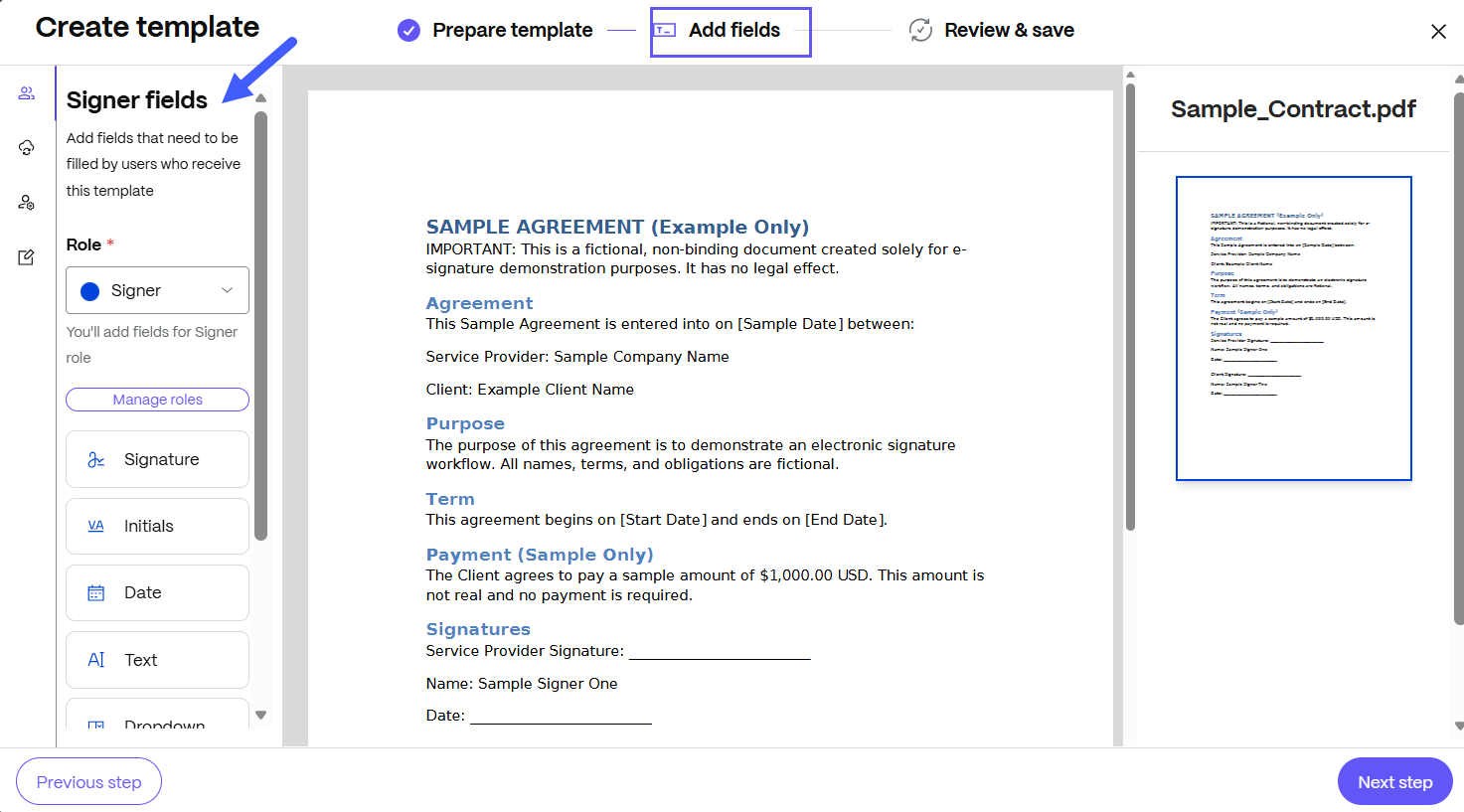
From the Create template - Add fields step, add template fields. Options include:
-
Signer fields - Add fields that recipients must complete.
-
System fields - Add variables that insert dynamic data in the template.
-
Sender fields - Add fields that senders must complete each time they use the template.
-
Annotate document - Add labels, check boxes, or other annotations to the PDF document.
-
-
After you add the fields, select Next step.
-
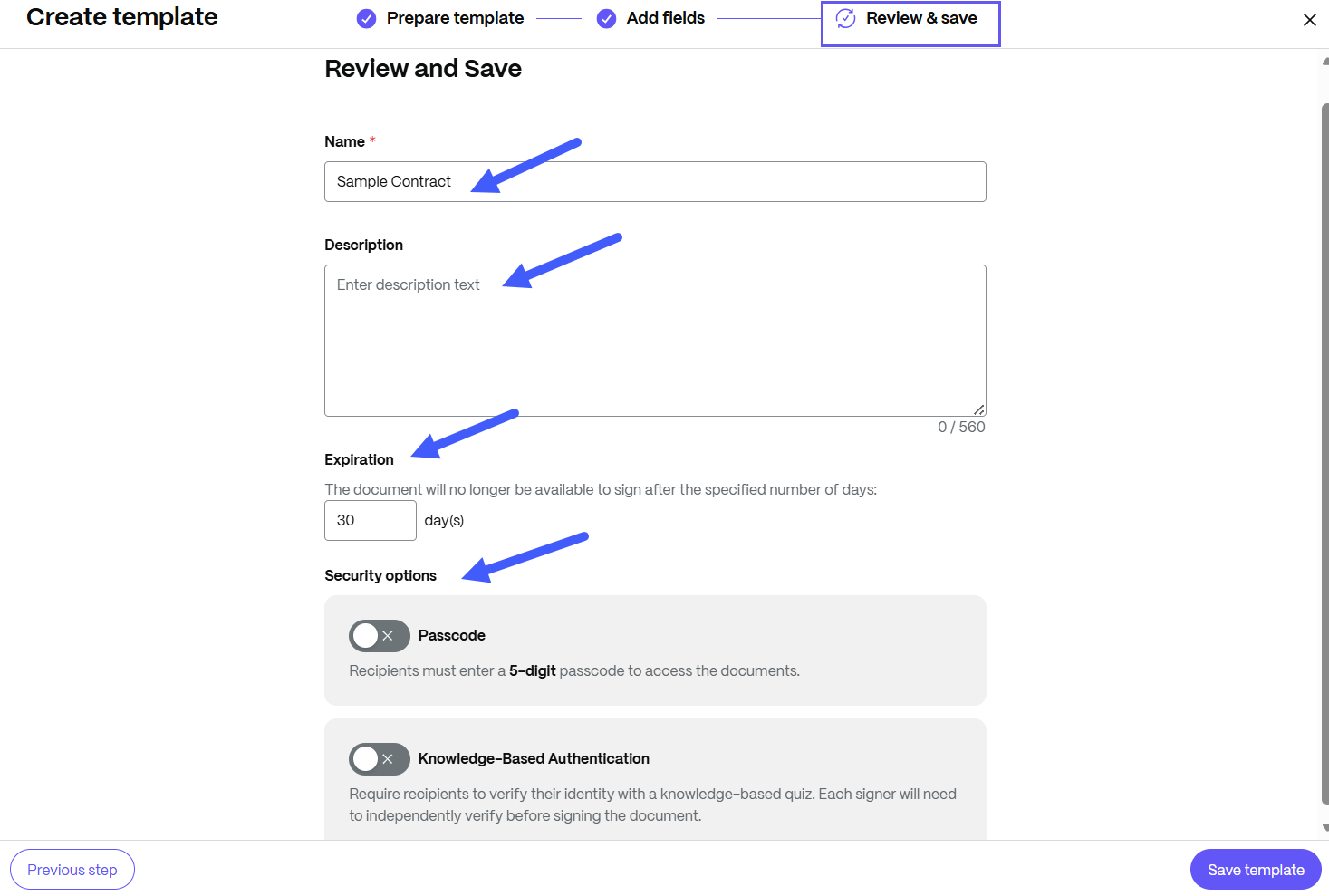
From the Create template - Review and Save step:
-
Review or change template name.
-
Enter a template description.
-
Set an expiration date for the template.
-
Set security options. Choose from:
- Passcode - When passcode is turned on, recipients must enter a 5-digit passcode to access the documents.
- Knowledge-Based Authentication - When Knowledge-Based Authentication is turned on, recipients will be required to verify their identity with a knowledge-based quiz. Each signer will need to independently verify before signing the document.
-
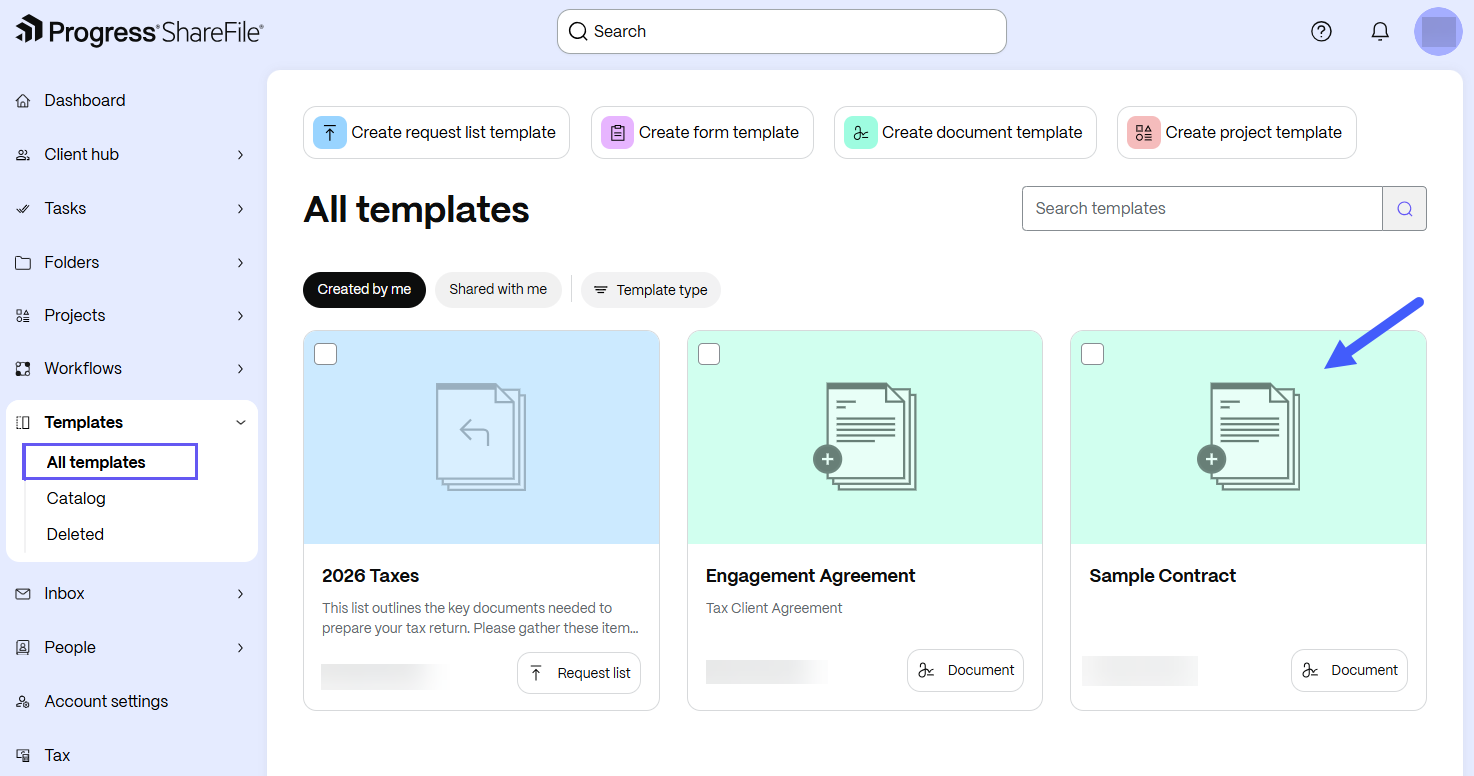
Select Save template. The standalone document template appears in the Templates workspace under the All templates - Created by me section:
-
Comprehensive management capabilities such as editing, duplicating, deleting, restoring, sharing, and bulk actions help teams maintain Document templates throughout their lifecycle.