Document templates
Document templates are ready-to-use blueprints for agreements, invoices, proposals, and other recurring documents. Use a template as provided or as a starting point for a new document.
ShareFile document templates can automatically insert values from applications such as Salesforce. They also integrate with ShareFile e-signatures.
Manually copying and pasting information into digital documents can be time-consuming and prone to human error. Use document templates to quickly send recurring documents, such as nondisclosure agreements, engagement letters, and invoices, for signature.
You can use ShareFile document templates with Microsoft Word documents and PDF files. To create a document template, choose an authoring tool:
Note:
- When creating a new document template, do not include personal health information (PHI) or other sensitive information in it.
Document templates can be used for different types of documents, including:
- Engagement letters for onboarding new clients
- Employment offer letters
- Nondisclosure agreements
- Divorce settlement agreements
- State tax forms
- Rental and lease agreements
- Budget approval proposals
- Statements of work
- Purchase orders
- Bills and invoices
- Loan applications
- Bank account applications
- Joint credit applications
Comprehensive management capabilities such as editing, duplicating, deleting, restoring, sharing, and bulk actions help teams maintain Document templates throughout their lifecycle.
Components of a document template
A document template has several key components. The following sections describe each component.
-
File - The base file for the template.
-
Roles - Roles are customizable labels for each person who signs the document. Use roles to identify signer responsibilities, such as HR and Prospective Employee. Assign fields to a role to group the fields that a specific signer must complete. When someone uses a document template, they provide a name and email address for each role.
For example, an offer letter might require signatures from human resources (HR) and a prospective employee. In this case, create two roles: HR and Prospective Employee. When sending the template for signature, provide an email address for each role.
-
Variables - Variables automatically insert data from ShareFile and third-party applications into documents. A variable specifies the data source and the data to insert.
For example, if you use Salesforce to track prospective clients or leads, create an engagement letter template that inserts this information when you send the document for signature. In this example, Salesforce is the data source, and leads are the data type.
-
Field types - When you create a document template, add fields that are completed either when the document is created or by its signers. ShareFile provides two types of fields in the left pane of the Create template window. Drag fields onto the template.
-
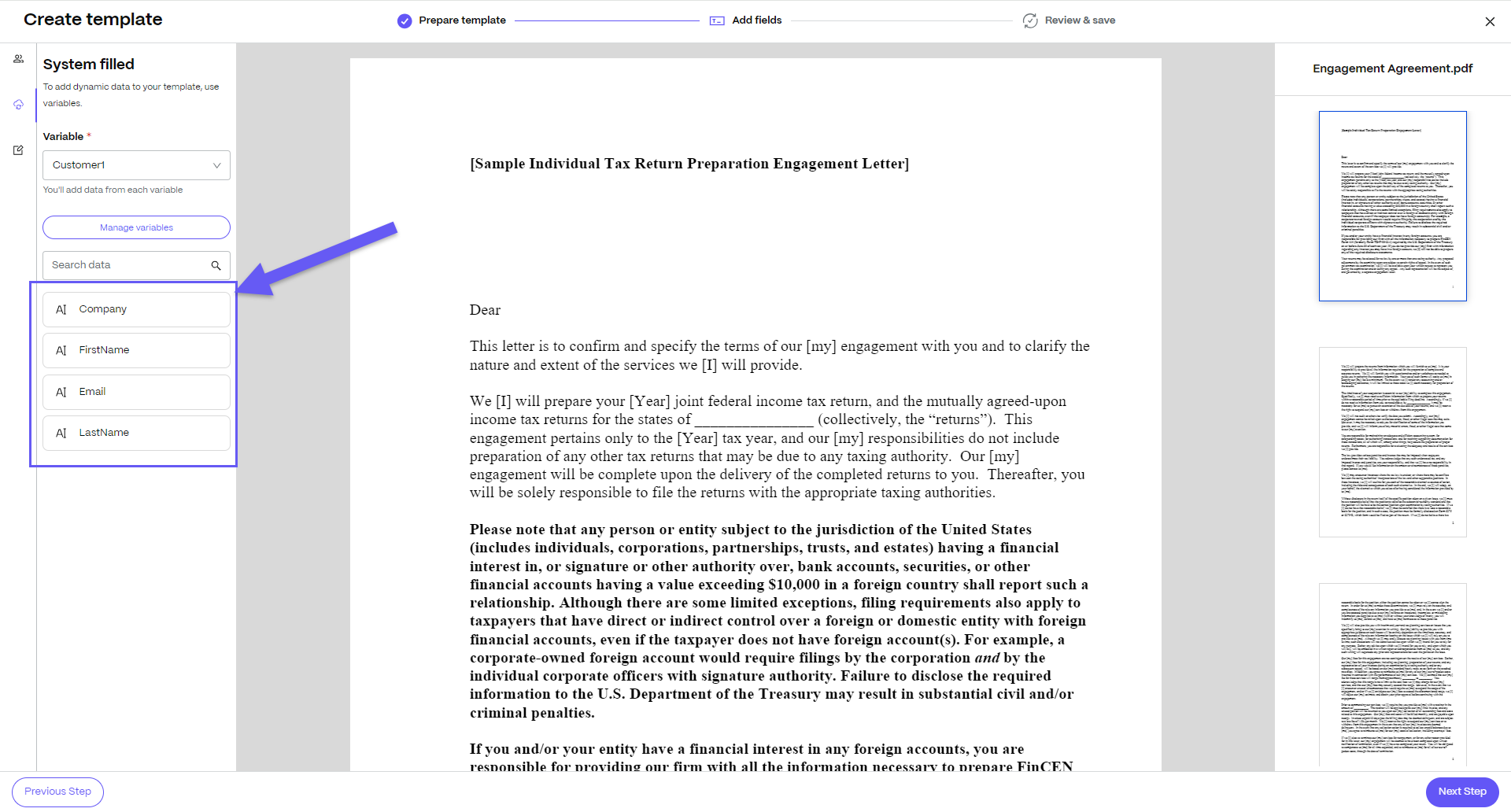
System-filled fields: These fields automatically insert data into a document when it is created. Use variables to provide the data. To create a variable, select Manage variables in the left pane.
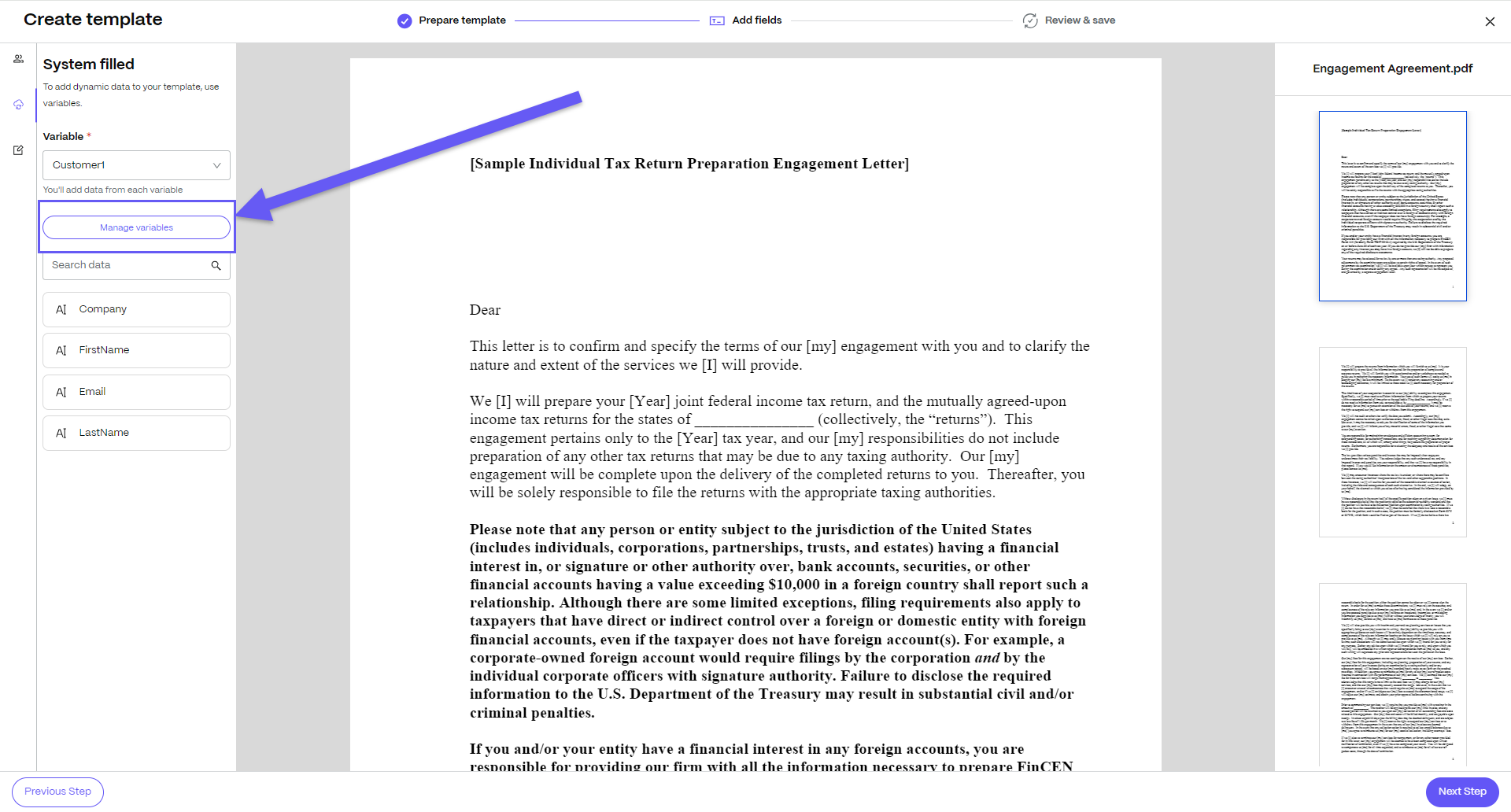
For example, in this Engagement Letter template, add Email, Company, FirstName, and LastName from the left pane by using the Customer1 variable. ShareFile automatically adds these values to the document when you send it to a client for signature.
-
Signer fields: Add these fields for people who receive a document created from the template to complete. Assign each signer field to a role. ShareFile supports the following signer field types:
-
Signature
-
Initials
-
Date
-
Text
-
Dropdown
-
Checkbox
-
Attachment
-
Checkbox group
Note:
When you set a checkbox group as required, the rule applies to the checkbox group as a whole. This doesn't make each checkbox item within the group also required.
- If you set the checkbox group rule to Select only one, the user must select one checkbox.
- If you set the checkbox group rule to Select one or more, the user must select at least one checkbox.
- If the user must select all checkboxes in the template, use individual checkboxes instead of a group.
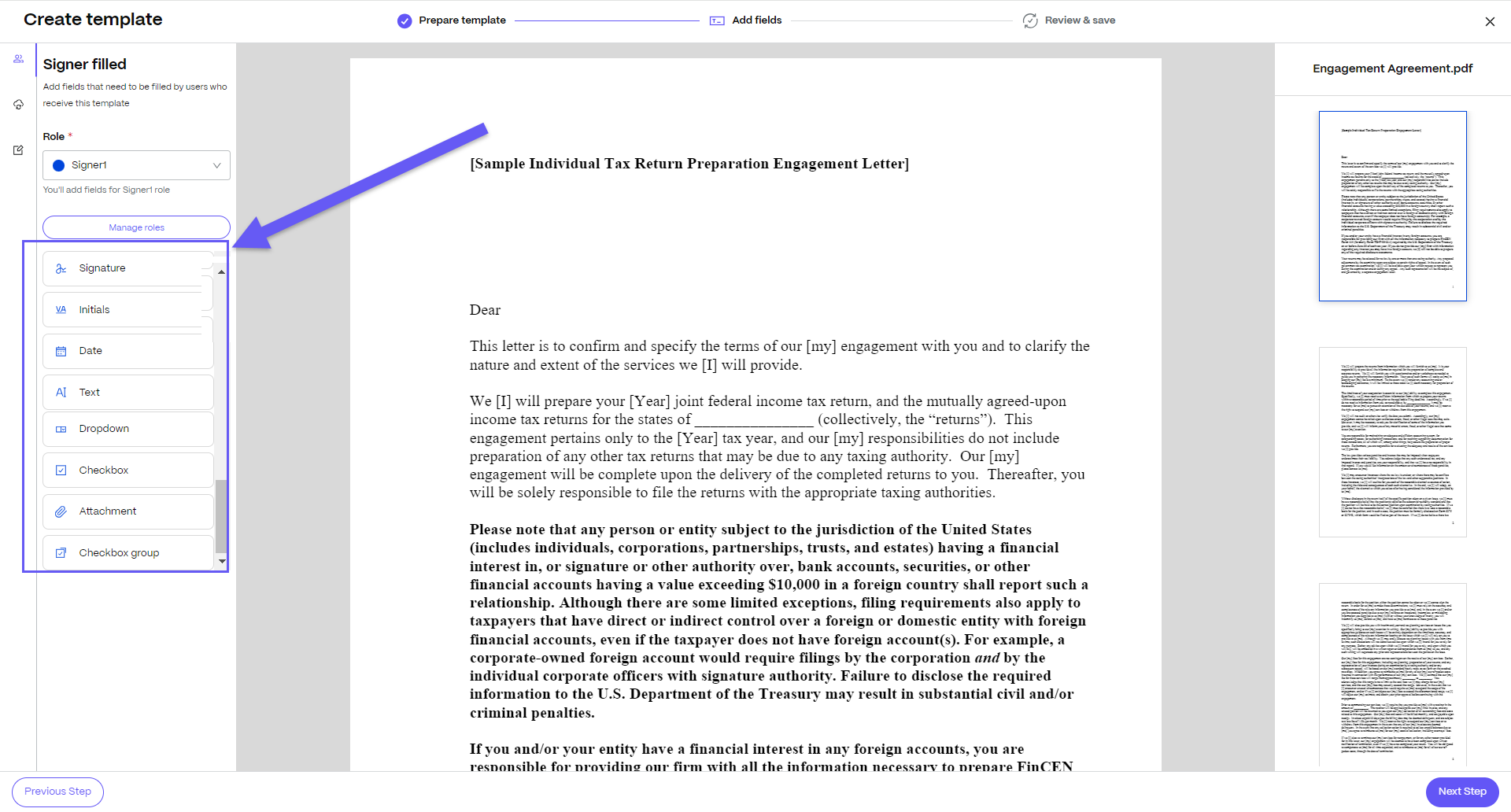
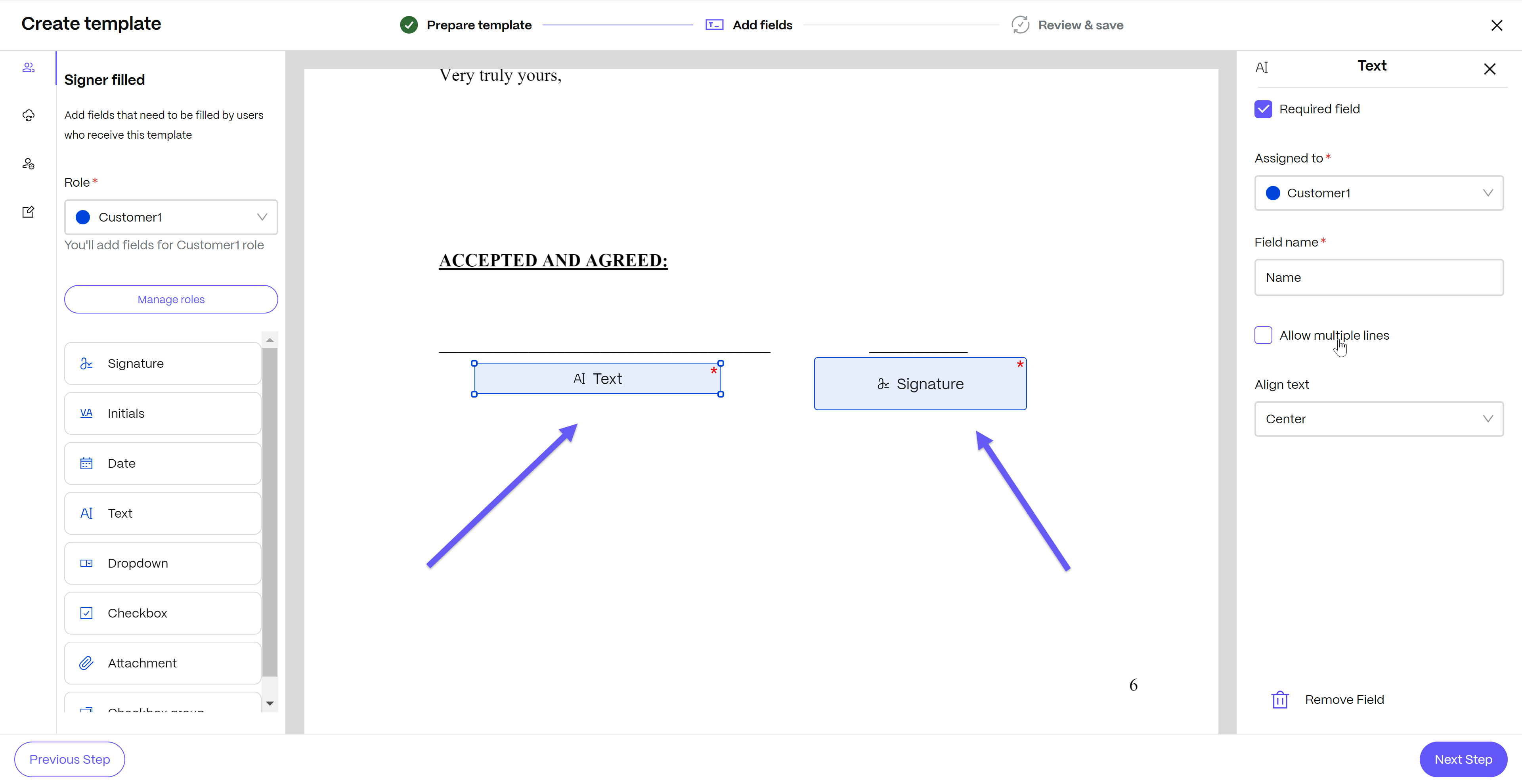
For example, in this Engagement Letter template, we’ve added a name and signature field that will be entered by the client.
-
-
Annotations: Add custom labels, checkboxes, or saved signatures to PDF documents. ShareFile supports the following annotation types:
-
Signature
-
Text
-
Checkbox
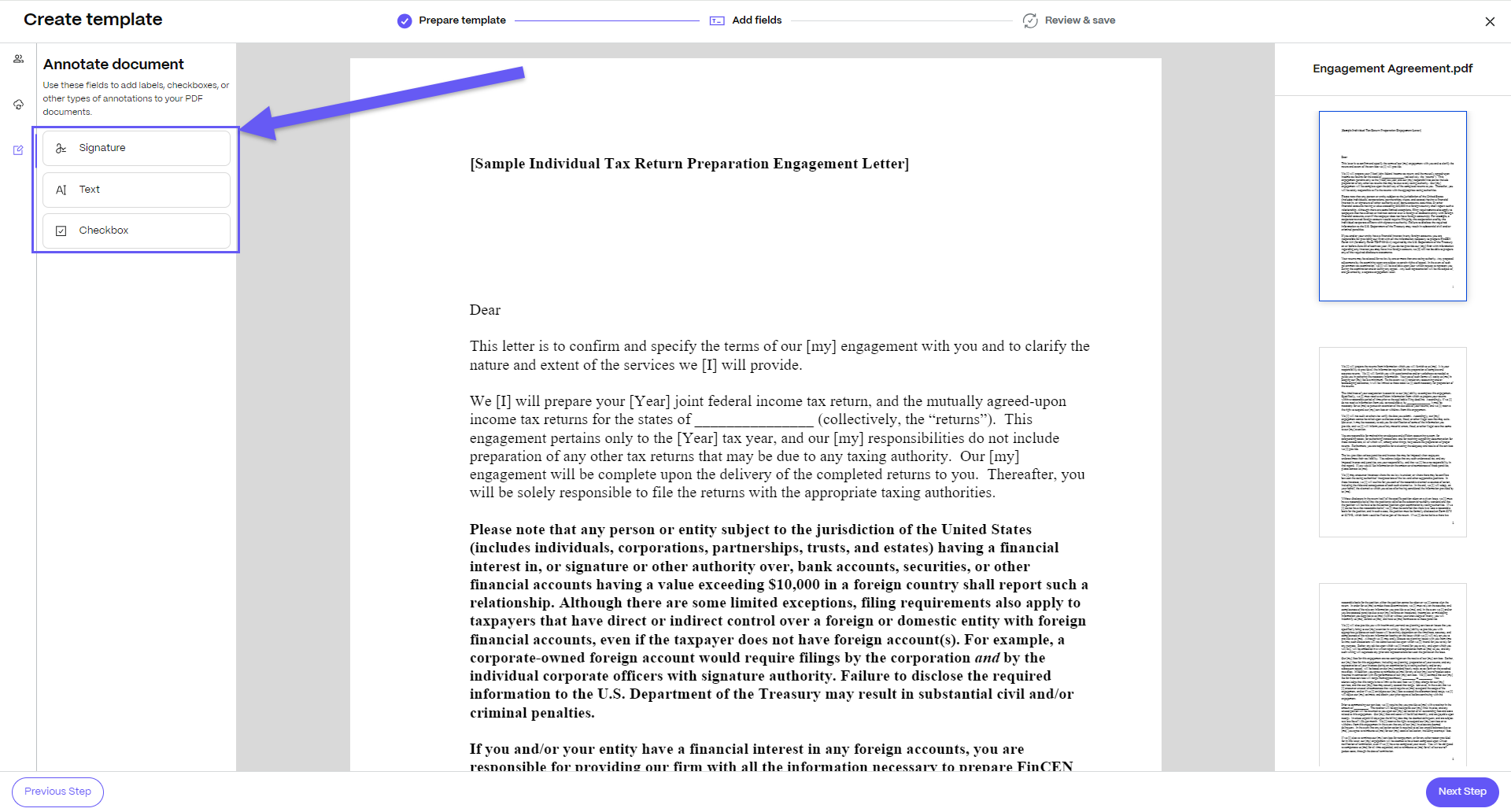
Note:
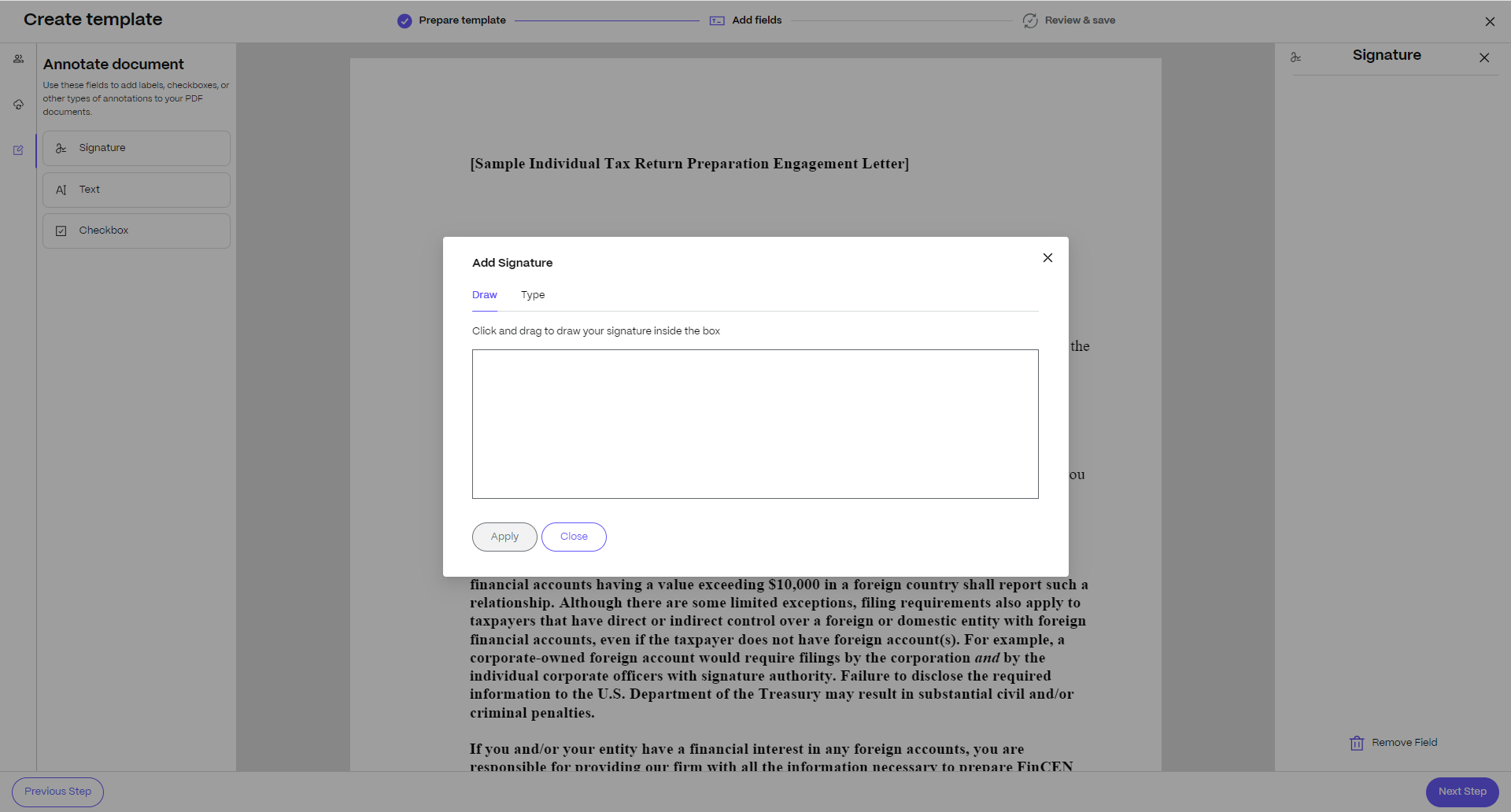
When you add a signature annotation to a document, the Add Signature dialog box opens. Draw your signature or type your name. ShareFile adds it to the field position in the document when it is created.
-
-
Sender-filled fields: Senders enter variable data when they create a document from a template, before sending it for signature. Use these fields when variables from integrated systems, such as a CRM system, cannot automatically populate the required data. ShareFile supports the following sender field types:
-
Text
-
Date
-
Dropdown
-
Checkbox
-
Checkbox group
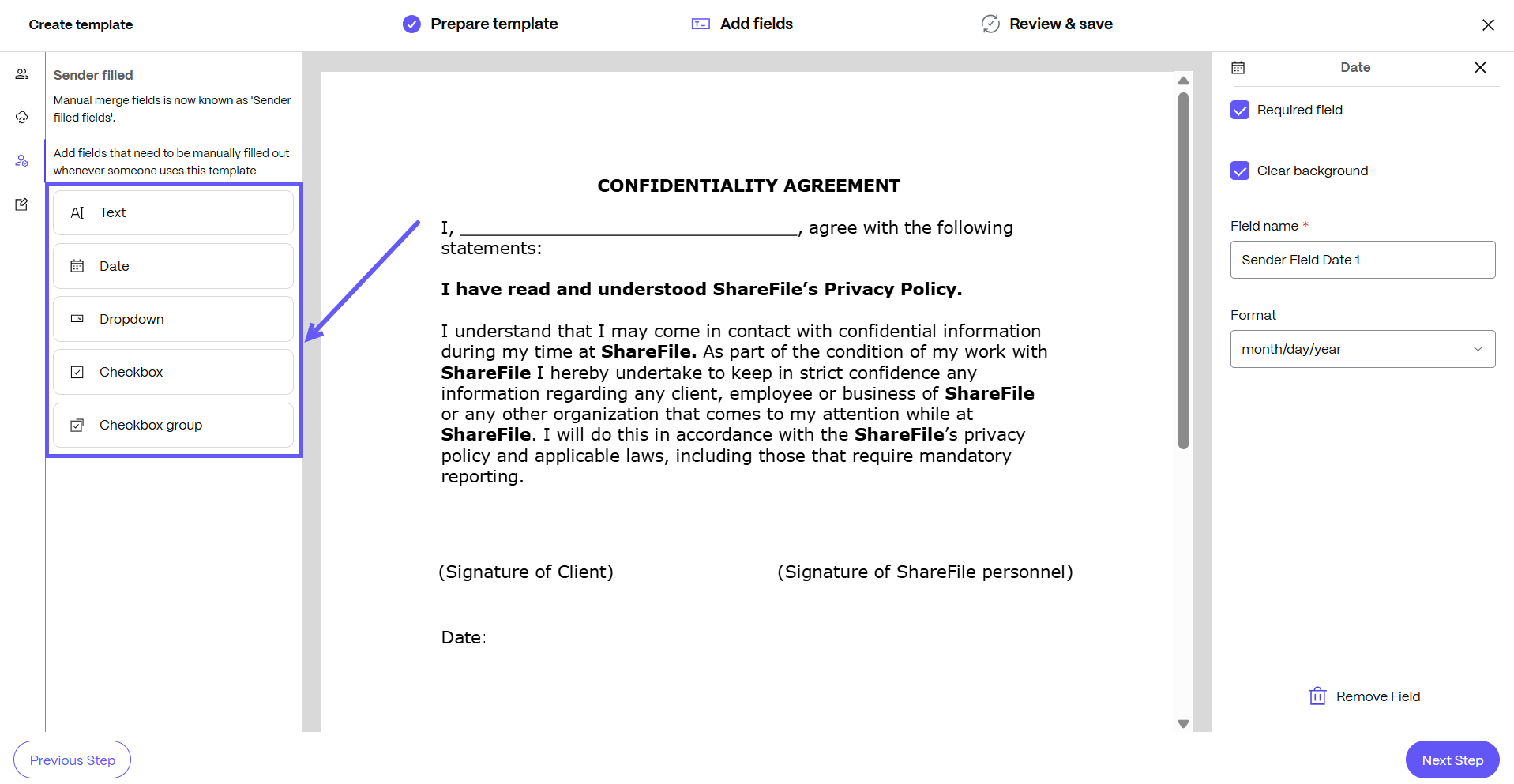
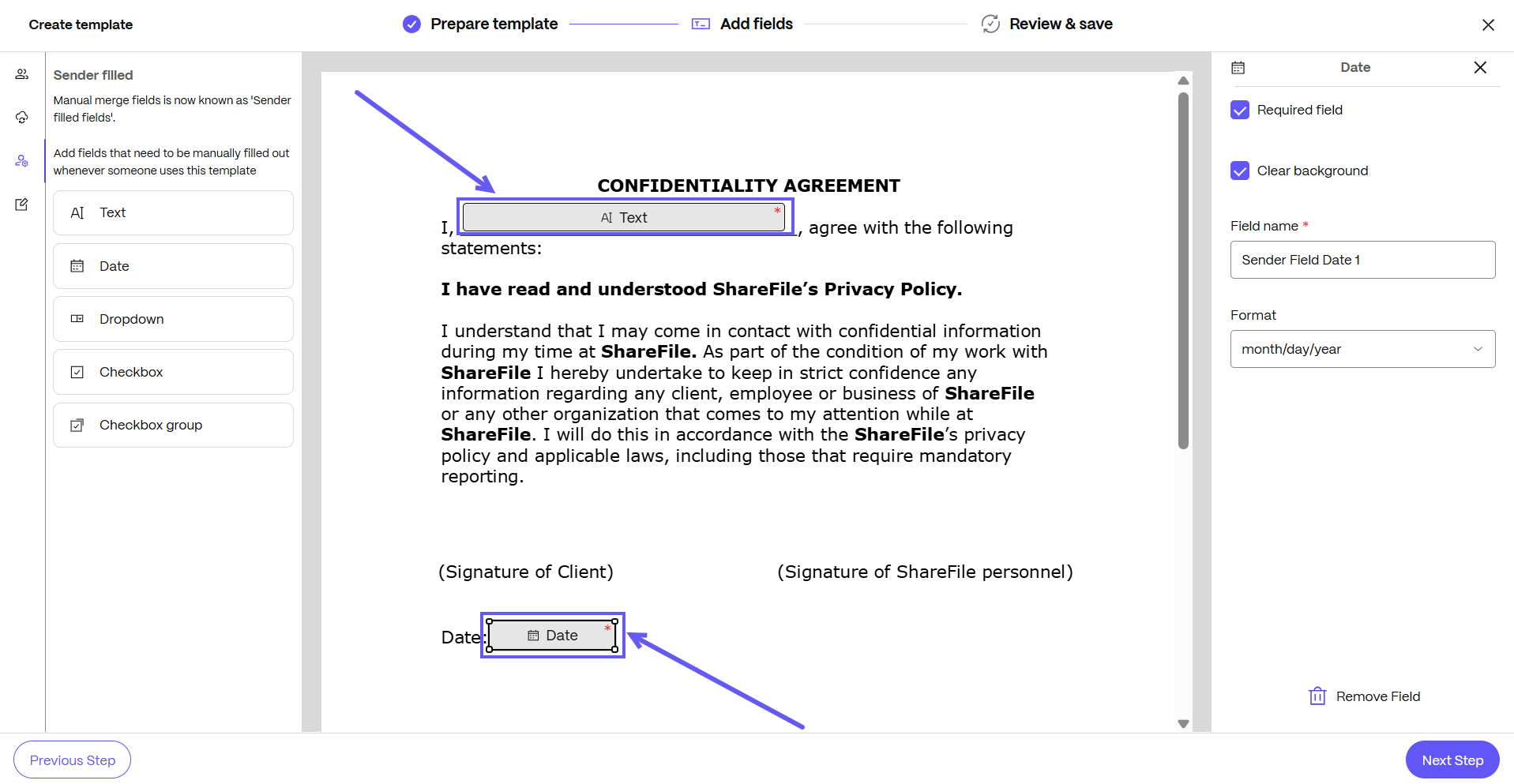
For example, in this Confidentiality agreement template, the sender manually adds name and date fields that are locked after recipients are added.
-
-