-
-
Confirming Critical Changes in Podio
-
Implement a payment form in Podio using Globiflow and Jotform
-
This content has been machine translated dynamically.
Dieser Inhalt ist eine maschinelle Übersetzung, die dynamisch erstellt wurde. (Haftungsausschluss)
Cet article a été traduit automatiquement de manière dynamique. (Clause de non responsabilité)
Este artículo lo ha traducido una máquina de forma dinámica. (Aviso legal)
此内容已经过机器动态翻译。 放弃
このコンテンツは動的に機械翻訳されています。免責事項
이 콘텐츠는 동적으로 기계 번역되었습니다. 책임 부인
Este texto foi traduzido automaticamente. (Aviso legal)
Questo contenuto è stato tradotto dinamicamente con traduzione automatica.(Esclusione di responsabilità))
This article has been machine translated.
Dieser Artikel wurde maschinell übersetzt. (Haftungsausschluss)
Ce article a été traduit automatiquement. (Clause de non responsabilité)
Este artículo ha sido traducido automáticamente. (Aviso legal)
この記事は機械翻訳されています.免責事項
이 기사는 기계 번역되었습니다.책임 부인
Este artigo foi traduzido automaticamente.(Aviso legal)
这篇文章已经过机器翻译.放弃
Questo articolo è stato tradotto automaticamente.(Esclusione di responsabilità))
Translation failed!
Confirming Critical Changes in Podio
There are instances where a user could change a critical value, triggering a flow that was not intended. It would be beneficial to create a warning before Podio saves the changes.
For example: In our Launch Pad app, Rockets are tracked by a Category field called Status. When Launch has been selected, it triggers flows to start the launch sequence. If this Status is selected in error it could cause destruction and needs to be taken very seriously.
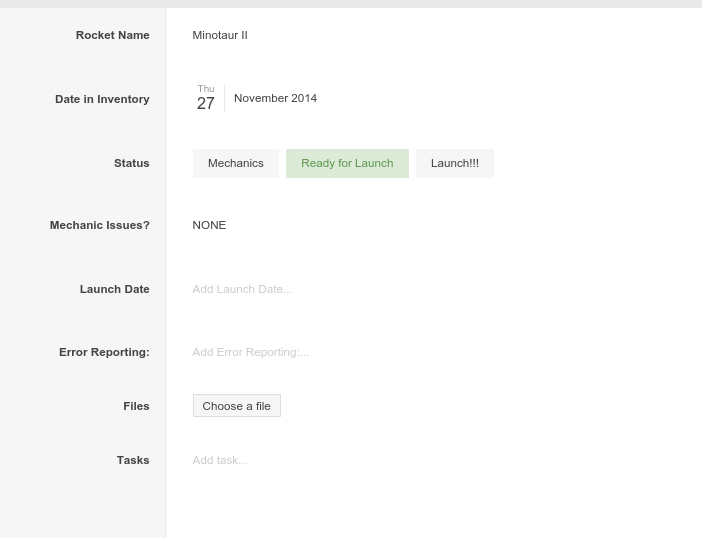
How can this be done with GlobiFlow?
Solution Explained
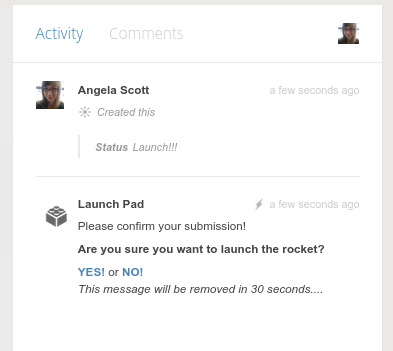
GlobiFlow is not capable of creating pop-ups but can use a combination of External Link flows and a Comment action to warn the revision creator of the change, ask for confirmation of the submission and even track the errors.
Flow Details
-
Start by creating a New Flow with the External Link trigger type.

-
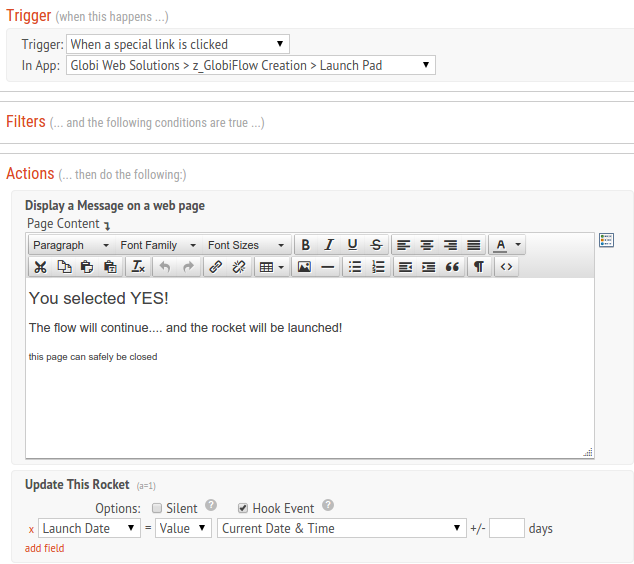
Create an External Link for ‘Continue’. Be sure to add the Update Item for any actions that should be completed once the user clicks YES.
-
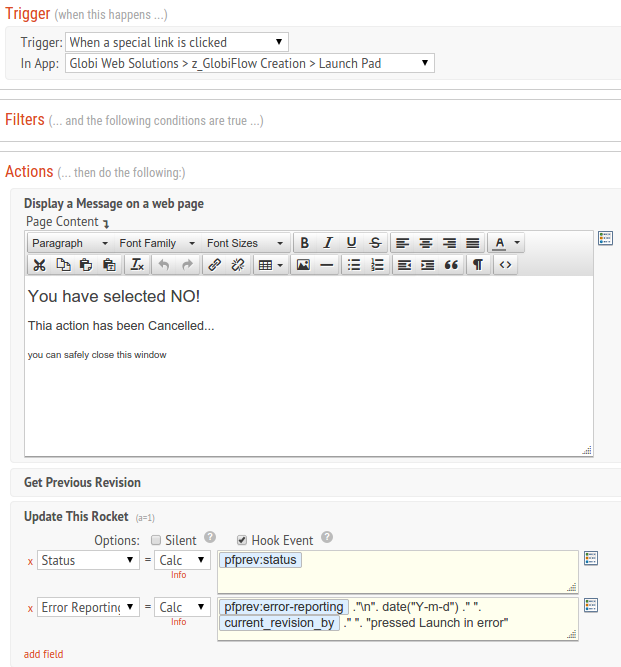
Then create another External Link for ‘Cancel’. For this flow, add the Get Previous Revision action and then the Update Item and set the trigger field back to it’s previous state. We also took this a step further and added an Error Reporting field to keep track of any user errors.
-
Now create the New Flow that triggers on Update of the Item. Be sure your filters are set up as specific as possible and then add a New Comment action. Create your message to the user using field tokens to add the HTML buttons for the links you created and markdown to format the font output.
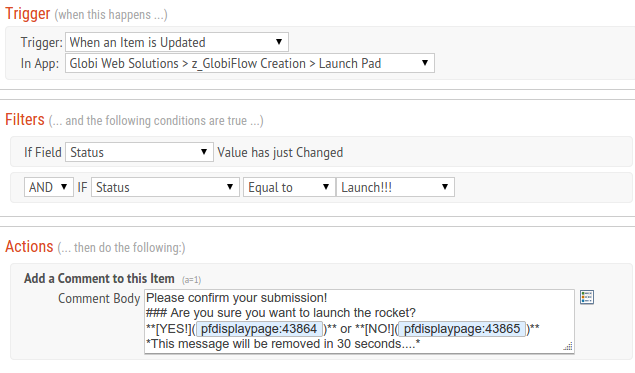
-
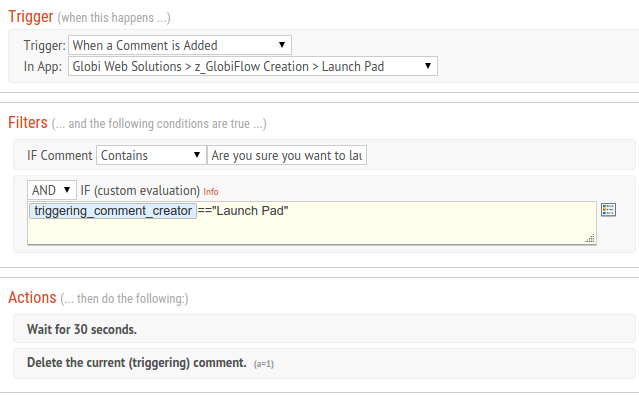
Finally, for continuity, have another flow that triggers on comment create. Add filters for if the comment was made by the app and contains the same question you set up in the Update flow. Add the wait action and then delete the triggering comment. An Update Item action could be added to this flow for cases when the user does give a response within the 30 seconds.
End Result
The result should be that when a user clicks on a category field, a comment will appear that mimics a dialogue pop-up for confirmation. If they click on continue, then your flows execute. If they click on cancel, then not. If they do don’t make a selection within 30 seconds, the comment disappears.
Share
Share
In this article
This Preview product documentation is Citrix Confidential.
You agree to hold this documentation confidential pursuant to the terms of your Citrix Beta/Tech Preview Agreement.
The development, release and timing of any features or functionality described in the Preview documentation remains at our sole discretion and are subject to change without notice or consultation.
The documentation is for informational purposes only and is not a commitment, promise or legal obligation to deliver any material, code or functionality and should not be relied upon in making Citrix product purchase decisions.
If you do not agree, select I DO NOT AGREE to exit.