This content has been machine translated dynamically.
Dieser Inhalt ist eine maschinelle Übersetzung, die dynamisch erstellt wurde. (Haftungsausschluss)
Cet article a été traduit automatiquement de manière dynamique. (Clause de non responsabilité)
Este artículo lo ha traducido una máquina de forma dinámica. (Aviso legal)
此内容已经过机器动态翻译。 放弃
このコンテンツは動的に機械翻訳されています。免責事項
이 콘텐츠는 동적으로 기계 번역되었습니다. 책임 부인
Este texto foi traduzido automaticamente. (Aviso legal)
Questo contenuto è stato tradotto dinamicamente con traduzione automatica.(Esclusione di responsabilità))
This article has been machine translated.
Dieser Artikel wurde maschinell übersetzt. (Haftungsausschluss)
Ce article a été traduit automatiquement. (Clause de non responsabilité)
Este artículo ha sido traducido automáticamente. (Aviso legal)
この記事は機械翻訳されています.免責事項
이 기사는 기계 번역되었습니다.책임 부인
Este artigo foi traduzido automaticamente.(Aviso legal)
这篇文章已经过机器翻译.放弃
Questo articolo è stato tradotto automaticamente.(Esclusione di responsabilità))
Translation failed!
Add Podio Workflow Automation (PWA) Custom HTML Button(s) to Emails/PDFs
Use the Da Button Factory with Variable Calc to create custom buttons to embed in emails or PDFs in PWA.
Variable Structure
'<a href="'.LINK TO EXTERNAL LINK.'"><img src="DABUTTON LINK"></a>'
<!--NeedCopy-->
Steps
- Use a free service like www.dabuttonfactory.com to construct your HTML button(s) and get embeddable link(s).
- Save the link(s) to either a note or in a “settings” app that the Podio item can search and see.
- Create “External Link” workflow for every button that will have an action.
- For example, if you need just one button in an email or PDF to see status on link page, build one “External Link” flow. If you have two buttons in an email (say “approve/deny” you would need two link flows, one for each).
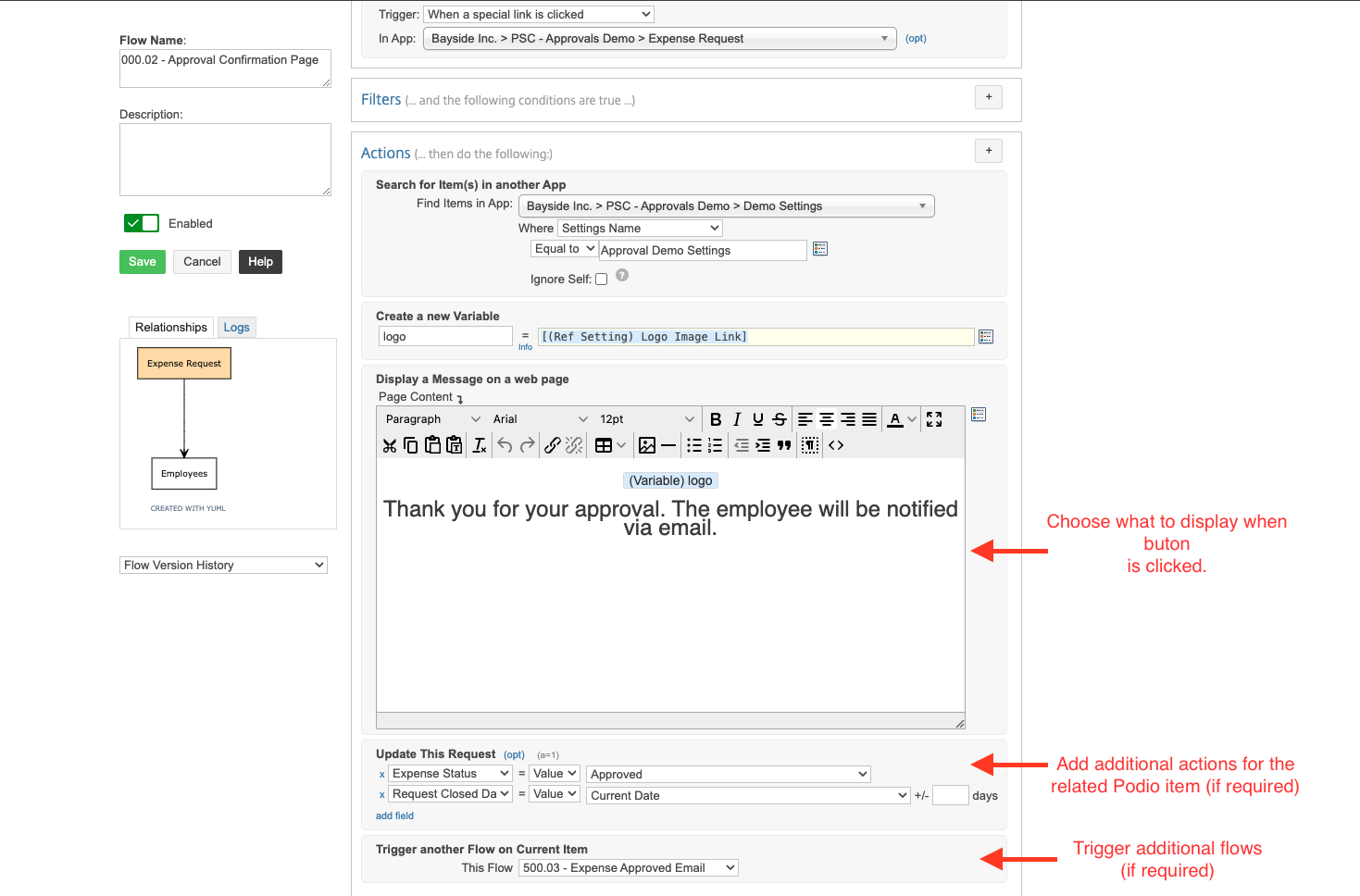
- Each “External Link” flow will by default contain a “display message on web page” action that will appear when your button is clicked. In addition to the web page display, you can also update the related Podio item and trigger other flows.
- Create your workflow that will contain button(s).
- This could be part of any number of workflow trigger types, however buttons are typically used in email actions and sometimes create PDF actions.
- In this example we’ll use an approval flow that generates an email with two buttons (approve/decline buttons).
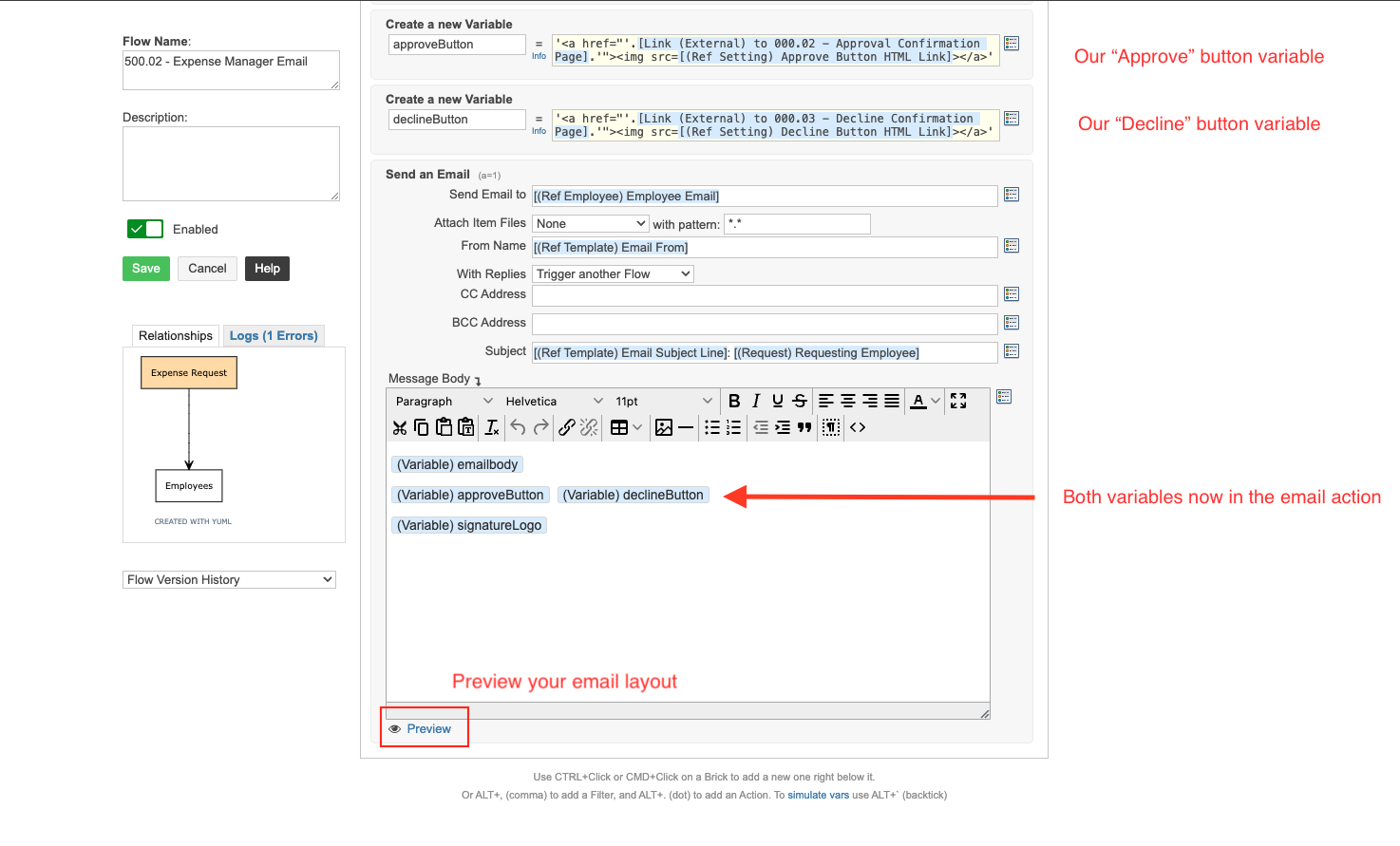
- Create two variables in PWA, one for each button (approve/decline in this example).
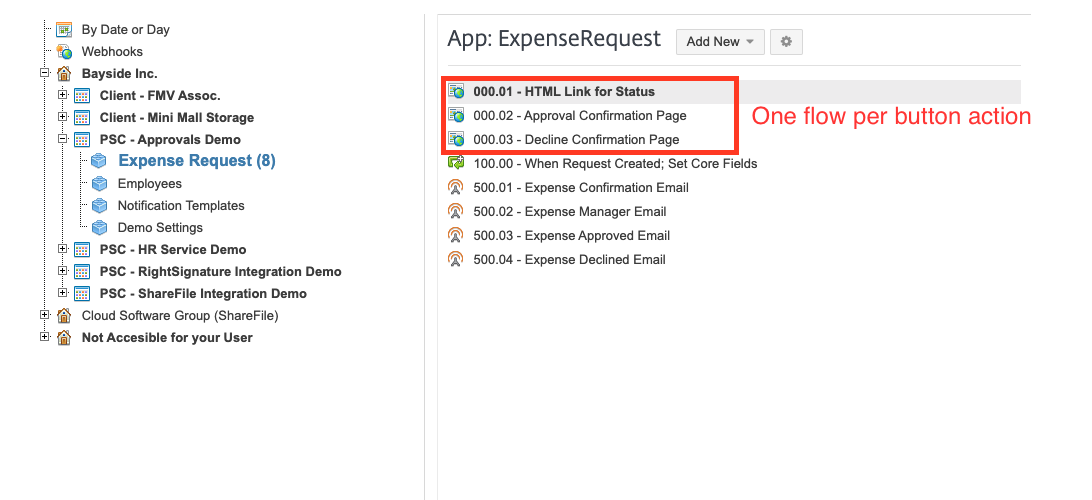
- In each variable, we’ll combine the token for the External Link flow(s) created in step 2, with the embeddable HTML code for the button.
- Once we have both variables constructed, we can add those variable tokens to our email action.
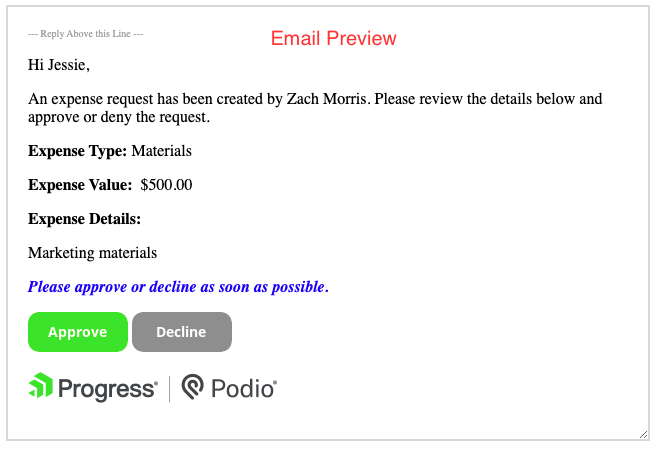
- You can use the Preview function to see how the email will look against any existing item in the corresponding Podio App.
- This could be part of any number of workflow trigger types, however buttons are typically used in email actions and sometimes create PDF actions.
Share
Share
In this article
This Preview product documentation is Citrix Confidential.
You agree to hold this documentation confidential pursuant to the terms of your Citrix Beta/Tech Preview Agreement.
The development, release and timing of any features or functionality described in the Preview documentation remains at our sole discretion and are subject to change without notice or consultation.
The documentation is for informational purposes only and is not a commitment, promise or legal obligation to deliver any material, code or functionality and should not be relied upon in making Citrix product purchase decisions.
If you do not agree, select I DO NOT AGREE to exit.