AI-powered document assistant

The AI document assistant helps ShareFile users quickly analyze large documents and extract key insights with a single click or query. It provides precise answers to specific questions about a document's content, reducing the time spent searching for information manually. Usage is limited to 300 chat messages per month (any prompt or question) across the account.
The AI document assistant feature is available for files in folders, projects, and solutions. Supported file types include PDFs, .docx, .xlsx, .pptx, and .txt files. For more information, see FAQ – AI document assistant.
This AI feature is not available to users of the ShareFile Advanced plan.
Note:
- All AI document assistant conversations are encrypted.
- Certain ShareFile Products and features may use generative or other artificial intelligence models, such as large language models, foundational models, or machine learning models, which have been provided by third parties, including Anthropic via AWS. For more information on applicable acceptable use policies or codes of conduct, please visit the Anthropic Usage Policy, AWS Acceptable Use Policy, and AWS Responsible AI Policy.
Steps to utilize AI document assistant
Accessing the feature and generating a Q&A session
-
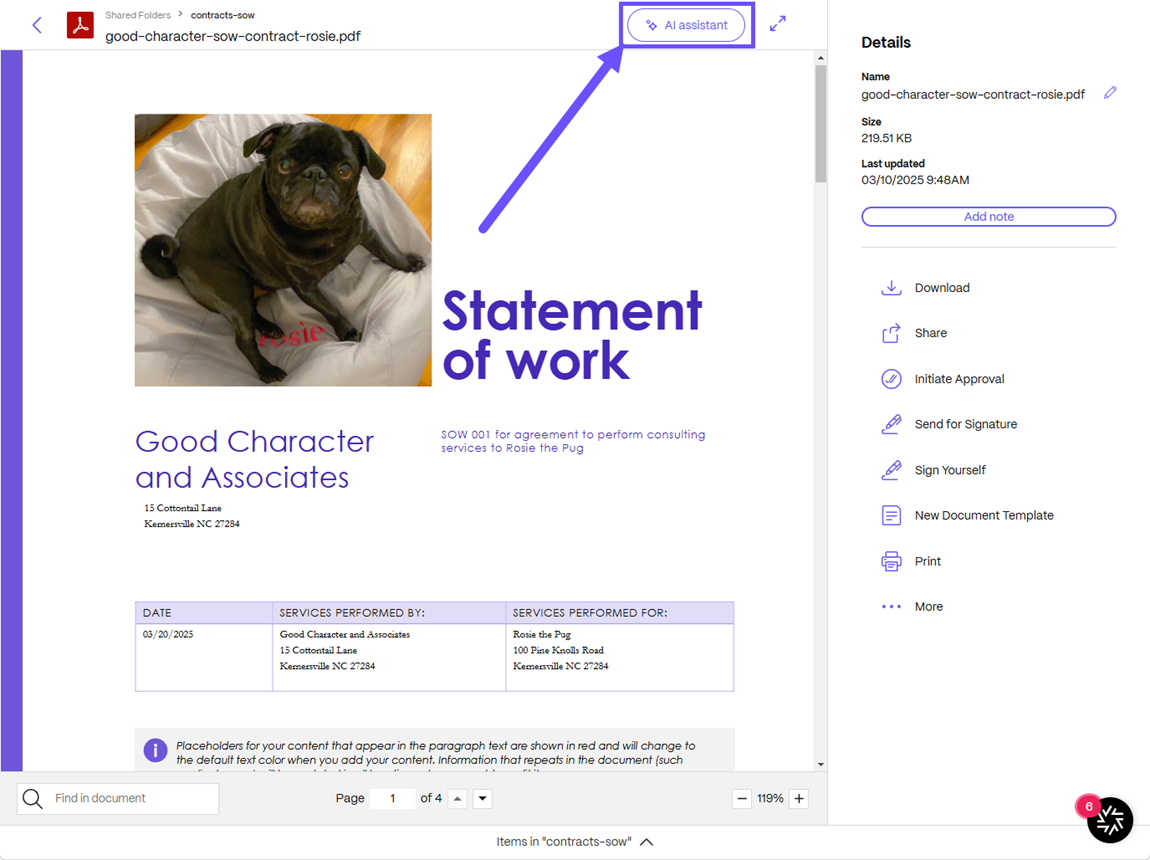
Navigate to the content viewer of the document you want to review in your ShareFile account.
-
Select the AI assistant button.
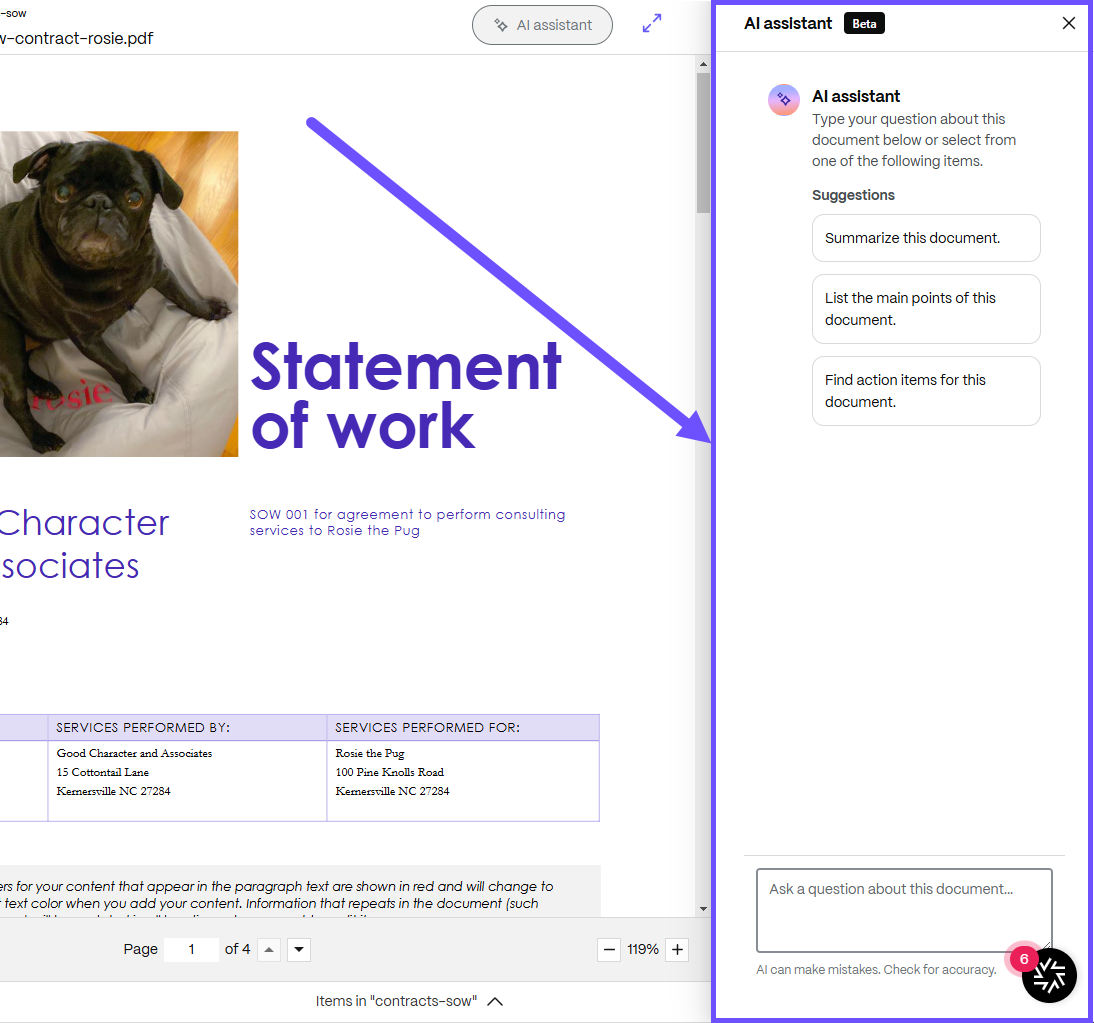
The AI assistant window displays providing four options:
- Summarize the document. - provides a quick summary of the document.
- List the main points of this document. - used to determine the main objectives covered by the document and lists them in order.
- Find action items for this document. - used to search for any action items that might need to be completed or reviewed.
- Ask a question about this document... - used to scan the document for quick answers to the question entered in the text box.
Note:
Always check for accuracy when using this tool.
-
Select Try again to redo the AI processing.
-
Select Copy to copy the result.
- Select Like or Dislike to submit feedback about the answer provided by AI.
-
Select Clear chat to remove the previous conversation history with the assistant. Once selected, you will no longer see the answers to the previous AI document assistant queries.
Disabling the feature
To disable the AI document assistant feature:
- Go to Account settings.
- Under Advanced Preferences, select AI Settings.
- Switch the AI document assistant toggle to Off.
- Select Save to apply the changes.