Configure apps
Authentication to network share and SharePoint connectors
ShareFile users can access their existing data repositories such as network shares and SharePoint by creating and accessing connectors.
For information on creating and managing connectors for your account, see Create and manage storage zone connectors.
Note:
This configuration applies only to ShareFile for Windows, ShareFile for Mac, and ShareFile for Outlook.
Manual user sign on to connectors
When browsing to a network share or SharePoint connector, you must first log on (unless you are using single sign-on). To log on, right-click the connector name and choose Sign in from the Windows or macOS context menu.
After you select Sign in, you are presented with a login dialog. Enter your domain user name and password. After logging on, you can browse your connector folders.
Single sign-on to connectors using VDA authentication
When accessing connectors inside a VDA session through Citrix Workspace, users will be automatically signed into the connector without a need to provide credentials. In order to use single sign-on to network shares or SharePoint connectors using Workspace authentication inside a VDA environment, storage zones controller 5.4.1 or later is required.
Group policy definitions for ShareFile for Windows
ShareFile includes policy definitions that can be used to push out settings and configuration using Group Policy (GPO). On a computer where ShareFile for Windows is installed, locate the .admx and .adml files in C:\Program Files\ShareFile\ShareFile for Windows\PolicyDefinitions.
Installation
These steps require a Group Policy Central Store populated with Windows policy definitions. If \\<domain>\SYSVOL\<domain>\Policies\PolicyDefinitions does not exist, create and populate the Central Store before continuing.
-
On a domain controller, copy the
.admxfile from the ShareFile for Windows installation computer to\\<domain>\SYSVOL\<domain>\Policies\PolicyDefinitions. -
Copy the
.admlfile from theen-ussubfolder on the ShareFile for Windows installation computer to\\<domain>\SYSVOL\<domain>\Policies\PolicyDefinitions\en-us. -
Open Group Policy Editor and the policy options are available under:
a. Computer Configuration → Administrative Templates → ShareFile
b. User Configuration → Administrative Templates → ShareFile
Configuring the group policies
| Setting | Purpose |
|---|---|
| Computer Configuration | |
| Enable Application | If disabled, ShareFile exits before mounting any drives or displaying any UI. |
| Enable Auto Check-out | If enabled, ShareFile automatically checks out Microsoft Office files when they are opened. The files are also automatically checked in after they are closed. |
| Enable on-premises Connectors | If disabled, Network Share, Sharepoint, and Documentum connectors are not visible in ShareFile. |
| Enable Clear Cache on Logout | If disabled, ShareFile will not clear cached metadata and content when users log out. |
| Enable Personal Cloud Connectors | If disabled, Personal Cloud and Office 365 Connectors are not visible in ShareFile. |
| Enable Auto-update | Controls what types of users can automatically update to the latest version. |
| Delete Cache on Exit | If enabled, downloaded file contents are removed when the application exits. |
| Cache Size | Controls how much disk space (in MB) to use for cached files. The minimum cache size is 256 MB and the maximum is 9999 MB. |
| Cache Location | Configures the location of the file content cache. By default, the location is AppData\Local\ShareFile\ShareFile for Windows\PartCache. If a custom path is set, that folder must exist. |
| Cache Mode | Default: ShareFile chooses a cache mode appropriate for the environment where it is executing. Immediate: ShareFile writes and reads directly to and from its cache. This mode uses the least memory, but might be slow if the application cache is not on the local disk. Queued: ShareFile retains some data in memory and writes to its cache in the background. This mode is recommended if the application cache is stored on a network location. |
| Maximum Log Size | Controls how much disk space (in MB) is used for application logs. |
| Disable Tutorial | If enabled, ShareFile does not show the tutorial on the initial sign-in of the user. |
| Enable Offline Access | If disabled, users can't mark folders or files to be available while not connected to the internet. |
| On-Premises Connector Refresh Frequency | Controls folder refresh rate for Network Share, Sharepoint, and Documentum connectors. |
| Prefetch Metadata | If enabled, ShareFile preloads its filesystem structure. This improves responsiveness at the expense of some CPU, memory, disk, and network usage. By default, this functionality is disabled on virtual desktops. |
| Recycle Deleted Local Items | If disabled, un-uploaded local files that are deleted will bypass the recycling bin and be deleted permamently. |
| User Configuration | |
| Account | Configures the account to use for ShareFile. |
| Enable Application | If disabled, ShareFile exits before mounting any drives or displaying any UI. |
| Excluded from Upload | File name extensions that are not saved back to ShareFile. These files can still be read and edited locally. |
| Forced Offline Sync Folders | Configures specific folders that should always be available for offline access. |
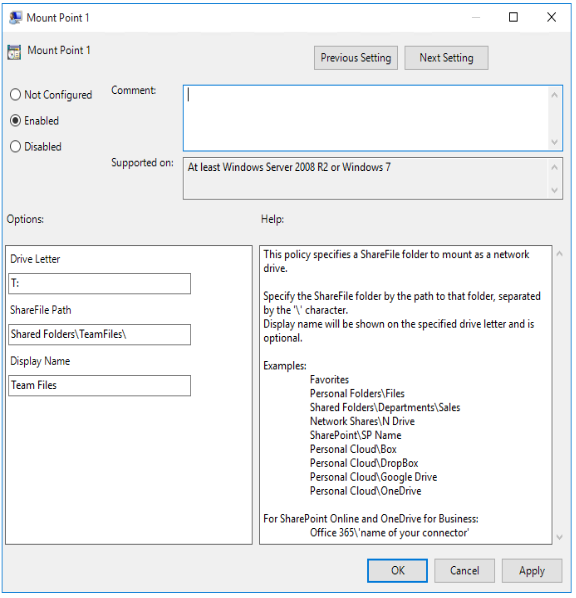
| Mount Point 1–10 | Mounts a specific ShareFile folder as a network drive. |
| Office Co-editing | If disabled, prevents ShareFile as acting as a sync client for local Office file co-editing. See Let’s collaborate with ShareFile & Microsoft 365 for details. |
| Folder Redirection\Redirect Folder | Configure folder redirection of Windows user folders to your ShareFile drive. |
| Folder Redirection\Redirection Backup Folder Settings | Configures backup behavior when redirecting Windows folders to ShareFile. |
Mount Points
Mount points let you specify a ShareFile folder to mount as a network drive. You can specify up to 10 mount points. Mount points can be configured through the group policy editor.
To create a mount point, specify the ShareFile folder by the path to that folder, separated by the \ character. The top-level folder name might vary across user types and across different end-user languages. In such cases, you can create the mount point using %wildcard% alias as outlined in the following examples.
| Folder type | Example |
|---|---|
| Personal Folders | Personal Folders<FolderName> or %personal%<FolderName> |
| Shared Folders | Shared Folders<FolderName><FolderName2> or %shared%<FolderName> |
| Favorites | Favorites or %favorites%<FolderName> |
| Network Shares connector | Network Shares<ConnectorName> or %networkshares%<ConnectorName> |
| SharePoint connector | SharePoint<ConnectorName> or %sharepoint%<ConnectorName> |
| Box connector | Personal Cloud\Box or %personalcloud%\Box |
| Dropbox connector | Personal Cloud\Dropbox or %personalcloud%\Dropbox |
| Google Drive connector | Personal Cloud\Google Drive or %personalcloud%\Google Drive |
| OneDrive connector | Personal Cloud\OneDrive or %personalcloud%\OneDrive |
| Office365 connectors | Office 365<ConnectorName> or %office365%<ConnectorName> |
| Root of account (default view) | "\" |