This content has been machine translated dynamically.
Dieser Inhalt ist eine maschinelle Übersetzung, die dynamisch erstellt wurde. (Haftungsausschluss)
Cet article a été traduit automatiquement de manière dynamique. (Clause de non responsabilité)
Este artículo lo ha traducido una máquina de forma dinámica. (Aviso legal)
此内容已经过机器动态翻译。 放弃
このコンテンツは動的に機械翻訳されています。免責事項
이 콘텐츠는 동적으로 기계 번역되었습니다. 책임 부인
Este texto foi traduzido automaticamente. (Aviso legal)
Questo contenuto è stato tradotto dinamicamente con traduzione automatica.(Esclusione di responsabilità))
This article has been machine translated.
Dieser Artikel wurde maschinell übersetzt. (Haftungsausschluss)
Ce article a été traduit automatiquement. (Clause de non responsabilité)
Este artículo ha sido traducido automáticamente. (Aviso legal)
この記事は機械翻訳されています.免責事項
이 기사는 기계 번역되었습니다.책임 부인
Este artigo foi traduzido automaticamente.(Aviso legal)
这篇文章已经过机器翻译.放弃
Questo articolo è stato tradotto automaticamente.(Esclusione di responsabilità))
Translation failed!
Security Insights
ShareFile has introduced a visual, data-rich security dashboard for admins. When a security event occurs, ShareFile sends multiple notifications to both users and admins. To consolidate this, the Security Insights dashboard now provides real-time alerts, event breakdowns, geographic context, remediation statuses, and granular user-level insights.
Admins can track incidents and detect abnormal behavior on the ShareFile account. For remediation and effective risk management, they can use the Activity and Security Alerts dashboard for accessing additional security functions.
Using Security Insights
To use Security Insights, log in to your ShareFile account and go to Account settings > Security > Security insights. The Insights dashboard is displayed as shown below:
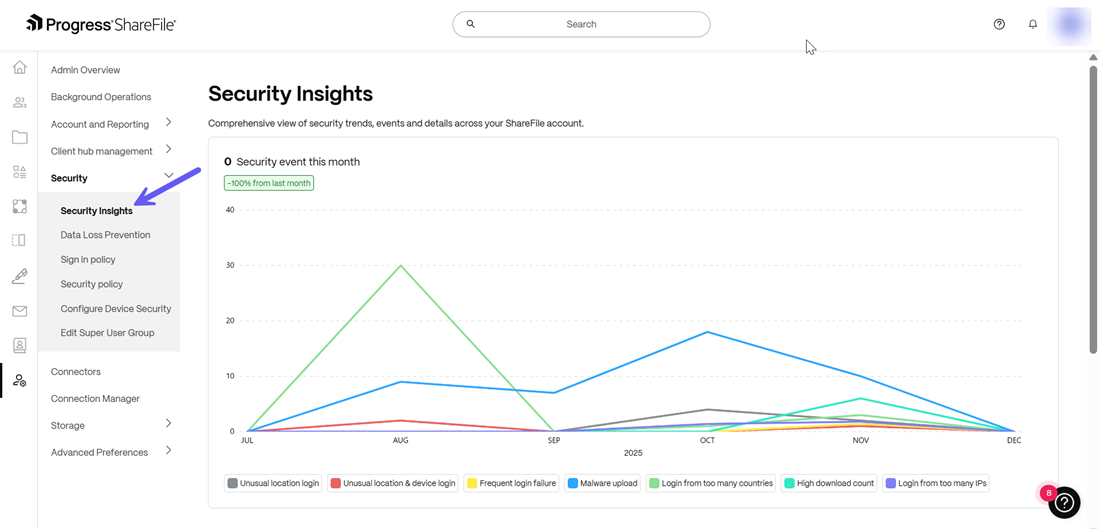
Security Insights provides a consolidated view of security trends, events and relevant details across your ShareFile account. There are two parts:
-
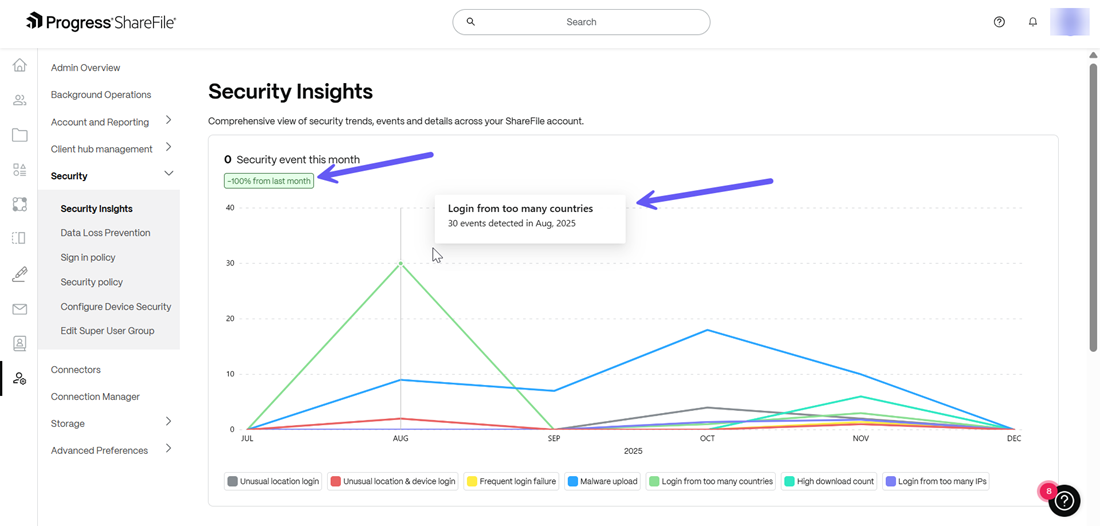
The Security Insights graph at the top depicts a graph which shows the number of security events that occurred for a specific time period (i.e. month) and also shows the security trend over the last month - for example a reduction of events by 20.7% since the last month as shown below:
-
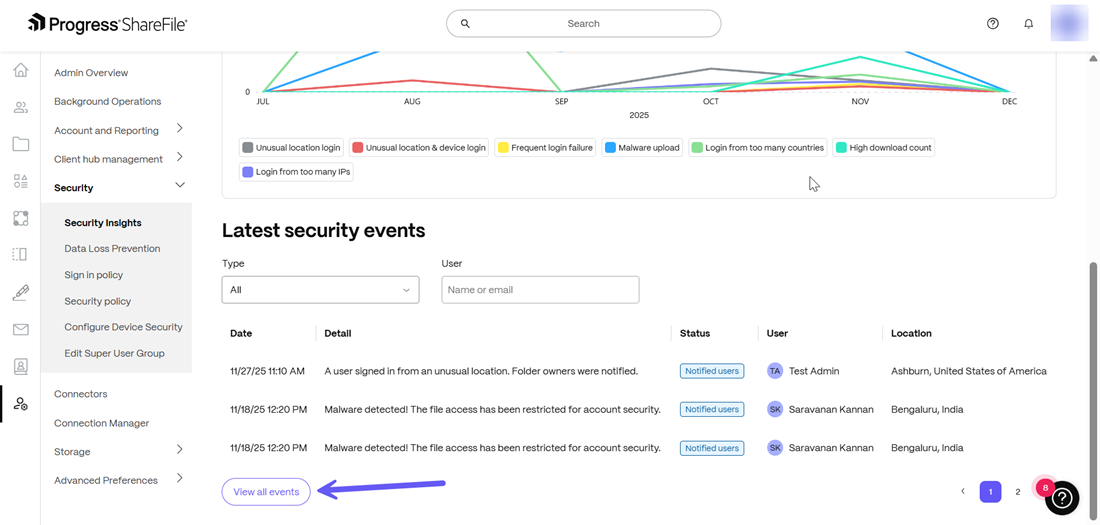
The Event log provided by Security Insights provides details on each incident that occurs on a particular date along with the affected user and current status of event handling. To get a detailed view of all associated events with the account, click on the View all events button as shown below:
Event Handling by Security Insights
Security Insights by ShareFile provides admins with a comprehensive case-by-case analysis of each security event and allows them to take action in certain events. As discussed above, clicking on the View all events button will open a complete list of events.
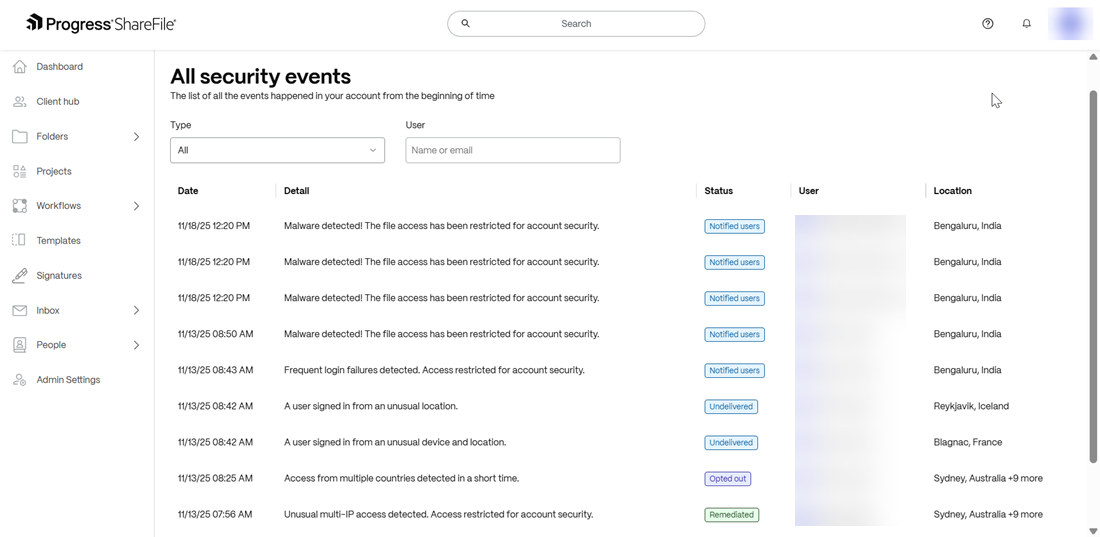
Admins can click on each event to view the particular details of the security event. For example, the geographical location where the event was triggered, number of attempts made, number of users affected etc.
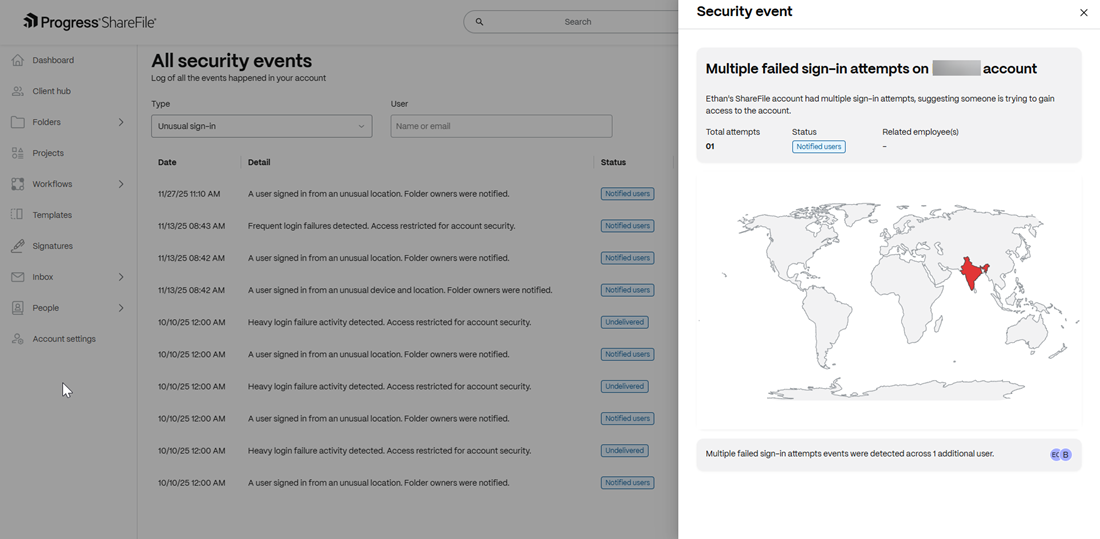
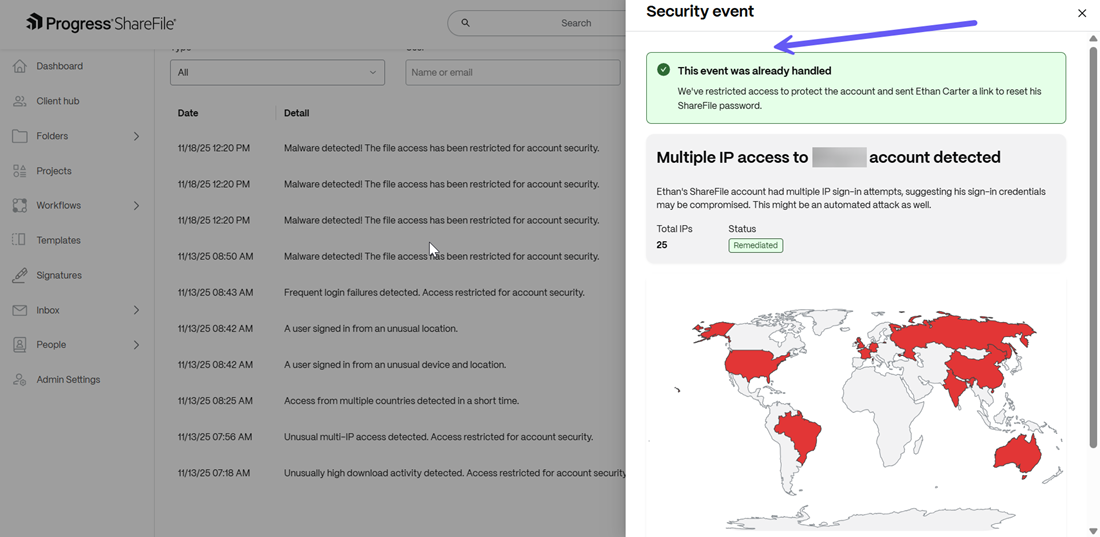
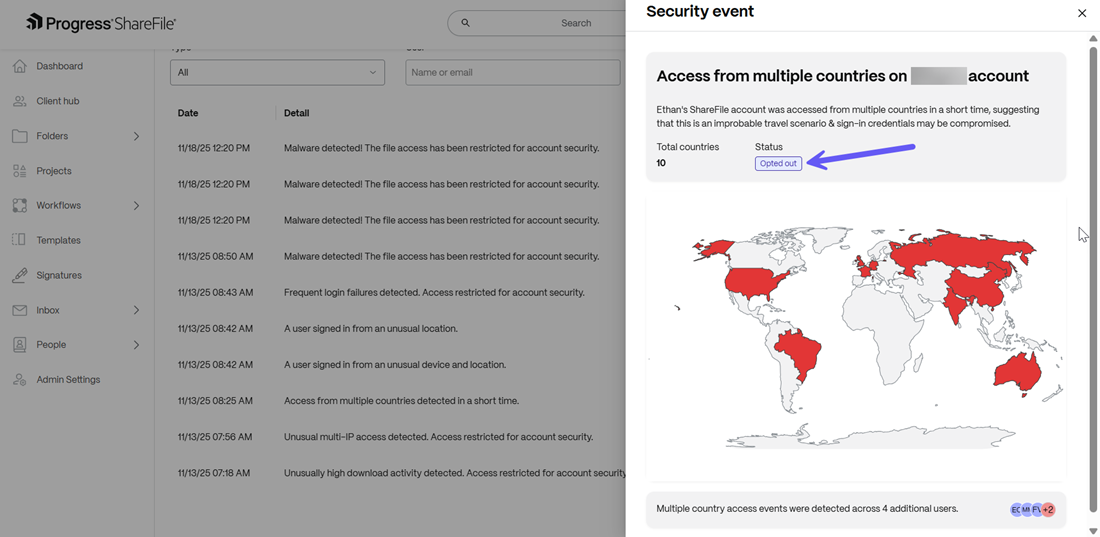
If there has been a response to the security event (for example if the incident was handled or opted out), the status is shown as below:
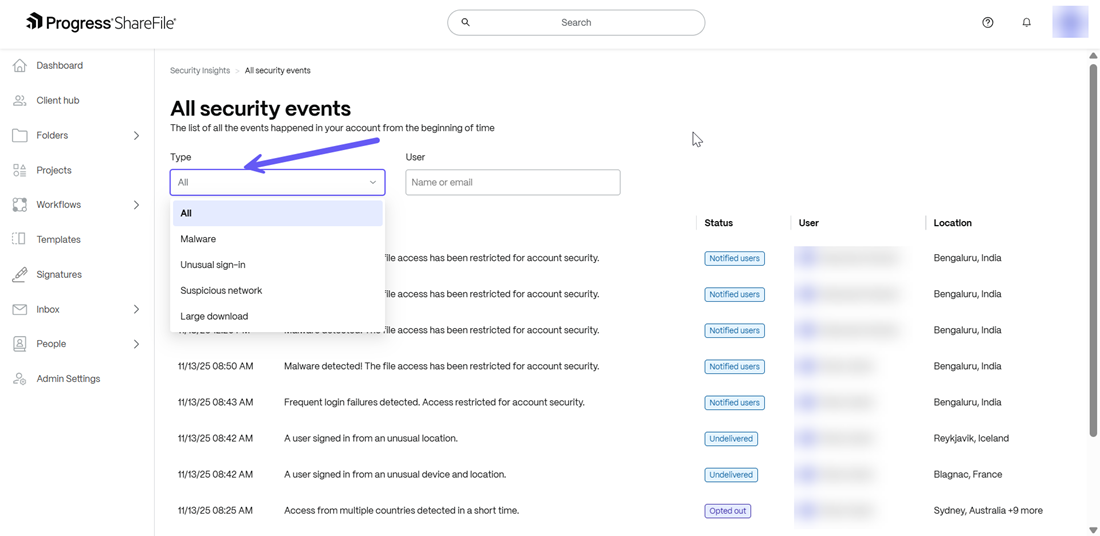
You can also search for a particular event by category of event or user name/email as shown below:
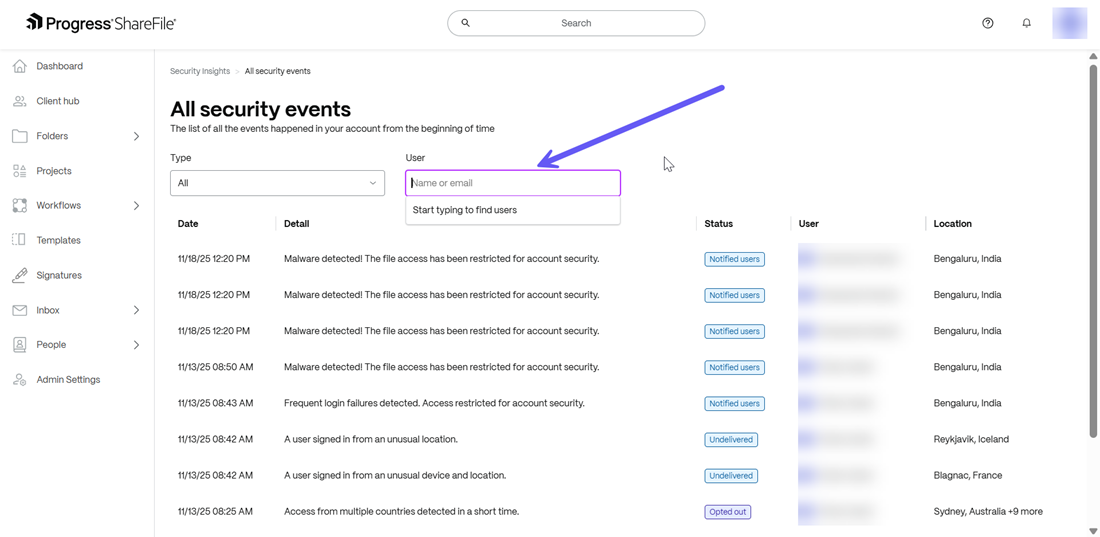
Types of Events in Security Insights
There are 4 identifiable event categories provided by Security Insights in ShareFile as listed below:
- Malware
- Unusual sign-in
- Suspicious network
- Large download
Each such category is divided into sub-categories based on event type.
Malware
When viewing security events using this category, there is only 1 major incident as listed below:
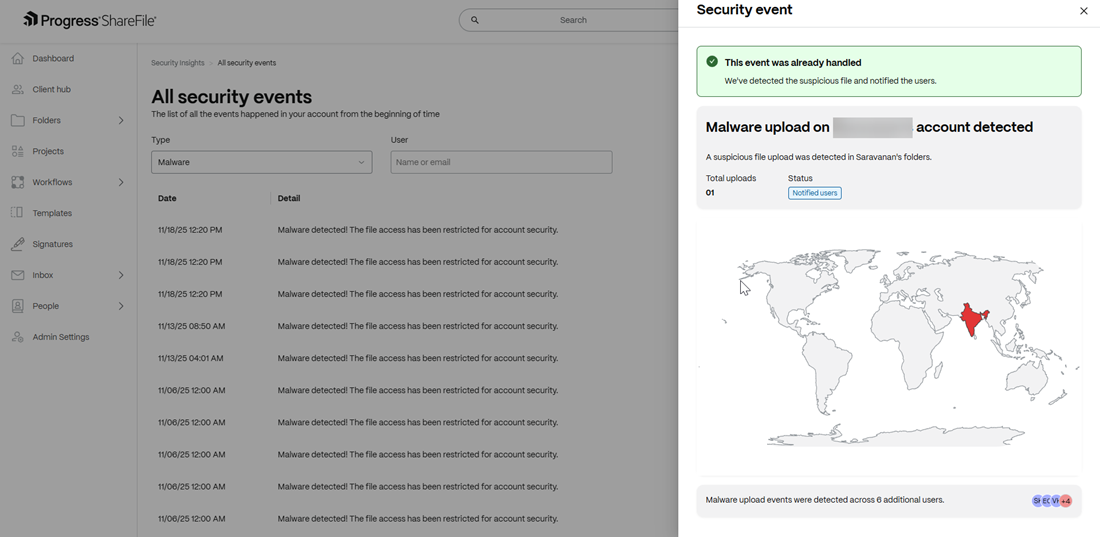
Malware uploaded in an account
This event is triggered when a suspicious file/folder is uploaded to a ShareFile account. File access is temporarily restricted on this account until the threat is remediated.
Unusual sign-in
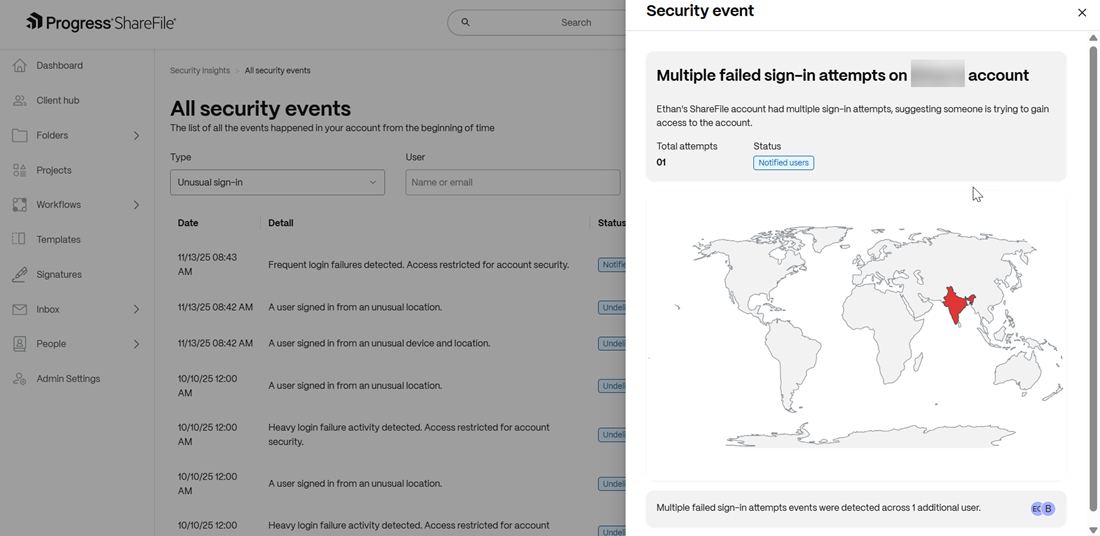
This category classifies security events on the basis of unusual device address, geographical location and frequency as listed below:
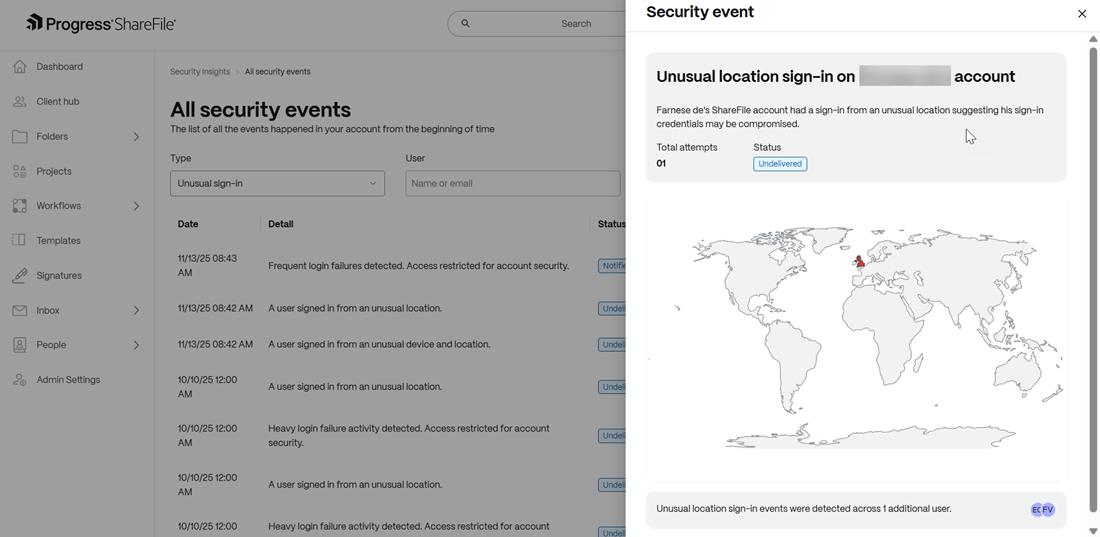
Unusual location sign-in to an account
The event triggers when one or multiple attempts to sign-in to a ShareFile account has been made from an unfamiliar geographical location. Admins & folder owners receive notifications for event remediation.
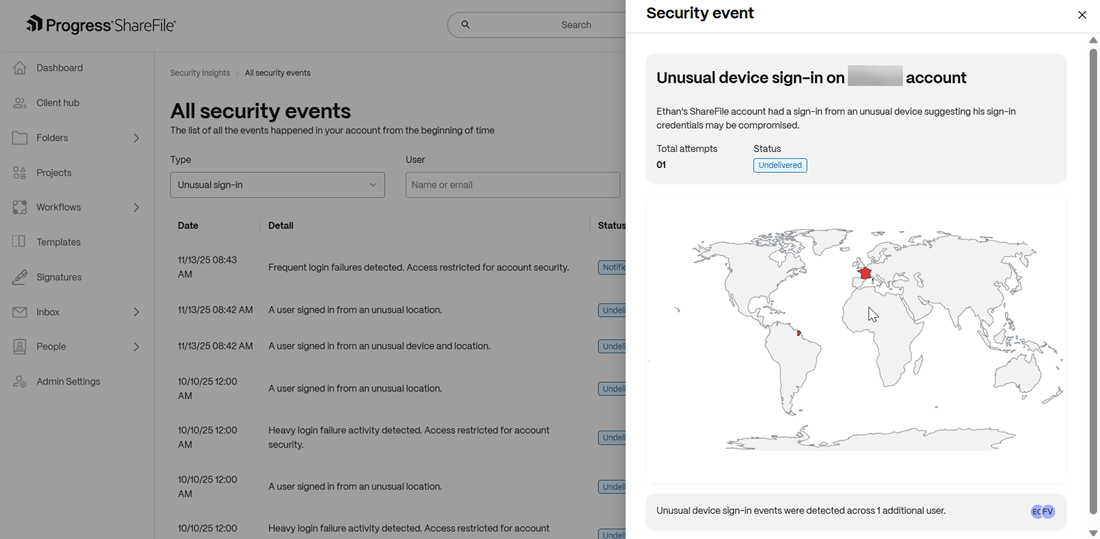
Unusual device and location sign-in to an account
The event triggers when one or multiple attempts to sign-in to a ShareFile account has been made from an unfamiliar device IP address. Admins & folder owners receive notifications for event remediation.
Frequent login failures to an account
This event triggers when there have been multiple failed sign-in attempts on an account. The admins, users and folder owners are notified of the event for remediation.
Suspicious network
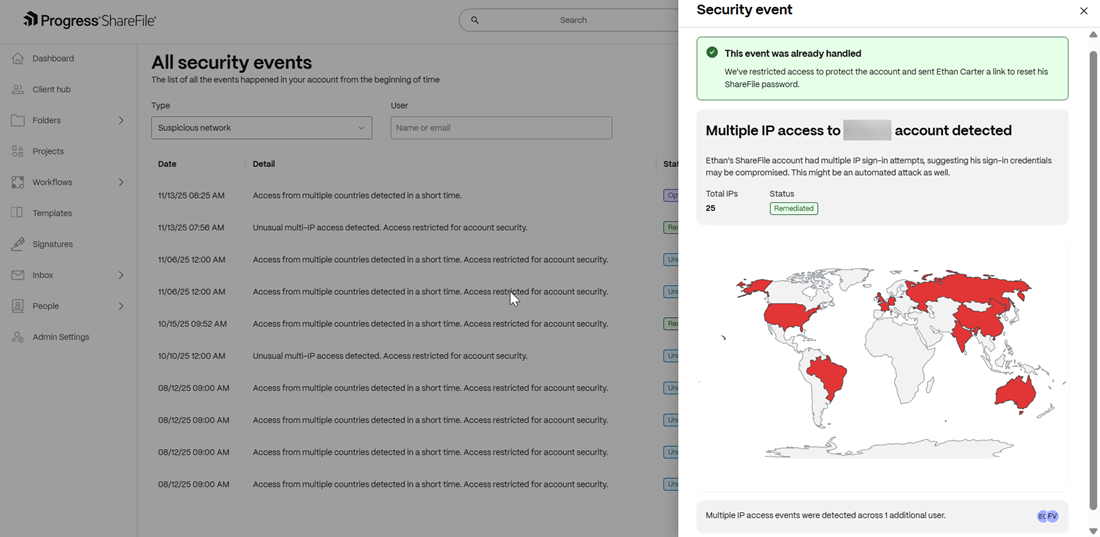
This category classifies security events based on suspicious network behavior as listed below:
Access from multiple IP addresses to an account
When sign-in attempts are made from multiple IP addresses, this event is triggered. Admins and folder owners receive notifications of the event for remediation.
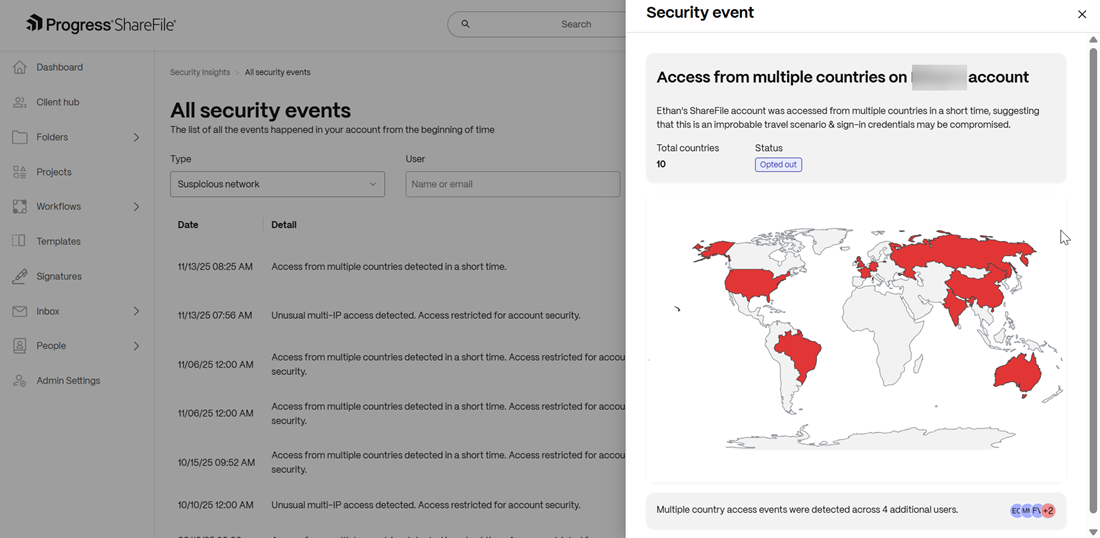
Access from multiple countries to an account
When a ShareFile account is accessed by multiple countries across varying geographical locations, this event is triggered and a link to reset the password is sent to the user for threat remediation. Account access is temporarily restricted till the password is reset.
Large Download activity on an account
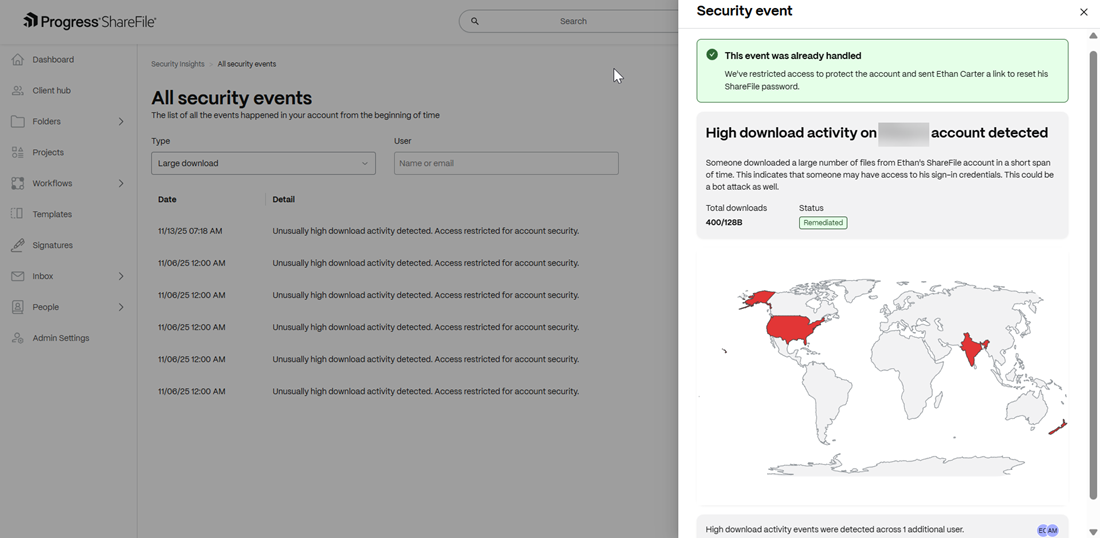
This category is used to handle unusual download incidents on an account as detailed below:
Unusually high download activity on an account
When a ShareFile account has an unusually high download activity, this event is triggered and a link to reset the password is sent to the user for threat remediation. Account access is temporarily restricted till the password is reset.
Share
Share
In this article
This Preview product documentation is Citrix Confidential.
You agree to hold this documentation confidential pursuant to the terms of your Citrix Beta/Tech Preview Agreement.
The development, release and timing of any features or functionality described in the Preview documentation remains at our sole discretion and are subject to change without notice or consultation.
The documentation is for informational purposes only and is not a commitment, promise or legal obligation to deliver any material, code or functionality and should not be relied upon in making Citrix product purchase decisions.
If you do not agree, select I DO NOT AGREE to exit.