This content has been machine translated dynamically.
Dieser Inhalt ist eine maschinelle Übersetzung, die dynamisch erstellt wurde. (Haftungsausschluss)
Cet article a été traduit automatiquement de manière dynamique. (Clause de non responsabilité)
Este artículo lo ha traducido una máquina de forma dinámica. (Aviso legal)
此内容已经过机器动态翻译。 放弃
このコンテンツは動的に機械翻訳されています。免責事項
이 콘텐츠는 동적으로 기계 번역되었습니다. 책임 부인
Este texto foi traduzido automaticamente. (Aviso legal)
Questo contenuto è stato tradotto dinamicamente con traduzione automatica.(Esclusione di responsabilità))
This article has been machine translated.
Dieser Artikel wurde maschinell übersetzt. (Haftungsausschluss)
Ce article a été traduit automatiquement. (Clause de non responsabilité)
Este artículo ha sido traducido automáticamente. (Aviso legal)
この記事は機械翻訳されています.免責事項
이 기사는 기계 번역되었습니다.책임 부인
Este artigo foi traduzido automaticamente.(Aviso legal)
这篇文章已经过机器翻译.放弃
Questo articolo è stato tradotto automaticamente.(Esclusione di responsabilità))
Translation failed!
ShareFile Social Sign-in
ShareFile provides an option for accounts to enable social sign-in for their client users. By using social sign-in functionality for their account, users can use their existing social accounts such as Google, Microsoft, and AppleID to authenticate into a ShareFile account, eliminating the need to create and remember yet another set of login credentials.
Administrator Configuration
Administrators can choose to enable or disable a social sign-in provider on their account.
Enable social sign in
The following steps explain how to enable social sign-in from the admin section.
-
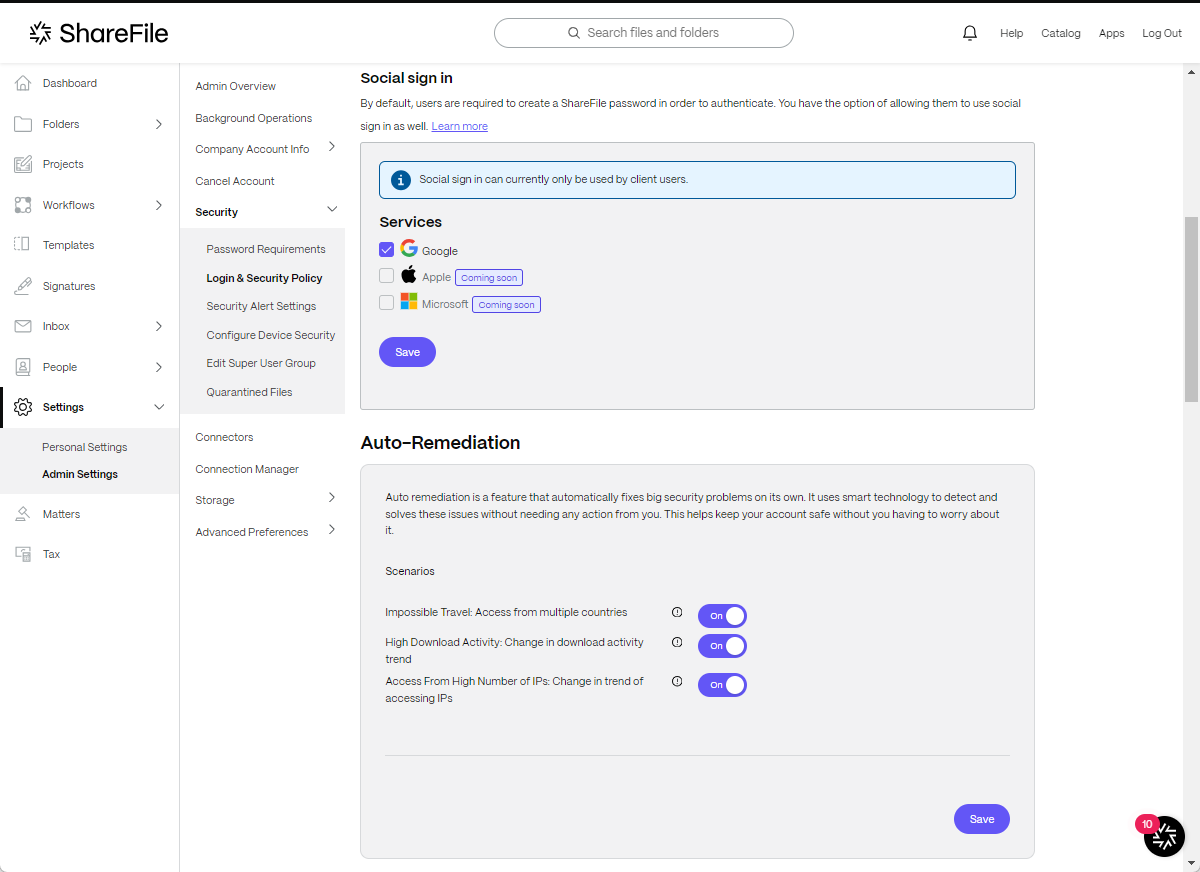
From your ShareFile dashboard, navigate to Settings > Admin Settings > Log-in & Security Policy.
-
Under Social sign in check the box next to the service you want to enable.
Once enabled, this allows client users to start configuring the social sign-in options that have a checkmark beside them.
Disable social sign-in
The following steps explain how to disable social sign-in from the admin section.
-
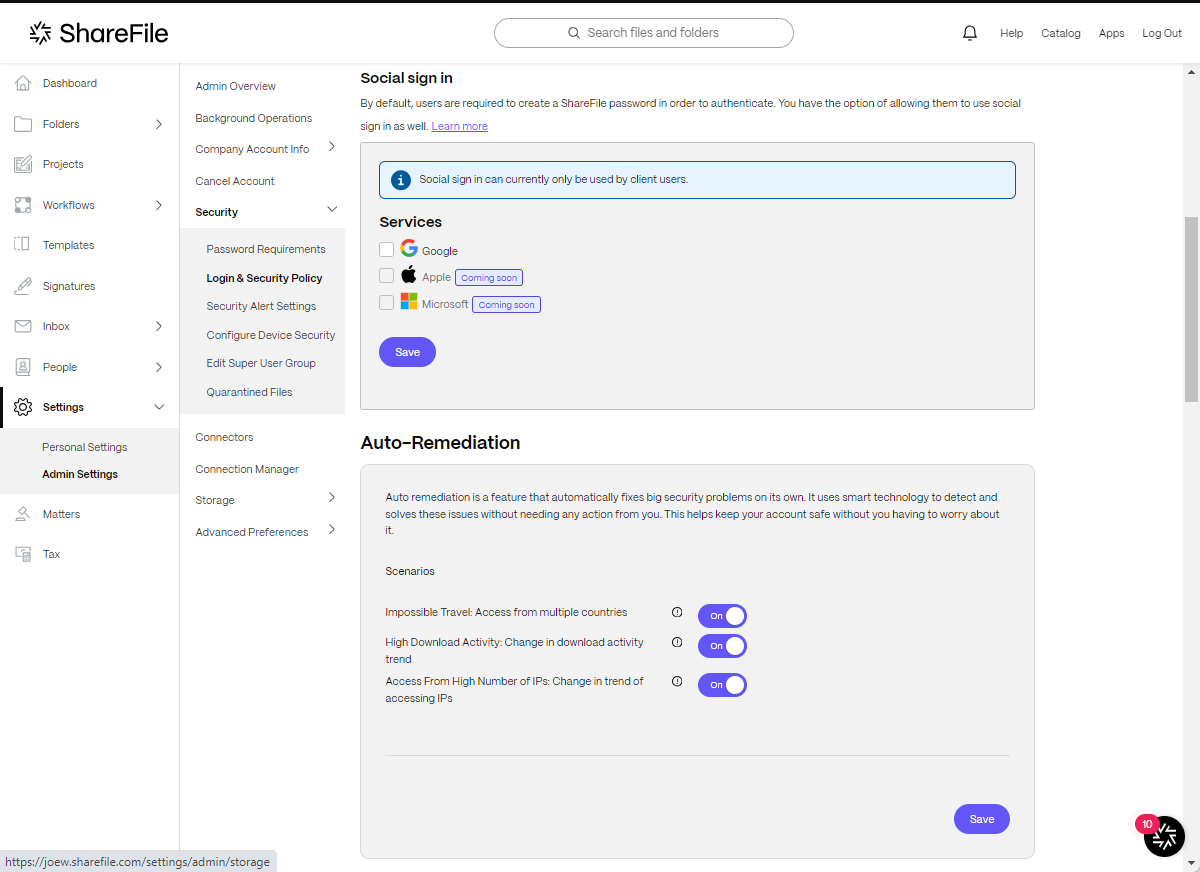
From your ShareFile dashboard, navigate to Settings > Admin Settings > Log-in & Security Policy.
-
Under Social sign in un-check the box next to the service you want to disable.
NOTES:
- Be aware that existing users on the account who are leveraging a disabled social sign-in option might need to go through a reactivation process to set up an available authentication method if they don’t already have an alternative authentication method configured.
- Upon the user’s next log-in, the user is sent a reactivation email for their account to set up an authentication that is enabled for them.
End User Configuration
NOTE:
End user configuration is only available if the social sign-in functionality is enabled at the ShareFile account level.
Enable social sign-in while activating your ShareFile user
New client users have the option to create ShareFile password or to sign in with a social sign-in provider.
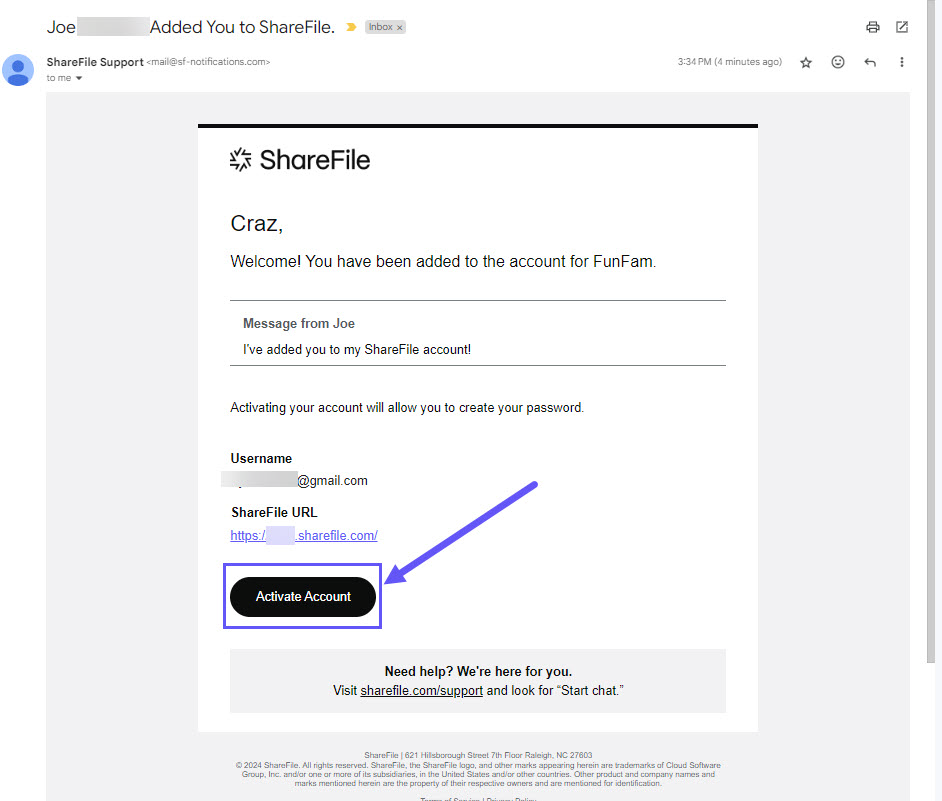
New clients can use the following steps to sign in with their social account once they receive the activation email.
-
Open the email and select Activate Account.
-
When the ShareFile Welcome screen displays, select Continue.

-
Select Sign in with Google to link your social account with ShareFile.

-
Select your social account to link.
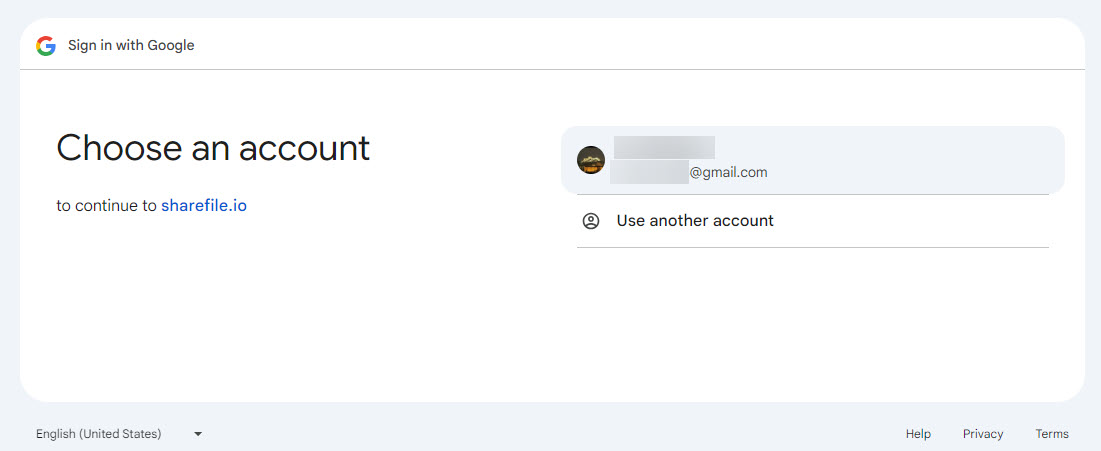
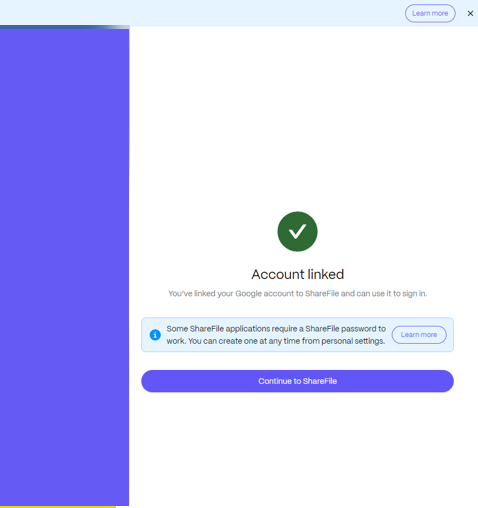
The Account linked Confirmation screen displays.

-
Select Continue to ShareFile open your client dashboard.
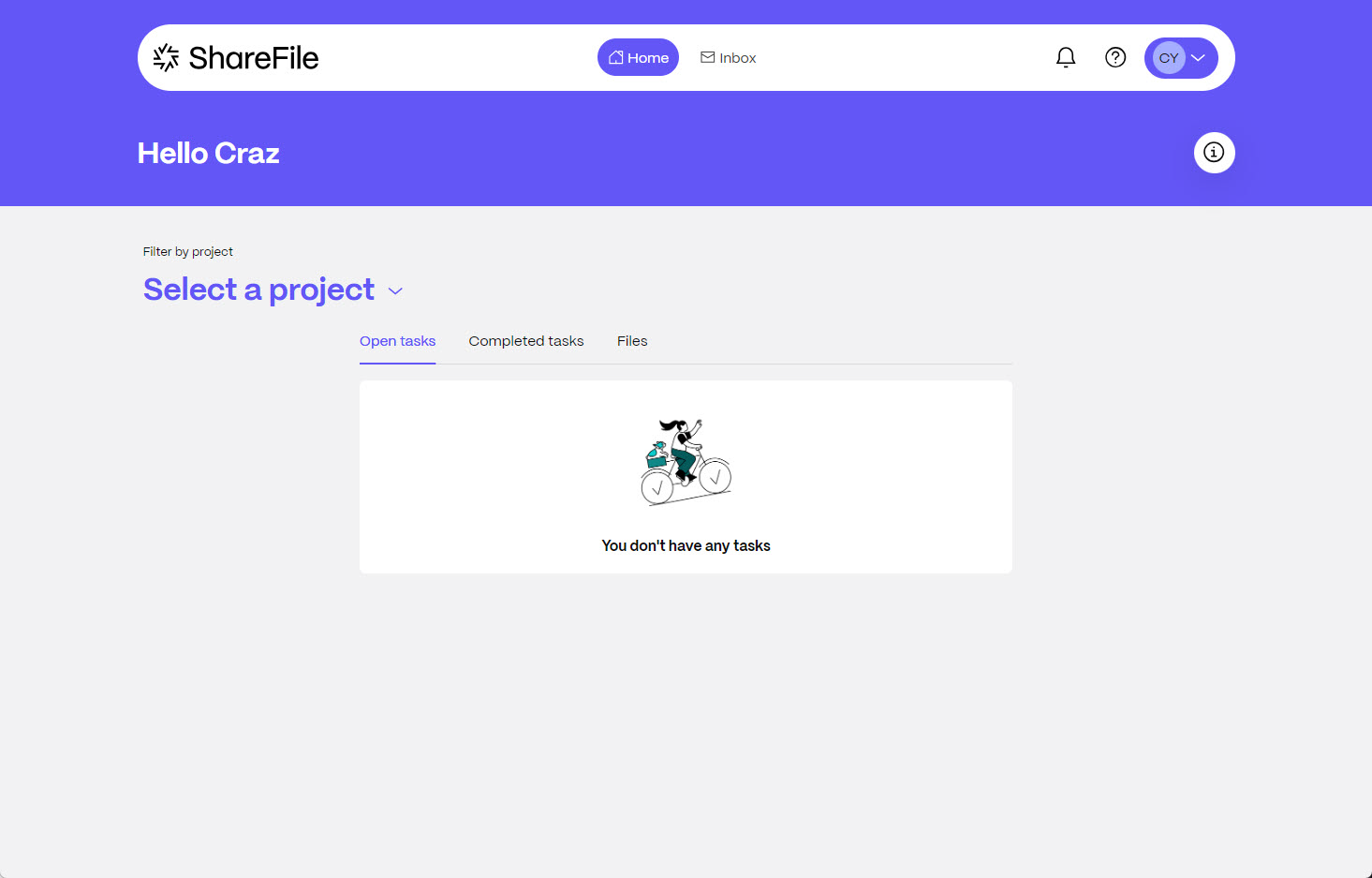
Enable social sign-in from Personal Settings when you are already logged in
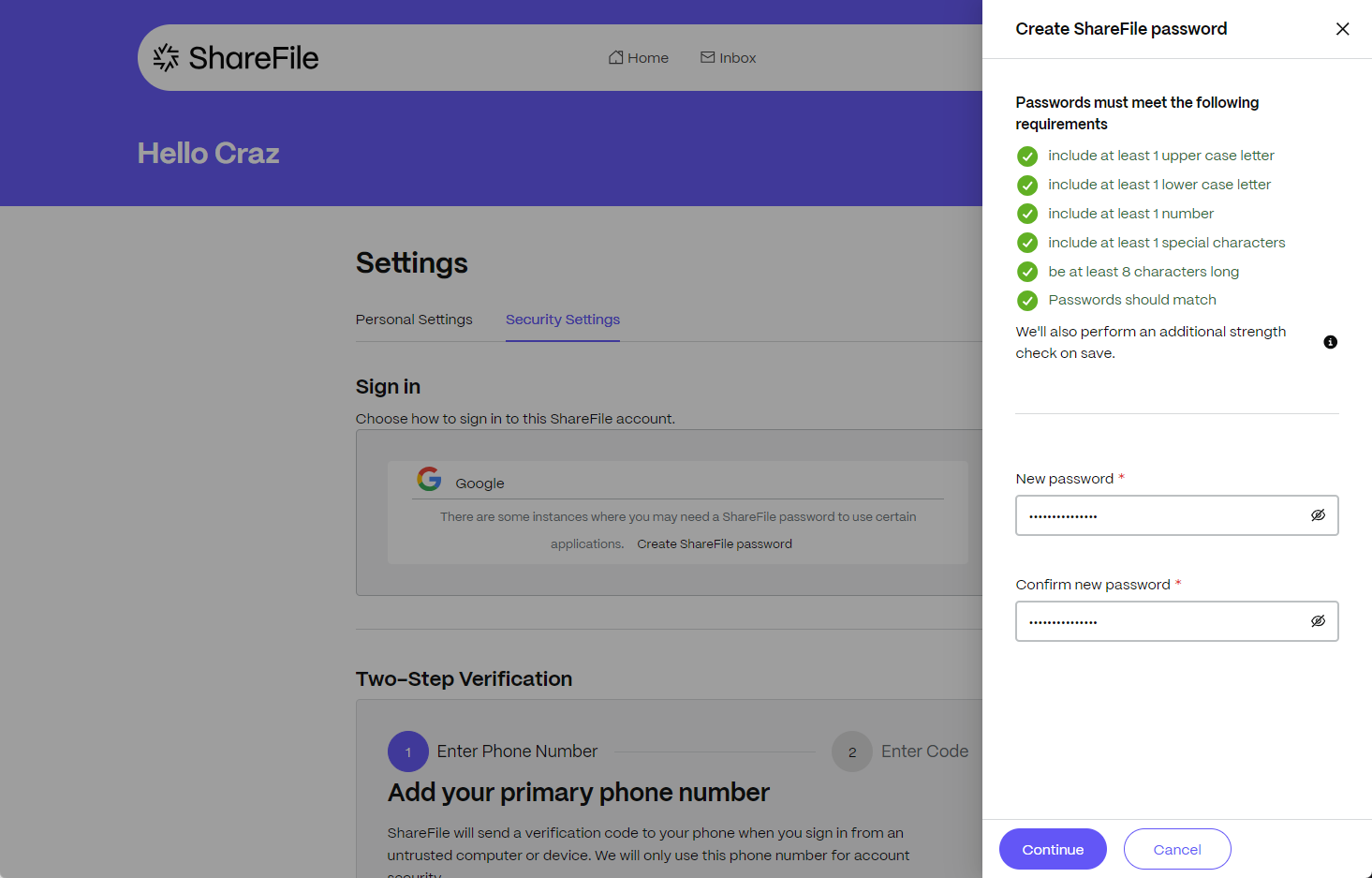
Client users can navigate to Personal Settings > Edit Profile where they can find options to be able to manage authentication options including an option to configure a social sign-in option.
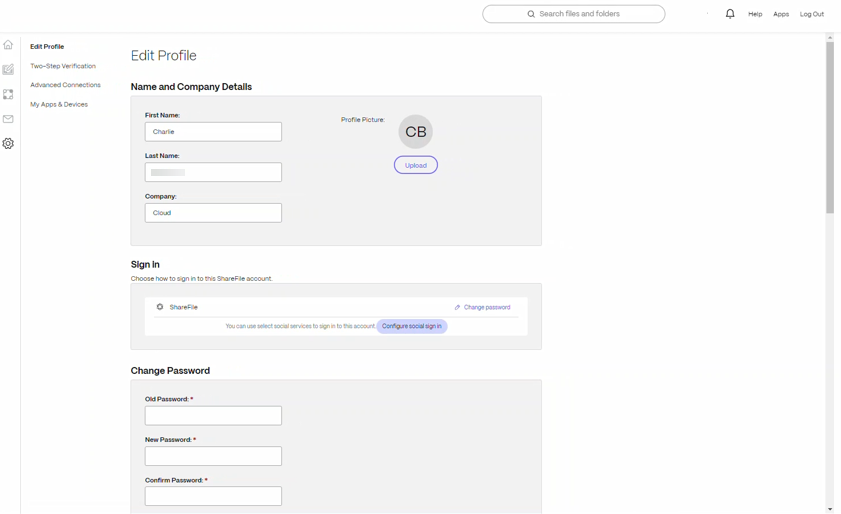
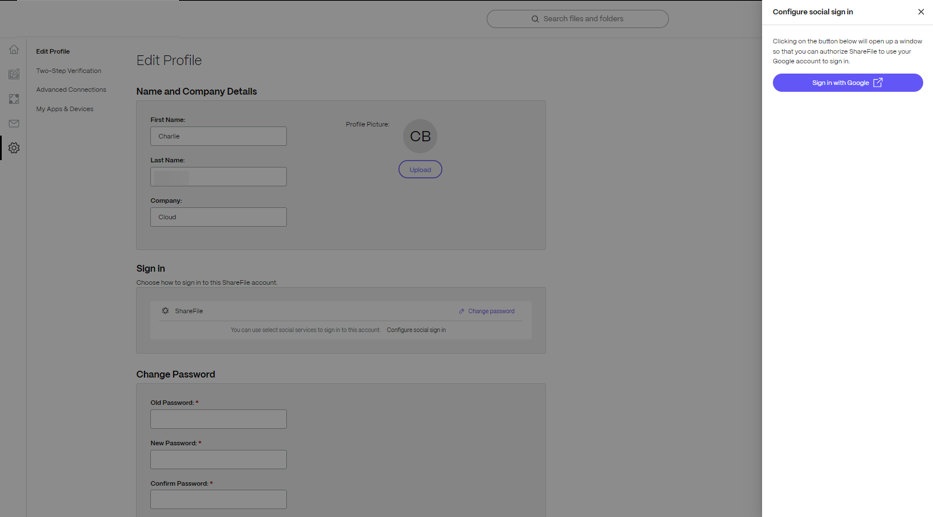
After selecting the Configure social sign-in button, a drawer will open on the right side of the web app where the user can select to sign in with a social-sign in providers.
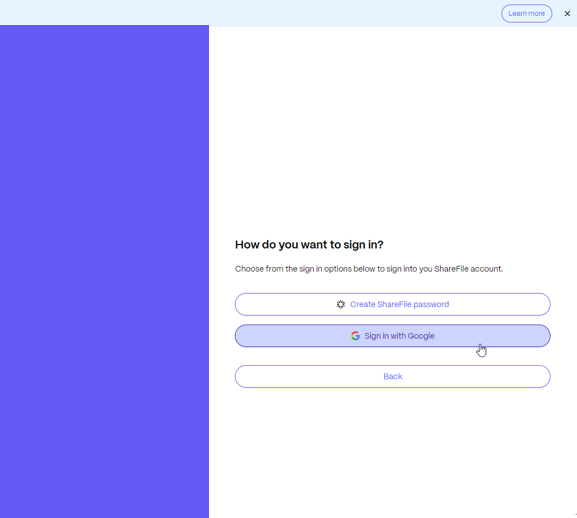
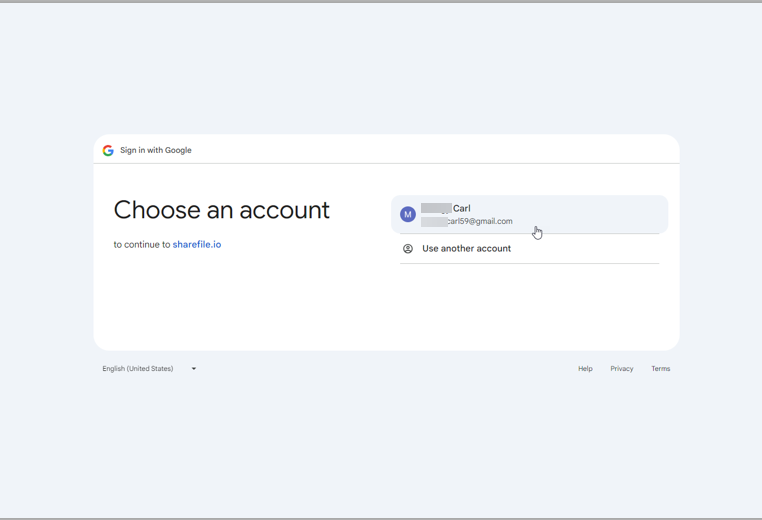
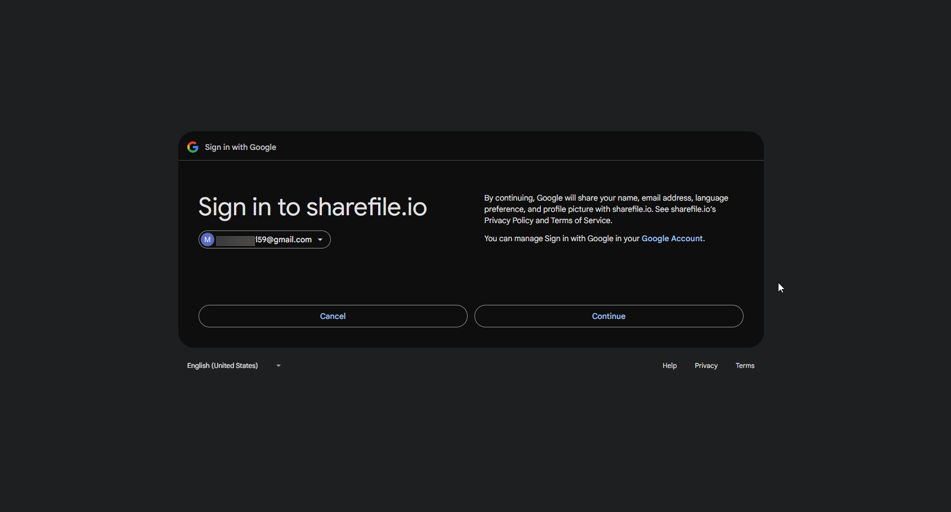
In the following screenshot, the user selects Sign in with Google and are presented with their active sessions on Google that they can select or Use another account to log in as a different user.
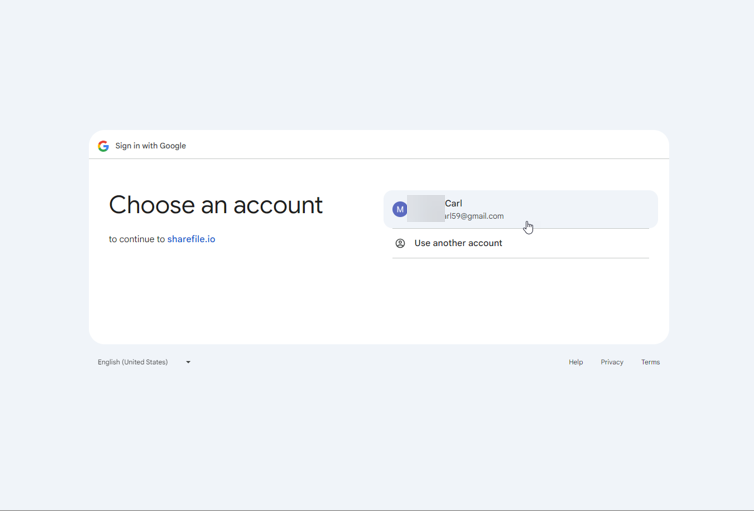
After they choose the Google account that they want to configure, they will then be prompted to sign in to ShareFile.io with their Google account to complete the integration.
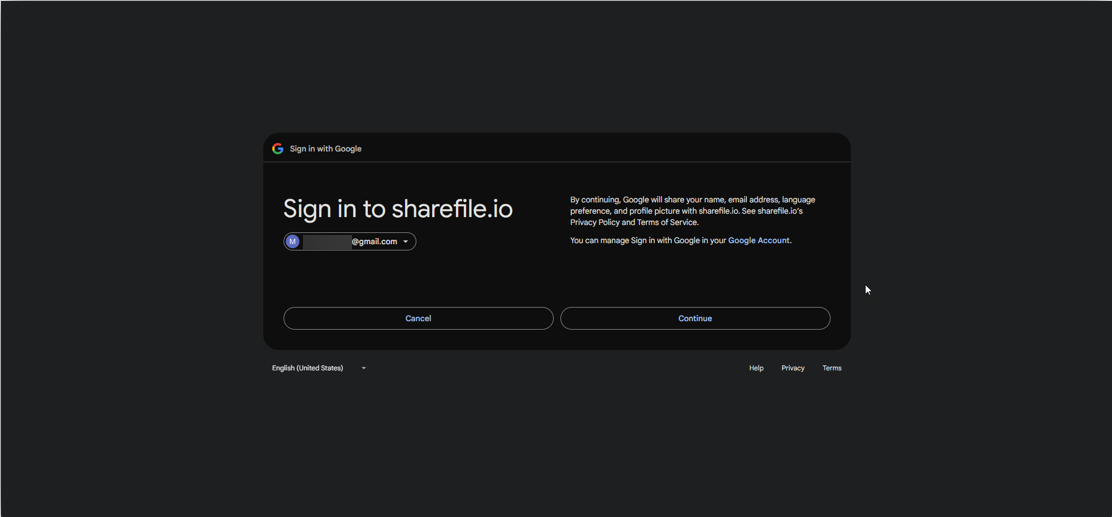
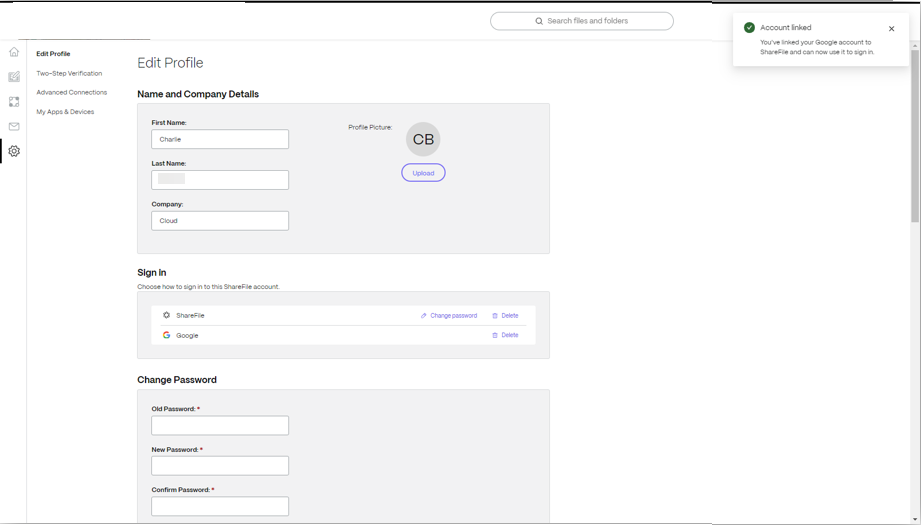
After you select continue, you should receive a notification in the top right of the browser that the Account Linked successfully.
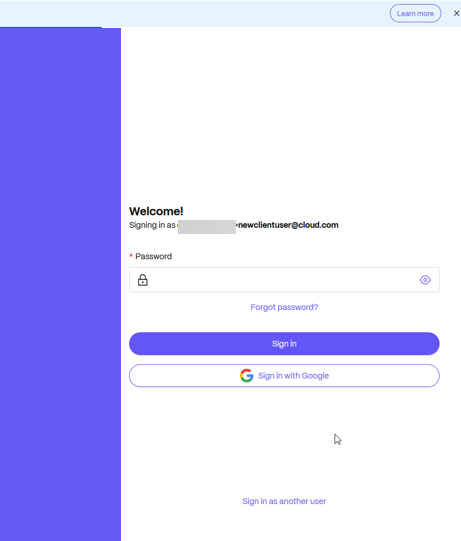
Logging into ShareFile with social sign-in after it has been configured for your user
If you have successfully linked your social sign-in account with your ShareFile user account, you can go to the account’s log-in page and enter in your user email address and select next. A new authentication button should appear which will allow you to log in with your social sign-in that was recently configured.
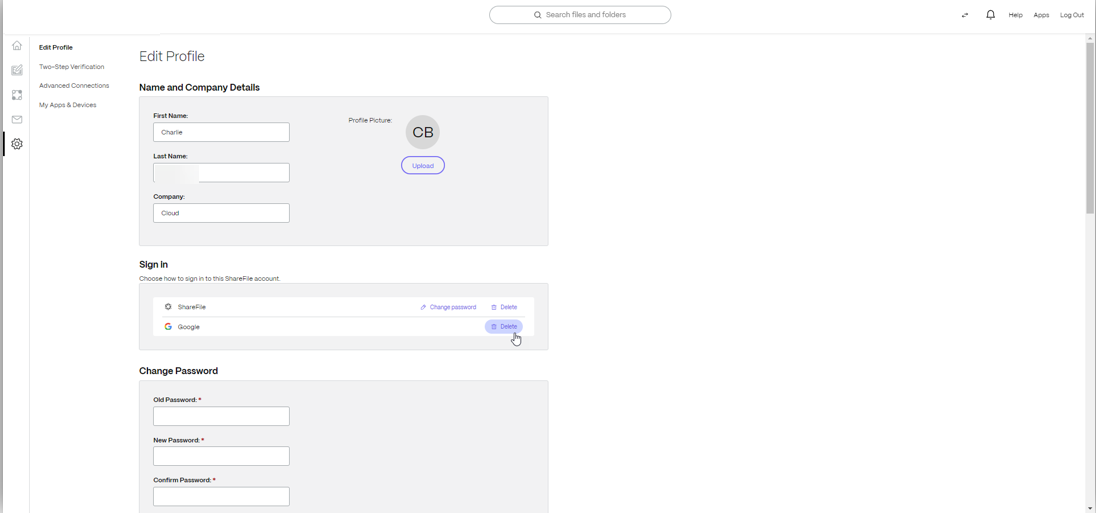
Delete or disable your social sign-in link under Personal Settings
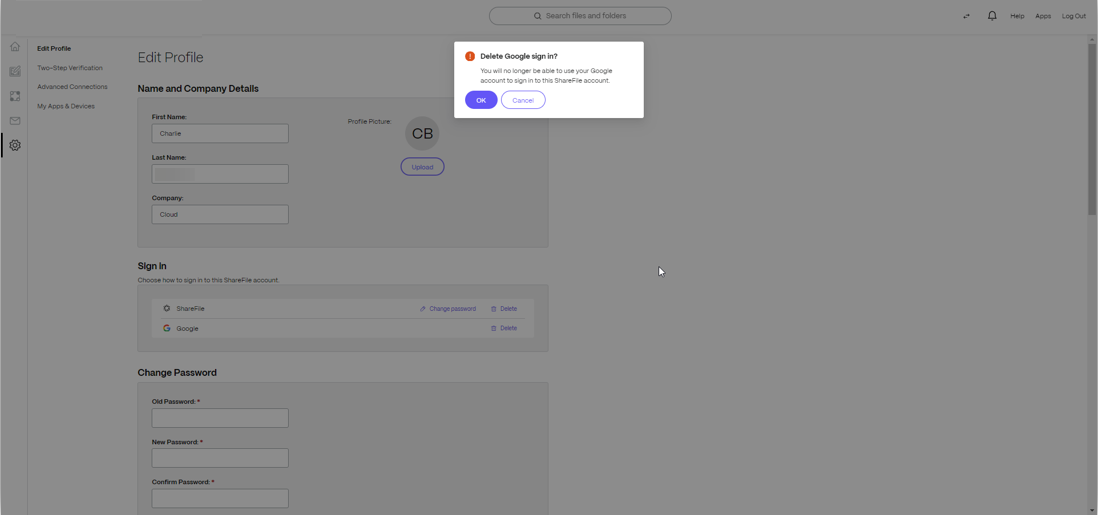
A ShareFile client user can navigate to Personal Settings > Edit Profile to manage their authentication options. If there is a previously configured social sign-in authentication option, the user can choose to select the Delete button and then a modal will pop up asking them to confirm the deletion of the social sign-in authentication option.
Error message when trying to set up social sign-in for an email already on the account
Some users may run into an issue if the social sign-in email address that they are using as already been linked to another user on the account. The user should reach out to their account’s administrator who can help them to identify the other user which has linked that email and see if it can be corrected.

In this article
This Preview product documentation is Citrix Confidential.
You agree to hold this documentation confidential pursuant to the terms of your Citrix Beta/Tech Preview Agreement.
The development, release and timing of any features or functionality described in the Preview documentation remains at our sole discretion and are subject to change without notice or consultation.
The documentation is for informational purposes only and is not a commitment, promise or legal obligation to deliver any material, code or functionality and should not be relied upon in making Citrix product purchase decisions.
If you do not agree, select I DO NOT AGREE to exit.