This content has been machine translated dynamically.
Dieser Inhalt ist eine maschinelle Übersetzung, die dynamisch erstellt wurde. (Haftungsausschluss)
Cet article a été traduit automatiquement de manière dynamique. (Clause de non responsabilité)
Este artículo lo ha traducido una máquina de forma dinámica. (Aviso legal)
此内容已经过机器动态翻译。 放弃
このコンテンツは動的に機械翻訳されています。免責事項
이 콘텐츠는 동적으로 기계 번역되었습니다. 책임 부인
Este texto foi traduzido automaticamente. (Aviso legal)
Questo contenuto è stato tradotto dinamicamente con traduzione automatica.(Esclusione di responsabilità))
This article has been machine translated.
Dieser Artikel wurde maschinell übersetzt. (Haftungsausschluss)
Ce article a été traduit automatiquement. (Clause de non responsabilité)
Este artículo ha sido traducido automáticamente. (Aviso legal)
この記事は機械翻訳されています.免責事項
이 기사는 기계 번역되었습니다.책임 부인
Este artigo foi traduzido automaticamente.(Aviso legal)
这篇文章已经过机器翻译.放弃
Questo articolo è stato tradotto automaticamente.(Esclusione di responsabilità))
Translation failed!
Improved Document Request List Experience in ShareFile Templates
ShareFile has now introduced a new Enhanced Templates User Experience which improves how users discover, understand, and apply templates when creating Document Request Lists (DRLs) in ShareFile.
The new templates experience significantly reduces the time required to create structured workflows such as audits, onboarding requests, compliance documentation, or client information collection. You can now browse available templates, preview their contents, and apply them seamlessly without leaving the creation workflow.
Who Benefits
The new templates experience is enabled for the following ShareFile plans tiers:
- ShareFile Premium
- ShareFile Advantage (DRL-enabled environments)
Platform Scope
Available on: Web Not available on: Mobile
Key Capabilities
| Capability | What It Does | Who Sees It |
|---|---|---|
| Templates surfaced during DRL creation | Shows available templates directly inside the DRL creation flow | Employee user |
| Template Preview | Allows users to review template details before applying | Employee user |
| Template filters | Filters by ownership, industry, or tags to quickly locate relevant templates | Employee user |
| Seamless template application | Applies the template and confirms successful creation | Employee user |
| Convert Document Request List to template | Allows users to save an existing request list as a reusable template | Employee user,Admin |
| Template sharing | Supports organization-wide template sharing | Admin, Employee user (with permissions) |
| Bulk template actions | Enables actions such as share or delete across multiple templates | Admin |
Activation & Availability
Is this feature enabled by default?
Yes, for DRL-enabled environments.
How to enable
No action required. Templates appear automatically during the DRL creation flow.
How to disable
Not configurable in the initial release.
Creating a Document Request List (DRL) from a Template
You can now create a Document Request List (DRL) from an existing template by following the given steps:
-
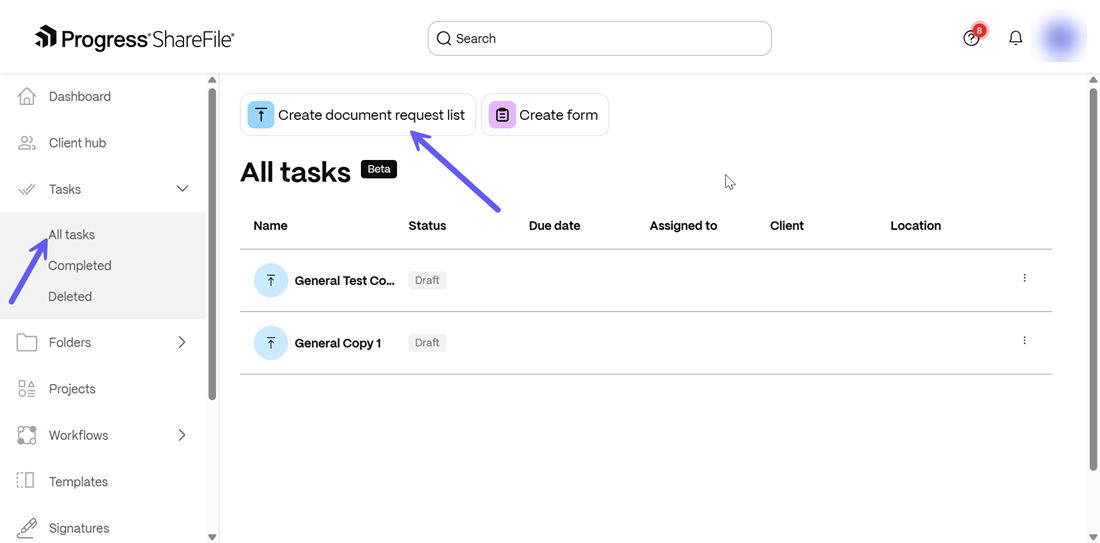
Go to the Tasks menu in the ShareFile dashboard and select All Tasks. Click on the Create Document Request List button as shown below:
-
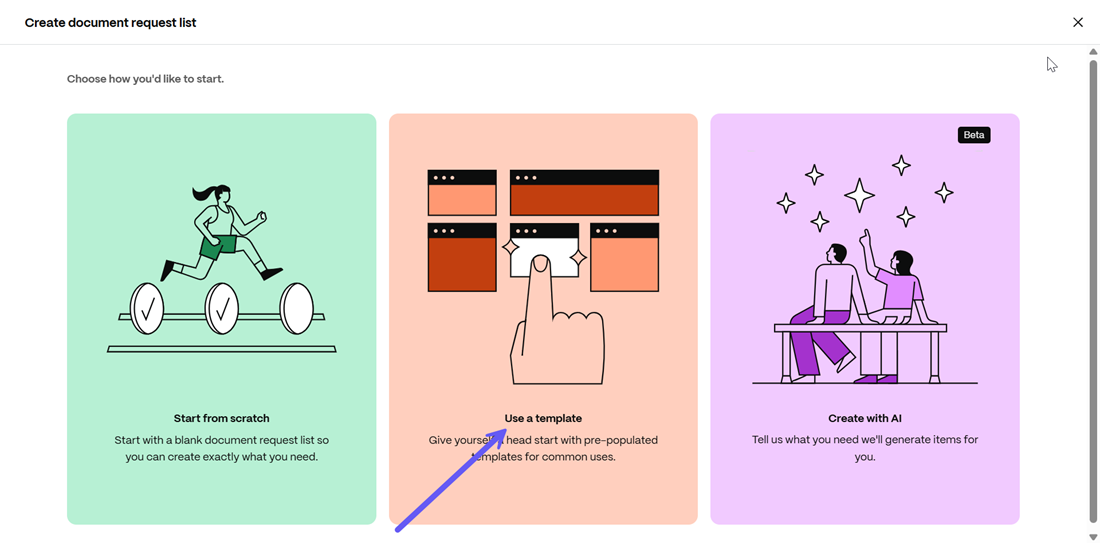
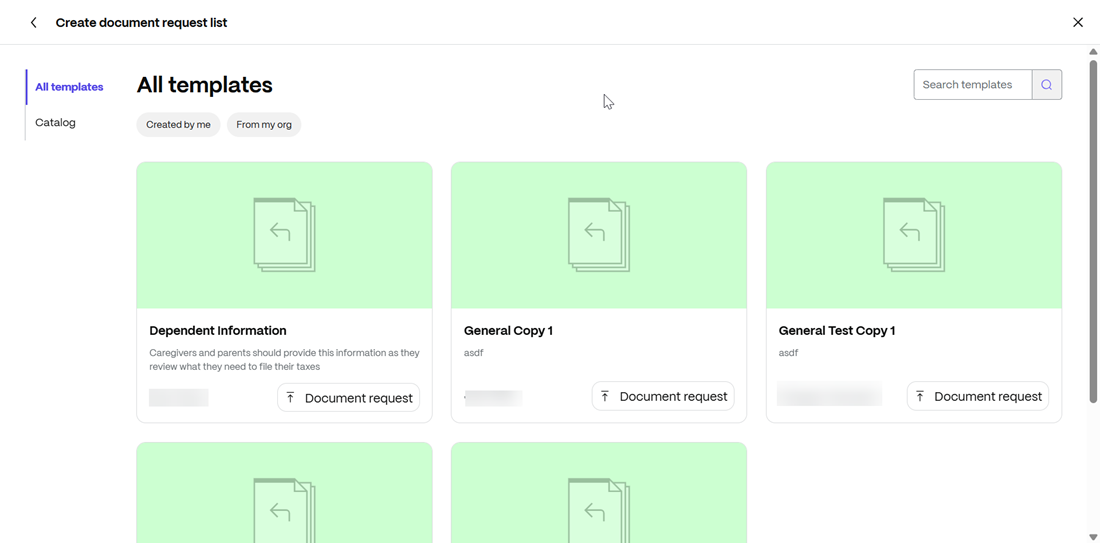
From the Create document request list menu that opens,choose the Use a template and the All Templates menu for DRLs is displayed.
-
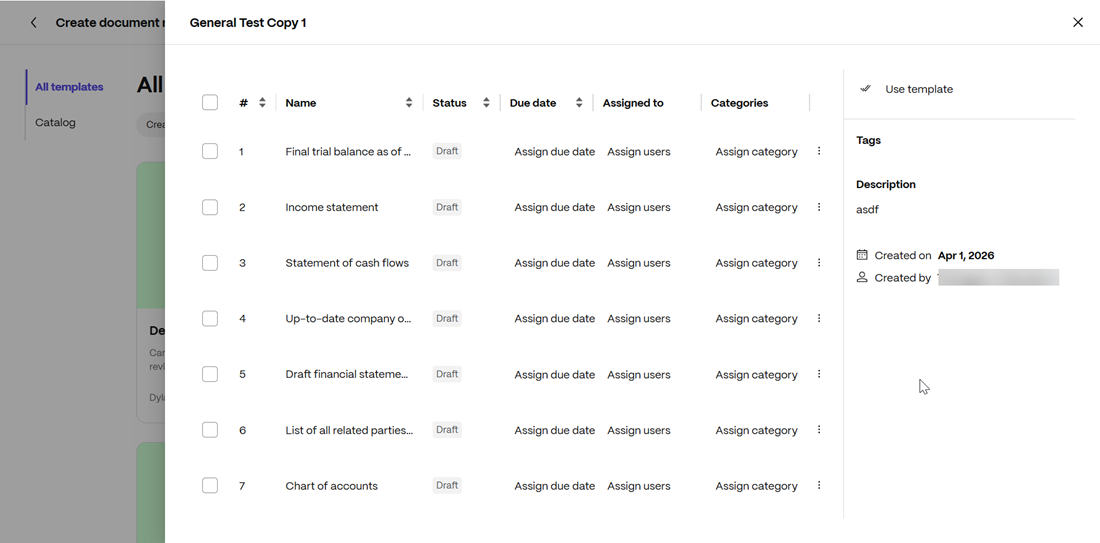
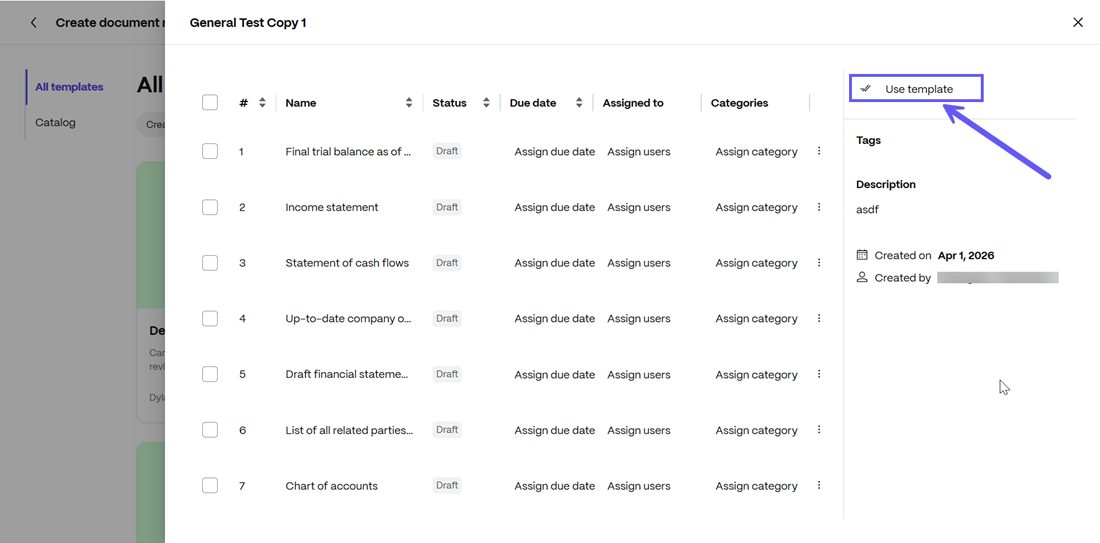
You can choose to filter available request lists by selecting the Created by me or From my org options. Once applied, you can preview the template before creating the DRL to ensure it matches your needs.
-
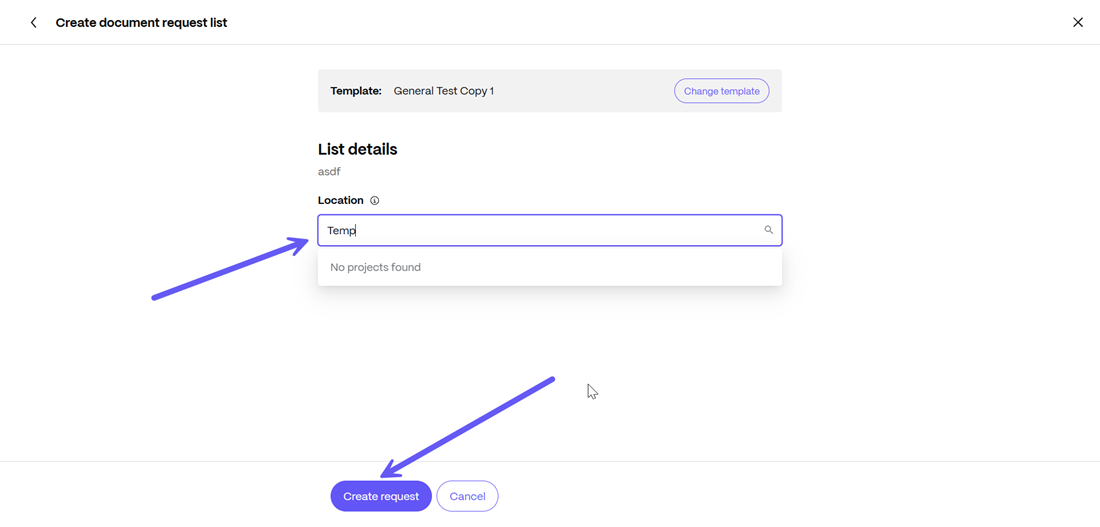
Once you have finalised the template, you can select the Use template option as shown below. From the menu that opens, you can select a project name(optional) and click on Create request.
-
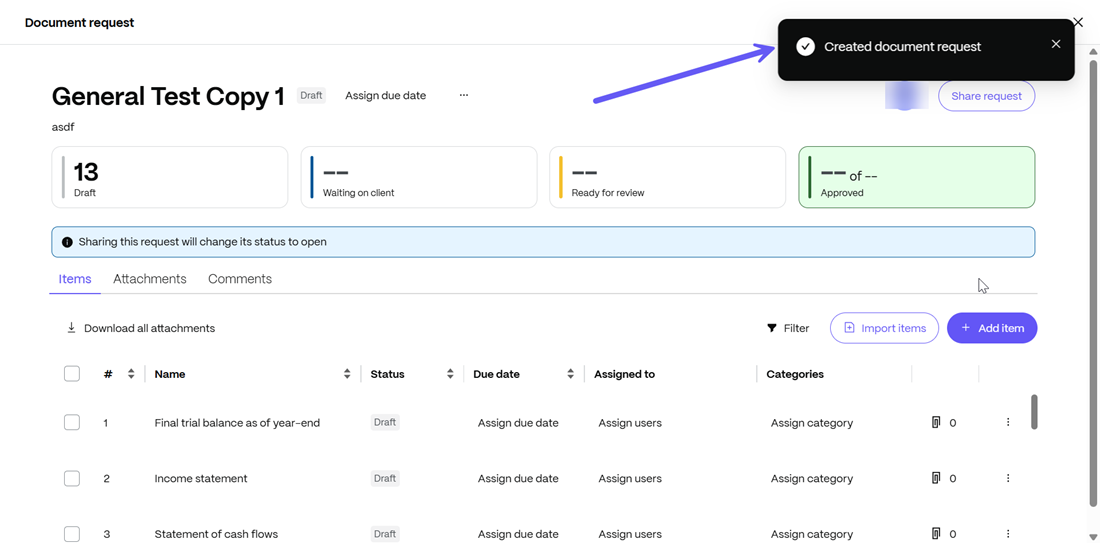
A success message is displayed and the newly created DRL opens on the screen.
Creating a Template from an Existing Document Request List(DRL)
You can now create and save a template from an existing DRL. To do so, follow the given steps:
-
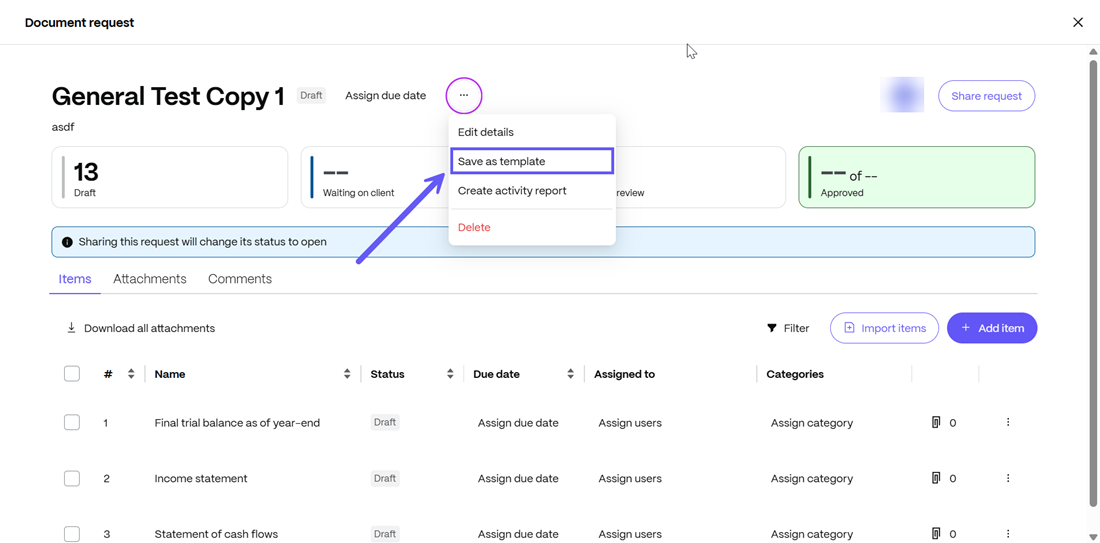
Navigate to the Document Request List(DRL) which you wish to save as a template. From the Action menu next to the DRL name, select the Save as template option as shown below:
-
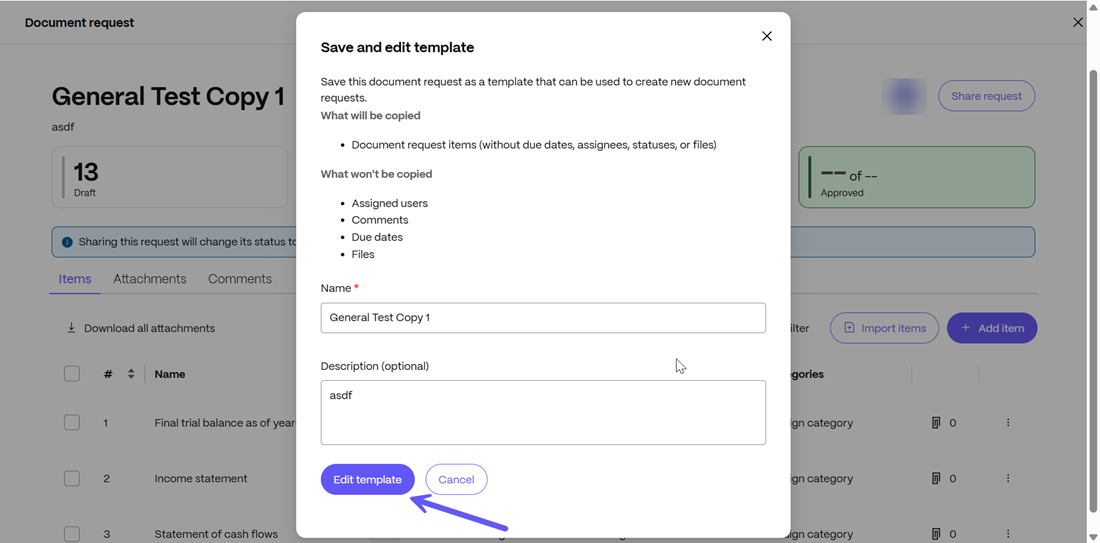
From the Save and edit template dialog box that opens, fill in the details like Name and Description and click on the Edit template button to proceed to the template preview screen.
-
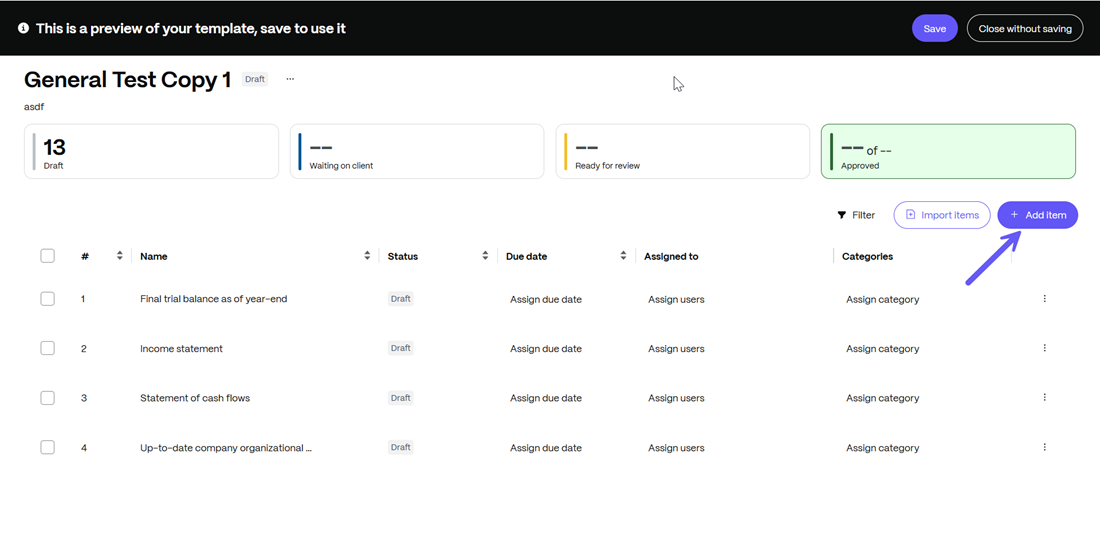
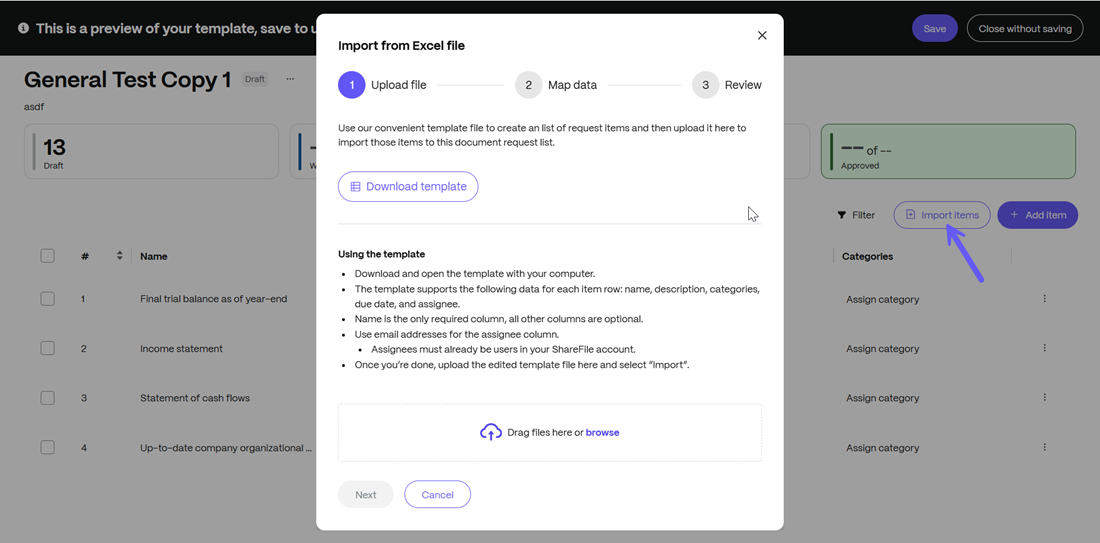
The draft editor screen opens. You can click on the Add item button to add items directly into the template or you can select the Import items option to import items into your template directly from Excel.
-
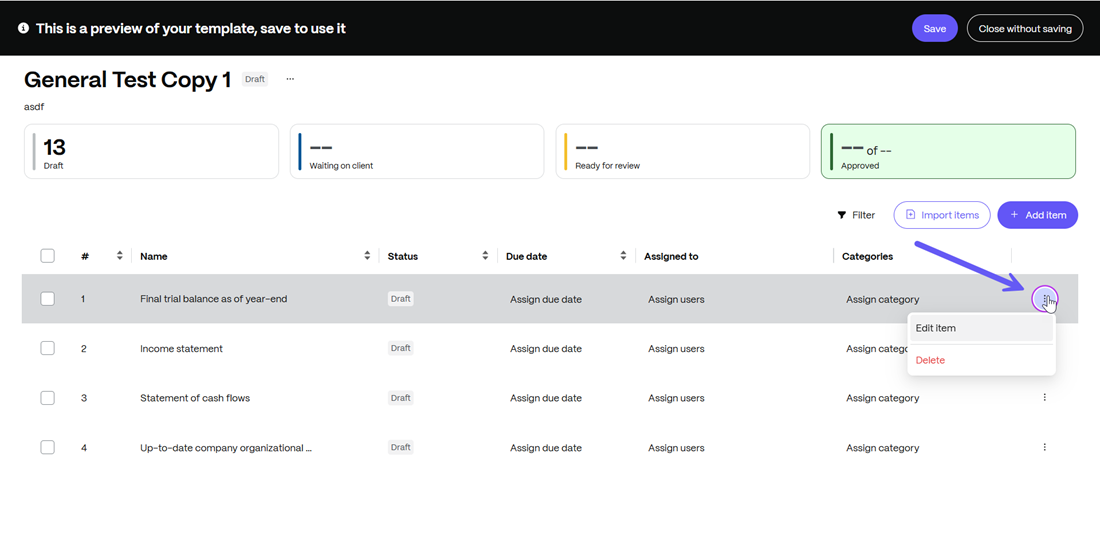
You can also click on the Action menu next to any DRL item as shown below and click on the Edit Item option to edit an existing item in the template or select the Delete option to delete the item from the template.
-
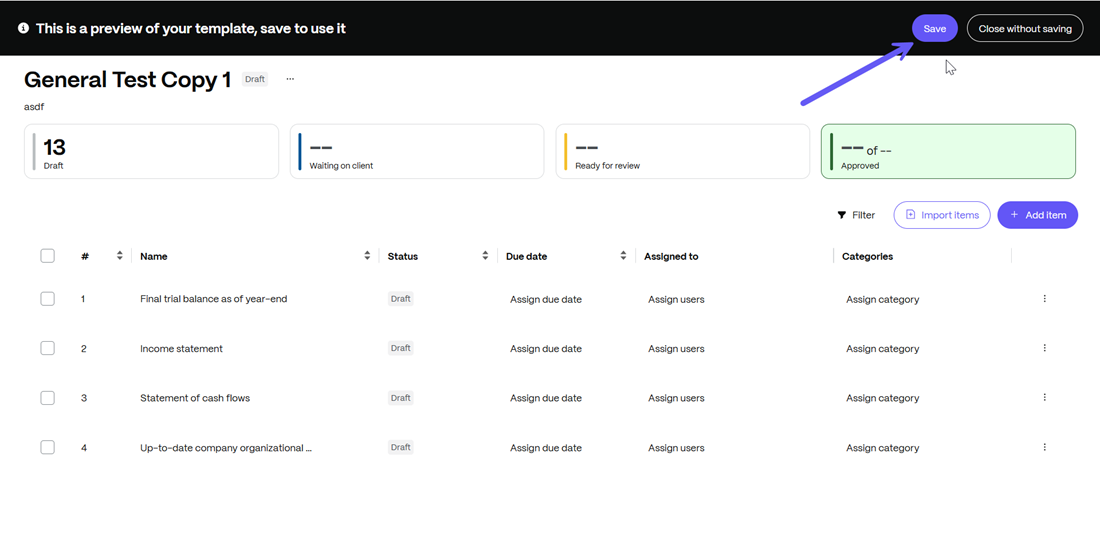
Upon completing the changes, select Save and your template is created and saved.
-
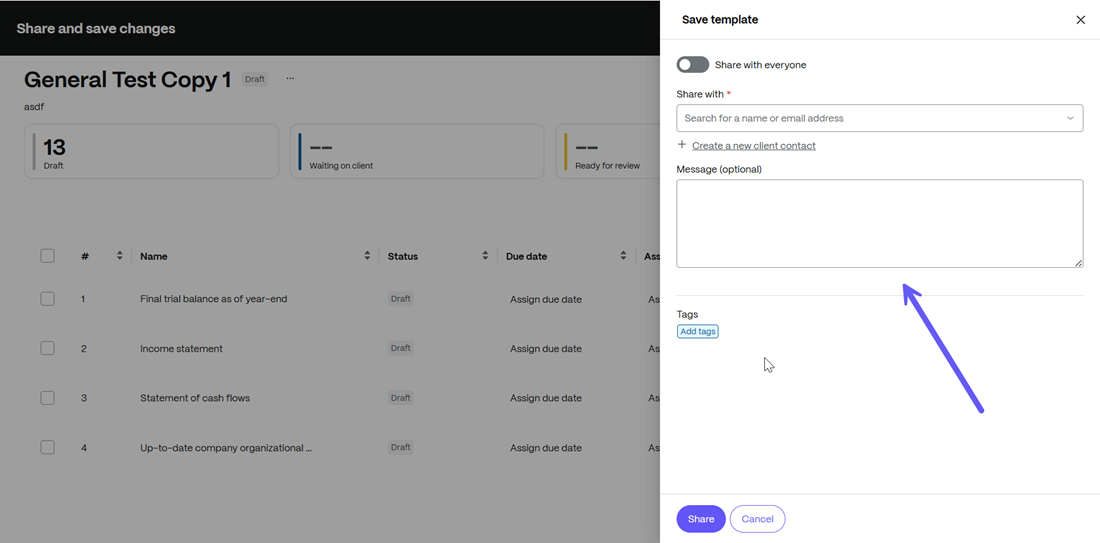
The Save template dialog box is opened. If you do not wish to share the template with everyone, you can choose to share the newly created template with specific users and add a message(optional) as shown below:
-
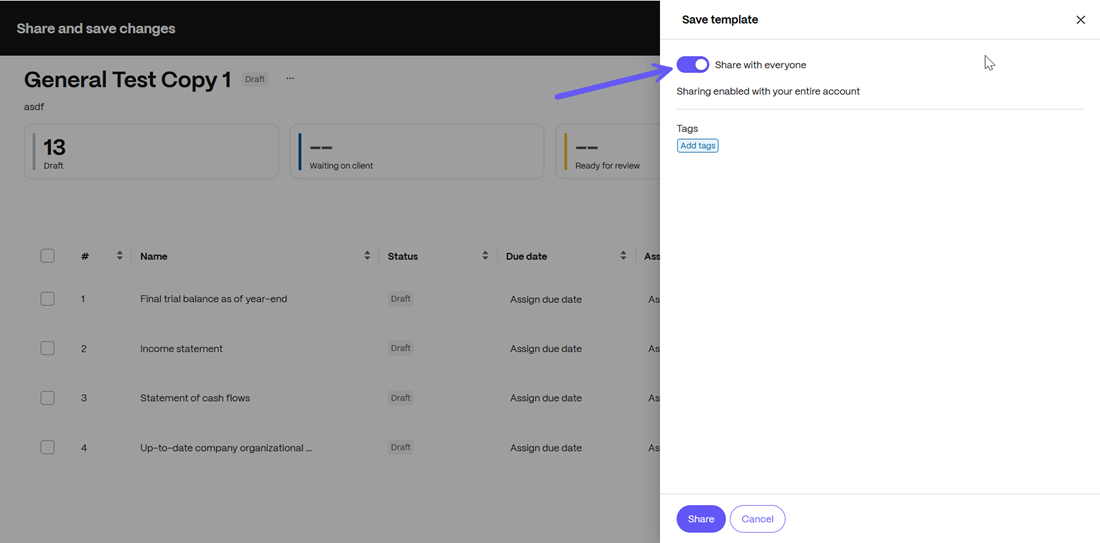
However if you wish to share this template with everyone on the account, you can enable the toggle marked Share with everyone and click on the Share button. This will provide access to the saved template with every user who has access to the account.
Using the Saved Template from the Templates Gallery
Once you have created and saved the template, you can now access it from the Templates Gallery. The new templates experience now allows to make changes like edit, duplicate or manage access to the template.
-
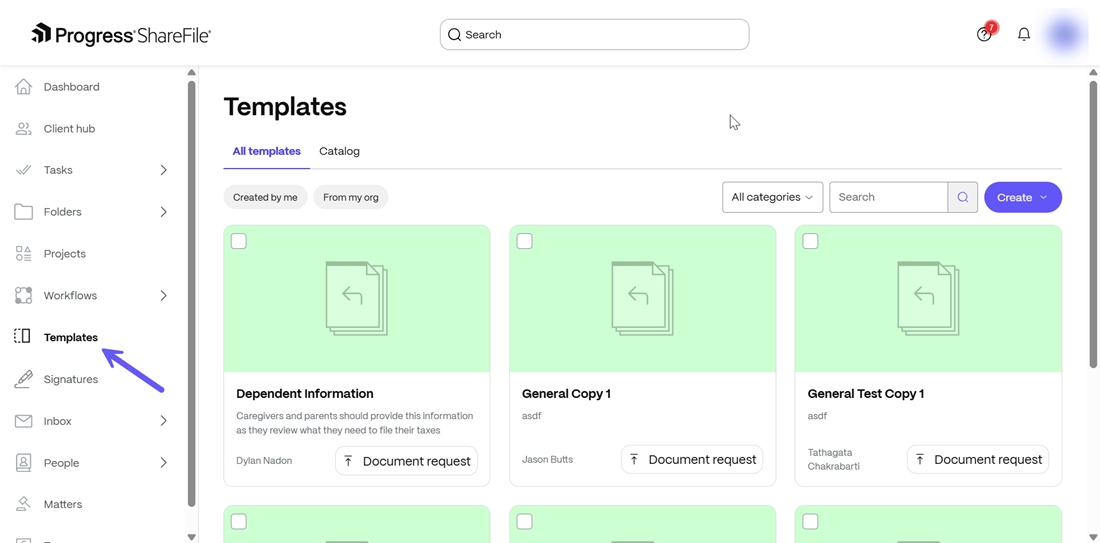
From the ShareFile dashboard, go to the Templates menu.
-
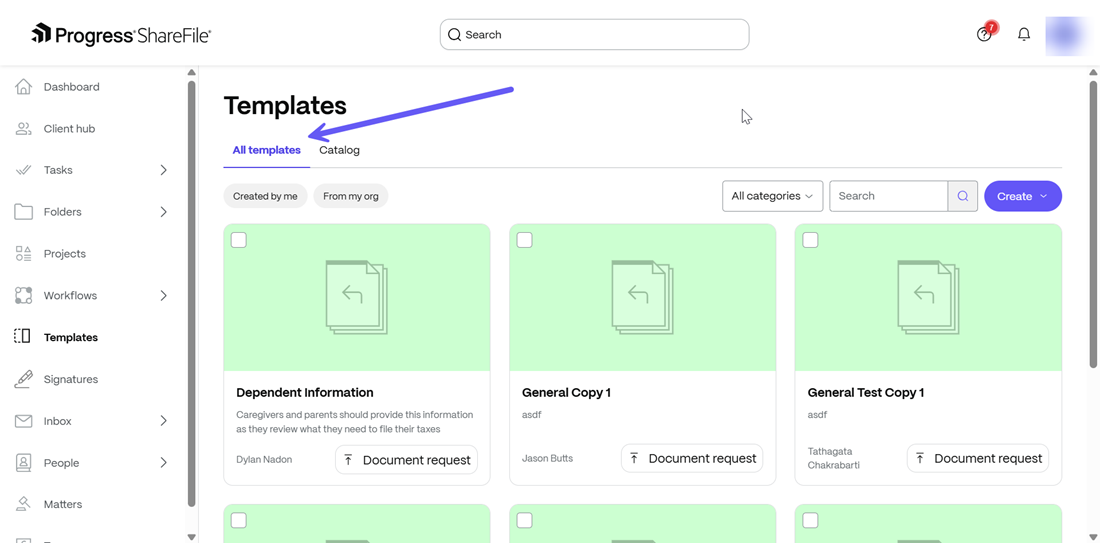
The new templates experience now offers access to templates through a simplified two-tab view - All templates and Catalog.
-
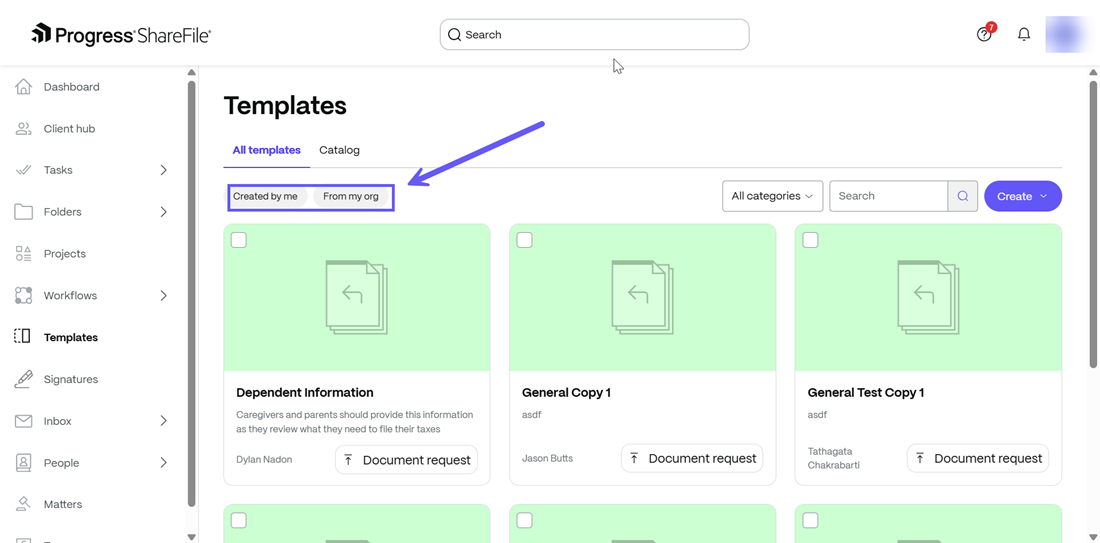
The All templates view has filters like Created by me and From my org. The filters help users can easily find the desired template in the library.
-
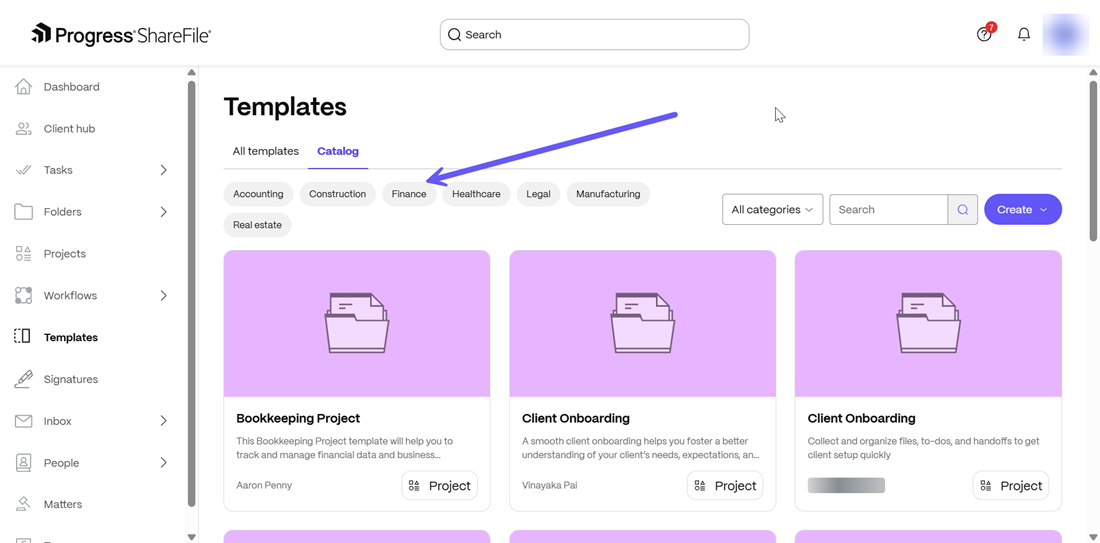
The Catalog view offers industry-based filters like Accounting,Construction,Finance,Healthcare,Legal,Manufacturing and Real Estate to assist users with finding templates in the Catalog specific to the desired industry.
-
-
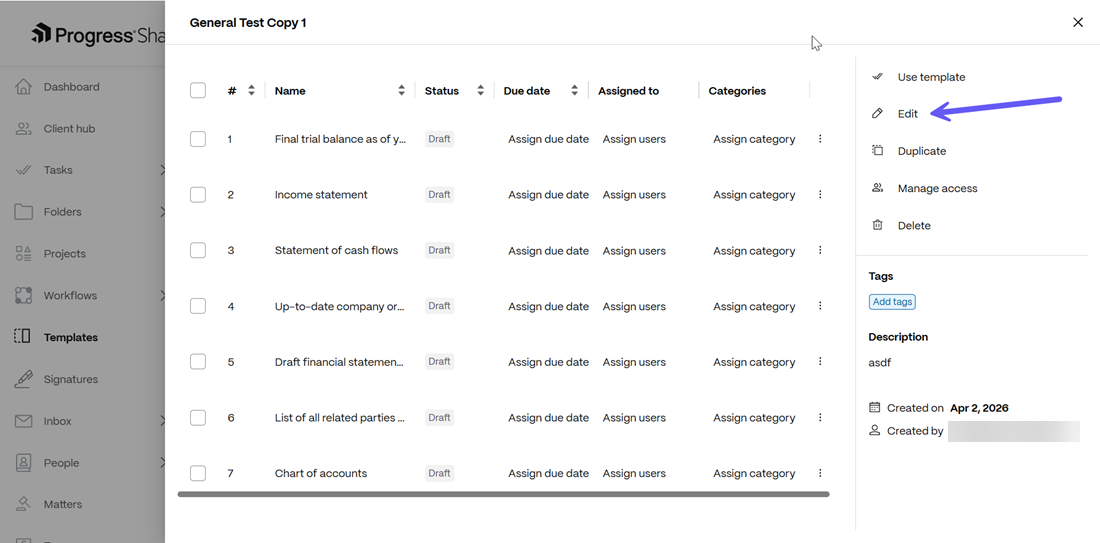
You can select the desired template from the Templates library and the templates preview menu opens. On the right hand pane, click on Edit and the template editing window opens.
-
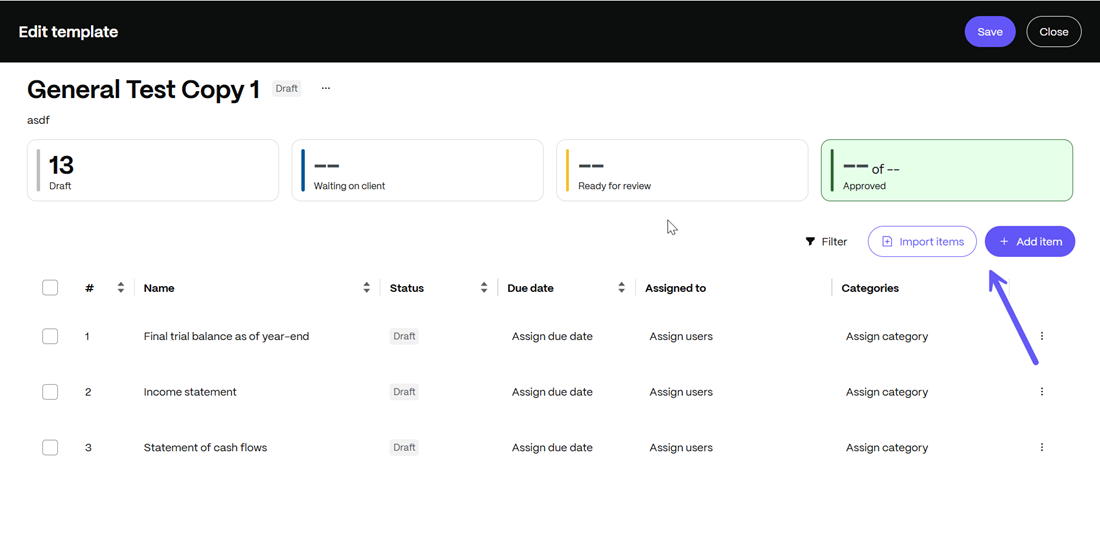
The draft editor screen opens. You can click on the Add item button to add items directly into the template or you can select the Import items option to import items into your template directly from Excel.
-
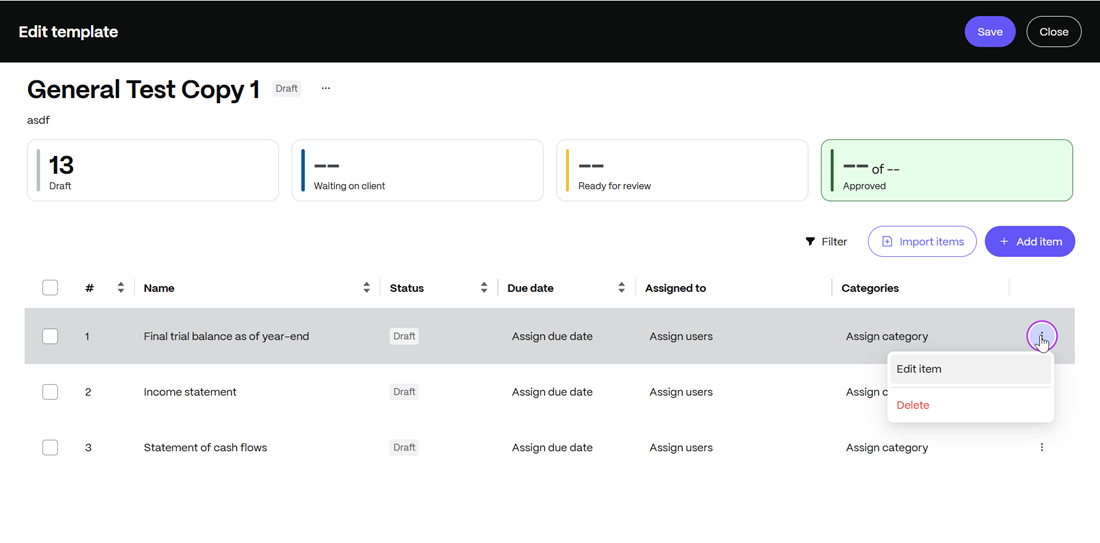
You can also click on the Action menu as shown below and click on the Edit Item option to edit an existing item in the template or select the Delete option to delete an item from the template.
-
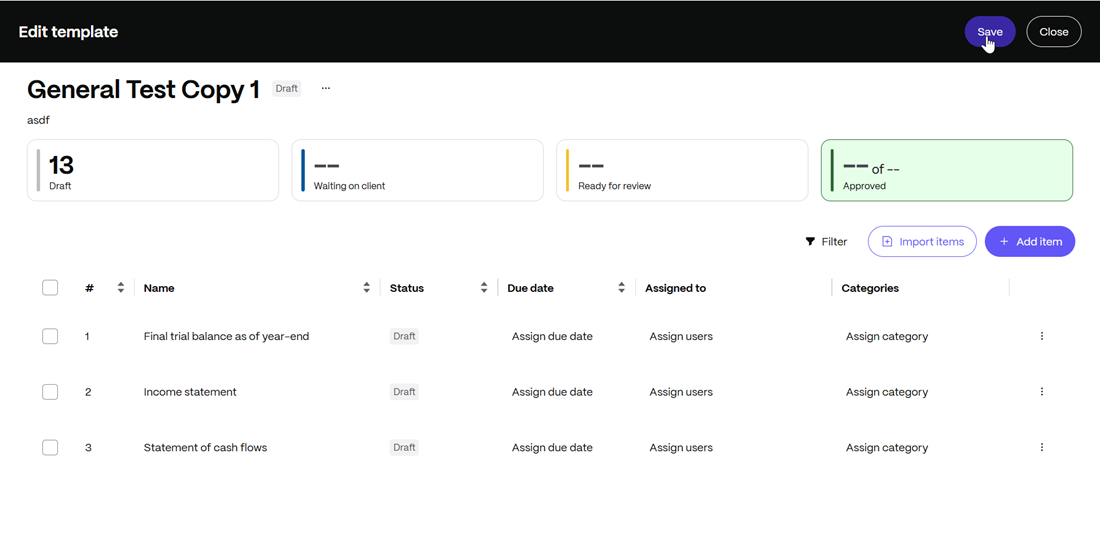
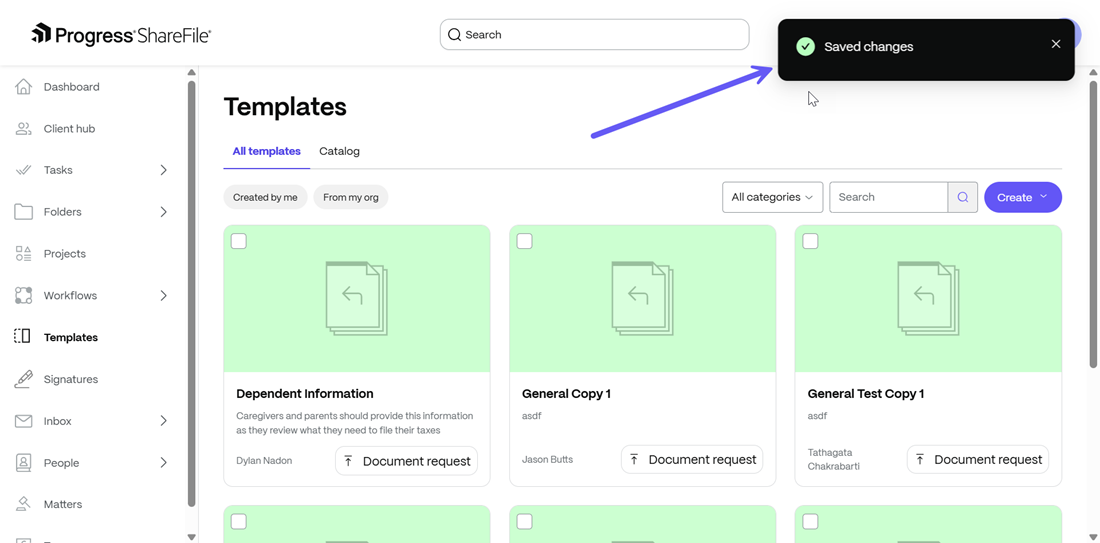
Upon completing the changes, select Save and your template is created and saved.
Frequently Asked Questions
What changed about templates in this release?
Templates are now integrated directly into the DRL creation flow so users can easily discover and apply them without navigating separate areas.
Can I preview a template before using it?
Yes. The template preview shows the items and structure that will be created before you apply it.
Can I convert an existing DRL into a template?
Yes. Users can save an existing DRL as a template, edit its name and description, and reuse it later.
Can templates be shared across the organization?
Yes. Templates can be shared organization wide depending on permissions.
What happens if a template is deleted?
Deleted templates cannot be restored in this version.
Can I filter templates?
Yes. Templates can be filtered by ownership and industry to help users quickly find relevant ones.
Does this include AI generated templates?
No. AI assisted template discovery and generation are out of scope for this iteration.
Can i share with everyone from the template gallery?
As of now share with everyone is only enabled on template creation and will be enabled in other resources with the next version.
Share
Share
This Preview product documentation is Citrix Confidential.
You agree to hold this documentation confidential pursuant to the terms of your Citrix Beta/Tech Preview Agreement.
The development, release and timing of any features or functionality described in the Preview documentation remains at our sole discretion and are subject to change without notice or consultation.
The documentation is for informational purposes only and is not a commitment, promise or legal obligation to deliver any material, code or functionality and should not be relied upon in making Citrix product purchase decisions.
If you do not agree, select I DO NOT AGREE to exit.