This content has been machine translated dynamically.
Dieser Inhalt ist eine maschinelle Übersetzung, die dynamisch erstellt wurde. (Haftungsausschluss)
Cet article a été traduit automatiquement de manière dynamique. (Clause de non responsabilité)
Este artículo lo ha traducido una máquina de forma dinámica. (Aviso legal)
此内容已经过机器动态翻译。 放弃
このコンテンツは動的に機械翻訳されています。免責事項
이 콘텐츠는 동적으로 기계 번역되었습니다. 책임 부인
Este texto foi traduzido automaticamente. (Aviso legal)
Questo contenuto è stato tradotto dinamicamente con traduzione automatica.(Esclusione di responsabilità))
This article has been machine translated.
Dieser Artikel wurde maschinell übersetzt. (Haftungsausschluss)
Ce article a été traduit automatiquement. (Clause de non responsabilité)
Este artículo ha sido traducido automáticamente. (Aviso legal)
この記事は機械翻訳されています.免責事項
이 기사는 기계 번역되었습니다.책임 부인
Este artigo foi traduzido automaticamente.(Aviso legal)
这篇文章已经过机器翻译.放弃
Questo articolo è stato tradotto automaticamente.(Esclusione di responsabilità))
Translation failed!
FAQ - Client Portal
This article covers the most common questions revolving around the new ShareFile client portal experience.
What does the ShareFile client portal offer?
For accounts on the ShareFile Advanced plan
The client contact can access Folders, encrypted emails (Inbox), search, notifications, help center, and their User Profile (which contains applications, settings, and a sign out button) on top of the menu bar from any page of the portal.
For accounts on the ShareFile Premium plan and above
The client contact can access Tasks, Folders, encrypted emails (Inbox), search, notifications, help center, and their User Profile (which contains applications, settings, and a sign out button) on top of the menu bar from any page of the portal.
Tasks are available for Service Providers to send to clients including Request List items, eSignature requests, and Forms requests from a Project or standalone requests from eSignature or Request List items.
Why does my client contact not see Folders or Tasks?
We highly recommend giving your clients contacts access to some content within your ShareFile account prior to inviting your client contacts to your ShareFile account so they have content available for them to view and/or take action on when they log-in for the first time. If you don’t do this, they may not see much value by logging into an empty ShareFile client portal.
We have also introduced logic to try and avoid taking client contacts to dead end pages where they don’t have content so they can focus on the content available to them.
- If the client contact has only been added to folders in the classic ShareFile folder experience and hasn’t been assigned any Tasks, they will only see Folders.
- If the client contact has only been assigned Tasks and not added to any folders, they will only see Tasks.
NOTE:
Client contacts will always see the Inbox in their menu bar, regardless of whether a message has been sent to them or not.
How can clients find their Folders?
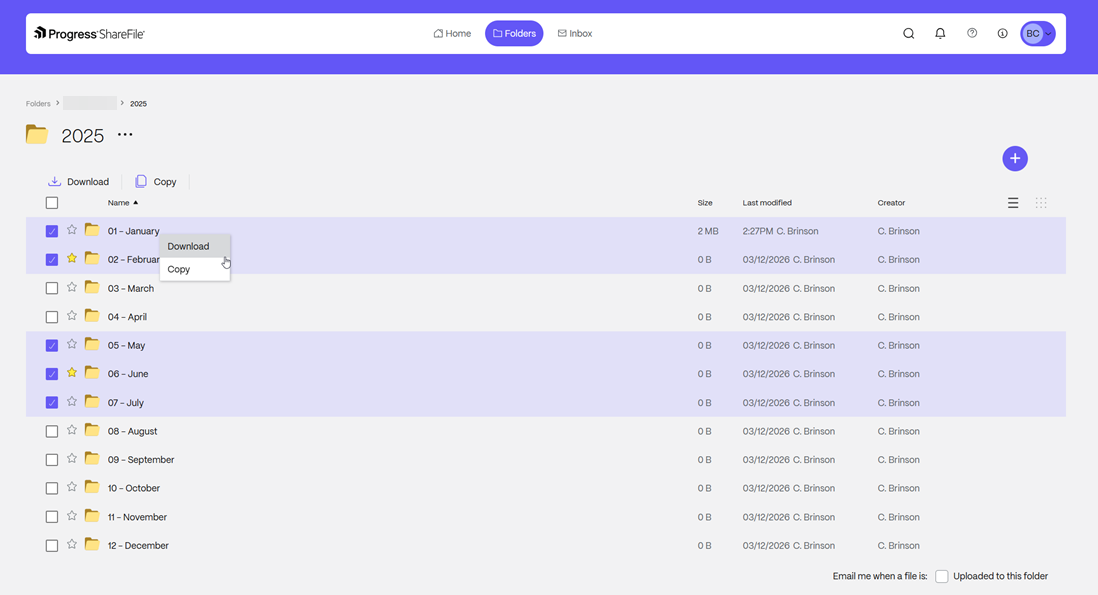
They can click on Folders in the top menu to interact with the folders and files that you have provided them access to.
With the new client portal, will there be any differences in the Folder experience between the classic ShareFile client portal and the new ShareFile client portal?
No. We have been working hard to bring over all of the features and functionality from our classic ShareFile client portal into the new ShareFile client portal. Clients will be able to multi-select, add notes, search for files, favorite and all of the same workflows that they been doing in the classic experience.
With the new client portal, will client contacts be able to navigate from the link in the email notification to the client portal, if I shared files or folders with them?
Yes. Your client contacts will be able to click on the link whether it was sent via a Send a File link to them or if it is a direct link to a folder that they have access to and they will be taken directly to the location.
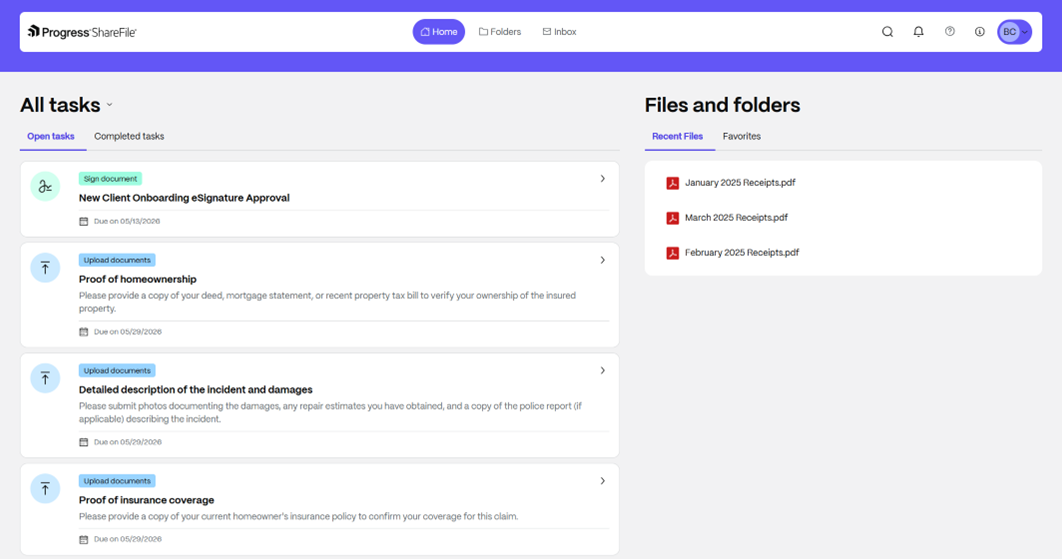
How does my client know which Task(s) they need to complete?
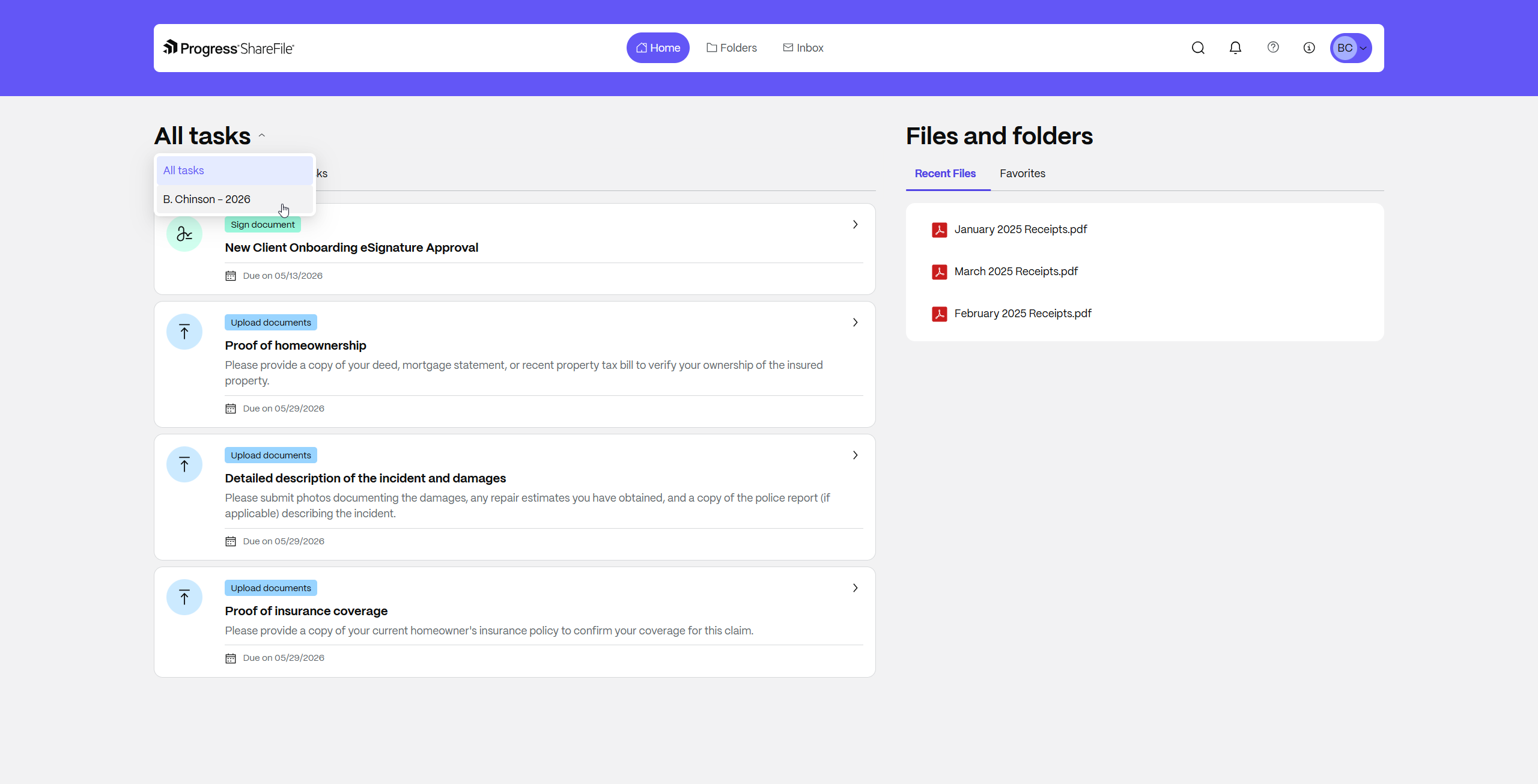
All tasks that have been assigned to your client contact will be available to them on the Home tab and each task will include a due date if a due date was specified on the task during creation. Client users can select a specific grouping of Tasks from the dropdown menu to see the tasks and files associated with each other.
Why doesn’t my client contact see any Tasks in their ShareFile client portal?
They have likely not been assigned to any tasks or it was assigned to the wrong client contact. If the Tasks have been assigned to the correct client contact, please contact ShareFile’s customer support to troubleshoot.
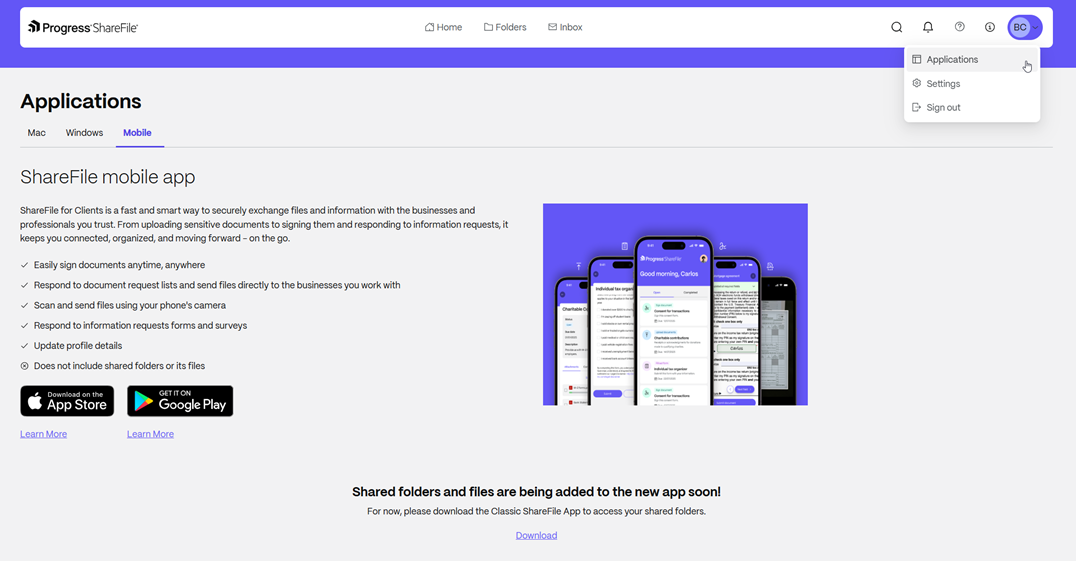
How do my client contacts download the ShareFile mobile application to complete Tasks on the go?
We provide direct links to the ShareFile for Clients mobile application where client contacts can reference and complete Tasks from mobile. This includes using their device’s camera (if supported) to take photos of documents and upload them to you.
Your client contact can log-in and click their profile in the top right and click Applications and then select Mobile. From there, they will need to choose the correct mobile OS for their device.
Share
Share
In this article
- What does the ShareFile client portal offer?
- Why does my client contact not see Folders or Tasks?
- How can clients find their Folders?
- With the new client portal, will there be any differences in the Folder experience between the classic ShareFile client portal and the new ShareFile client portal?
- With the new client portal, will client contacts be able to navigate from the link in the email notification to the client portal, if I shared files or folders with them?
- How does my client know which Task(s) they need to complete?
- Why doesn’t my client contact see any Tasks in their ShareFile client portal?
- How do my client contacts download the ShareFile mobile application to complete Tasks on the go?
This Preview product documentation is Citrix Confidential.
You agree to hold this documentation confidential pursuant to the terms of your Citrix Beta/Tech Preview Agreement.
The development, release and timing of any features or functionality described in the Preview documentation remains at our sole discretion and are subject to change without notice or consultation.
The documentation is for informational purposes only and is not a commitment, promise or legal obligation to deliver any material, code or functionality and should not be relied upon in making Citrix product purchase decisions.
If you do not agree, select I DO NOT AGREE to exit.