This content has been machine translated dynamically.
Dieser Inhalt ist eine maschinelle Übersetzung, die dynamisch erstellt wurde. (Haftungsausschluss)
Cet article a été traduit automatiquement de manière dynamique. (Clause de non responsabilité)
Este artículo lo ha traducido una máquina de forma dinámica. (Aviso legal)
此内容已经过机器动态翻译。 放弃
このコンテンツは動的に機械翻訳されています。免責事項
이 콘텐츠는 동적으로 기계 번역되었습니다. 책임 부인
Este texto foi traduzido automaticamente. (Aviso legal)
Questo contenuto è stato tradotto dinamicamente con traduzione automatica.(Esclusione di responsabilità))
This article has been machine translated.
Dieser Artikel wurde maschinell übersetzt. (Haftungsausschluss)
Ce article a été traduit automatiquement. (Clause de non responsabilité)
Este artículo ha sido traducido automáticamente. (Aviso legal)
この記事は機械翻訳されています.免責事項
이 기사는 기계 번역되었습니다.책임 부인
Este artigo foi traduzido automaticamente.(Aviso legal)
这篇文章已经过机器翻译.放弃
Questo articolo è stato tradotto automaticamente.(Esclusione di responsabilità))
Translation failed!
Document Request
When to Use Document Request
A Document Request in ShareFile Projects allows users to securely request, collect, and manage files from internal team members or external clients — all within the project workspace. You can use this feature when you need a structured and auditable way to gather documents tied to a specific workflow or engagement.
Key Use Cases
You can use document requests:
- To request files from clients, vendors, or partners as part of onboarding, auditing, or project collaboration.
- To streamline back-and-forth document collection without relying on email attachments.
- When you want real-time tracking of upload progress and submission deadlines.
- When file submissions need to be securely stored and associated with a project for audit or compliance.
Key Benefits
- Provides a centralized, secure channel for file collection.
- Automatically tracks progress, completion, and overdue uploads.
- Reduces back-and-forth communication through integrated notifications.
- Maintains audit trails for compliance and recordkeeping.
How to create a document request
To create a document request in a project, you can follow the steps given below:
-
Navigate to the Project
a. In the ShareFile web app, select Projects from the left-hand menu.
b. Open the desired project.
-
Access Document Requests
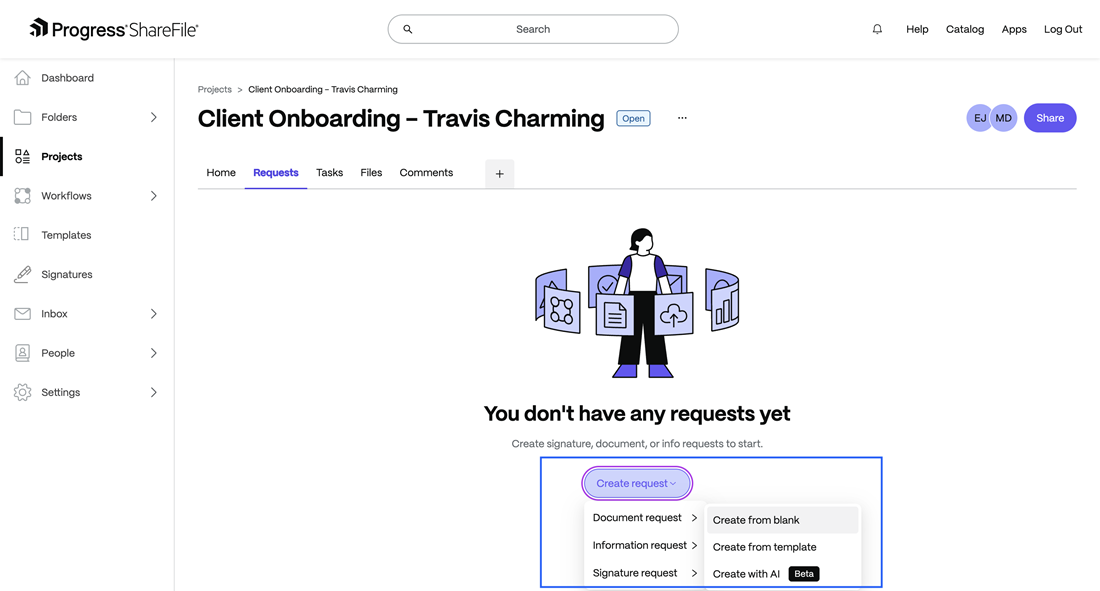
a. Select the Requests tab on the project dashboard.
b. Click on Create Request > Select Document Request > Blank or Template.
-
Add Request Details
a. Enter a Name and optional Description.
b. Set a Due Date (optional).
-
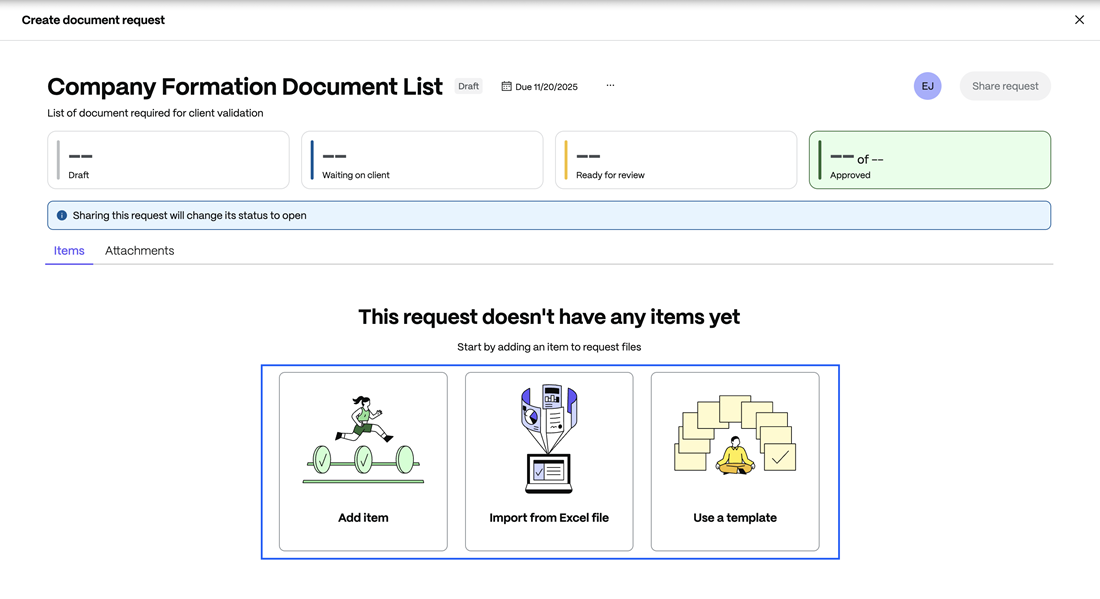
Add Items to Request
a. Click on Add Item and enter the document name.
b. Add instructions for the recipient (optional).
-
Assign Recipients
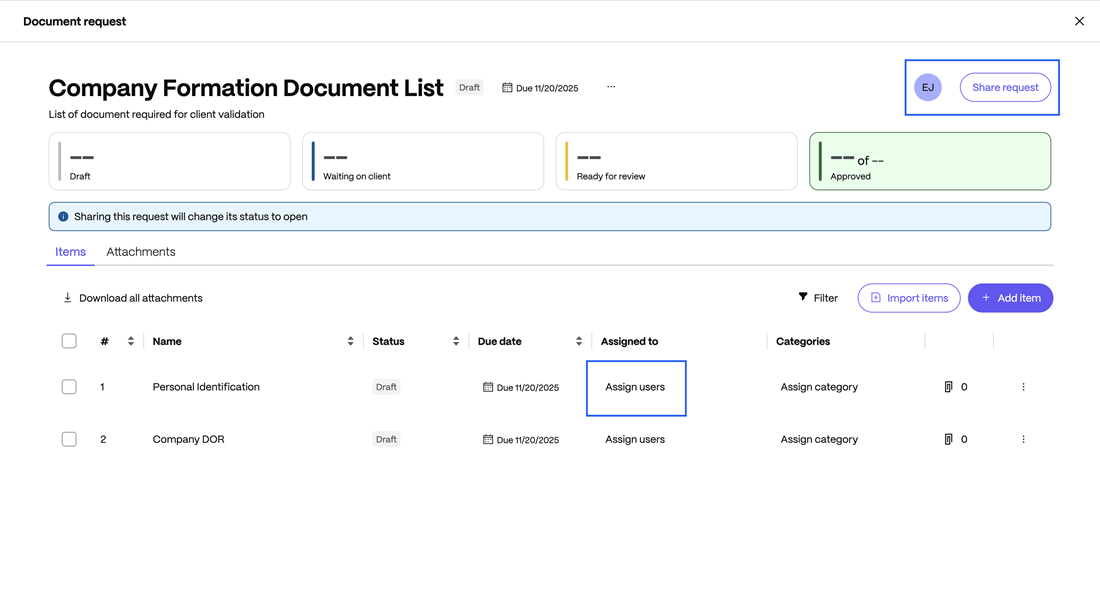
a. After adding items to the document request, select “Share request” to assign all items at once or assign document requests individually.
b. You can select one or more Assignees (clients or internal users). All assigned users will receive notifications with upload links.
-
Notifications and Reminders - As soon as you assign a document request, the assignee gets a notification. See Due Date Reminders for additional information.
Life Cycle of a Document Request
| Stage | Description | User Actions |
|---|---|---|
| Draft | Created but not shared. | Add or edit items and recipients. |
| Waiting on client | Shared and open for submissions. | Upload, approve, or reject items. |
| Ready for review | All required items uploaded. | A reviewer can approve, reject or add comment. |
| Approved | All items submissions completed. | Files remain viewable. |
Additional Capability
Templates
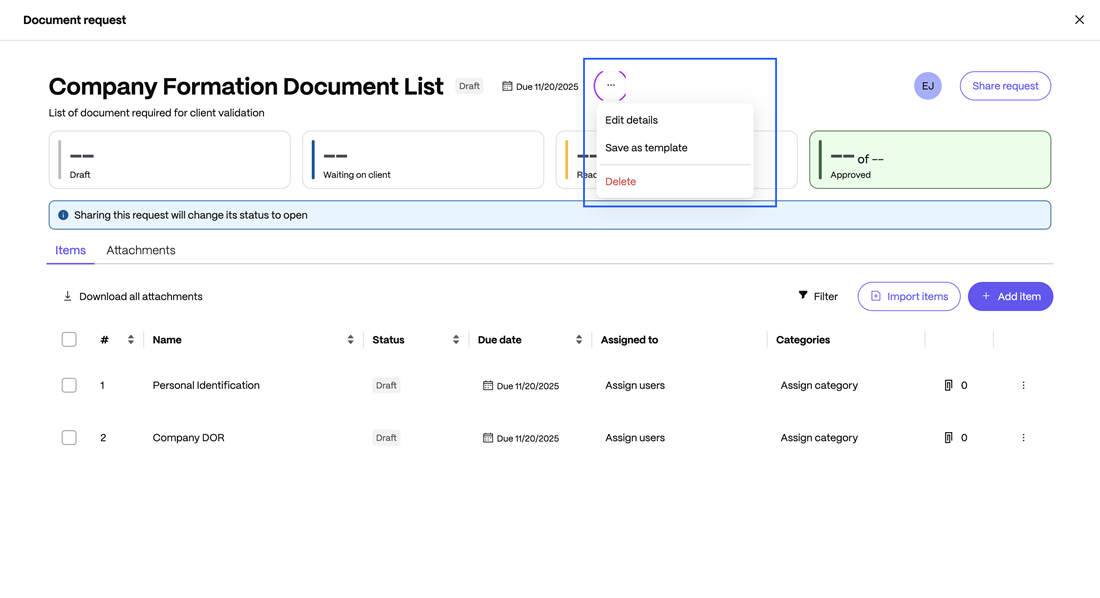
You can save templates to reuse pre-defined document requests.
-
Create a Template
a. Open an existing Document Request.
b. Select Save as Template.
c. Enter a template name and optional description.
-
Use a Template
a. Select Create from Template when starting a new request.
b. Choose an existing template and update details as needed.
Templates are ideal for recurring workflows like client intake, employee onboarding, or financial reporting.
AI-Powered Document Request List Generation
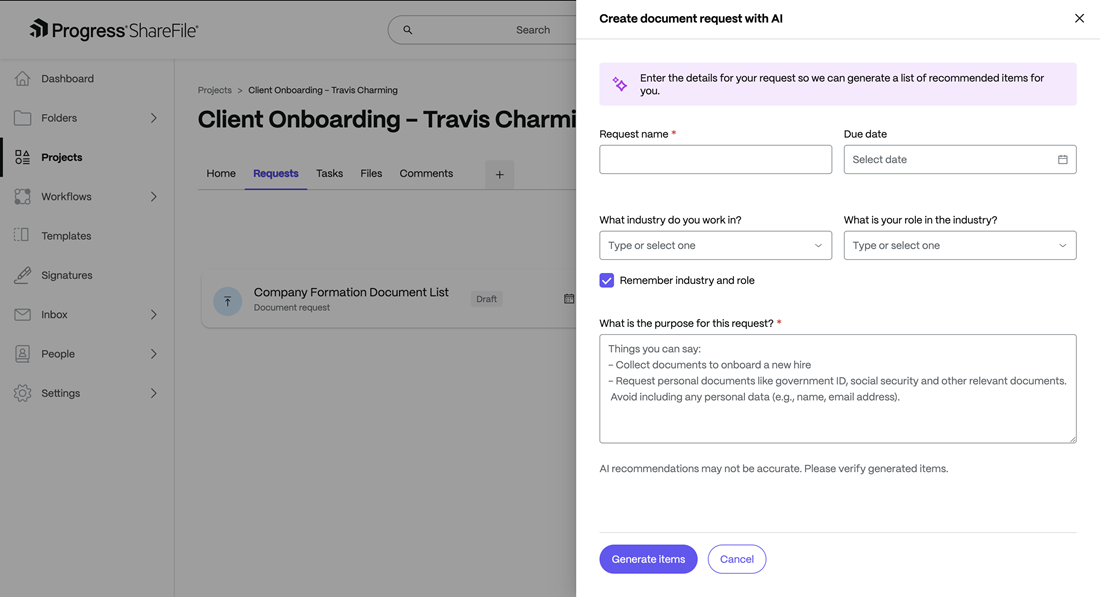
Use AI to generate a predefined list of documents based on your industry and role.
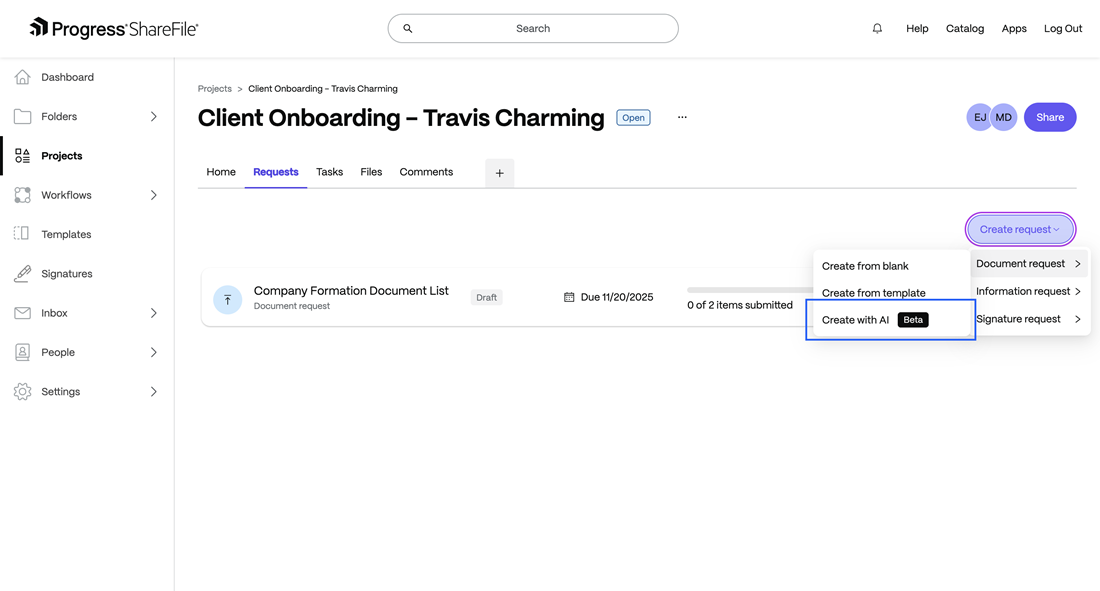
To create a request, you can follow the given steps:
- Select Create with AI under the Create Document Requests option.
- Enter a prompt such as “Documents needed for corporate onboarding.”
- Review and select generated items.
- Click on Create Request to finalize.
Due Date Reminders
Reminders in Projects help ensure timely completion of all assigned work — whether it’s document submissions, information responses, or task updates. Reminders are delivered through email and in-app notifications and are designed to keep both internal users and clients aware of upcoming or overdue actions.
There are two types of reminders within Projects:
Automatic Due-Date–Based Reminders
Automatic reminders are sent at predefined intervals before and after a due date to prompt users to complete pending actions. They are available for the following resources:
- Document Requests
- Information Requests
- Tasks
Schedule
- 10, 5, 3, and 1 day(s) before the due date.
- Everyday reminders after the due date has passed (for up to 1 month).
Behaviour
- Reminders are sent automatically to assignees of the request or task.
- If a resource is reopened or restored, reminders are automatically recreated based on its future due date.
- Each reminder includes:
- Resource name and project name
- Due date and remaining days
- Clear call-to-action (e.g., “Upload Document” or “Complete Task”)
Delivery Channels
- Email notifications (primary channel)
Example: A client has a pending document submission due on 15th October. They will automatically receive reminders on 5th, 10th, 12th, and 14th October — and weekly after that if still incomplete.
Manual (On-Demand) Reminders
Manual reminders can be triggered at any time by project owners or collaborators when additional follow-up is required.
To send a manual reminder:
- Open the relevant Request (Document or Information) or Task.
- Select the …(More Options) icon.
- Select Send Reminder.
- Confirm the recipient(s) — typically the assigned user or client.
- Click on Send.
The reminder is sent immediately via email, prompting the recipient to complete the pending item.
Notes:
- Manual reminders do not affect or reset the automatic reminder schedule.
- Each manual reminder is logged in the project’s Activity Log.
- Only project owners and collaborators can send manual reminders.
Document review and approval flow
After a client uploads documents, the Document Request List (DRL) owner or an employee added as reviewer can review and take action.
To review the uploaded documents:
-
Go to the project > Document Requests tab.
-
Select the relevant document request.
-
Click on an uploaded file to open it in the viewer.
-
Choose one of the following actions:
a. Approve – Marks item as complete.
b. Reject – Sends it back to the client with comments.
c. Request Changes – Allows resubmission.
-
The client receives an automatic notification with your feedback.
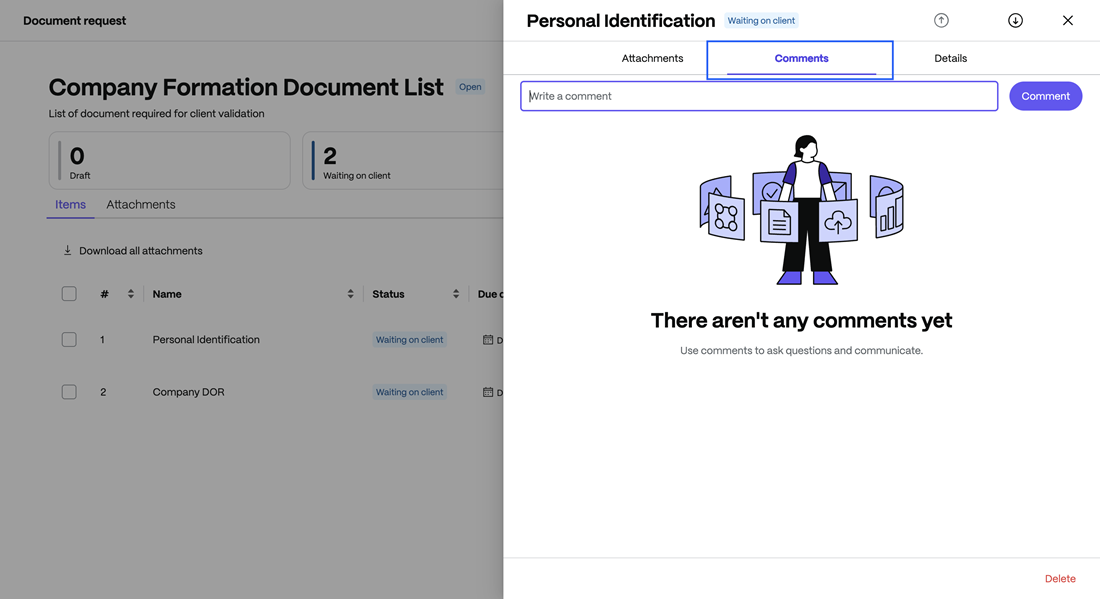
Comments
- You can add and view comments under each document item.
- The Comments appear in the Comments tab within the project.
- Both team members and clients can respond (if permitted).
- Mentions (@username) and file uploads in comments are not yet supported.
- Comments persist in the project history for audit tracking.
File Download
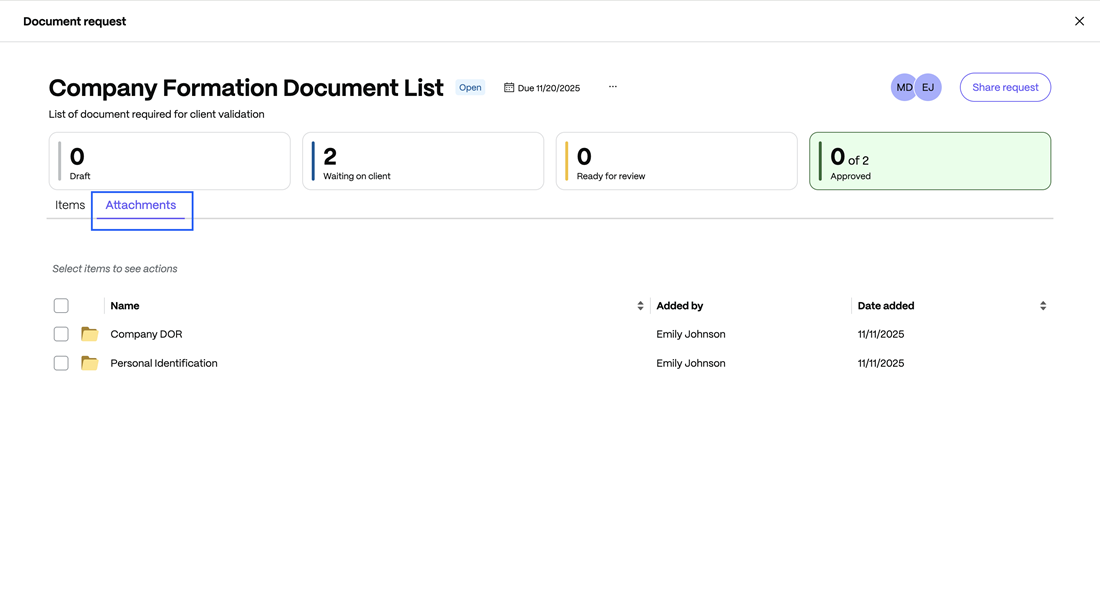
To download files in the document request, follow the given process:
- Open the Document Request.
- Select View All Files.
- Select Download All to export as a ZIP file or download individual files.
- You can also create an Activity Report to include submission timestamps and file details.
Limitations
- This feature is available for ShareFile Premium and higher plans only.
- Clients cannot delete or edit existing document requests.
- Any file uploads within comments are not supported.
- AI-powered request creation supports English prompts only.
- Bulk editing across multiple requests is currently unavailable.
Share
Share
This Preview product documentation is Citrix Confidential.
You agree to hold this documentation confidential pursuant to the terms of your Citrix Beta/Tech Preview Agreement.
The development, release and timing of any features or functionality described in the Preview documentation remains at our sole discretion and are subject to change without notice or consultation.
The documentation is for informational purposes only and is not a commitment, promise or legal obligation to deliver any material, code or functionality and should not be relied upon in making Citrix product purchase decisions.
If you do not agree, select I DO NOT AGREE to exit.