-
-
-
-
-
Comment capability at data tables record level
-
-
-
-
This content has been machine translated dynamically.
Dieser Inhalt ist eine maschinelle Übersetzung, die dynamisch erstellt wurde. (Haftungsausschluss)
Cet article a été traduit automatiquement de manière dynamique. (Clause de non responsabilité)
Este artículo lo ha traducido una máquina de forma dinámica. (Aviso legal)
此内容已经过机器动态翻译。 放弃
このコンテンツは動的に機械翻訳されています。免責事項
이 콘텐츠는 동적으로 기계 번역되었습니다. 책임 부인
Este texto foi traduzido automaticamente. (Aviso legal)
Questo contenuto è stato tradotto dinamicamente con traduzione automatica.(Esclusione di responsabilità))
This article has been machine translated.
Dieser Artikel wurde maschinell übersetzt. (Haftungsausschluss)
Ce article a été traduit automatiquement. (Clause de non responsabilité)
Este artículo ha sido traducido automáticamente. (Aviso legal)
この記事は機械翻訳されています.免責事項
이 기사는 기계 번역되었습니다.책임 부인
Este artigo foi traduzido automaticamente.(Aviso legal)
这篇文章已经过机器翻译.放弃
Questo articolo è stato tradotto automaticamente.(Esclusione di responsabilità))
Translation failed!
Comment capability at Data Tables record level
You can access comment capability at record level to enable seamless collaboration between customers using table for storing structured data such as Timesheet, Client Billings, Asset Repositories etc.
- All data tables created within a project will have comment capability available at every record level. Once a user adds a title to a record, indicating it is an active record, the comment icon gets active. User can click on the Comment icon next to each record in the data table or can open the record and user can navigate to the Comments section by clicking on the comment icon to add their comment.
- Anyone with whom a project has been shared can view and add comments.
- In case a record in a data table is assigned to a client, then the client will get an option to add or view comments from their client portal.
- When a comment is added by a user, it will get updated in the Comments tab and appear in the shortcut widget on the Home tab. User can click the hyperlink to quickly navigate to the Comment section.
NOTE:
Client contacts cannot comment in table view.
Add comments to a data table record
-
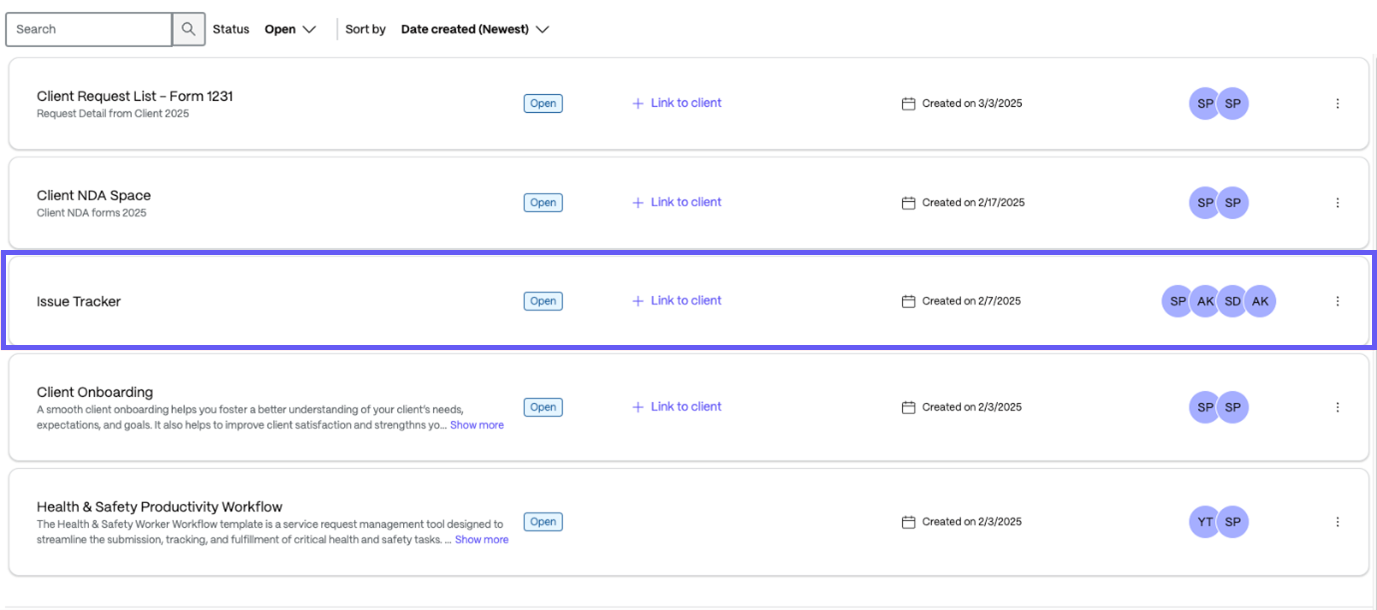
Click on the Project that you have created.
-
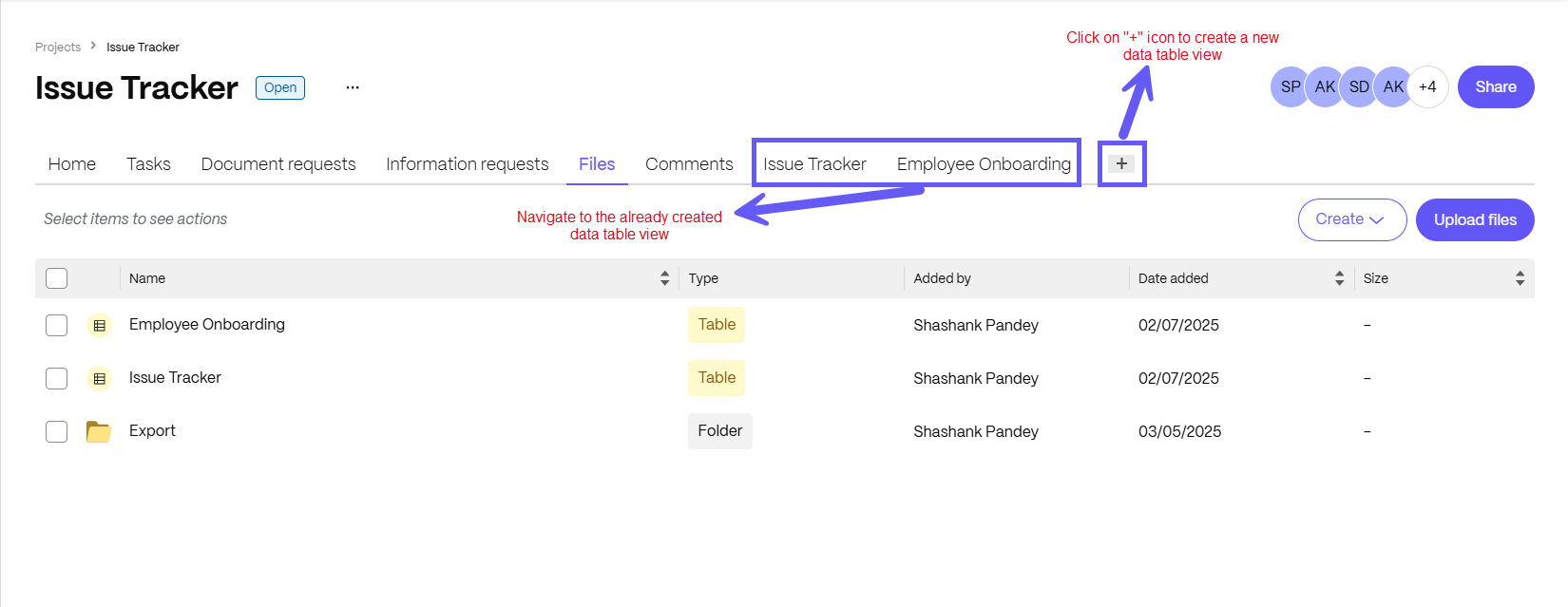
Select an existing project or create a data table. In these instructions, we selected an existing project and navigate to the already created data table view.
-
To create a new table, you can select the ’+’ icon or choose from the available templates.
-
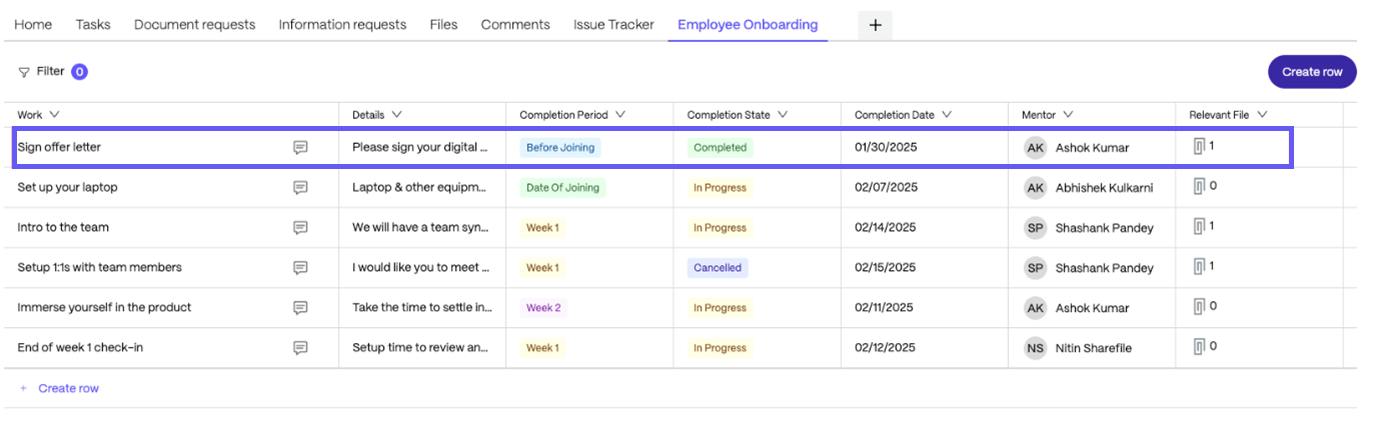
Navigate to Employee Onboarding, then click on existing record or add a new record by providing the necessary details.
-
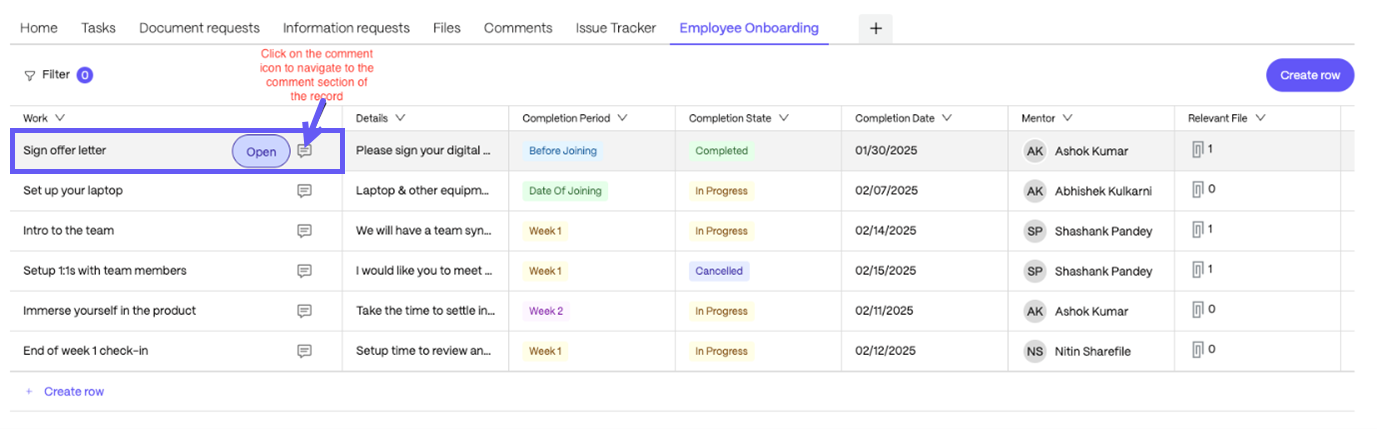
To view or add a new comment, click on the comment icon available in the first column and it will redirect to the comments section of a selected project.
-
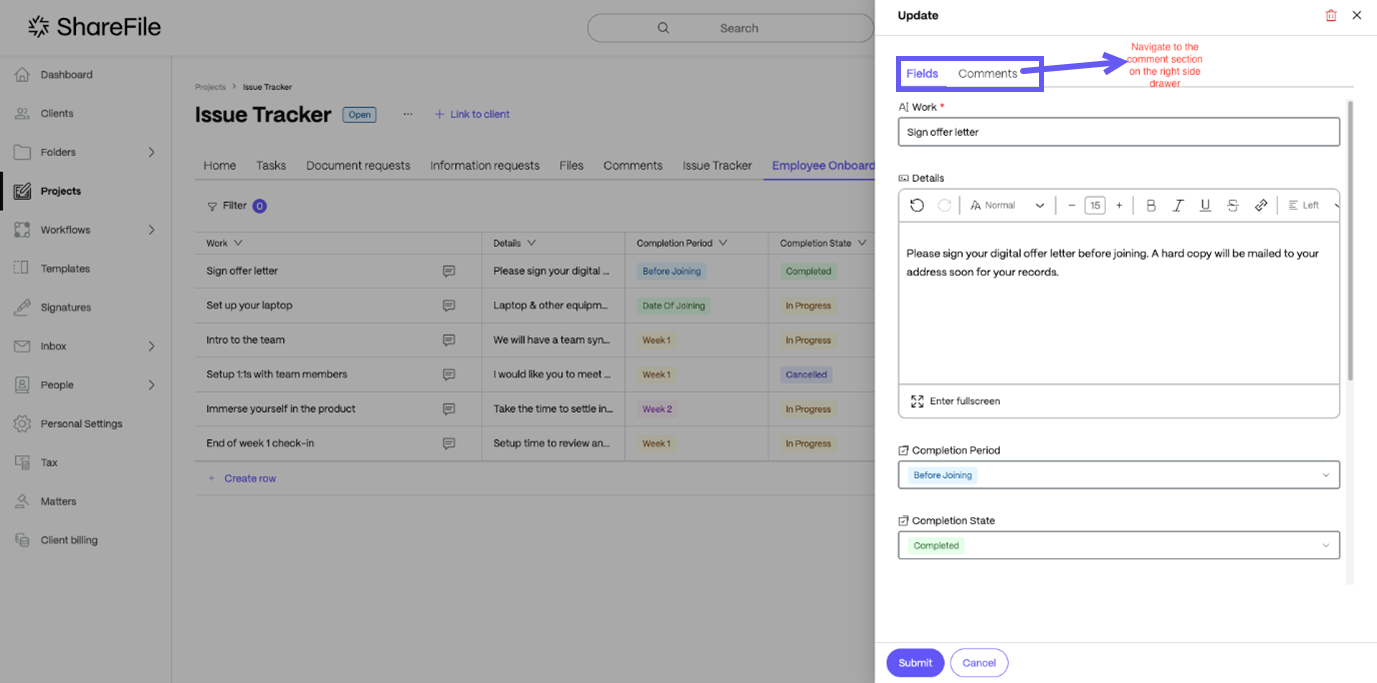
Users can also open the record and navigate to the comments section in the right- side drawer.
-
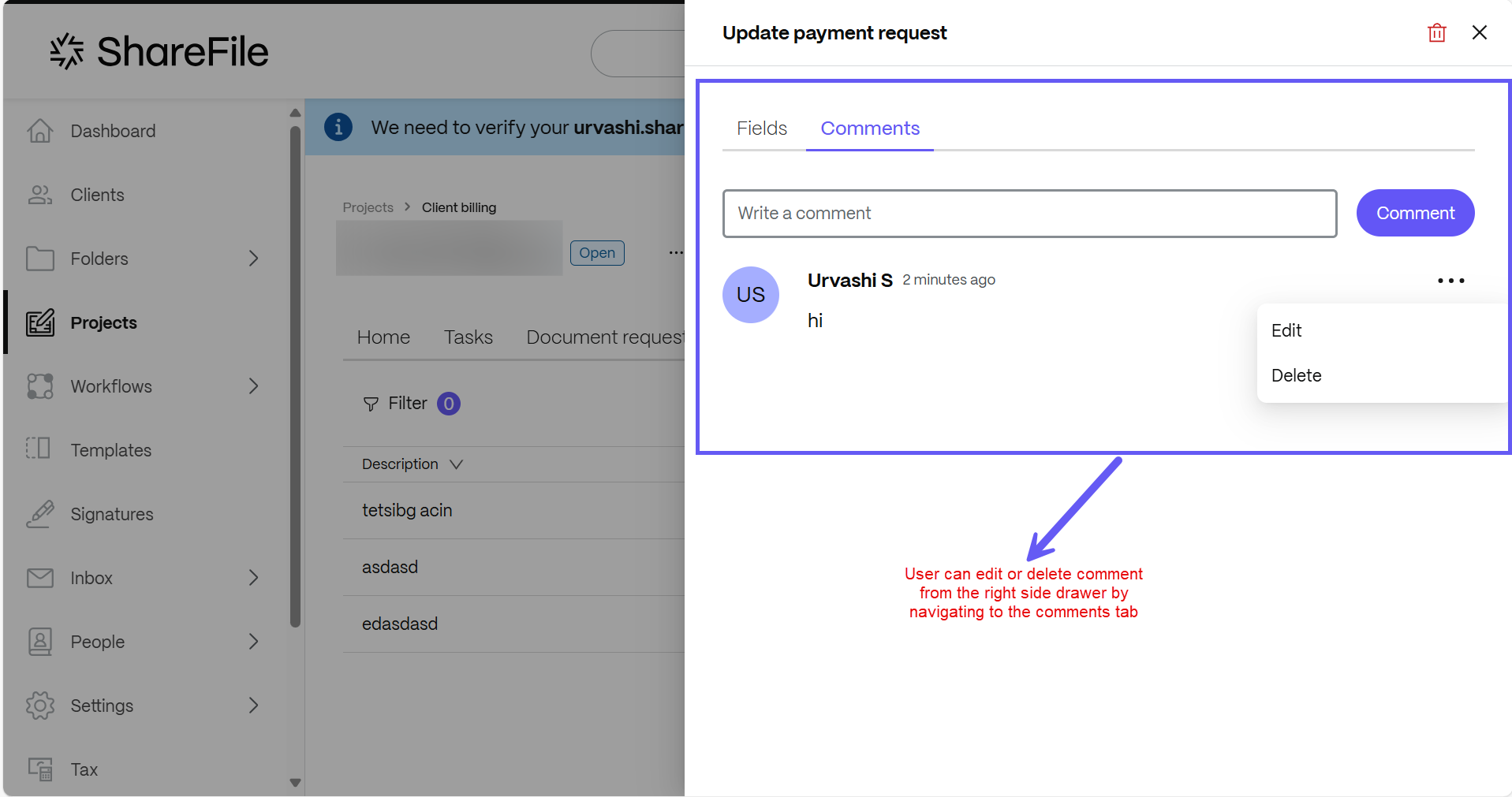
You can add a comment at the record level and click the Comment button. Users can also view and edit comments next to each record in the data table by clicking on the three- dot icon.
-
After the comment has been posted, it will automatically get updated in the Comments tab, allowing users to view comments, access hyperlinks and navigate to the comment section by clicking on it.
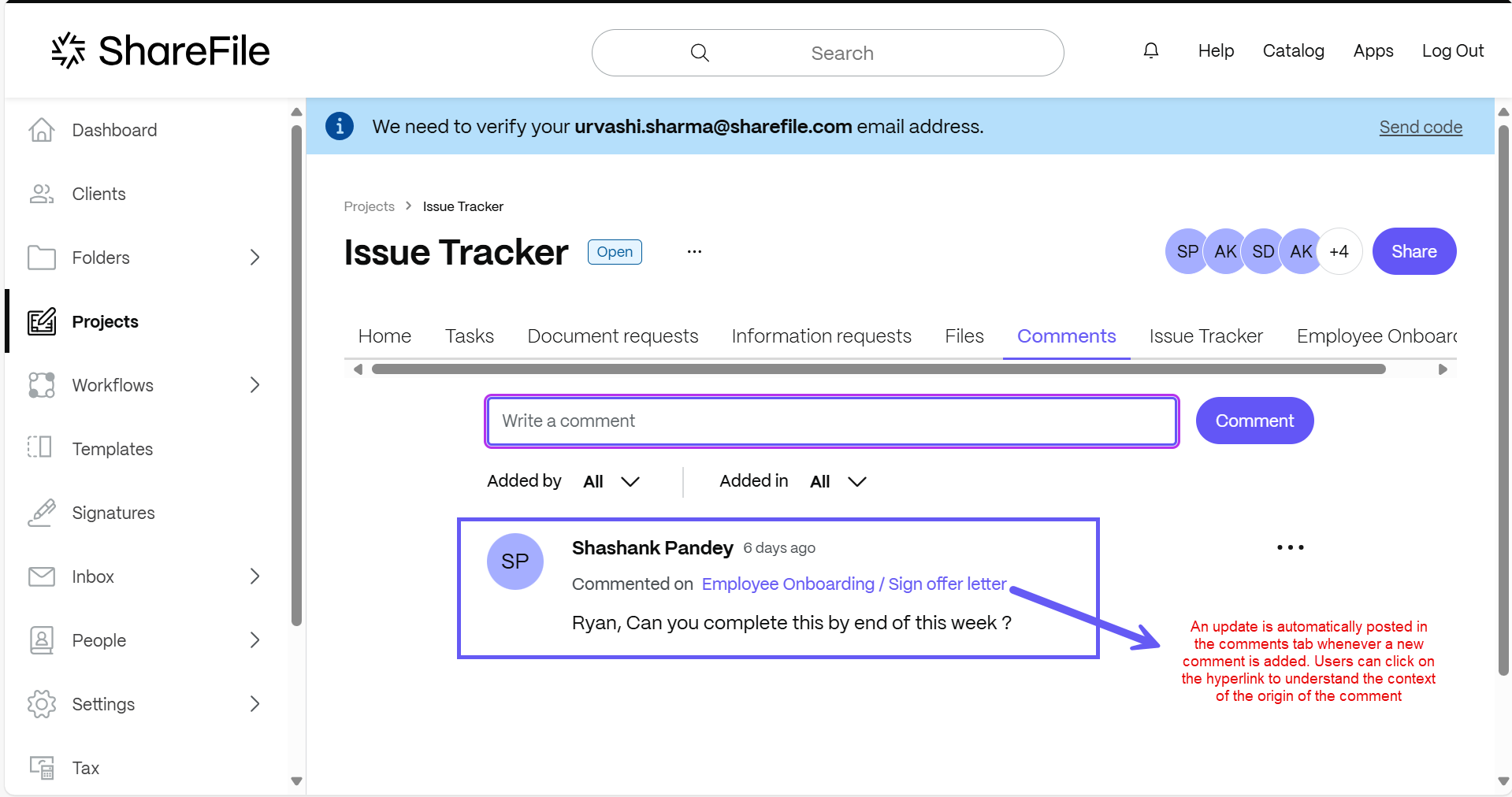
The functionality mentioned above also ensures that users have visibility to any conversation and collaboration taking place at the project level or a record level in the data table. The hyperlinks help users keep track of the context of the comments made in the project.
NOTE:
Users who are part of a project can access both the data table and the comments section.
Share
Share
In this article
This Preview product documentation is Citrix Confidential.
You agree to hold this documentation confidential pursuant to the terms of your Citrix Beta/Tech Preview Agreement.
The development, release and timing of any features or functionality described in the Preview documentation remains at our sole discretion and are subject to change without notice or consultation.
The documentation is for informational purposes only and is not a commitment, promise or legal obligation to deliver any material, code or functionality and should not be relied upon in making Citrix product purchase decisions.
If you do not agree, select I DO NOT AGREE to exit.