This content has been machine translated dynamically.
Dieser Inhalt ist eine maschinelle Übersetzung, die dynamisch erstellt wurde. (Haftungsausschluss)
Cet article a été traduit automatiquement de manière dynamique. (Clause de non responsabilité)
Este artículo lo ha traducido una máquina de forma dinámica. (Aviso legal)
此内容已经过机器动态翻译。 放弃
このコンテンツは動的に機械翻訳されています。免責事項
이 콘텐츠는 동적으로 기계 번역되었습니다. 책임 부인
Este texto foi traduzido automaticamente. (Aviso legal)
Questo contenuto è stato tradotto dinamicamente con traduzione automatica.(Esclusione di responsabilità))
This article has been machine translated.
Dieser Artikel wurde maschinell übersetzt. (Haftungsausschluss)
Ce article a été traduit automatiquement. (Clause de non responsabilité)
Este artículo ha sido traducido automáticamente. (Aviso legal)
この記事は機械翻訳されています.免責事項
이 기사는 기계 번역되었습니다.책임 부인
Este artigo foi traduzido automaticamente.(Aviso legal)
这篇文章已经过机器翻译.放弃
Questo articolo è stato tradotto automaticamente.(Esclusione di responsabilità))
Translation failed!
eIDAS-supported E-Signatures
Overview
This documentation explains how to use ShareFile’s eIDAS-supported electronic signature capabilities to securely manage and execute digital agreements. With built-in support for Advanced Electronic Signatures (AES) and Qualified Electronic Signatures (QES), ShareFile enables organizations to meet stringent regulatory requirements across the EU and UK. These signature types provide strong identity verification, document integrity, and legal enforceability — ensuring that agreements are both secure and in line with eIDAS standards.
Beyond supporting eIDAS signatures, ShareFile integrates e-signature workflows directly into its secure collaboration platform, allowing teams to prepare, send, sign, and store documents without relying on multiple tools. This reduces operational complexity, minimizes compliance risks, and eliminates fragmented workflows. By centralizing document processes and offering flexible signature assurance levels based on business needs, ShareFile helps organizations accelerate approvals, improve efficiency, and maintain full control over sensitive information in regulated environments.
Feature Availability
eIDAS Signatures are supported on ShareFile Premium, VDR, and Industry Advantage plans in the EU control plane.
Enable eIDAS - supported signatures - admin
Notes:
eIDAS - supported signatures are disabled by default.
When enabled, all users with e-signature access can request eIDAS authentication when sending a document for signature.
The eIDAS signature option appears during the Send for Signature workflow. When disabled, the eIDAS option does not appear.
Use the following instructions to enable eIDAS authentication in your ShareFile account.
-
Sign in to your ShareFile account as an admin.
-
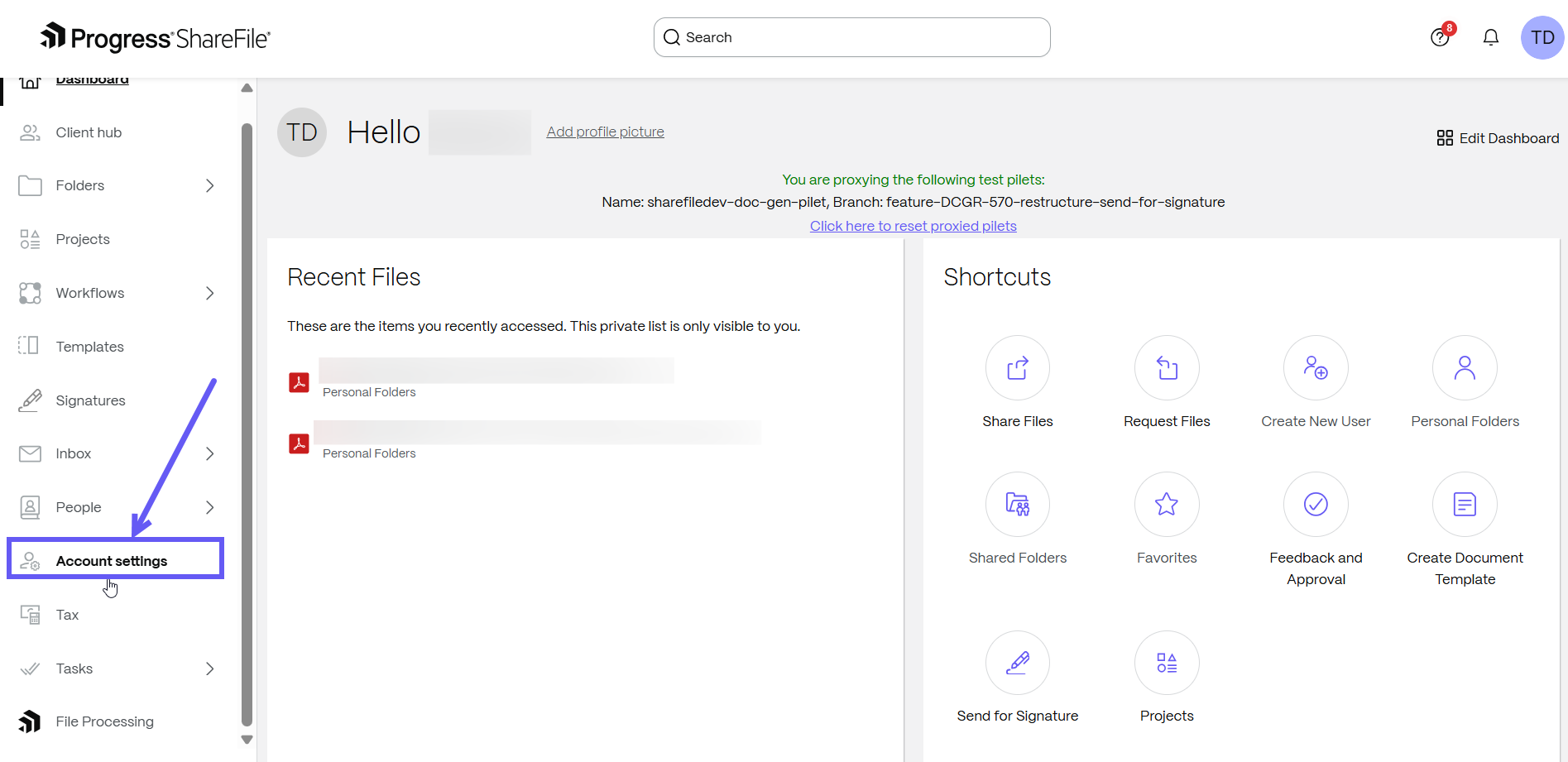
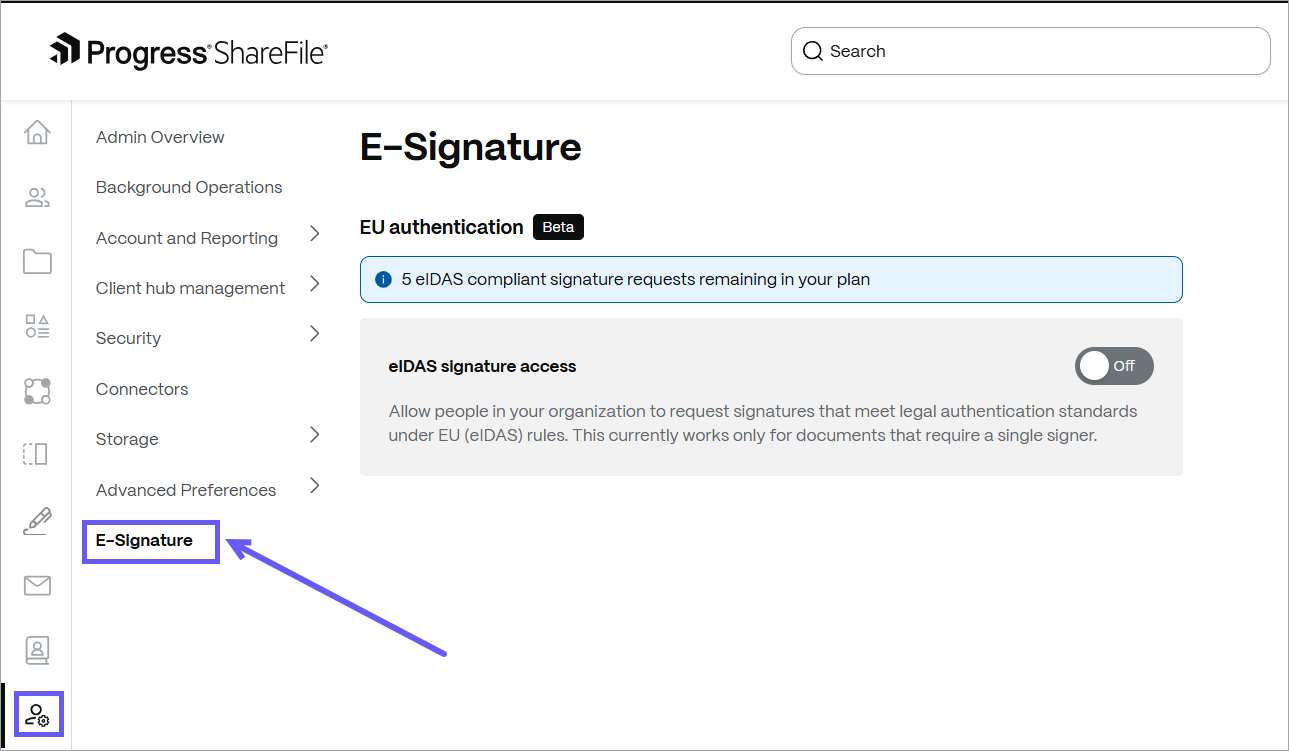
Navigate to Account settings > E-Signature.
-
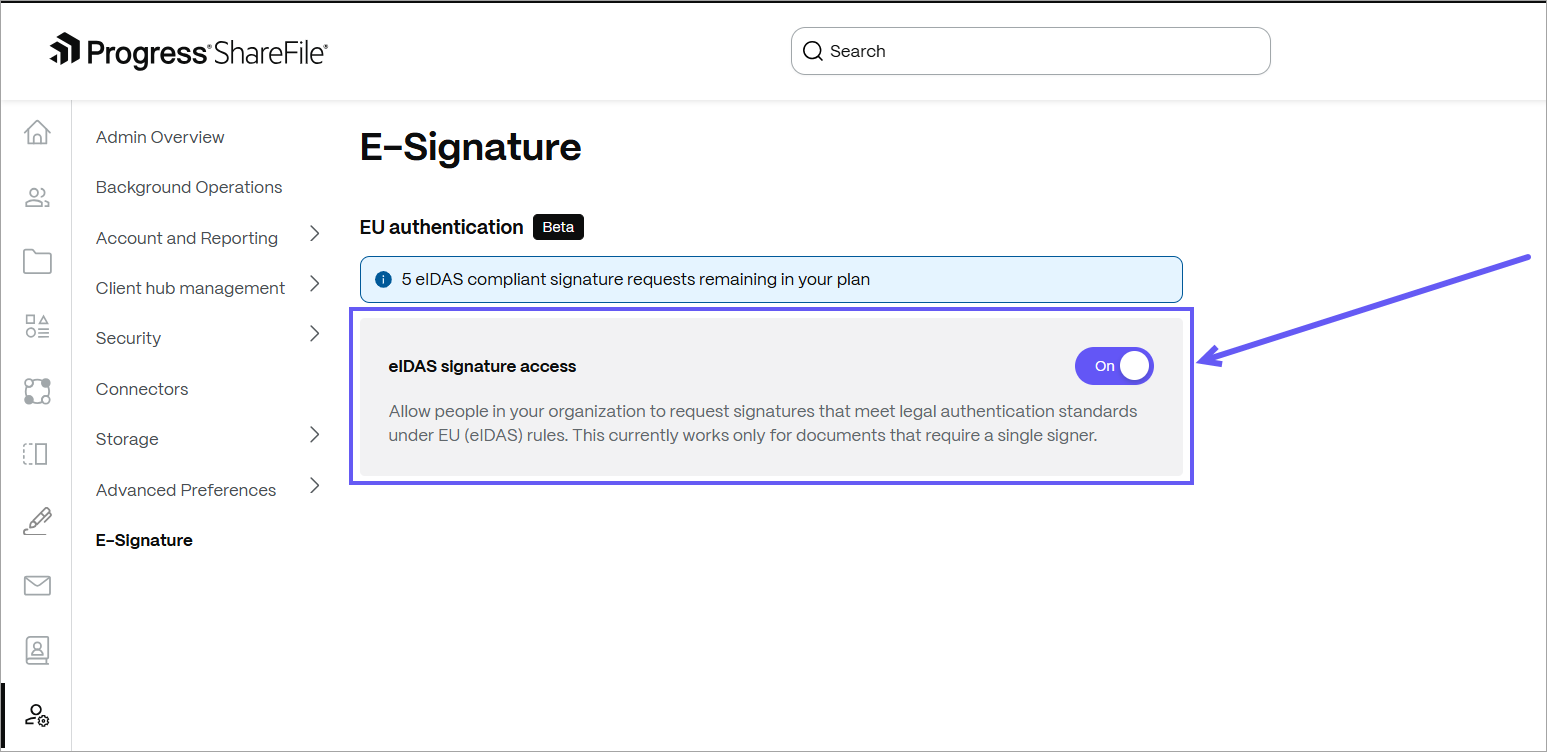
Turn on eIDAS signature access.
Send a signature request with eIDAS authentication - sender
-
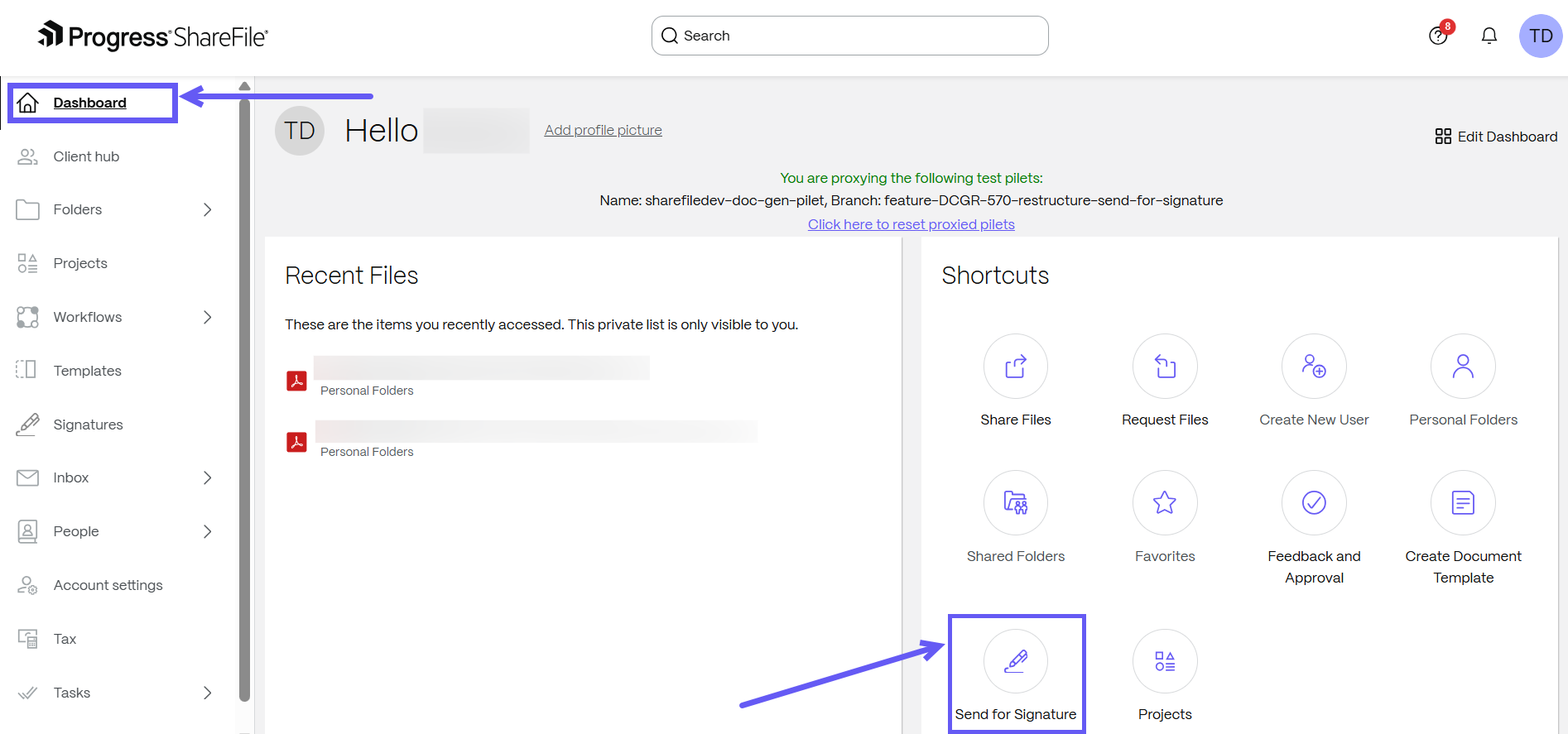
Select Dashboard > Send for Signature.
-
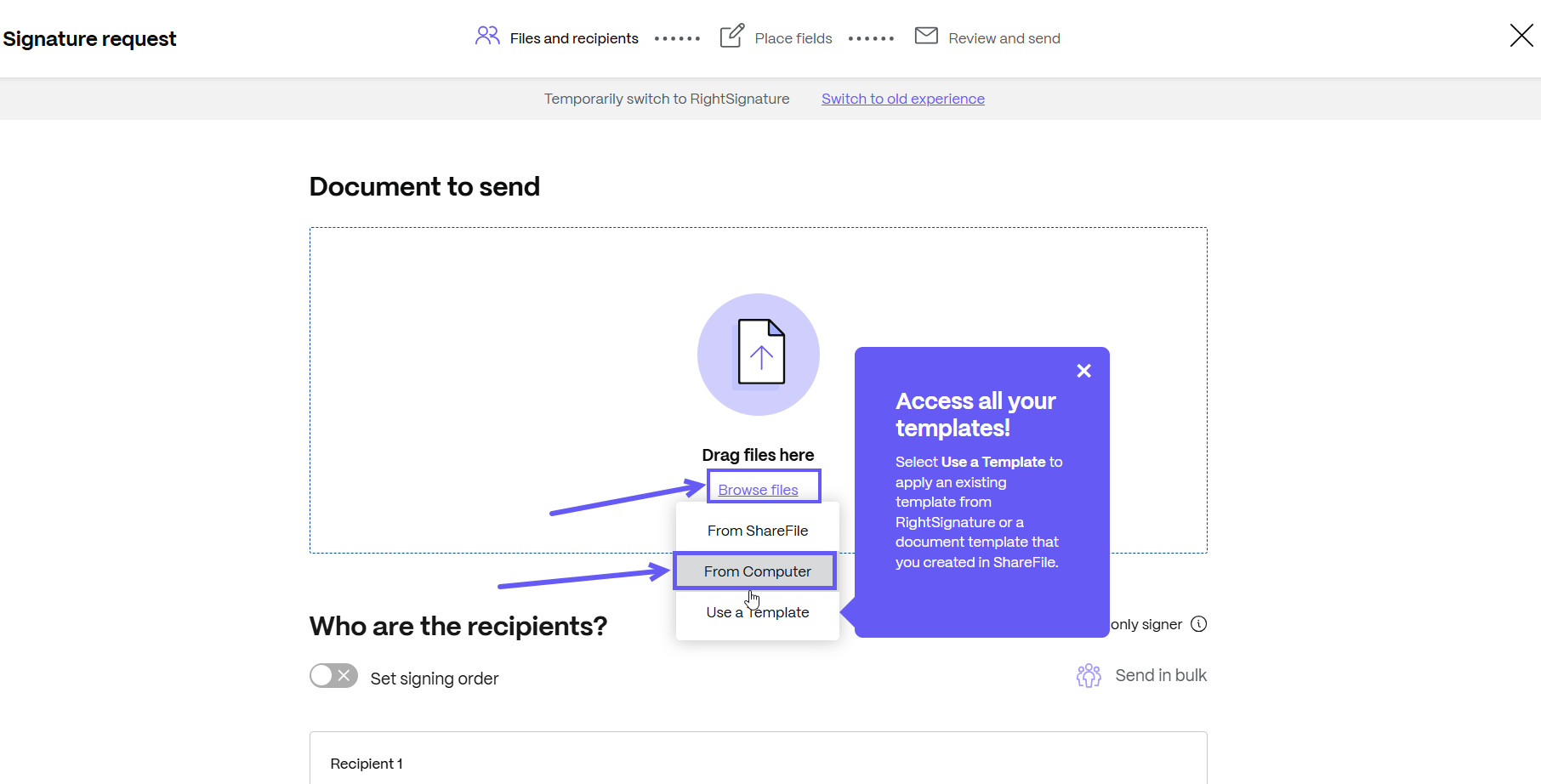
Select a file from either your computer or from your ShareFile account using the Browse files option to upload a document that you want to send for signature.
-
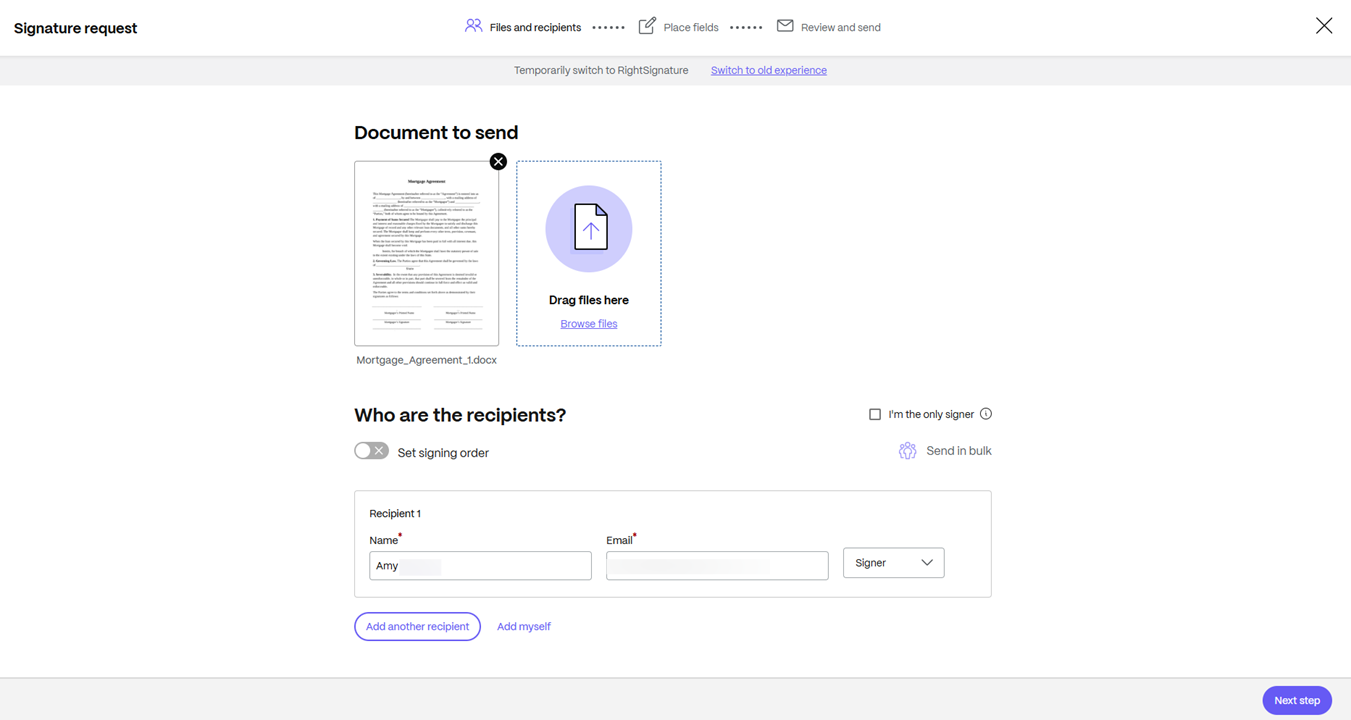
After uploading a document, enter the signer’s name and email address. Select Next Step.
Note:
Currently, eIDAS signing supports only single-signer workflows. Adding multiple signers disables the eIDAS option.
-
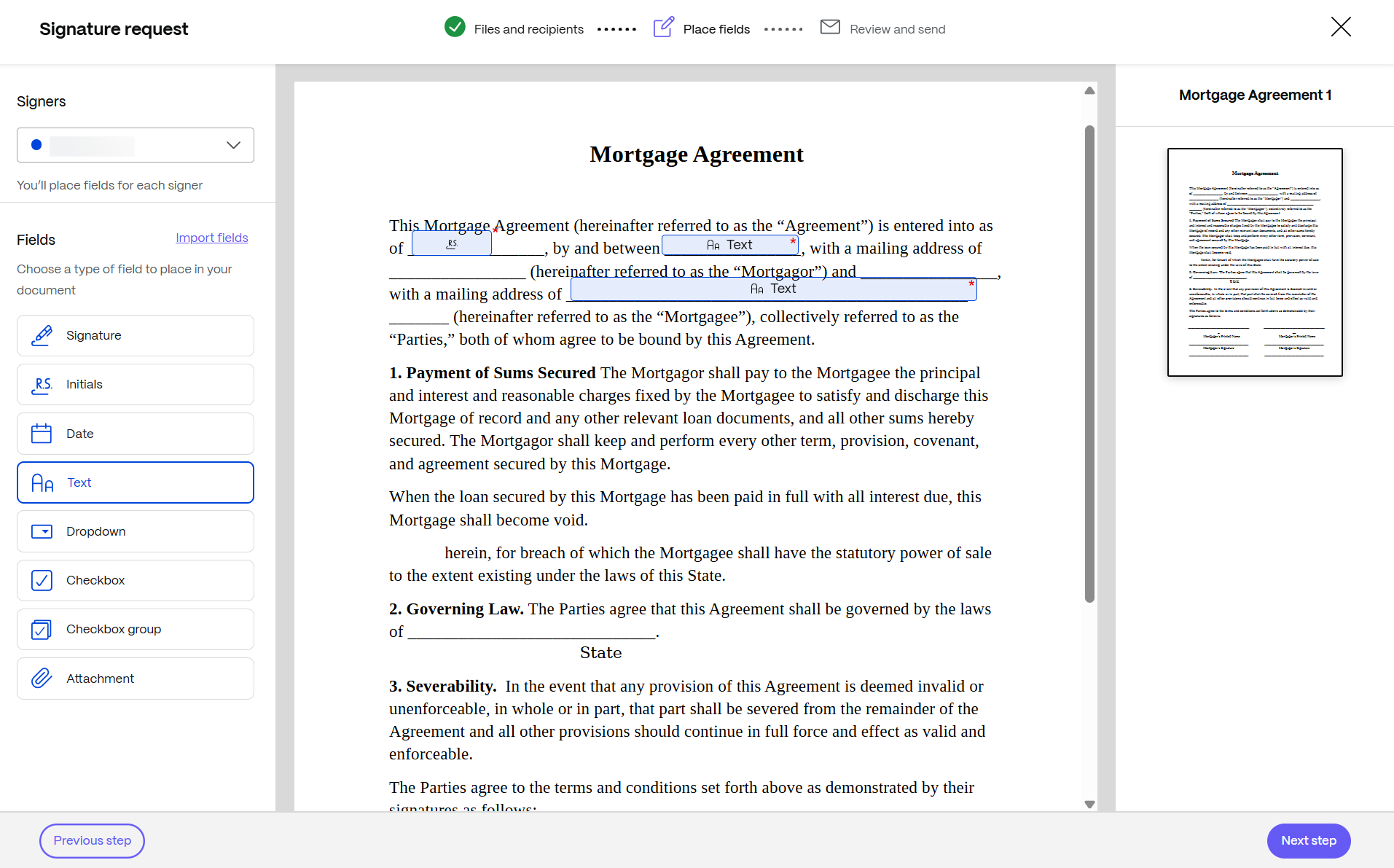
The “Place field” screen is displayed. Drag and drop the required fields (for example, signature, date, text, initials) to the document. Select Next Step.
-
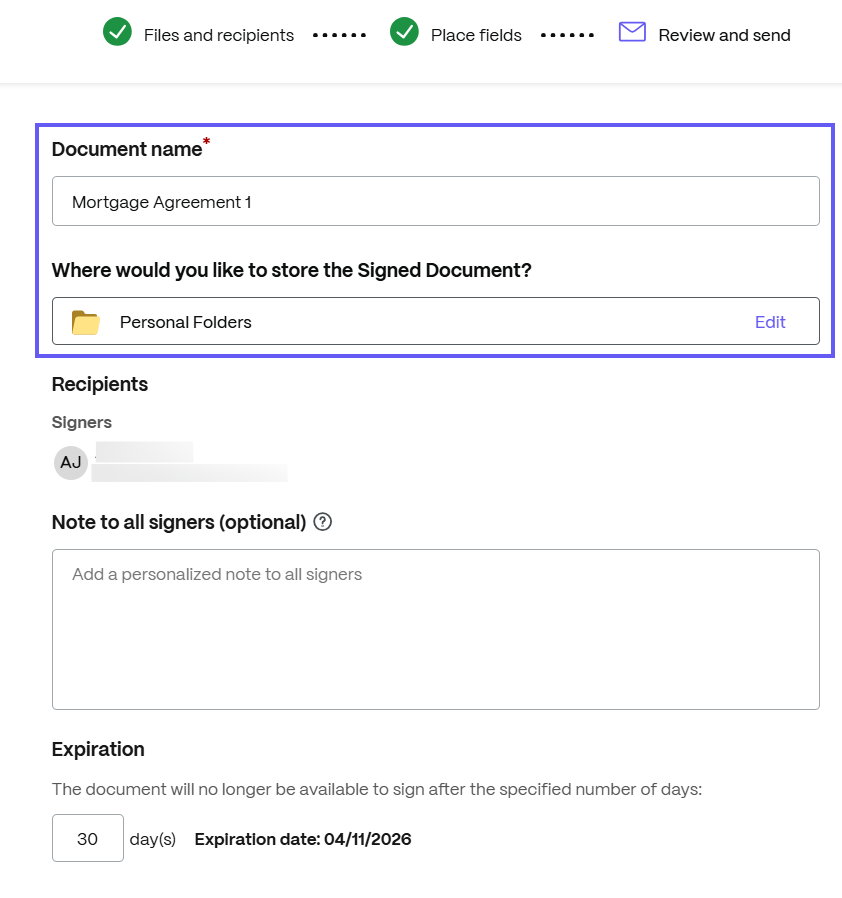
Enter a Document name and then review the request details (for example, notes, expiration, and other available options).
-
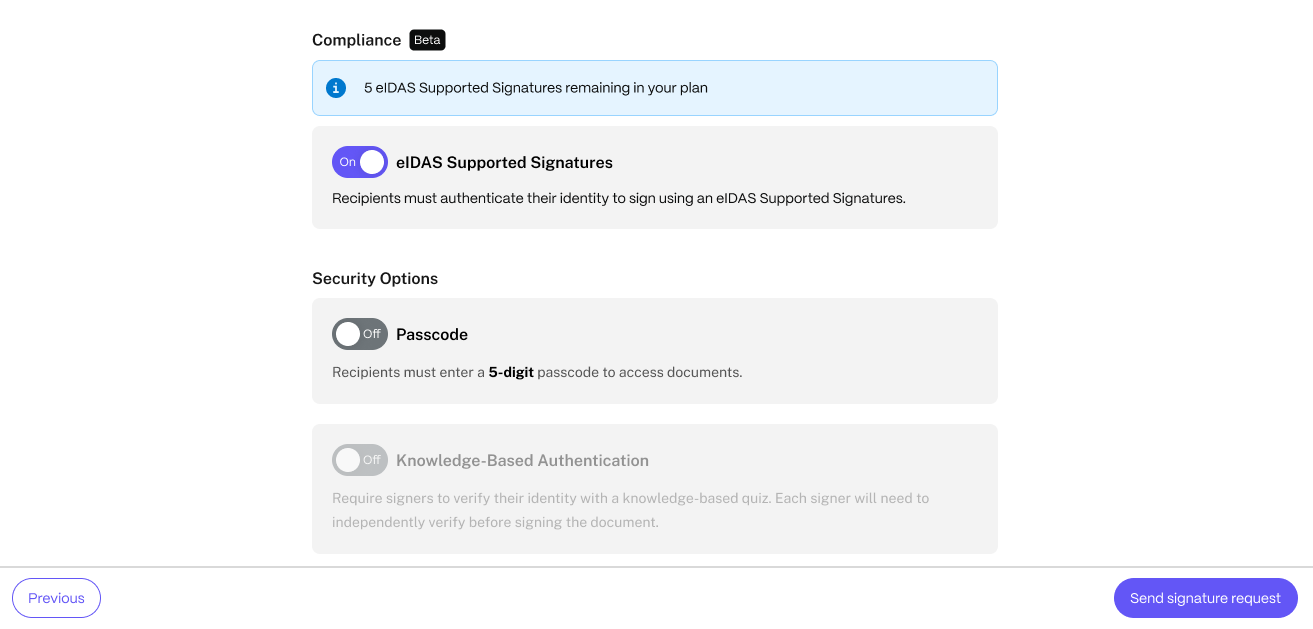
On the Review and Send page, go to Compliance, then turn on eIDAS Supported Signatures.
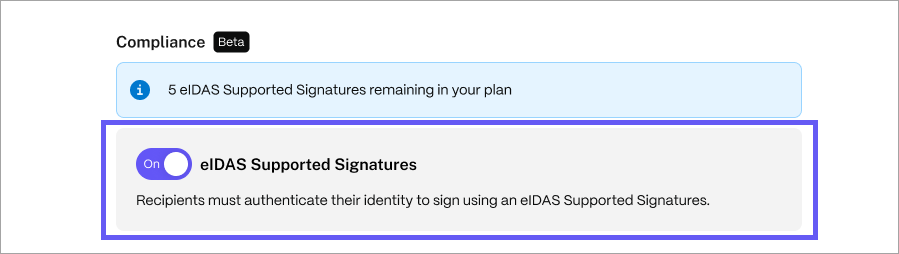
Important:
When you enable eIDAS authentication:
Knowledge-Based Authentication (KBA) is automatically disabled because KBA is intended for US identity verification, while eIDAS authentication is intended for EU and UK citizens.
-
Select Send signature request.
-
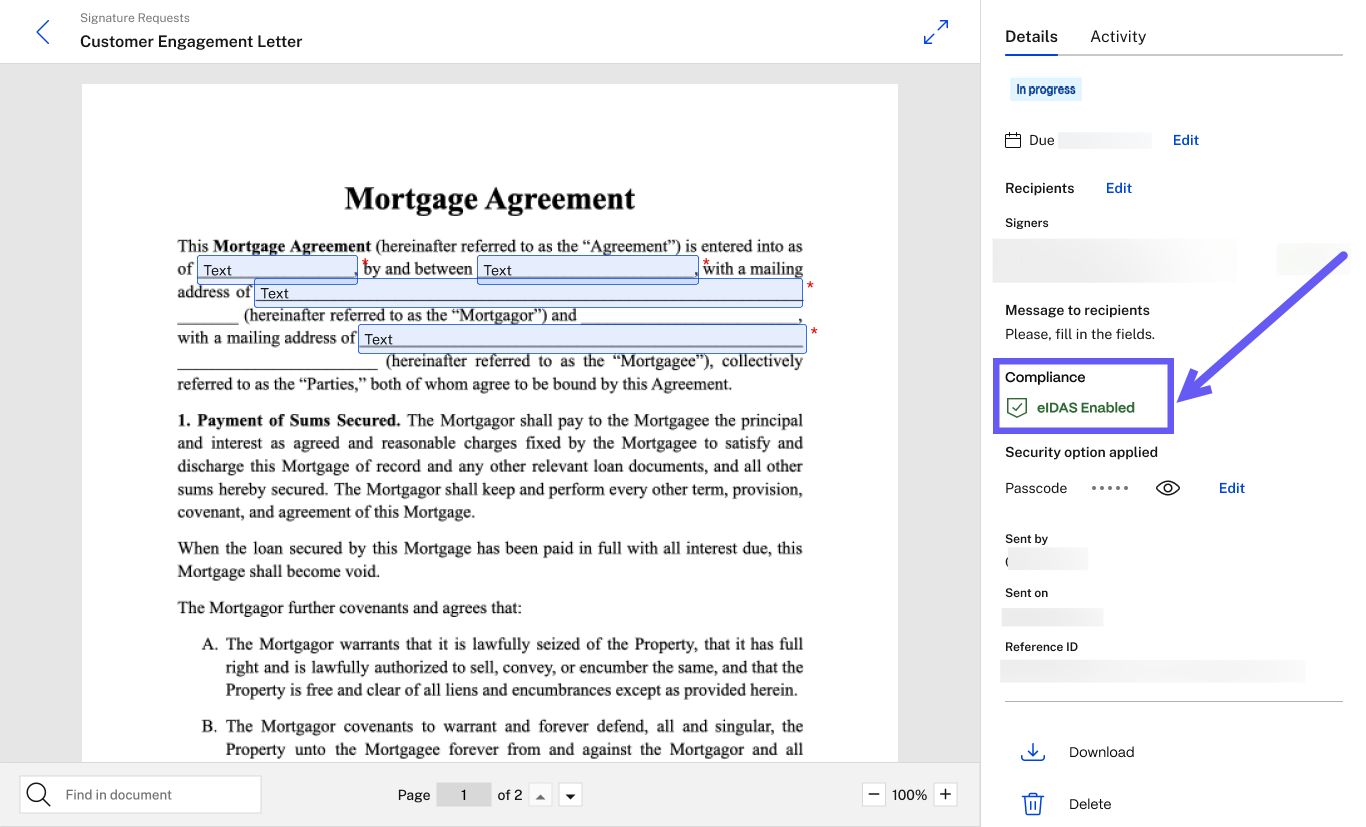
After you send the request, the signature request Details page displays a new Compliance section, as shown below.
Sign a document with an eIDAS authentication - signer experience
The following instructions explain the process of signing a document using eIDAS authentication.
-
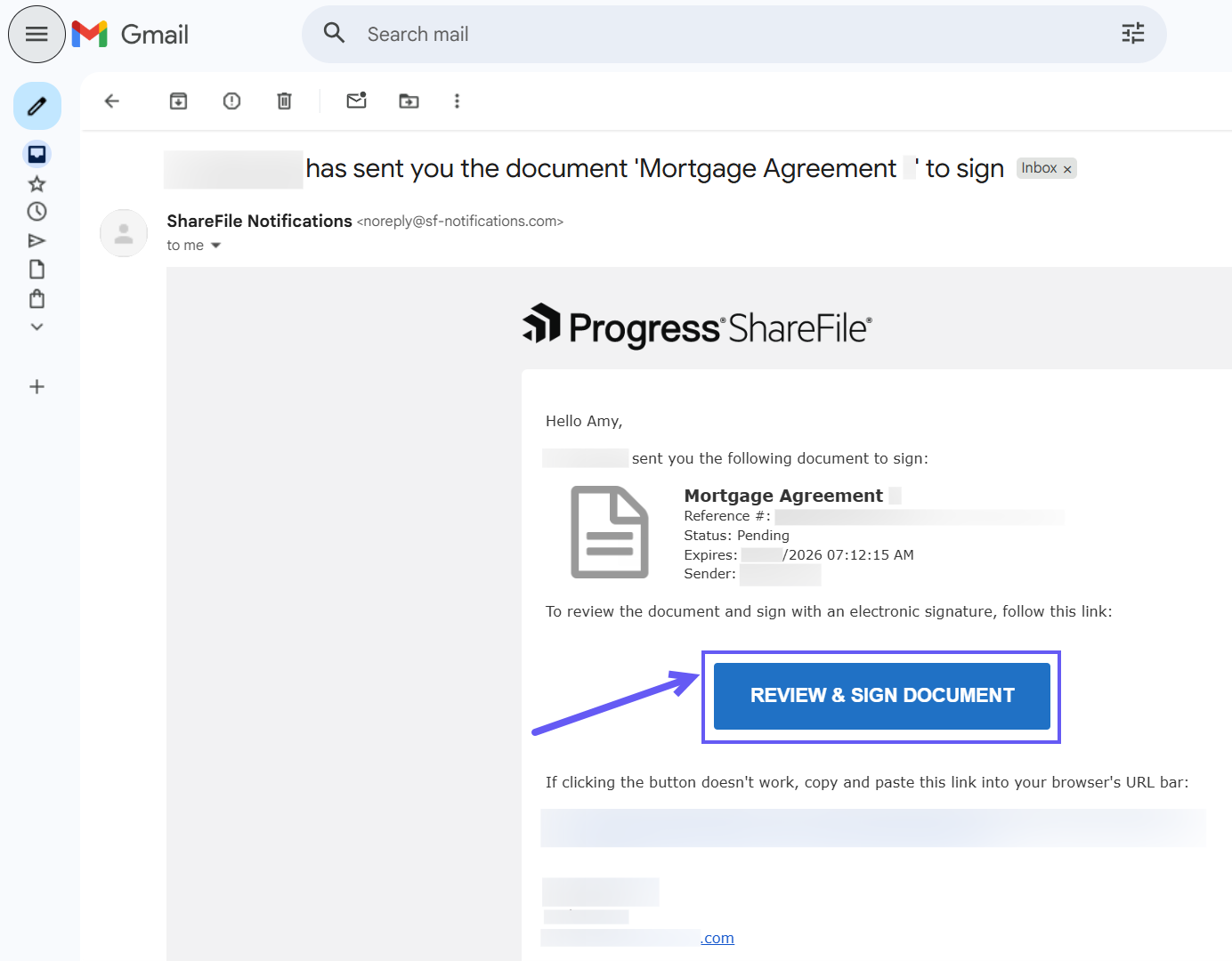
Open the document by selecting Review & Sign Document in your email or open the request from the client portal or from the ShareFile mobile app.
-
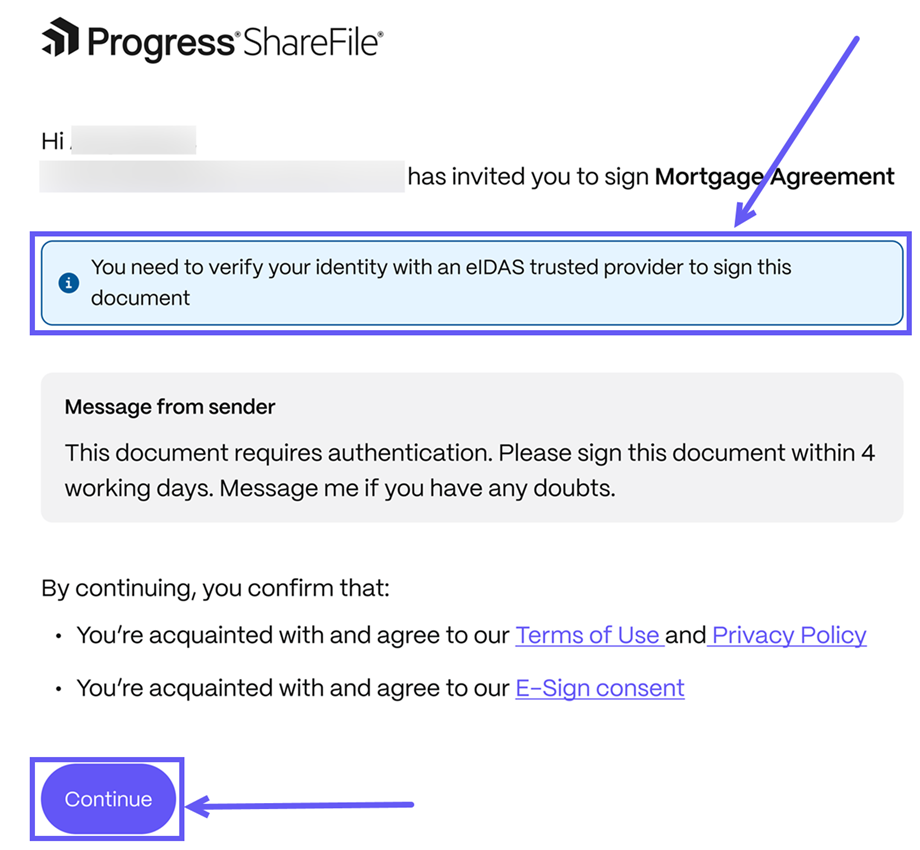
On the Terms and Conditions page, a note indicates that eIDAS authentication is required to sign the document.
-
Select Continue to accept the ShareFile Terms of Use, Privacy Policy, and E-Sign Consent.
-
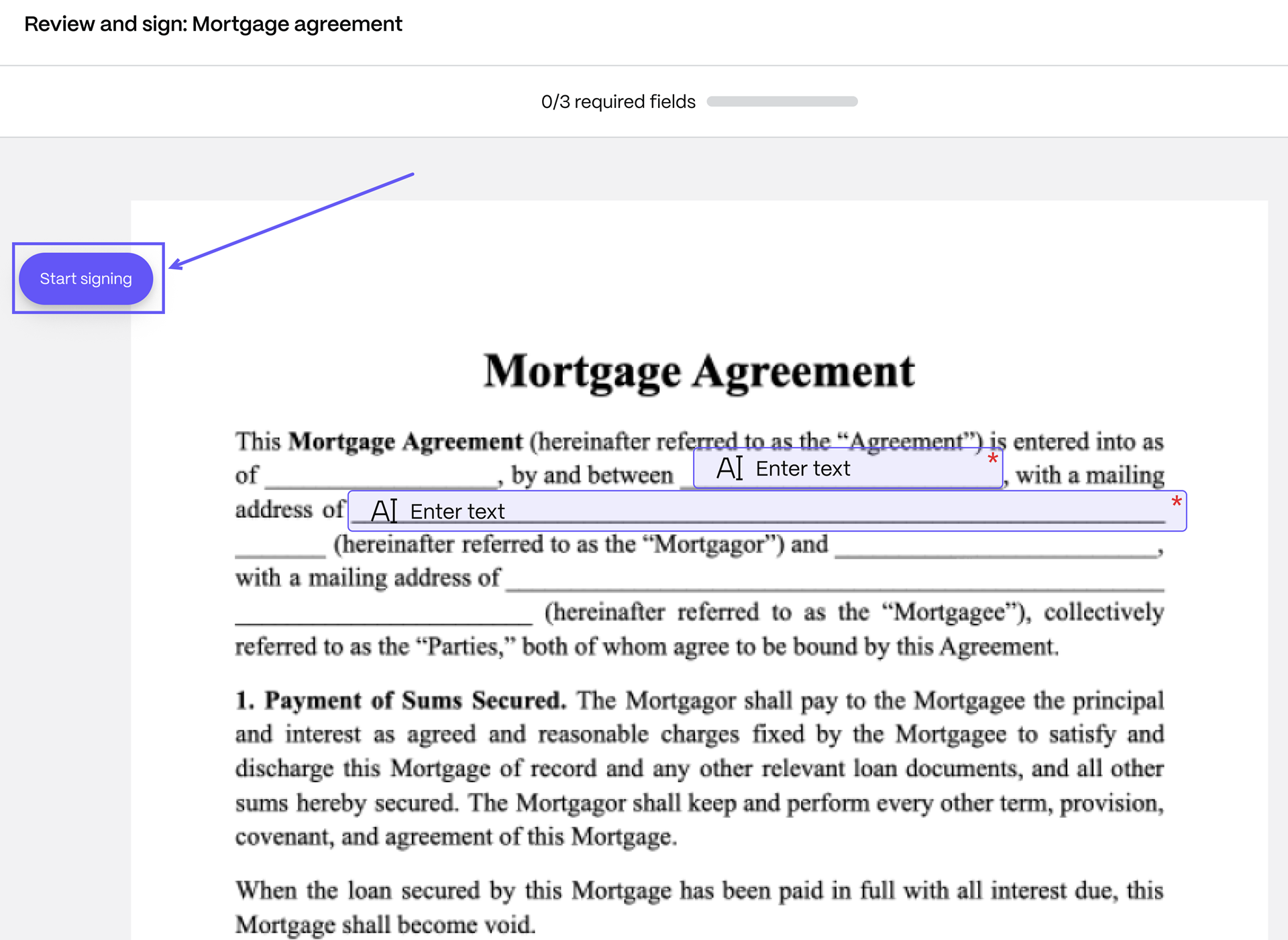
Click on Start signing to start the signing process and fill in all the required fields.
-
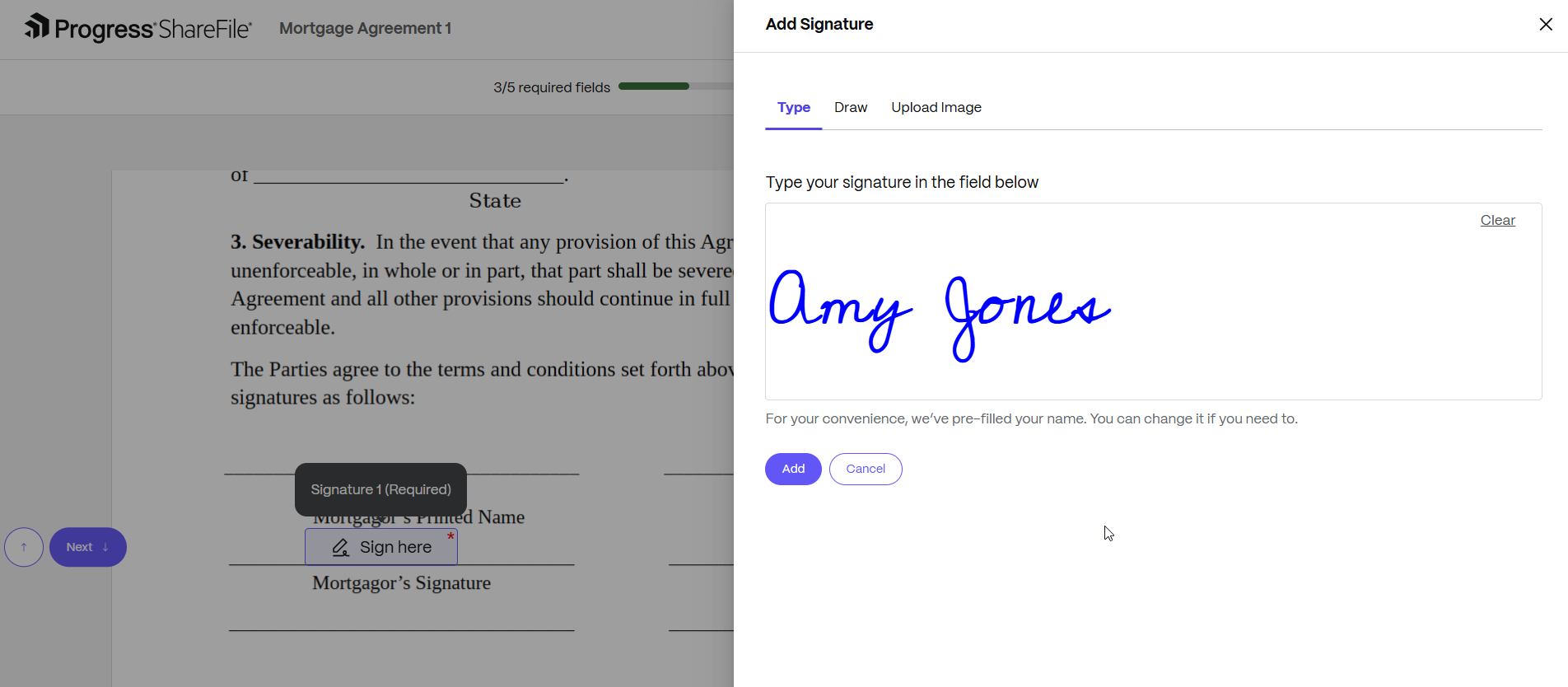
For signature, you have the option to type, draw, or upload an image as a signature.
Note:
For more information, see Upload Image as Signature.
-
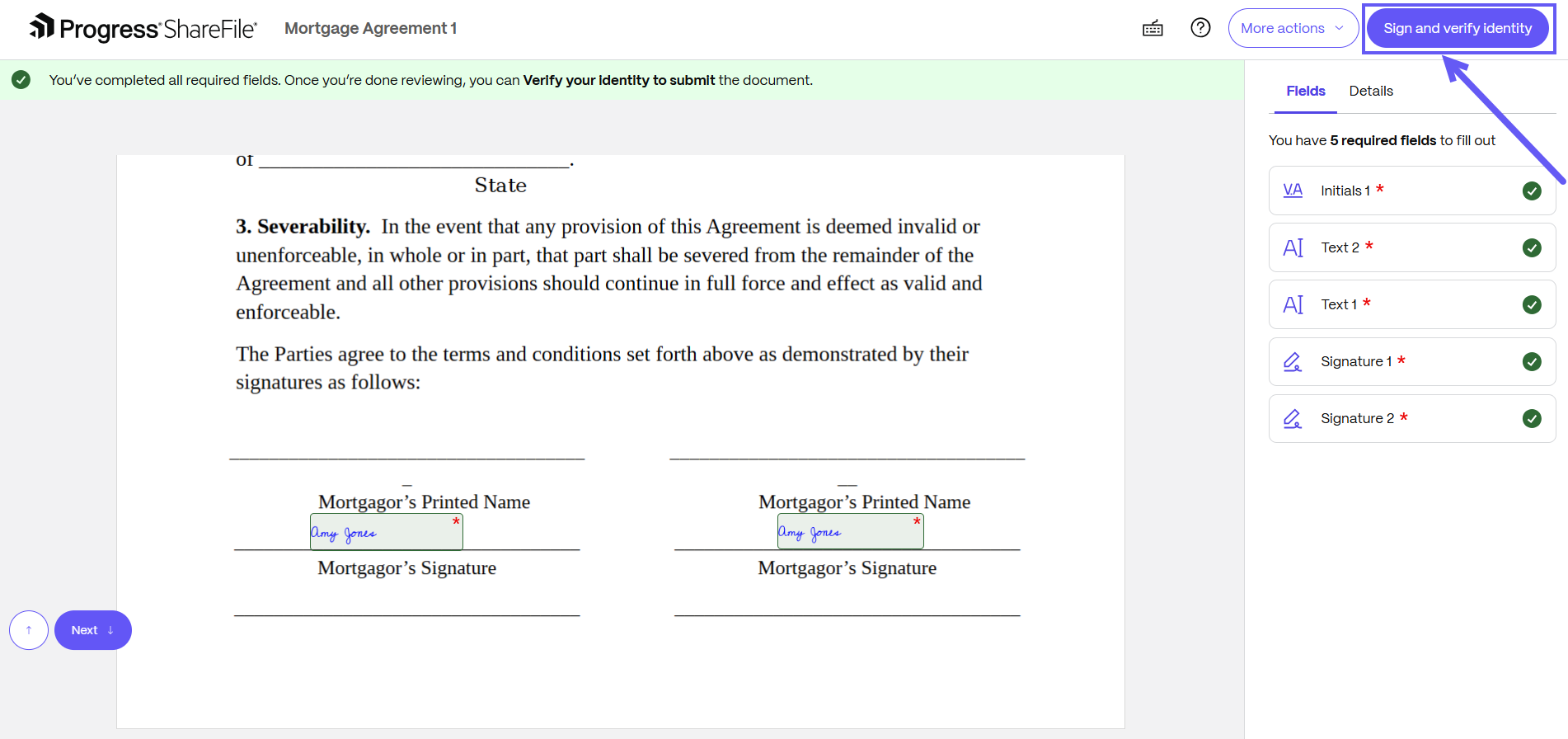
Once all required fields are filled, select Sign and verify Identity to submit the document.
-
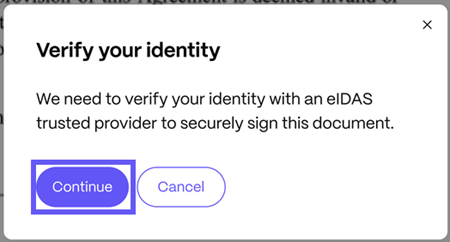
The Verify your identity page is displayed. Click on Continue to identity verification.
-
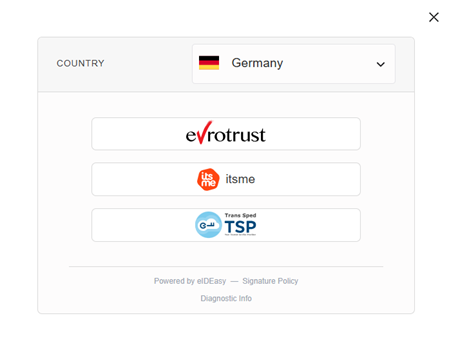
After confirmation, you are redirected to the authentication interface of our integration identity provider.
-
On the next step, select your country and then choose an available authentication method.
-
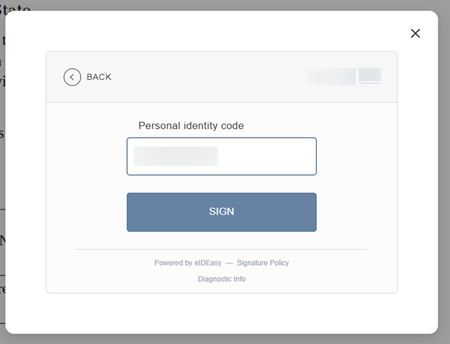
Complete the verification process, and the verification process might vary with the authentication method selected.
-
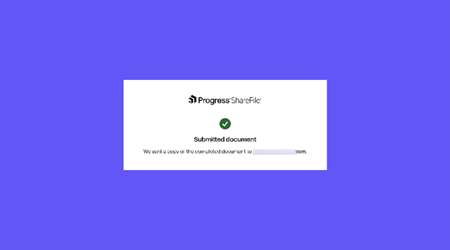
After successful verification, the document is digitally signed, and the following page is displayed.
-
As a signer, you can find the attached Signature Certificate, including the Signature Compliance Level and Authentication Method. Click Download to save your signed document.
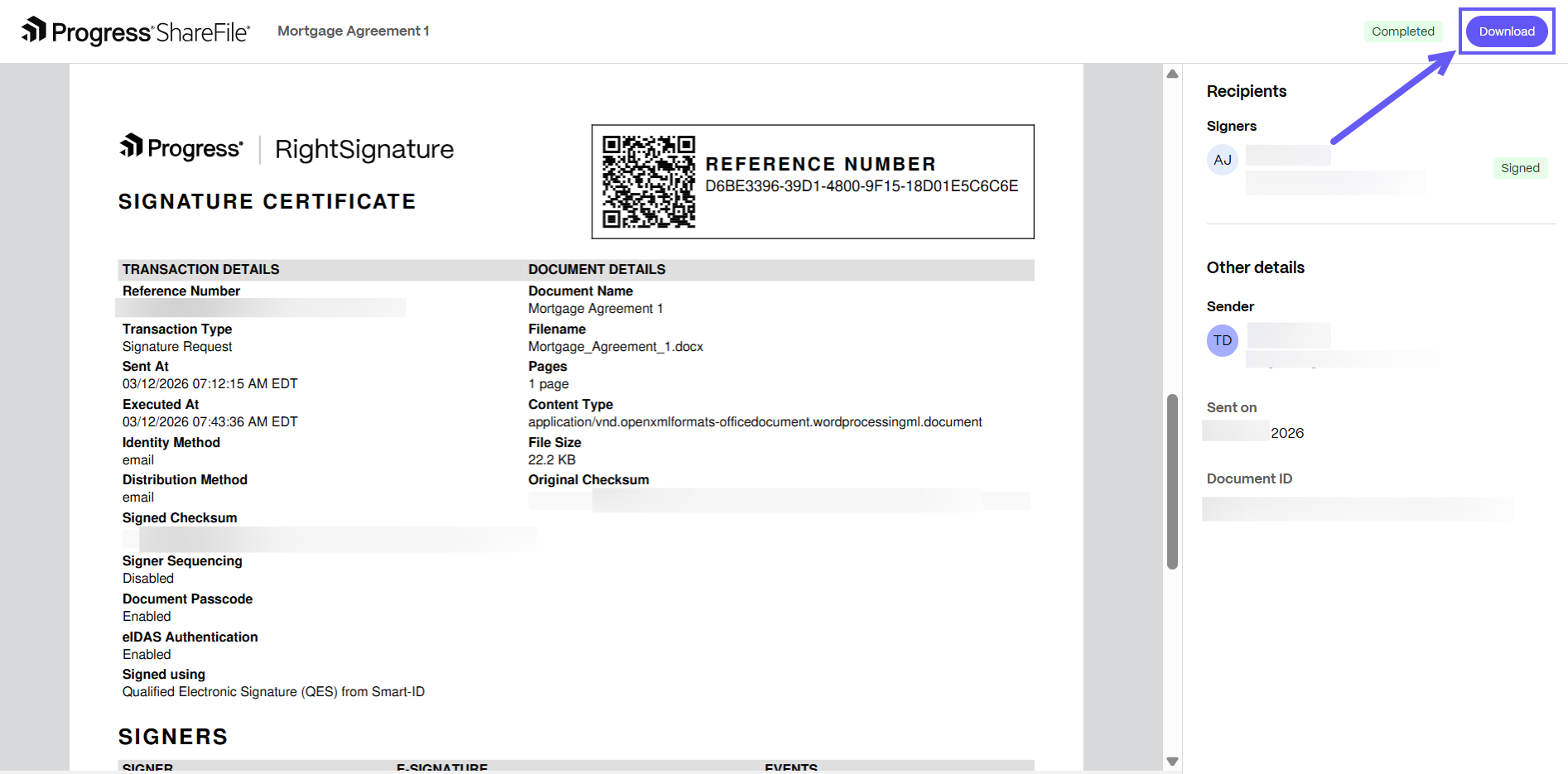
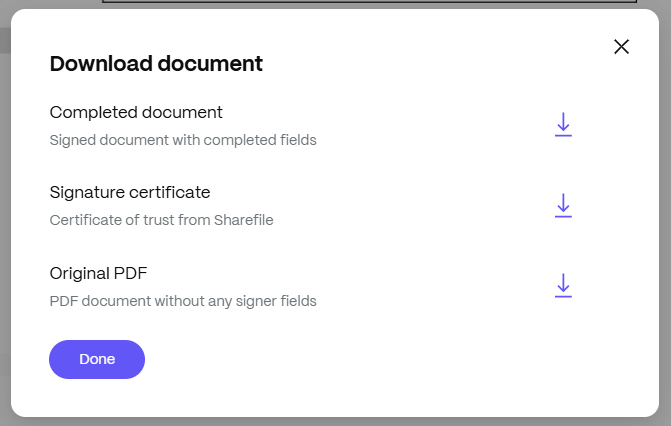
See Download document for more information.
Tips
If a signer stops the authentication process midway, or if the authentication fails, the signer can simply restart the signing process from the email or from the portal.
View eIDAS signature details and audit history - sender
-
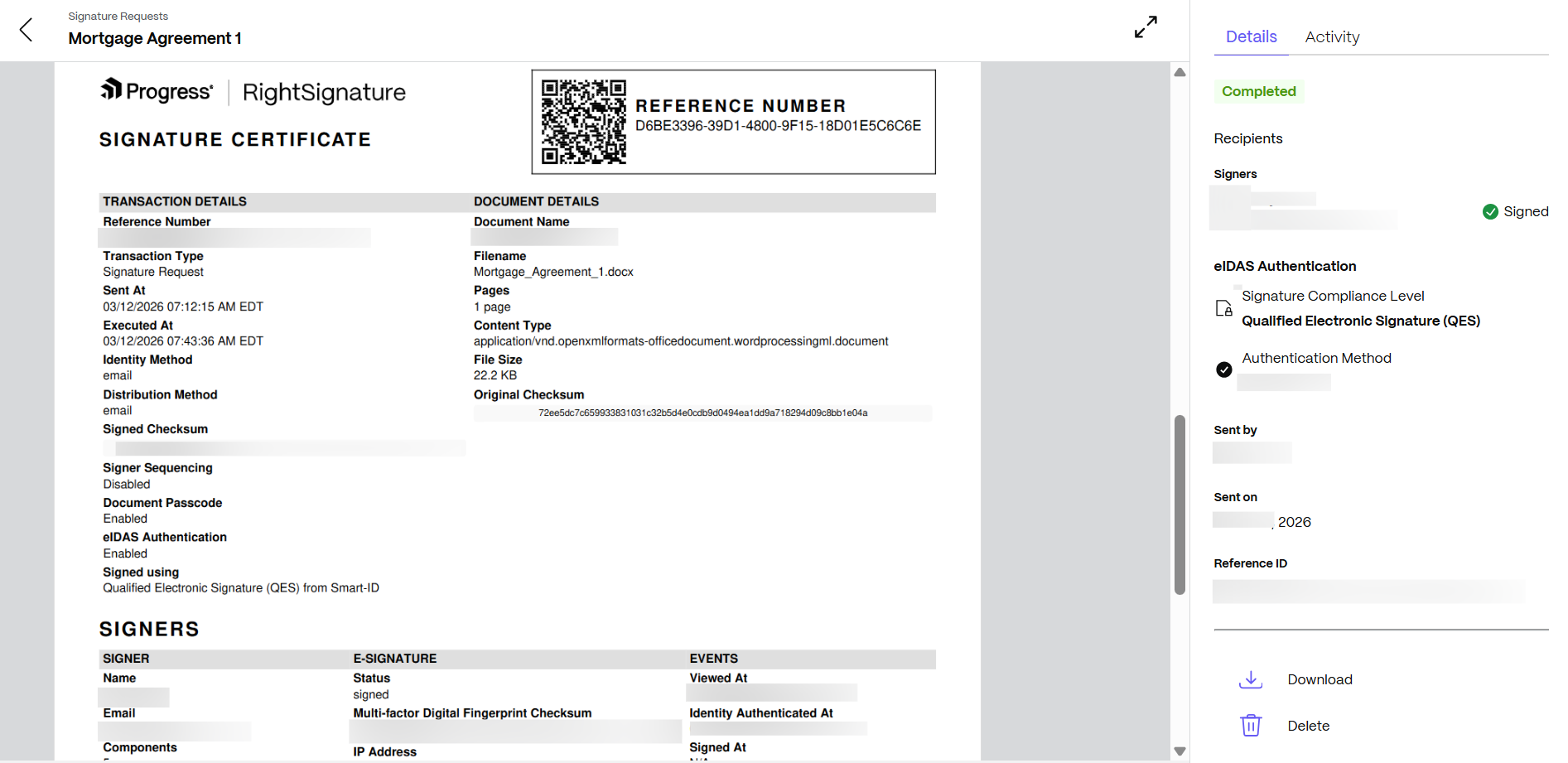
After the document is signed, senders can view authentication details from the signature request.
a. Open the completed signature request.
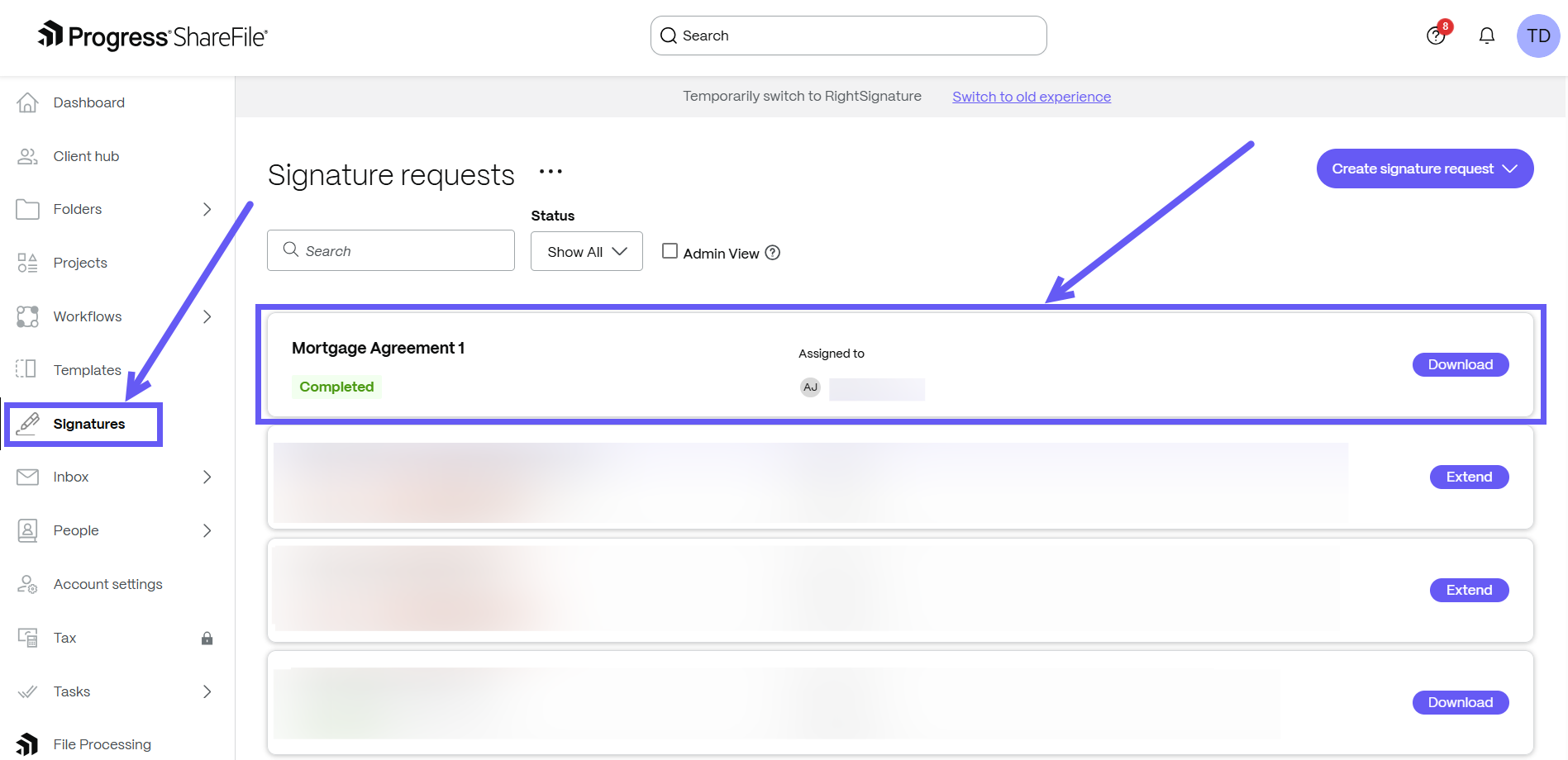
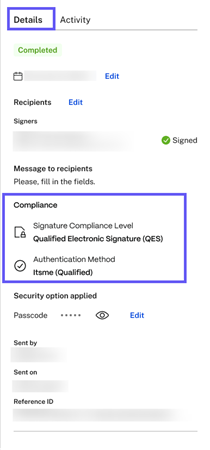
b. Select Details to review the eIDAS Authentication section, which includes:
- Signature Compliance Level (AES or QES)
-
Authentication Method
Note:
These details are also recorded in the audit history and signature certificate.
-
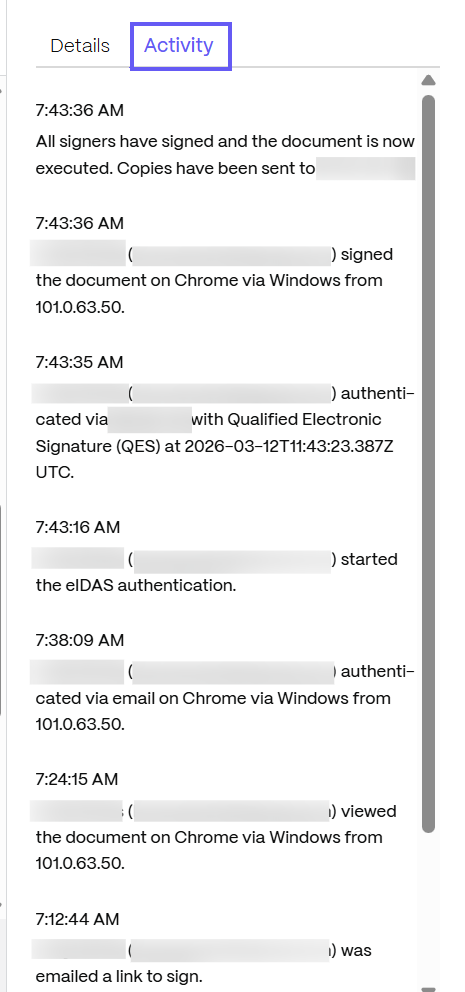
Select Activity to view the Audit history for the signature request.
Authentication limits and requests
For Admins
-
Default limit: Each ShareFile account includes 5 free eIDAS authentications.

-
Remaining authentications: The Send for Signature flow displays the number of remaining eIDAS authentications available for the ShareFile account.

-
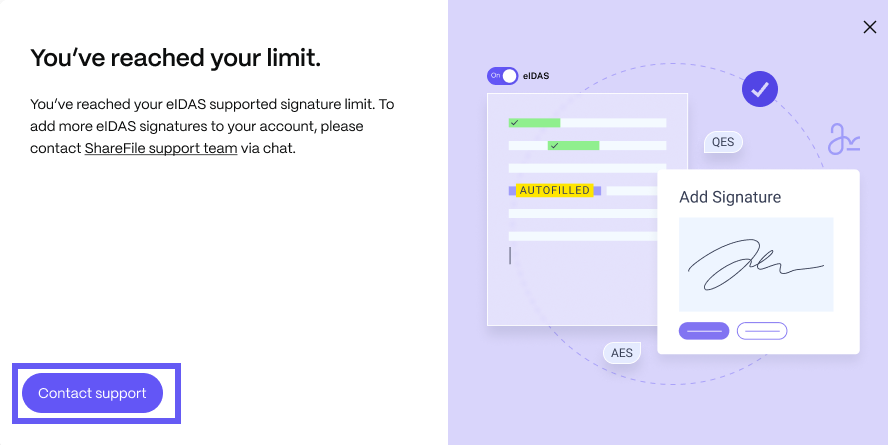
Add more authentications: When the account reaches the eIDAS authentication, select Add more.

-
Increase the limit: To have more eIDAS signatures enabled on your account, please contact support.
For Senders
-
Authentication limit for senders: You can send up to 5 eIDAS-authenticated signature requests per account before the limit is increased.

-
Remaining authentications: The number of remaining eIDAS authentications is displayed as shown below.

-
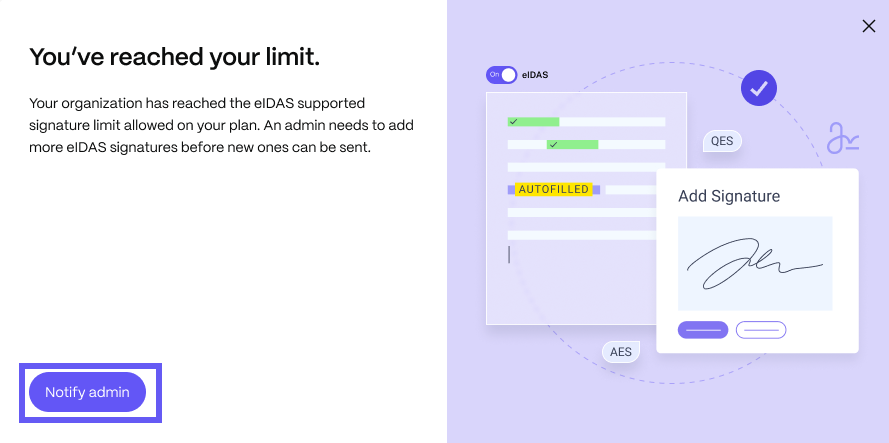
Request additional authentications: Select Request more to notify your admin to enable additional authentications.

-
Notify admin for additional authentications: On the modal screen, select Notify admin to let your admin know that you need more eIDAS authentications.
-
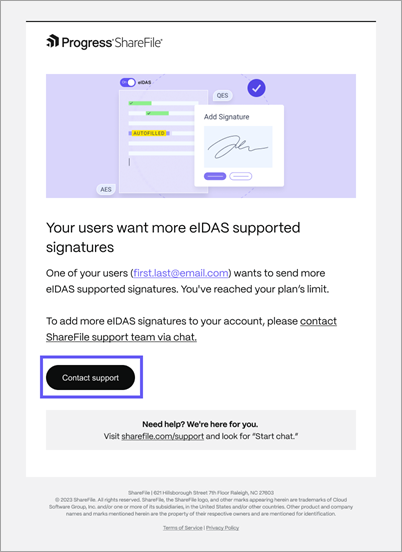
Admin notification: Your admin receives an email notification as shown below. To add more eIDAS signatures to your account, your admin can select Contact support to get in touch with our team to increase the limit.
FAQ
Who can access eIDAS-supported signatures?
eIDAS signature capabilities are available to customers on the following plans (ShareFile Premium, Industry Advantage, and VDR plans) within the EU control plane.
Each eligible account includes 5 free authentications to help teams get started. For additional authentication, please reach out to our Support Team.
Which countries are supported for eIDAS authentication feature?
Signers from across the European Union and the United Kingdom can authenticate themselves using eIDAS-supported methods, supporting organizations in meeting regional identity and signature requirements.
Which authentication providers do we currently support?
The following authentication providers are currently supported:
- A-Trust / ID-Austria
- Denmark MitID
- Estonian Mobile-ID
- Evrotrust
- Finnish ID card
- Latvian eParaksts Mobile
- Latvian ID card
- Lithuanian ID card
- Lithuanian Mobile-ID
- Norwegian Bank ID
- Smart-ID
- Swedish BankID
Are there any limitations in the initial release?
Yes, the first phase of the eIDAS-supported signature feature includes the following limitations:
-
Supported workflows (Sender): eIDAS signatures are only available for signature requests initiated directly within ShareFile. Requests created through Right Signature or other workflows such as - APIs, bulk send, template share links, or web embed — are not supported in this release.
-
Signer experience: eIDAS authentication is supported only in the new signer experience. Signature requests that require eIDAS will automatically use the new interface, and the legacy signer experience is not supported.
If your signers require support for additional authentication providers, please contact us. We are happy to evaluate and expand support based on your needs.
Share
Share
This Preview product documentation is Citrix Confidential.
You agree to hold this documentation confidential pursuant to the terms of your Citrix Beta/Tech Preview Agreement.
The development, release and timing of any features or functionality described in the Preview documentation remains at our sole discretion and are subject to change without notice or consultation.
The documentation is for informational purposes only and is not a commitment, promise or legal obligation to deliver any material, code or functionality and should not be relied upon in making Citrix product purchase decisions.
If you do not agree, select I DO NOT AGREE to exit.